- Xbox Cloud Gaming lets you play Game Pass titles in the cloud from your console, mobile device, browser, and other devices with Game Pass Ultimate.
- A stable internet connection (40–60 Mb/s) and a compatible controller are key to a smooth experience on any platform.
- The new preview web experience introduces a complete interface redesign, which can be improved with direct user feedback.
- Common problems such as not seeing playable games in the app are usually due to an incorrectly selected account, subscription, or cloud section.
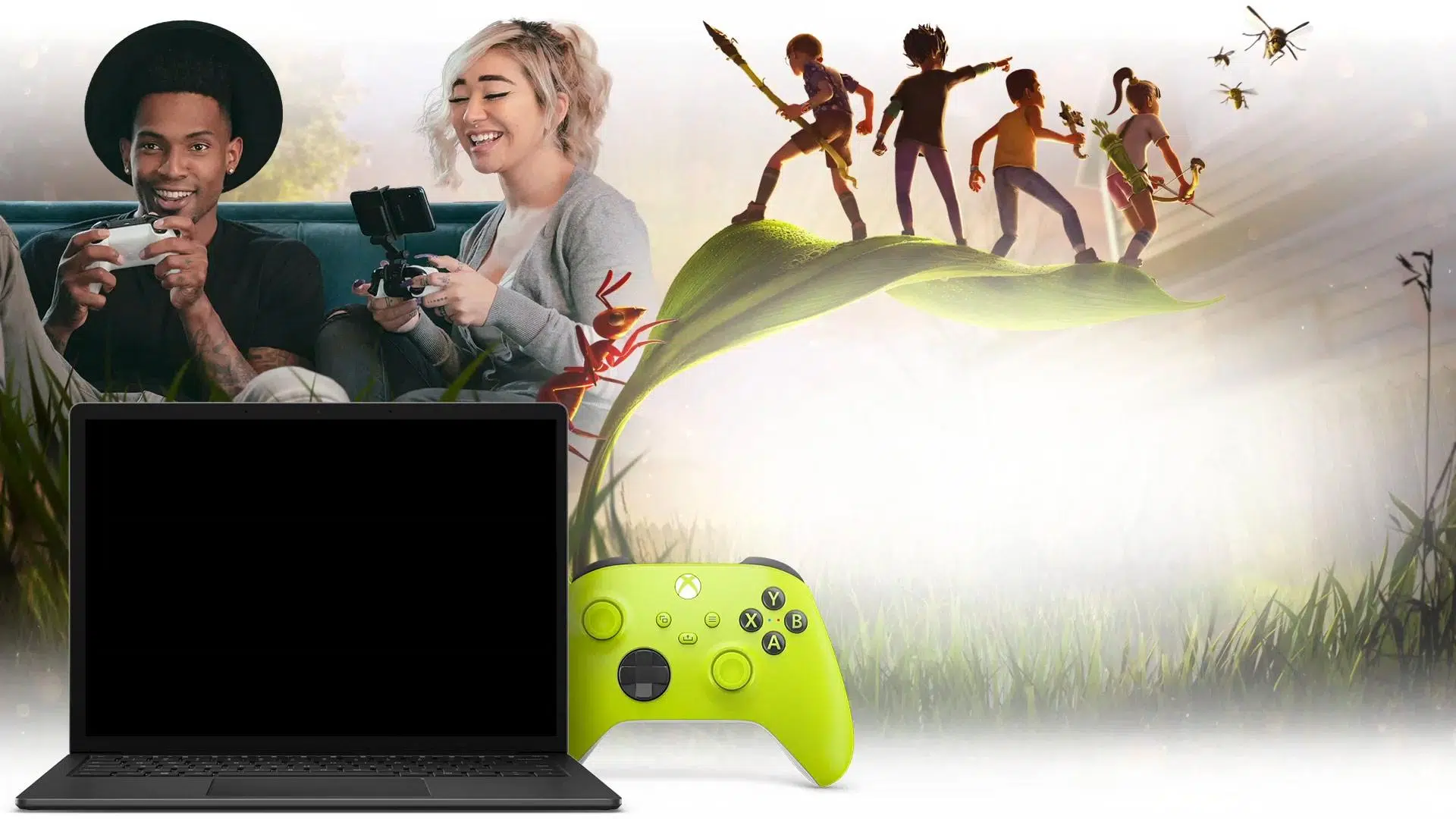
If you're wondering how to use Xbox Cloud Gaming and what you really need to get the most out of it, here you'll find a complete and practical guide . The idea is that, by the time you finish reading, you'll know exactly what it is, how it works, what the requirements are, and how to play on your console, mobile device, browser, TV, or even in virtual reality.
This Microsoft cloud gaming service is integrated into Xbox Game Pass, so you'll see a lot of references to the subscription. Let's go over, step by step, what Xbox Cloud Gaming offers, how to activate it, and how to resolve common questions like why you don't see playable games on your mobile device or how to try the new web experience in preview.
What is Xbox Cloud Gaming and how exactly does it work?
Xbox Cloud Gaming is Microsoft's cloud gaming service, similar to Amazon Luna , that lets you play titles from the Game Pass catalog from virtually any internet-connected device, without needing to install the game locally or have a powerful computer.
Instead of running the game on your console, PC, or mobile device, the title runs on Microsoft servers specifically designed for gaming . These servers handle all the heavy lifting: processing the graphics, physics, artificial intelligence, and streaming the result—the game's image and sound—to you.
From your device, you connect a compatible controller and send your button presses and movements over the internet . The server receives this signal, applies it to the game, and returns what's happening on screen to you in milliseconds. It's like watching a live video, but interactive and with immediate feedback.
With this approach, you no longer depend so much on your mobile phone, tablet, or laptop having powerful graphics capabilities. What's truly important for a smooth experience is having a stable and fast internet connection and choosing good DNS servers , since information is constantly being sent and received between your device and Microsoft's servers.
When you play traditionally, you usually have to install the game on your console, PC, or mobile device, which means two things: the game must be compatible with that platform, and the hardware must be powerful enough to run it. With Xbox Cloud Gaming, those barriers disappear, and you can play many console-designed games without needing a specific version for your mobile device or lightweight PC.
In the specific case of Xbox, this service is included in Xbox Game Pass, and there's an important distinction here: to use Xbox Cloud Gaming, you need an Xbox Game Pass Ultimate subscription . The console or PC Game Pass isn't enough; the Ultimate version is what activates cloud gaming, allowing you to enjoy compatible titles from any supported device.
Imagine you have Game Pass active on your Xbox, but you can't turn on your console right now or you're away from home. With Xbox Cloud Gaming, you can sign in from another device and instantly launch multiple games via streaming . Even if you have your console in front of you, if you just want to try a game quickly before installing the massive files it takes up, you can use the cloud to test it in seconds.
One of the biggest advantages is that you don't need a high-end gaming PC or to wait for a game to be released for PC or mobile. The downside is that you're heavily dependent on your internet connection : if it's slow or unstable, you'll experience buffering, quality drops, or lag in the controls. Microsoft recommends at least 40-60 Mbps download speed for a smooth gaming experience, and even better if the connection is wired or 5 GHz Wi-Fi.
Basic requirements to play with Xbox Cloud Gaming
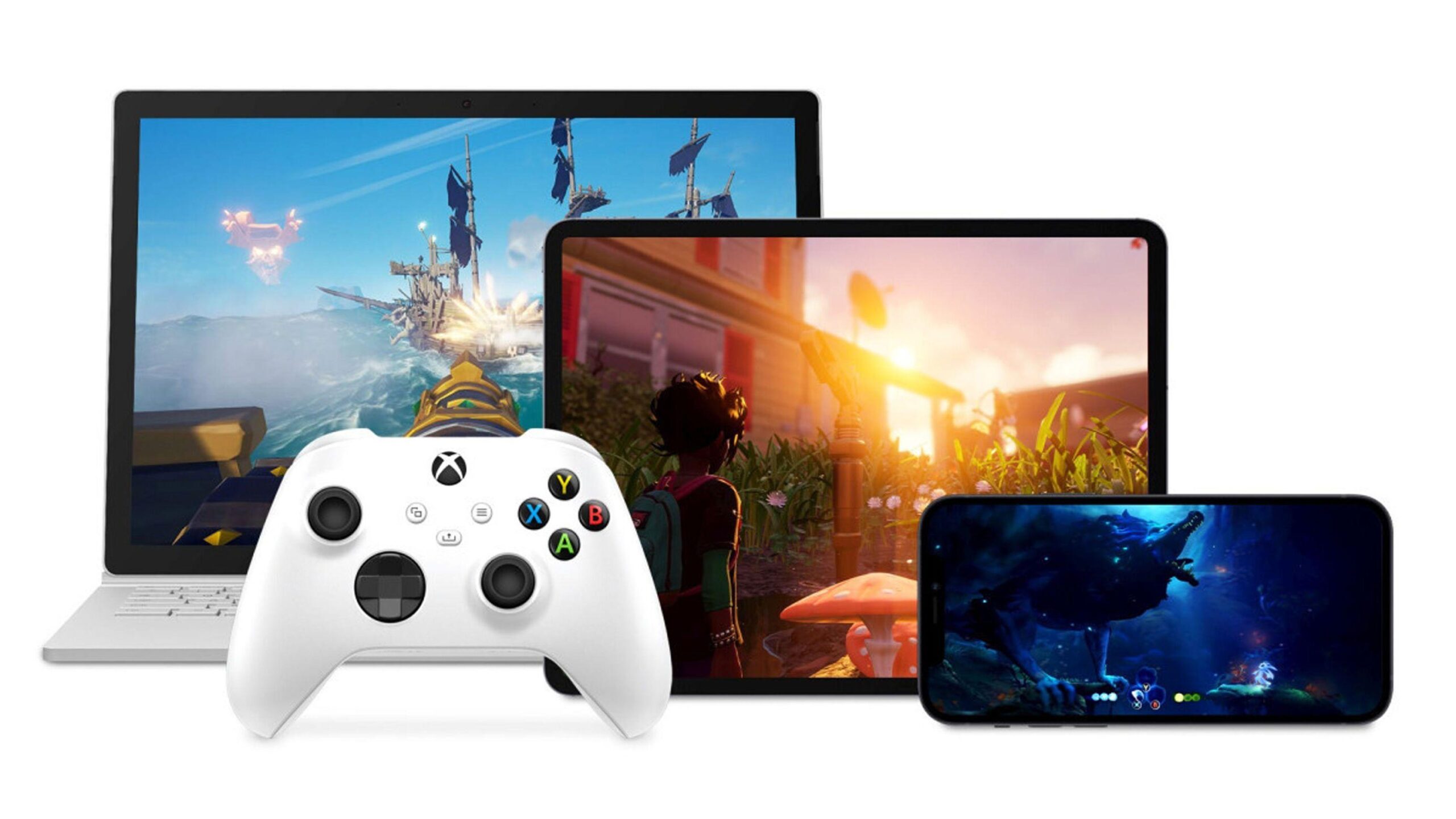
Before diving into the game, it's important to understand the absolute requirements for using the service. While it may seem obvious, many problems arise from not meeting these minimum Xbox Cloud Gaming requirements.
First, you need a subscription: you must have an active Xbox Game Pass Ultimate subscription . Other Game Pass plans do not include cloud gaming. Make sure the Xbox account you're signing in with has an active Ultimate subscription.
Secondly, there's the internet connection. For smooth gameplay, Microsoft recommends a minimum download speed of between 40 and 60 Mbps . Below that, you might be able to play occasionally, but you're more likely to experience stuttering, pixelation, or lag between your controller input and what you see on screen.
The type of connection also matters: where possible, opt for an Ethernet cable or a 5 GHz Wi-Fi network with good coverage . Congested Wi-Fi or weak mobile networks can make a gaming session quite unreliable.
The third key element is the controller. On most devices, Xbox Cloud Gaming requires connecting an Xbox controller or a compatible controller . This is easy on consoles and PCs, but on mobile phones and tablets, you'll need to connect it via Bluetooth or other equivalent methods . In the standard web experience, Microsoft still doesn't allow playing with just a keyboard and mouse for most titles, so a controller remains essential in many cases.
Finally, there's the device itself. You can use an Xbox One, an Xbox Series X|S, an Android phone or tablet, an iPhone or iPad via a browser, a computer with a compatible browser, some Samsung TVs and Amazon Fire TV devices with the Xbox app , or even virtual reality headsets that integrate the application. The game isn't downloaded onto these devices, but they must be modern enough for streaming to work properly.
How to use Xbox Cloud Gaming on your Xbox console
If you have an Xbox One or an Xbox Series X|S, the easiest way to access cloud gaming is directly from your console. The philosophy here is to keep things simple: you manage almost everything through the Xbox Game Pass app or the console's interface.
On your Xbox, open the Xbox Game Pass app. Once inside, browse the catalog until you find a game that interests you. On each title's page, you'll usually see an Install button , and if it's cloud-compatible, you'll also see a Play button or an icon associated with streaming the game.
If you see both buttons, it means you can choose: either install the game on your console in the traditional way, or launch it directly through Xbox Cloud Gaming without downloading anything . This is great for trying out games before taking up disk space or for playing a quick game without waiting for downloads and updates.
The console experience is usually quite stable because, in many cases, the console is connected via cable or to a relatively strong home Wi-Fi network . Even so, if you notice image quality or latency issues, check that your Xbox connection meets the speed and stability requirements mentioned earlier.
An interesting detail is that, even though you're on the console, the game you're seeing isn't running on your machine, but on Microsoft's servers. This means you can enjoy resolutions and quality similar to those of high-end hardware even if your Xbox One is an older model, as long as your connection is stable.
How to play Xbox Cloud Gaming on Android phones and tablets
If you want to use your Android phone or tablet as a portable screen for your Xbox games, the first thing you need to do is install the Xbox Game Pass app , available on both Google Play and the Galaxy Store for Samsung devices. This is the main gateway to cloud gaming on Android.
Once the app is installed, sign in with the same Xbox account that has an active Game Pass Ultimate subscription . If you use a different account or one without a subscription, you won't see the cloud gaming options or the titles marked as compatible.
Within the app, you'll find a specific section dedicated to cloud-based games. These are usually identified by an icon associated with game streaming or a clear label indicating they can be played directly from the cloud . From there, you'll see a list of titles with a Play button that will allow you to connect to the server and start playing.
Keep in mind that many games require a controller connected to your phone. An Xbox controller paired via Bluetooth is the most common , but other compatible controllers may also work. Without a controller, the app may not allow you to launch some games, or the experience may be limited.
If you're experiencing the same issue as many other users—opening the Xbox app on Android and only seeing the option to install games on your console but missing the cloud gaming button—check these key points: confirm you have an Ultimate subscription, that you're in the cloud gaming section, and that your app is up to date . Sometimes the menu layout also changes, so take a good look at the Home, Library, and Cloud tabs.
Another very convenient way to enjoy Xbox Cloud Gaming is through a modern web browser, on both computers and Apple devices. To do this, you need to access the official Xbox cloud gaming page at xbox.com/play (in Spain, it usually redirects to xbox.com/es-ES/play).
When you access that website from a compatible browser, click on "Sign in" and enter your Xbox account with Game Pass Ultimate . Once logged in, you'll see an interface with the catalog of games that can be played from the cloud, as well as recommendations and access to your library.
To play, simply click on the game you're interested in and press its Play button. The service will load the streaming client, and in a few seconds you'll be in the game, with no installation or download required. However, in most cases you'll also need an Xbox controller or compatible controller connected to your device , either by cable or Bluetooth.
Currently, support for playing with a keyboard and mouse directly in the standard browser experience is very limited or nonexistent in most cloud games. Microsoft continues to focus Xbox Cloud Gaming primarily on traditional controllers , and that's the best way to ensure compatibility.
This browser-based method is especially convenient for Mac, iPhone, or iPad users, as they don't need to install a native Xbox Game Pass app . With just the right browser, a good internet connection, and a compatible controller, you can transform your Apple device into a screen for your Xbox games.
New Xbox Cloud Gaming web experience in preview
Microsoft is working on a new web experience for Xbox Cloud Gaming , a complete redesign of the browser interface that is currently in public preview. This new version will coexist with the current one for a while, and the goal is to test design, navigation, and user flow changes before rolling it out to everyone.
This redesign will serve as the foundation for future features and improvements related to cloud gaming in browsers . Therefore, the company wants to gather as much feedback as possible from players: what they like, what they don't like, what they miss, and what doesn't work well.
The preview version doesn't yet replace the classic xbox.com/play website; instead, it's integrated as an alternative experience that can be toggled on or off. When using this version, it's normal for some features to be unavailable or not function exactly the same as on the traditional website, as it's still under development.
To try this new interface, you don't need to install anything; it's all done through your browser. Go to xbox.com/play in a compatible browser, sign in with your Xbox account, and then go to Settings . There you'll see a switch called Preview Features (or a similar option), which you should turn on.
After checking the preview box, the new experience may take up to ten minutes to activate. If you don't see any changes, signing out and signing back in usually speeds up the process . You can return to the classic experience at any time by simply going back to xbox.com/play without keeping the preview option enabled.
How to send feedback to Microsoft about Xbox Cloud Gaming
One of the strengths of this testing phase for the new website is that Microsoft is strongly encouraging players to provide feedback. All the feedback gathered will be used to refine details and prioritize improvements before the general launch of the new interface.
From the Xbox Cloud Gaming website itself, you have two main channels to submit your feedback or report bugs. The first is through your profile: click the user icon in the upper right corner and select the "Give Feedback" option (or its equivalent in your language). From there, you can fill out a form with your feedback on the experience.
The second option is through the Xbox web guide. In the browser version, you can open the guide using the Xbox icon in the top left corner of the screen (or the Xbox button on your controller, if it's connected). Within the guide, you'll also find the "Give Feedback" option to submit your comments.
Microsoft states that all feedback submitted during this preview phase will be considered when refining the platform. This means that regular Xbox Cloud Gaming users can significantly influence the future of the service , particularly regarding the browser interface.
Play Xbox Cloud Gaming on TVs and other devices
Beyond consoles, mobile devices, and computer browsers, Xbox Cloud Gaming is also coming to other formats. On some Samsung TV models and Amazon Fire TV devices, you can install the Xbox app specifically designed for TV , which turns your television into a kind of cloud-based console.
With that app installed, simply log in with your Xbox Game Pass Ultimate account, connect a compatible controller to your TV or Fire TV device, and stream games directly to the big screen without needing a physical Xbox connected.
Additionally, some virtual reality headsets include the Xbox app or allow access to the service through a compatible browser. In these cases, with proper configuration, it's possible to use virtual reality as a giant screen to play games from the cloud-based catalog , although the experience will depend heavily on the headset model and the stability of the wireless connection.
These formats greatly expand the range of where you can play: practically anywhere you have a compatible screen, a controller and a decent network, you can turn it into an access point for your Game Pass games without having to move the console around.
Common problems: Cloud games do not appear in the app
A very common question among users is something like: “I have an Ultimate subscription and the Xbox app on my Android phone, but when I look at the games in my app, I only see the option to install them on the console. I don't see any that can be played directly on the phone. What am I doing wrong? ”
If this happens to you, the problem is usually one of these points: either you are not in the correct app (Xbox Game Pass vs. the regular Xbox app) , or you have not activated the cloud gaming tab, or there is a problem with the account that has the Ultimate subscription.
First, make sure you have the Xbox Game Pass app installed and updated, not just the generic "Xbox" app. The Game Pass app best integrates the cloud gaming section and clearly shows which titles can be streamed.
Next, make sure you're signed in with the same account linked to your Xbox Game Pass Ultimate subscription. Sometimes a new account is created accidentally or the wrong email address is used, which can cause confusion in the app. If you need to change your Microsoft account, follow the steps to link the correct one.
Finally, look for the specific "Cloud" or "Cloud Gaming" section within the app. It doesn't always appear on the main screen, but it's usually clearly marked. From there, you should see a list of games that, instead of just offering "Install," display a "Play" button directly on your Android device.
If after checking all of this the option to play in the cloud still does not appear, it may be a temporary problem with the app or a regional limitation, so it usually helps to sign out, clear cache, reinstall the application and try again, or check if all the functionality of Xbox Cloud Gaming is already enabled in your country.
Xbox Cloud Gaming has become a very convenient gateway to the Game Pass catalog from almost any screen: console, mobile, browser, TV, or even virtual reality. Assuming you have a Game Pass Ultimate subscription, a good 40-60 Mbps internet connection, a compatible controller, and are using the correct apps or website , you can jump from device to device without worrying about installations or your hardware's power, taking full advantage of the flexibility of cloud gaming, which Microsoft is constantly refining with updates and player feedback.

Table of Contents
- 1 What is Xbox Cloud Gaming and how exactly does it work?
- 2 Basic requirements to play with Xbox Cloud Gaming
- 3 How to use Xbox Cloud Gaming on your Xbox console
- 4 How to play Xbox Cloud Gaming on Android phones and tablets
- 5 How to play Xbox Cloud Gaming from your browser
- 6 New Xbox Cloud Gaming web experience in preview
- 7 How to send feedback to Microsoft about Xbox Cloud Gaming
- 8 Play Xbox Cloud Gaming on TVs and other devices
- 9 Common problems: Cloud games do not appear in the app