- Advanced AI integration with Copilot to optimize prompt creation through auto-completion.
- Productive organization tools such as Collections, tab groups, and immersive reading.
- Full customization capabilities, including the use of Chrome extensions and system resource management.
- Integrated features for handling PDFs, advanced web captures, and cross-platform synchronization.

If you ever thought Microsoft Edge was simply the successor to the infamous Internet Explorer, prepare to be surprised. This browser, now based on the Chromium architecture, has evolved into a powerful tool that competes head-to-head with Chrome , offering incredible speed and unbeatable integration with the Windows ecosystem.
The best part is that Edge hides a ton of tricks and options that aren't enabled by default or are tucked away in the menus. From boosting your productivity with AI to managing your tabs like a pro, we're going to break down every corner of this software so you can get the most out of it and stop overlooking features that would make your life so much easier.

Master Artificial Intelligence and Copilot
One of Edge's current gems is its integration with Copilot. Its prompt auto-completion feature is a real boon for content creators. Essentially, as you type your request in the chat, the browser suggests words or phrases to make the result much more precise and professional.
To get the most out of it, you can try different terms; for example, if you mention that you need a use case for the Marketing, Legal, or Human Resources departments , Edge will suggest contextual ideas. When you see that the suggestion is correct, just press the Tab key to accept it and continue generating ideas without having to rack your brain thinking of every word.
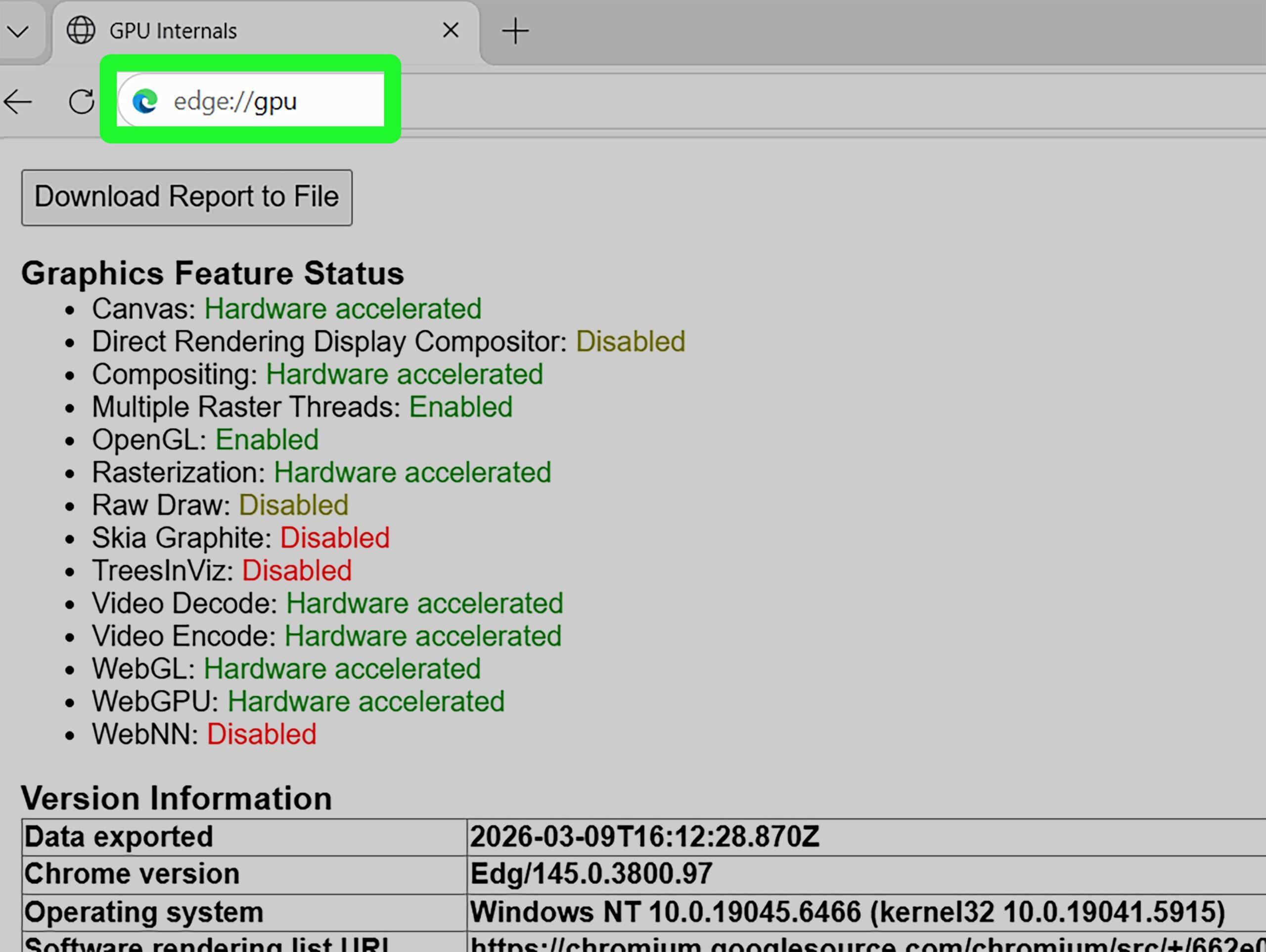
Edge is incredibly flexible. If you're coming from Google, you'll be happy to know that you can easily install Chrome extensions . Just go to the extensions menu and check the box to allow apps from other stores to access the Chrome Web Store. And if you're not a fan of Bing, you can change your default search engine in the Privacy and Services section of the settings.

In terms of aesthetics, dark mode is essential to avoid straining your eyes at the end of the day. You can sync it with your operating system or select it manually in the Appearance section. Here you can also adjust the font and font size , as well as choose which buttons you want to appear in the top bar to clean up the interface.
The new tab page is also fully customizable. From the gear icon, you can remove the news feed, change the daily background image , or manage your quick links for direct access to your favorite websites.
Productivity Tips and Tab Management
If you're someone who has fifty tabs open at the same time, Edge has some great tools. You can pin important tabs so they stay fixed on the left and take up less space. You can also close all the tabs to the right of the current one or close all but the one you're using, thus avoiding visual clutter.
For a more advanced organization, there are the tab groupsAlthough sometimes they require activation via "flags" (searching for edge://flags/#tab-groups), allow you to group websites by colors and names, ideal for separating work from leisure. And if you accidentally close something, remember that Control + Shift + T It instantly returns the last closed tab.

Another quick trick is using numeric shortcuts : pressing Control and a number from 1 to 9 will jump directly to the corresponding tab. If you need to move several at once, hold down Control while clicking on them and then drag the entire group to a new window.
Exclusive Features and Advanced Tools
- Collections: It's like a built-in Pinterest board. It lets you save links, images, and notes organized by topic, which you can then... Export directly to Word or Excel.
- Immersive Reader and Voice: If you want to read an article without ads or distractions, reader mode is key. You can also activate the option to read the web aloud with very realistic natural voices.
- Smart Copy: This function maintains the original formatting (tables, charts, etc.) when pasting content into a document, preventing the information from becoming disorganized.
- Web Capture: Forget traditional screenshots. With Ctrl + Shift + S You can capture just one area or scroll through the entire webpage.
For the more technically inclined, developer mode allows you to load custom scripts, while the process manager (Shift + Escape) lets you see which tab is consuming the most RAM or CPU so you can close it if your computer starts to run slowly.
Privacy, Connectivity and PDF
In terms of security, Edge offers a tracker blocker with three levels of intensity. In strict mode, most third-party trackers are removed, although some websites may still cause problems. Managing location, camera, and microphone permissions is also very easy from the site settings.
Mobile integration is another strong point. You can send pages from your Android or iPhone to your PC almost instantly. For Android users, the "Your Phone" app facilitates this. You can even turn any website into a Progressive Web App (PWA) , which will open in a separate window without the address bar.
Finally, Edge's PDF reader is surprisingly capable. It allows you to underline, highlight text with colors, and make freehand annotations, making it a very powerful study tool without the need to install any external software.
This browser has gone from being a necessary option to a smart choice thanks to its ability to optimize browsing and data management . By combining Chromium compatibility with native Microsoft tools, users gain an environment where productivity and personalization are paramount, enabling everything from AI-powered prompt automation to comprehensive control of system resources.