- Microsoft has integrated app recommendations from the Store into the Start menu and other areas of the system.
- It is possible to disable most of these intrusions through the customization and privacy settings in the control panel.
- There are open-source tools and advanced network configurations to achieve total ad blocking.
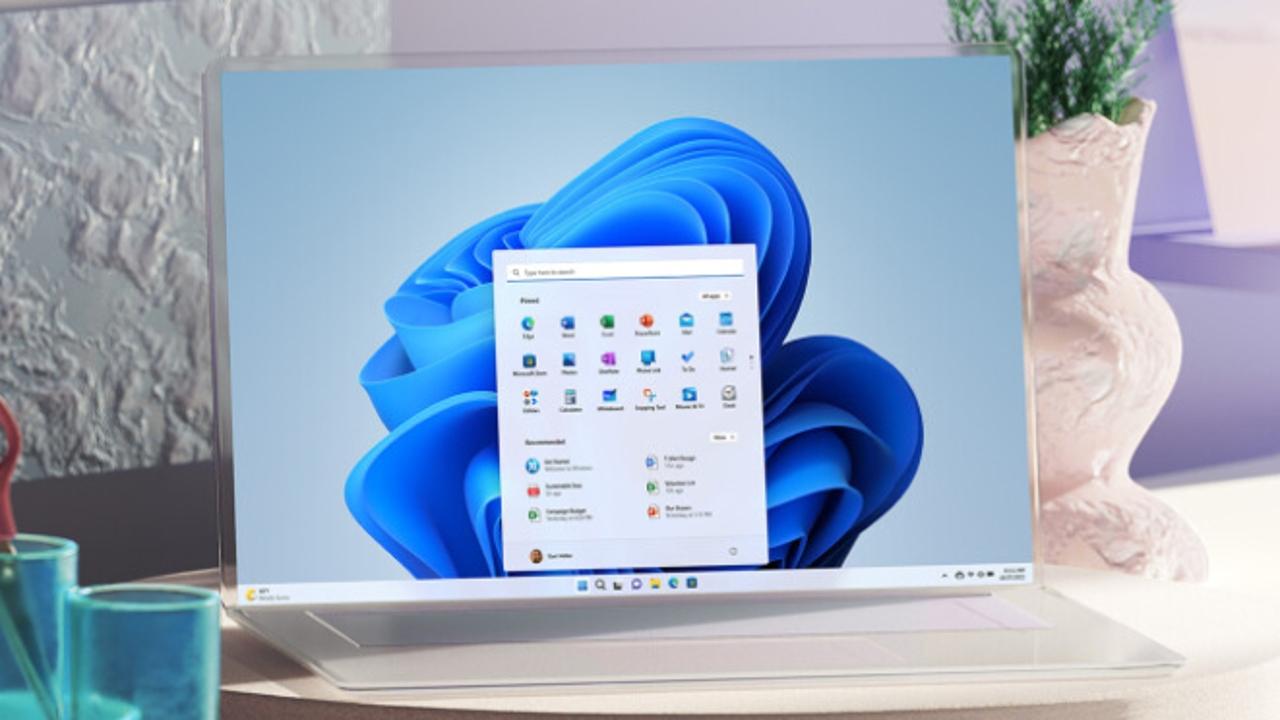
You've probably noticed that your computer has started behaving like a mobile phone bombarded with spam. It turns out Microsoft has decided to tamper with the user experience and has begun inserting what they call "recommendations," but which, to any normal person, are intrusive ads in Windows 11 and also in version 10, especially after the rollout of patch KB5036980.
It's truly annoying to find ads in the Start menu, right where your favorite programs should be. This strategy aims to encourage us to discover apps from the Microsoft Store, but it often feels like an invasion of privacy and a visual nuisance that shouldn't be on a paid operating system. Luckily, you don't have to put up with this visual clutter, as there are ways to get rid of them.

Manual steps to clean the advertising system
If you don't want to install anything unusual, you can start with the built-in settings. The most annoying thing is usually the Start menu. To fix it, go to Settings, then Personalization, and then Start. There you'll see a switch called "Show recommendations, app promotions, and more" ; turn it off and you'll see those unwanted suggestions disappear.
But it doesn't end there, because Microsoft is very persistent. To further clean up your system, I recommend following these additional steps:
- Notifications and Actions: Look for this section in the settings and, within "Additional settings", uncheck the three boxes that suggest tricks or tips.
- Lock screen: It's very common to see interesting facts that are actually advertisements. Disable the option to "Show interesting facts, recommendations and tips" in the lock screen settings.
- Privacy: In the Privacy Settings menu, there are a couple of checkboxes related to the tracking and targeted advertising which you should uncheck so that the system stops analyzing your behavior.
- File Browser: If you see strange things in your folders, click on the three dots at the top, go to "View" and disable the integrated advertising option.
Also, keep in mind that many apps use notifications to send you offers. If you find this unbearable, you can manage notifications in Windows to silence those that are misbehaving, or, if you're more drastic, disable them all.
OFGB: The ultimate tool against ads
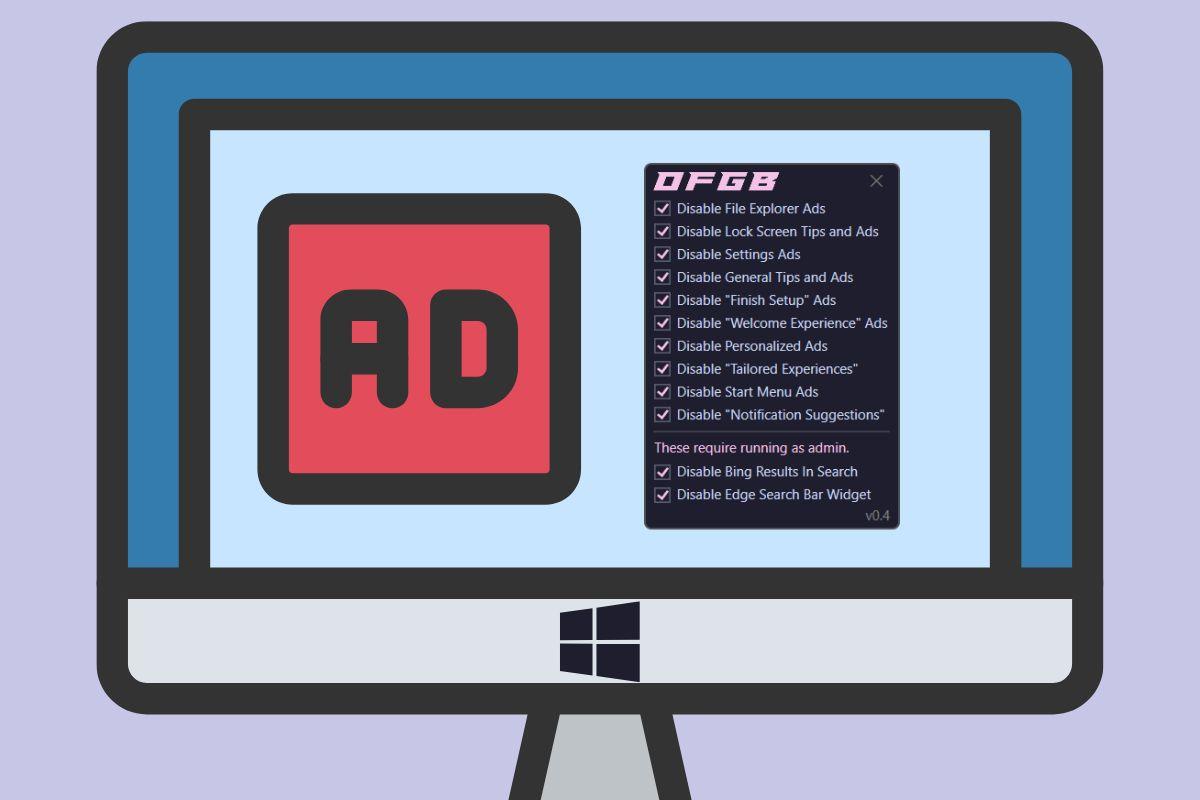
If navigating through menus is too cumbersome, there's an open-source gem called OFGB . This application is essentially a control center that consolidates all of Windows 11's advertising settings into a single window. Instead of searching through the system, you simply check a box, and the app automatically hides Microsoft ads .
To get started, you need to download the executable from its GitHub repository. If you have an ARM processor, choose that version; for everyone else, the OFGB.exe file is the one to use. Microsoft's SmartScreen filter might pop up when you open it because the developer isn't a multi-million dollar company, but simply click "More info" and then "Run anyway."
Once inside, simply select the items you want to block. The best part is that the changes are applied instantly, without needing to save. You can even use it to remove Bing search from the Start menu, something that often frustrates users who prefer to search only for local files.
Additional blocking on the web and traffic
Even if you clean your operating system, ads will still reach you through your browser. To complete the security circle, you can use the Brave browser , which comes with a very powerful built-in ad blocker, or install the uBlock Origin extension (or uBlock Lite in Chrome and Edge), which is the ultimate solution for browsing without annoying banners.
If you want to go a step further, you can configure AdGuard DNS . Unlike extensions, this works at the network level, preventing your computer from resolving domains that serve ads. It's an extra layer of protection that helps block malicious sites and advertising, even in applications that don't support extensions.
To make your Windows 11 completely distraction-free, the ideal solution is to combine disabling recommendations in the Start menu, using tools like OFGB for deep settings, and a good DNS blocker or browser extensions, thus achieving a smooth user experience without constant intrusions.
