- Windows 11 introduces a deep redesign of the Start menu, taskbar and interface, along with Snap Layouts, improved virtual desktops and smart widgets.
- The latest versions are heavily invested in AI with Copilot, Bing Chat and advanced features in Photos, Paint and Explorer, supported by modern hardware and NPU.
- Requirements and security are tightened with TPM 2.0, UEFI, improved encryption, Rust in the kernel and removal of obsolete components, while backup and management are strengthened.
- The overall experience improves in connectivity, gaming, productivity, and PowerToys, although criticisms persist regarding gaming performance, privacy, and some hardware limitations.
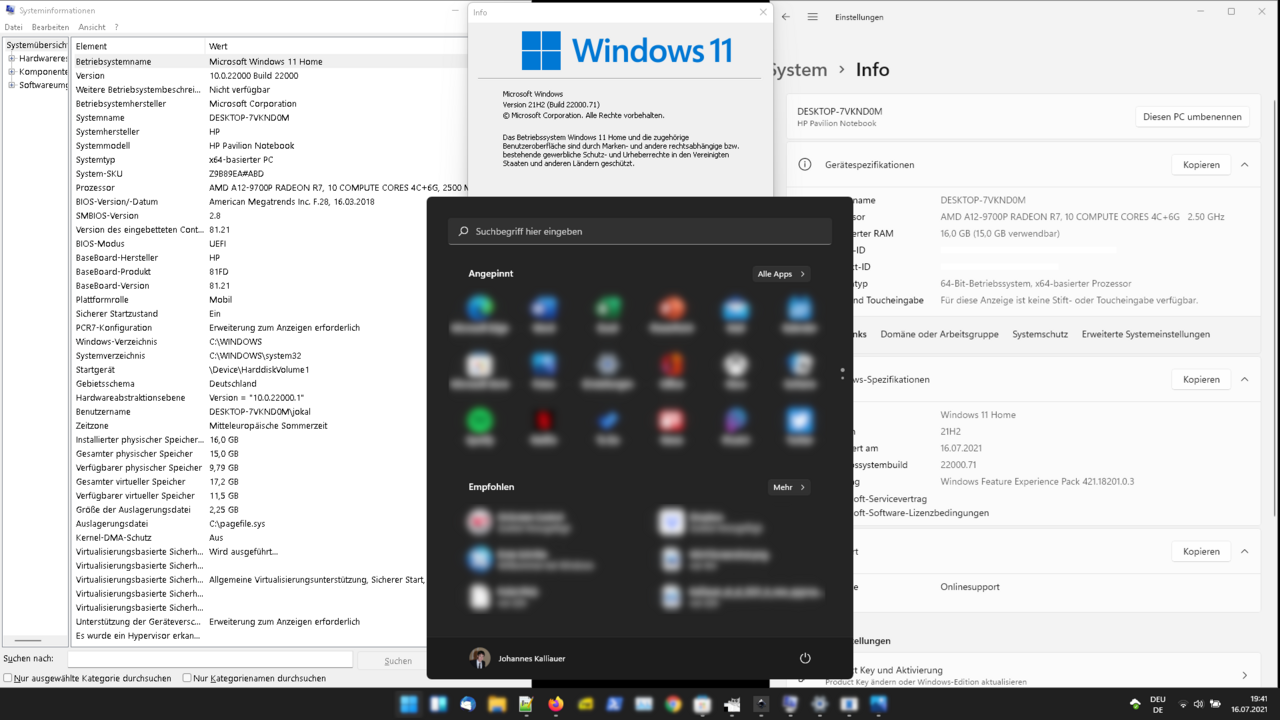
Windows 11 has become much more than a simple facelift of Windows 10. It's a platform that Microsoft has been refining version after version (21H2, 22H2, 23H2, 24H2, 25H2…) with improvements in design, productivity, security, accessibility, and, of course, a strong focus on artificial intelligence. If you're coming from Windows 10 or an early version of Windows 11, the accumulated changes can be overwhelming.
This guide brings together and explains all the important changes in Windows 11 : from the new Start menu, the integration of Copilot and Bing with ChatGPT, hardware requirements (TPM 2.0, UEFI, compatible CPUs), new security and gaming features, to more specific functions like new shortcuts, voice dictation, PowerToys, and running Android apps. It's all in Spanish (Spain), with a direct and practical tone so you know what's changed and how it affects you.
What exactly is Windows 11 and how has it evolved?
Windows 11 is the latest version of Microsoft's operating system and the direct successor to Windows 10. It was officially released on October 5, 2021, as a free upgrade for Windows 10 PCs that met significantly stricter minimum hardware requirements than previous generations: 64-bit only, UEFI with Secure Boot, TPM 2.0, and relatively modern CPUs (8th generation Intel Core and later, AMD Ryzen based on Zen+ or higher, and recent ARM Snapdragon SoCs).
The system relies heavily on the work done on Windows 10X , a canceled project that left behind a new centered Start menu, a reorganized taskbar, a Widgets panel, and a much more cohesive and modern design with rounded edges, transparencies (Mica), updated icons, a new color palette, and refreshed sounds. Furthermore, Internet Explorer has been completely removed in favor of Microsoft Edge, and the Teams experience is integrated directly into the shell.
Microsoft has been releasing major Windows 11 updates in the form of versions (21H2, 22H2, 23H2, 24H2, 25H2…) and “Moments” (feature packages activated by cumulative updates). Version 25H2, for example, is distributed as an enablement package for those already on 24H2, activating new features focused on AI, security, and user experience refinement at once, without requiring a full system reinstallation.
Windows 11 focuses on combining productivity, creativity, and hybrid work : it integrates Microsoft 365, Xbox, the cloud, and Android app compatibility through the Amazon Appstore and the Windows Subsystem for Android (WSA). At the same time, it strengthens security with technologies such as VBS, HVCI, BitLocker, Personal Data Encryption (PDE), and more extensive use of secure hardware (TPM 2.0, Secure Boot, Stack Protection, etc.).
Key interface and user experience updates
The most visible change in Windows 11 is the new Start menu , now centered on the taskbar (although you can move it to the left if you prefer). The dynamic tiles of Windows 8/10 are gone, replaced by a clean panel with pinned apps at the top and recommendations (recent documents and applications) at the bottom. A button displays the full list of programs, and the search field still works as before: press the Windows key and start typing.
This new Start screen is fully customizable : you can pin or unpin apps, rearrange them by dragging with your mouse, and configure what kind of additional content is displayed. In Settings > Personalization > Start , you choose whether you want to see frequently used apps, recently added items, or recently opened files. Additionally, in the Folders section , you decide which shortcuts appear next to the power button (Settings, Explorer, Documents, etc.).
The taskbar's behavior has also changed . By default, icons are centered, the system tray groups network, sound, battery, and quick actions (Win + A) controls differently, and the notification area now opens with Win + N or by clicking the date and time. Context menus have been simplified, but in return, classic features have been removed: you can no longer move the taskbar to other edges, it doesn't support certain third-party components, and windows are always grouped together.
The overall design is much more consistent than in Windows 10. Microsoft has unified fonts (Segoe UI in a variable version), system icons, dialog boxes (such as low battery alerts), and modernized floating menus and File Explorer. File Explorer abandons the Ribbon in favor of a more compact toolbar, and context menus at the top integrate basic actions (copy, paste, rename, share, delete), leaving the rest in a "Show more options" section that opens the classic menu.
New productivity features: Snap, desktops, widgets, and focus
One of Windows 11's greatest strengths for improved workflow is the new Snap Layouts . Hovering over the maximize button of any window displays Snap Layouts , offering various screen layouts: half/half, third/two-thirds, four-part grid, and more. Grouping multiple windows into a single layout creates a Snap Group , which you can minimize and restore as a single unit from the taskbar.
Virtual desktops have improved significantly . Pressing Windows + Tab opens Task View, where you can create multiple desktops, rename them, rearrange them, and even assign each one a different wallpaper for easy identification. You can also move windows between desktops by dragging their thumbnails or using keyboard shortcuts (Ctrl + Windows + left/right arrow keys).
The Widgets panel replaces the old "News & Interests" section in Windows 10. It opens with a dedicated icon in the taskbar or by pressing Windows + W, and displays a personalized feed with cards for weather, stocks, sports, tasks, photos, traffic, and news, powered by Microsoft Start and AI. Each widget can be reconfigured and moved, and you can indicate whether a news item interests you, whether you want to see more or less similar content, or block a specific source.
Another new feature designed to help you concentrate better is the focus sessions integrated into the Clock/Alarms app. From there, you can schedule uninterrupted blocks of time, silencing notifications and combining the session with music or to-do items. This is very useful if you tend to get lost among notifications from apps, email, or social media.
AI integration: Copilot, Bing Chat, Photos, Paint, and Explorer
Windows 11 has embraced artificial intelligence aggressively . In recent versions, the taskbar search field directly integrates Bing Chat, which is based on ChatGPT-like models. When you type, a Bing shortcut appears, opening a chatbot experience in Edge, without you having to manually launch the browser or visit the Bing website.
The natural evolution of this is Windows Copilot , an AI assistant integrated into the system that Microsoft is rolling out in phases. Copilot can answer questions, generate text, help you with Windows settings, and, on Copilot+ devices with a powerful NPU (40 TOPS), enable advanced features such as contextual analysis of the content you're viewing or intelligent actions on documents, images, and windows. The rollout has been slower in Europe, but there are already ways to activate it before its official launch.
AI has also made its way into several key applications . The Photos app incorporates automatic image classification (receipts, documents, ID cards, notes, screenshots), smarter searches, and improvements to cropping and retouching. Paint has added features like Cocreator, Image Creator, and "generative erase," which allow users to create or modify images from text descriptions. These capabilities require hardware compatible with Copilot+ and, in many cases, a dedicated NPU.
In File Explorer, Windows 11 25H2 enables certain AI-powered actions by default : action suggestions based on file type, contextual recommendations, and other discovery improvements that were previously reserved for enterprise environments. Additionally, experiences like "AI Explorer" are being tested, which will only work on ARM Snapdragon X Elite devices with 16 GB of RAM or more.
Not everyone is happy with this omnipresence of AI . Many critics point out that Copilot intrudes on applications where it doesn't add much (like Paint or Notepad) and that features like Recall—designed to "remember everything you do on screen"—raise serious privacy concerns by requiring continuous monitoring of your activities.
Enhanced security: TPM 2.0, data protection, and component changes
One of the reasons for Windows 11's strict requirements is security . Microsoft requires TPM 2.0, UEFI with Secure Boot, and enables features like Virtualization-Based Security (VBS) and Hypervisor-Protected Code Integrity (HVCI) by default, making low-level attacks against the kernel and firmware more difficult.
The latest versions of Windows 11 include more security improvements for both home users and professional and educational environments . These include:
- BitLocker with fewer prerequisitesDMA dependencies and certain modern standby requirements are removed, allowing more devices to be candidates for automatic or manual disk encryption.
- Rust in the kernelMicrosoft is rewriting parts of the kernel in Rust, a language designed to reduce memory vulnerabilities and improve stability and performance.
- Windows Protected Print Mode: protects print jobs to ensure they are not intercepted or tampered with during the process.
- Personal data encryption (PDE) at the folder level: allows you to encrypt folders with sensitive information, adding an extra layer of protection.
- SHA-3 compatibilityThe latest cryptographic hash functions are incorporated to improve data integrity.
- Local Security Authority (LSA) protection enabled upon upgrade: The security of the LSA component is automatically reinforced in updates.
- Changes in SMB and LAPSFile sharing protocols (SMB) are strengthened and the capabilities of the LAPS solution to manage local administrator passwords are improved.
- Gradual withdrawal of unsafe protocols, such as remote Mailslot or SMBv1, which become unavailable or are disabled by default.
Obsolete components that were potential attack vectors , such as PowerShell 2.0 and WMIC, have also been removed, and the requirements for certain functions have been tightened (for example, DirectStorage and some AI features require very specific hardware). The system also encourages the use of multi-factor authentication and biometrics with Windows Hello whenever possible.
Hardware requirements: which computers can run Windows 11
Windows 11 only officially runs on 64-bit computers that meet a set of minimum requirements . In short, you need:
- CPU64-bit processor with at least 2 cores at 1 GHz. Microsoft only supports 8th generation Intel Core and later, AMD Ryzen 2000 or higher, and Snapdragon 850 or newer (with some specific exceptions).
- RAM: minimum 4 GB, although to be comfortable and take advantage of AI and multitasking, 8 GB or more is reasonable today.
- Storage: at least 64 GB free; for DirectStorage a 1 TB or larger NVMe SSD is recommended, and in practice it is highly advisable to use an SSD from day one.
- Firmware: UEFI with Secure Boot enabled.
- TPM 2.0: physical or integrated module in CPU/motherboard, usually disabled in UEFI on older computers.
- Graph: compatible with DirectX 12 or later and WDDM 2.0 drivers.
- Screen: at least 9″ diagonal, 720p resolution and 8 bits per color channel.
- ConnectivityInternet connection and Microsoft account required in the initial configuration of Windows 11 Home and, from 22H2, also in Pro.
These minimums are expanded upon by some optional features : for example, AI and Advanced Copilot recommend 16 GB of RAM and a dedicated NPU, DirectStorage requires a fast NVMe SSD and a modern GPU, biometric authentication needs an infrared camera or fingerprint reader, and Wi-Fi 6E/7 requires specific hardware.
If your PC doesn't meet the TPM 2.0 requirement or your CPU isn't listed , there are unofficial methods to install Windows 11 by modifying the registry or using custom ISOs. Microsoft warns that these computers may not receive all updates, especially security updates, and could experience more problems. Even so, the community has documented relatively simple ways to bypass these limitations.
Installation, updating, and backup in Windows 11
If you're already using an activated Windows 10 license , upgrading to Windows 11 is free as long as your computer is compatible. The "official" way to do it is through Windows Update.
- Opens Settings > Windows Update and click on Search for updates.
- If your PC is eligible and Microsoft has validated the model, you will see the Windows 11 upgrade message and the button. Download and install.
- The process may take a while and will require one or more restarts.
Before making the switch, it's advisable to create a backup . Windows 11 offers several options:
- Windows Backup (Modern App): since Settings > Accounts > Windows Backup You can activate “Remember my preferences” to save system settings, sound combinations, apps, and other settings associated with your Microsoft account and restore them on a new device.
- Classic Control Panel ToolsThe old backup feature (from the legacy of Windows 7) allows you to create complete system images on external disks, ideal for recovering the entire computer in case of disaster.
If your computer came without an operating system (FreeDOS) or you want a clean installation , you can create a bootable USB drive using the official Microsoft tool, boot from it, and follow the wizard. During the installation process, you will be prompted for a product key or to log in with your Microsoft account to apply the digital authorization (formerly known as a digital license).
When something goes wrong, a factory reset is the quickest solution . From Settings > System > Recovery, you have the option to Reset this PC . The wizard allows you to:
- Keep or delete your personal files.
- Reinstall from the local image or download a fresh copy of Windows from the cloud.
If you prefer not to permanently link your PC to your Microsoft account , there's a trick to using a local account: during installation or first boot, disconnect your computer from the Internet just before the login step, or later, once inside Windows 11, go to Account Settings and switch from Microsoft account to local account.
Connectivity and devices: phone, Bluetooth, printers and network
Windows 11 greatly enhances integration with your mobile device . With the Mobile Link app on your PC and "Link to Windows" on Android (or the dedicated iPhone integration), you can view and manage notifications, send and receive SMS messages, make calls, access recent photos, and even, depending on your phone model, control phone apps from your computer.
Bluetooth management is also improved with smarter detection . By default, the system searches for all types of devices but only displays the most common ones (headphones, controllers, keyboards, mice, etc.). If it detects something unusual, it offers the option to Show all devices to locate and connect less common accessories, which is especially useful in environments with many nearby devices.
The network and Wi-Fi settings have been reorganized for easier access . For example, the wireless network password is now displayed at the top of the network properties in Settings > Network & Internet > Wi-Fi , making it easier to copy or view without having to search through it. In addition, the "Get Help" tool has been improved with advanced network diagnostics, the ability to choose which interface to debug, and the detection of problems with drivers or other hardware components.
In the realm of printers, Windows 11 offers simpler yet clearer controls . From the print queue, you can pause and resume jobs with just a couple of clicks, and in Settings > Bluetooth & devices > Printers & scanners, you can easily rename printers, adjust options, and view statuses. The Storage Spaces interface has also been redesigned to better display statuses, used capacity, and links to relevant options.
Finally, the management of Bluetooth LE hearing aids and devices is centralized in Settings > Accessibility > Hearing devices , allowing finer control of these peripherals, which is key for users with hearing problems.
Audio, microphone, camera, and multimedia accessibility
Windows 11 includes a very useful microphone testing utility for streamers, remote workers, and gamers . In Settings > System > Sound , within the microphone properties, there's a tool that allows you to record a short clip in "Default" mode and in "Communication" mode, play both back, and compare how your voice sounds with each processing method.
This utility doesn't permanently change settings; it only serves as a testing ground . However, it's ideal for checking special effects included in some audio drivers (noise cancellation, voice enhancement, etc.), as well as for evaluating the Voice Clarity feature , which improves speech clarity. By switching modes, you can see which configuration works best for calls or recordings.
To check that your webcam is working properly, you have two simple options . The first is to use the native Windows Camera app, which shows you the live feed and allows you to take photos or record videos. The second is to use websites like webcamtests.com , which detect your camera, indicate its resolution and specifications, and help you verify that everything is in order.
In terms of visual accessibility, Windows 11 expands the color filter options . From Settings > Accessibility > Color filters, you can adjust intensity and amplification, and choose the filter that best suits cases of color blindness or low vision. A new color management page is also introduced in Settings > System > Display > Color management, allowing you to add and remove profiles per monitor, define default profiles, and enable automatic color management.
Another important improvement is in Narrator . Exam mode is now more responsive, making it easier to read and navigate large documents, especially with Microsoft Edge. You can activate Narrator with Windows + Ctrl + Enter and, once inside, enable exam mode with Caps Lock + Spacebar to move through the content more quickly.
Graphics performance, display, gaming, and refresh rate
In terms of graphics, Windows 11 includes support for Dynamic Refresh Rate (DRR) . From the monitor settings, you can activate a switch that allows Windows to automatically adjust the refresh rate to the chosen speed, reducing power consumption when you don't need as many Hz and increasing it when there is movement or scrolling.
The refresh rate selection logic has been improved for multiple monitors . Windows can now use different refresh rates on each display depending on its capabilities and the content being displayed. If DDR is enabled and you have battery saver enabled, the system will maintain the lowest possible refresh rate until you disable battery saver mode.
To manually change your screen's refresh rate , go to Settings > System > Display > Advanced display and choose your desired value under "Choose a refresh rate." You'll only see the refresh rates your monitor supports, which can range from 60 Hz up to 120, 144 Hz, or higher on gaming monitors.
Windows 11 also makes a strong push for gaming with DirectStorage and Auto HDR , technologies inherited from the Xbox Series X|S. DirectStorage reduces loading times for compatible games by using NVMe SSDs and a more direct data path to the GPU. Auto HDR automatically expands the dynamic range of SDR titles on compatible HDR monitors, delivering more vibrant colors and improved contrast.
Despite these improvements, it's not all good news for gamers . Several analyses from 2024 onward have observed that some games (such as Cyberpunk 2077 and A Plague Tale: Requiem) perform up to 10% better on Windows 10 than on Windows 11 under certain configurations. This, coupled with a less polished experience on handheld consoles like the ROG Ally compared to SteamOS, has fueled the debate about whether Windows 11 is sufficiently optimized for gaming in all situations.
Apps, Microsoft Store, Android and bloatware
The Microsoft Store in Windows 11 is a far cry from the one we knew in Windows 10. It has been redesigned to be faster, more secure, and open to different types of apps: UWP, traditional Win32, PWAs (Progressive Web Apps), and games. Microsoft has also relaxed its commission policies, which has encouraged more developers to publish their software there.
One of the biggest promises of Windows 11 was running Android applications . This is achieved through the Windows Subsystem for Android (WSA) and the Amazon Appstore . From the Store, you can install the Amazon Appstore and, through it, download mobile apps that function as additional windows within the system. The official catalog remains limited compared to Google Play, but it's possible to manually install APKs to expand your options (if you accept the risks involved).
At the same time, several classic Windows apps have become independent of the system and are now updated separately from the Store: Paint, Photos, Mail, Calendar, etc. Others have been removed from the default installation (3D Viewer, Paint 3D, OneNote for Windows 10, Skype, Microsoft Pay) or have been marked for future removal, such as WordPad.
If you want to clean your system of bloatware and pre-installed apps , you can use scripts like Windows Debloater , which runs from PowerShell. A typical command is:
iwr -useb https://git.io/debloat|iex
This downloads and runs a utility that lets you delete unnecessary apps all at once , or create a custom list of apps to remove. However, it's important to know what you're doing and, if possible, create a restore point or backup beforehand, because you might delete components that you'll later regret.
PowerToys: advanced features to get the most out of Windows 11
PowerToys are a suite of official tools for advanced users who want to take customization and productivity to the next level. They are downloaded as a single app, and from within it, you can activate or deactivate modules like these:
- Always in the foreground: fixes a window so that it is always visible above the others.
- Awake: keeps the PC active without having to touch the power options.
- Color picker: global tool to obtain color codes from any point on the screen.
- Fancy Zones: advanced window zone manager, for creating complex tile designs.
- File Locksmith: shows which processes are using a file or folder.
- Resizing images: adds a quick option to resize images to the context menu.
- Keyboard managerReassign keys and shortcuts according to your needs.
- Power Rename: advanced bulk renaming of files with patterns.
- Powertoys run: Spotlight-like quick launcher that opens apps and files by typing their name.
- Quick Accent: helps you type accented characters when your keyboard doesn't support them by default.
- Text Extractor: extracts text from anywhere on the screen, as if you were doing instant OCR.
- Shortcut Guide: overlay that shows Windows 11 keyboard shortcuts.
These utilities transform a standard Windows 11 into a customizable Swiss Army knife , without the need to install tons of third-party programs. They are especially useful for developers, designers, and users who spend many hours in front of their PCs.
Privacy, criticism, and user perception
Despite the technical advancements, Windows 11 has not been without controversy . The TPM 2.0 requirement, the closed list of compatible CPUs, and the obligation to use a Microsoft account in many editions have generated resistance, especially among users with powerful but "old" computers in terms of official support.
Another major source of friction is privacy and the intensive use of telemetry and AI . Features like Copilot, Bing integration in search, and features like Recall fuel fears that the system is monitoring your every move too closely. Many users choose to limit permissions as much as possible in Settings > Privacy and security , where you can control access to the camera, microphone, location, activity history, ad personalization, and more.
In terms of performance, the overall feeling is bittersweet . On the one hand, Windows 11 is visually smoother, boots up quickly on modern hardware, and works well with touch laptops, styluses, and voice control. On the other hand, some benchmarks and real-world experiences show that, in certain scenarios (especially gaming), Windows 10 still performs better, leading many gamers to either not upgrade or even revert to the previous version.
Analysts point out that Windows 11 represents a clear evolution from Windows 10 in design, security, and functionality, but also that it suffers from interface inconsistencies and questionable decisions (such as complicating the process of changing the default browser, something the EU has forced them to correct, or removing classic options from the taskbar). Adoption has been slower than Microsoft expected, even resorting to persistent notifications to encourage Windows 10 users to switch.
In this context, many users and businesses are still weighing up whether or not to upgrade , especially as Windows 10's support ends. The good news is that Windows 11 continues to be refined with each version, with an increasing focus on security, responsible AI, and a smoother experience. So, if your computer is compatible and you properly configure your privacy and apps, you can benefit from most of its new features without sacrificing control over what happens on your PC.