- The Shift key multiplies its usefulness when combined with Ctrl, Alt, Windows or ⌘ to manage tabs, windows and groups in the main browsers.
- Many key navigation shortcuts (incognito mode, restore tabs, clear data, force reload, or zoom) depend on combinations with Shift.
- Shift allows you to control forms, menus, and text selection without a mouse, greatly improving productivity on Windows and macOS.
- Combining Shift with the mouse speeds up common actions such as opening links in new tabs, moving tabs, or adjusting page zoom.
If you spend a good part of your day in front of a browser , every second you save by not moving your hand to the mouse is pure gold. Keyboard shortcuts, and specifically those involving the Shift key, are one of the easiest ways to gain speed, work more comfortably, and, incidentally, tire less easily.
Most users only use Shift to type capital letters , but this key has much more power, especially when combined with others like Ctrl, Alt, or the Windows key. In modern browsers (Chrome, Brave, Firefox, Edge, etc.) and in the operating system itself, Shift allows you to control tabs, navigate between pages, manage tab groups, take screenshots, permanently delete files, and much more. If you're unsure of its location or functions, check out where the Shift key is.
What is the Shift key and why is it so important?
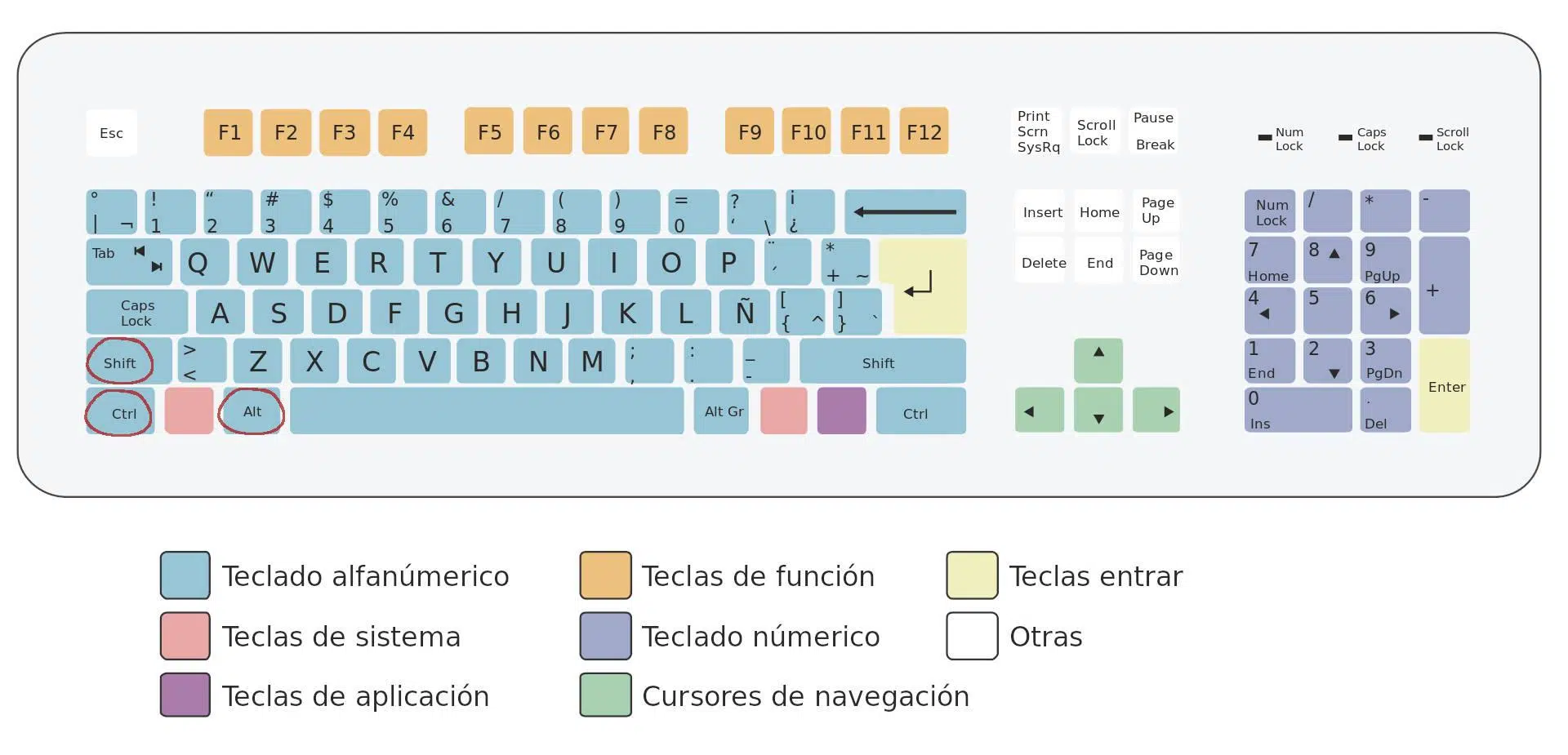
The Shift key is present on absolutely all modern keyboards , whether full-size, compact, or designed for gaming. It's usually represented by an upward-pointing arrow and is always duplicated: one in the lower left, above Ctrl, and another on the right, below the Enter key.
The existence of two Shift keys is no coincidence : they are positioned this way so you can use them comfortably whether you are right-handed or left-handed, and so you can combine them with any other key on the keyboard without any acrobatic finger movements. Depending on the keyboard model, the size of the right Shift key may vary because it shares space with the Enter key, but its general position remains the same.
On membrane keyboards, the Shift key usually has a special locking mechanism , as do keys like Enter and the space bar. If you disassemble the keyboard to clean it, be careful when removing these keys, because the mechanism is more delicate than that of a regular letter key. This problem is less common on mechanical keyboards, since the locking system works differently.
For Shift key combinations to work correctly , it's recommended to first hold down the Shift key and, while holding it down, press the other keys in the combination. You don't need to press them all at the exact same time: if you press and hold Shift and then add the other keys, the combinations will execute without problems.
Basic uses of Shift in Windows and on the keyboard
Before diving into Shift shortcuts in browsers , it's worth reviewing what this key does in general in Windows 10 and similar versions, because many of these behaviors are also useful when browsing the web. You might also be interested in how to improve productivity in Windows 11.
Shift + letter: type capital letters . This is the classic way: hold down Shift and press a letter to get a capital letter. While you hold down Shift, all the letters you type will appear in uppercase. It's the opposite of Caps Lock, but without the toggle effect: as soon as you release Shift, you revert to typing in lowercase.
Shift + key with symbol: access special characters . On the number row (1, 2, 3…) and on several keys near Enter, there are two printed symbols: the bottom one is obtained with a normal press, and the top one with Shift. For example, Shift + 1 is usually the exclamation mark, Shift + 2 the at symbol (@), etc. There are keys with a third symbol, usually to the right, which is obtained with Alt Gr or the equivalent combination Ctrl + Shift + key.
Ctrl + Shift + key: secondary special characters . Some keyboard layouts display three symbols on the same key. The two on the left appear with a normal press or with Shift, while the symbol on the right is typed with Alt Gr + key. If your keyboard doesn't have Alt Gr or you simply find it more convenient, you can emulate it with Ctrl + Shift + key to get those "extra" characters.
Shift + arrow keys: Precise text selection . When writing an email, document, or web form, you can select text without using the mouse. Place the cursor where you want to start, hold down Shift, and use the arrow keys to select. Shift + Up/Down Arrow selects entire lines, while Shift + Left/Right Arrow selects character by character.
Shift shortcuts for navigating mouse-less interfaces
One of the most powerful uses of Shift is as a "toggle key" in navigating menus and interfaces, something that is noticeable both in Windows and within browsers.
Shift + Tab: Move backward between elements . The Tab key moves the focus between buttons, fields, and links that allow interaction, normally forward. If you combine Tab with Shift, you move through those same elements, but in reverse order. This is incredibly useful when you're in a long dialog box or form and you've gone past the field.
Shift + F10: Open the context menu without a mouse . In many environments, including your browser, if you have an element selected (a link, a button, a tab, etc.) and press Shift + F10, the context menu opens as if you had used the right mouse button. This is very useful for working with only the keyboard.
Ctrl + Shift + Esc: Open Task Manager . While not exclusive to browsers, this shortcut will save you more than once when a tab or window freezes. This combination opens the Windows Task Manager directly, without having to use the classic Ctrl + Alt + Delete.
Windows + Shift + Left/Right Arrow: Move windows between monitors . If you work with more than one screen, this combination lets you send the active window to the left or right monitor. Perfect when you have your browser open on one screen and want to quickly rearrange your workspace.
When it comes to browser productivity , tabs are the main battleground. Shift comes into play in many combinations with Ctrl so you almost never have to touch the mouse.
Ctrl + T : opens a new tab and takes you directly to it.
Ctrl + N : opens a new browser window.
Ctrl + Shift + N : opens an incognito (or private, depending on the browser) window. In Chrome and Brave, this is the standard combination for browsing without leaving a local trace.
Ctrl + W or Ctrl + F4 : closes the current tab, ideal for quickly clearing tabs you no longer need.
Ctrl + Shift + W or Alt + F4 : closes the entire window, that is, all tabs open at that moment in that instance of the browser.
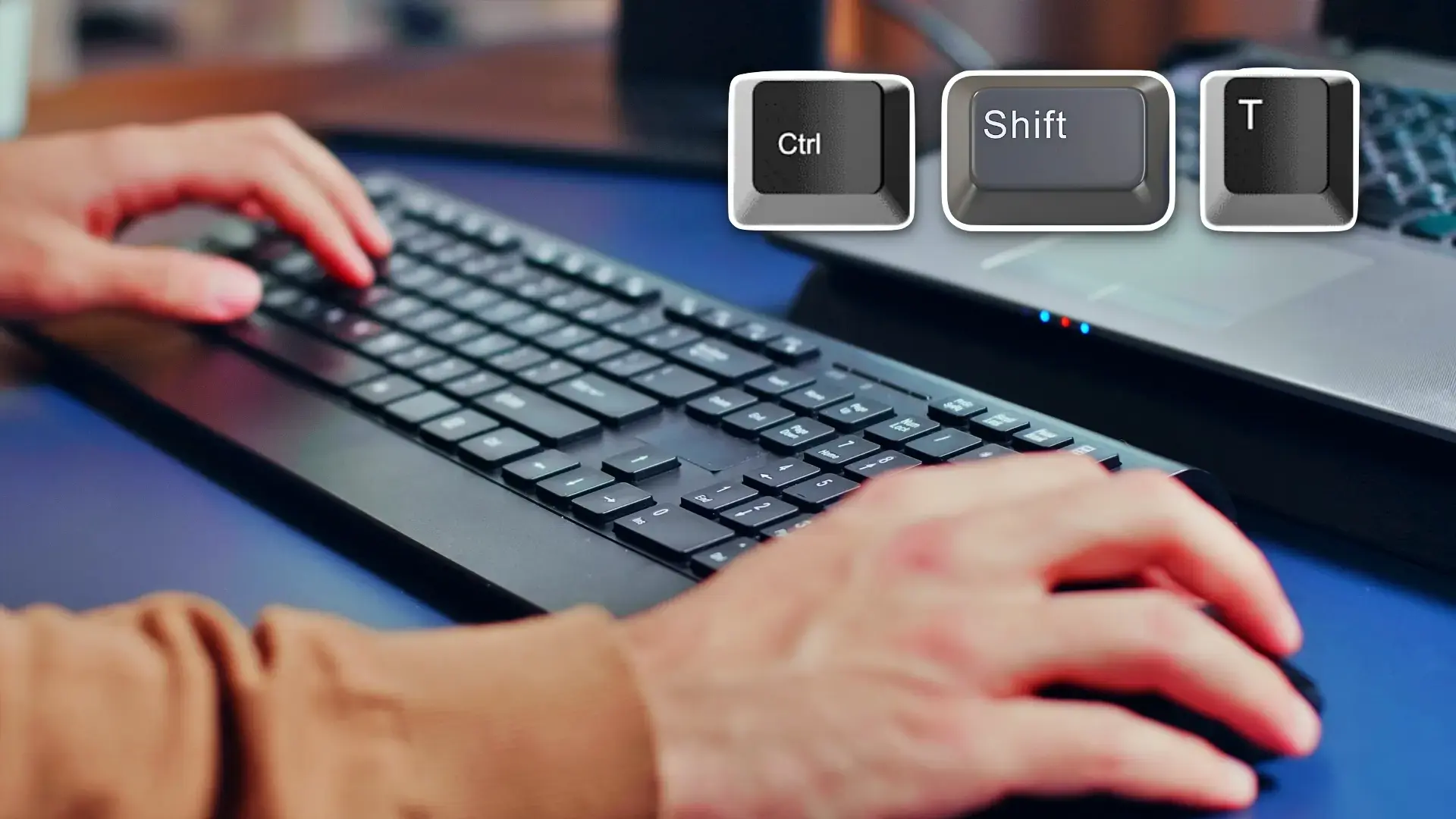
Ctrl + Shift + T : restores the last tab you closed, and pressing it repeatedly restores tabs in the reverse order they were closed. It's one of those shortcuts that can be a lifesaver when you accidentally close something. See how to restore tabs in Chrome.
Ctrl + Tab or Ctrl + Page Down : jumps to the next tab to the right.
Ctrl + Shift + Tab or Ctrl + Page Up : returns to the previous tab on the left.
Ctrl + 1 to Ctrl + 8 : switches directly to a specific tab based on its position from left to right.
Ctrl + 9 : always jumps to the last tab, no matter how many you have open.
Alt + Home : Opens your configured homepage in the current tab, useful for returning to your starting point.
Many modern browsers now include tab groups , which allow you to group multiple tabs under the same heading or color. You can also manage these groups with the keyboard without using the mouse.
In Windows, to access the tab area you can repeatedly press F6 until the focus is on the tab bar. From there, you can move forward between tabs with Tab and backward with Shift + Tab, highlighting each tab or group.
Once you've selected the header of a tab group , you can press the spacebar or Enter to expand or collapse it. When the group is collapsed, you can only select the entire group; the tabs inside are inaccessible until you expand it.
To move tabs or groups of tabs , select the tab or group header and use Ctrl + Left Arrow or Ctrl + Right Arrow to drag them along the bar. Some browsers also offer shortcuts like Ctrl + Shift + Page Up or Ctrl + Shift + Page Down to move tabs left or right.
On Chromebook, tab navigation is done with Ctrl + Tab to scroll through the tab selection, and with combinations like Ctrl + Back or Ctrl + Forward to switch to a specific tab, while opening the group menu is done with the search key + Shift + Volume Up or the applications menu key + Shift + Volume Up.
Beyond opening and closing tabs , browsers include many internal functions (bookmarks, history, settings, development tools…) accessible through combinations that often integrate Shift.
Ctrl + Shift + B : Shows or hides the bookmarks bar.
Ctrl + Shift + O : Opens the bookmark manager in a new tab.
Ctrl + H : opens browsing history.
Ctrl + J : opens the downloads tab.
Ctrl + Shift + Delete : opens the options to clear browsing data (history, cache, cookies, passwords, etc.). It's the quick shortcut to clear your browser.
Ctrl + Shift + J or F12 : opens the developer tools in Chromium-based browsers, allowing you to inspect code, console, network, etc.
Shift + Esc (in some browsers like Chrome on Windows) : opens the browser's own task manager, where you can see the memory and CPU usage of tabs and extensions.
Ctrl + F or F3 : activates the page's internal search bar.
Ctrl + G : jumps to the next result of the current search within the page.
Ctrl + Shift + G : returns to the previous search result.
The browser's address bar is much more than just a place to type URLs; it also functions as a search bar and a launcher for various actions. You can use your keyboard to get the most out of it.
Ctrl + L, Alt + D or F6 : these bring the focus directly to the address bar so you can start typing without touching the mouse.
Type a term + Enter : performs a search with your default search engine.
Type the name of a search engine + Tab : Switch to the search engine you typed (for example, "youtube" + Tab) to search directly on that site.
Typing a domain name + Ctrl + Enter : automatically adds "www." before and ".com" after, and opens that website in the current tab.
Typing a domain + Ctrl + Shift + Enter : does the same as the previous one, but opens the result in a new window.
Typing a web address + Alt + Enter : in many browsers opens the typed URL in a new tab in the background or foreground, without losing the current page.
Ctrl + K or Ctrl + E : places the cursor in the address bar ready to search with the engine configured, very useful if your workflow involves constant searching.
Down Arrow + Shift + Delete (on a suggestion): Removes a prediction from the address bar that you don't want to reappear.
Actions on web pages that take advantage of Shift
Once inside a web page , there is also a good collection of shortcuts that combine Shift with other keys to scroll, zoom, or control reloading.
F5 or Ctrl + R : reloads the current page.
Shift + F5 or Ctrl + Shift + R : reloads the page forcing a full update and skipping the local cache, very useful if a website seems "stuck".
Esc : stops the page from loading, which is useful when a website takes too long or has frozen while trying to load resources.
Spacebar or Page Down : scrolls down, from screen to screen.
Shift + Spacebar or Page Up : scrolls content upwards, also in full screen.
Home : takes you to the top of the page.
End : takes you to the end of the page.
Ctrl and + : zooms in on the entire page.
Ctrl and - : zooms out.
Ctrl + 0 : resets the zoom to 100%.
Shift + mouse wheel : in many configurations scrolls the page horizontally, which helps in wide tables or interfaces with sidebars.
Shift to write and send information in forms and chats
In text fields on websites, social networks, or chats , Shift also prevents surprises and gives you more control over what you send.
Shift + Enter : Inserts a line break without sending the message in chats, forms, or comment boxes where Enter alone means "send." It's the standard way to write paragraphs in applications like WhatsApp Web, Facebook Messenger, and many support tools.
Ctrl + Insert and Shift + Insert : These function as alternatives to Ctrl + C (copy) and Ctrl + V (paste), respectively. They are less well-known, but they do exactly the same thing and can be useful if you are used to them from other systems.
Combined with text selection using Shift + arrow keys , these copy and paste alternatives allow you to manage text fragments with surgical precision, all without touching the mouse.
Although not exclusive to the browser , several Shift shortcuts in Windows directly impact how you work while browsing.
Ctrl + Shift + N in File Explorer : instantly creates a new folder in the current directory. If you're downloading files from your browser, you can organize your hard drive at the same speed you browse.
Shift + Delete : Deletes files without sending them to the Recycle Bin. It's a very powerful combination and should be used with caution, because files are deleted directly after confirmation.
Windows + Shift + S : Launches the Snipping Tool built into Windows 10, allowing you to select an area of the screen and copy it to the clipboard. Ideal for quickly capturing specific parts of a website, graphics, or errors.
Windows + M and Windows + Shift + M : the first minimizes all windows, and the second restores them. It's a quick way to clear your desktop or return to its previous state without losing your open tabs.
Shift + Ctrl with the Start menu : When you open the Start menu, you can move between tiles using Tab and the arrow keys. By holding Ctrl and pressing Shift, you can rearrange these tiles with the arrow keys, and even create application folders. While not a browser shortcut, it does influence how you organize the environment from which you launch your browsers and online tools.
On Mac, the modifier key combinations change , but the philosophy is the same: Shift is combined with the Command (⌘), Option (Alt) and Control keys to manage Chrome, Brave, Safari or other browsers.
⌘ + N : opens a new window.
Command + Shift + N : opens a new window in incognito mode.
⌘ + T : opens a new tab and takes you to it.
Command + Shift + T : reopens closed tabs, just like in Windows.
⌘ + Option + Right Arrow : Switches to the next tab.
⌘ + Option + Left Arrow : returns to the previous tab.
⌘ + 1 to ⌘ + 8 : jumps to a specific tab depending on its position.
⌘ + 9 : always selects the last open tab.
Command + or Command + Right Arrow : advances to the next page of the history.
Command + W : Closes the current tab or pop-up window.
Command + Shift + W : Closes the entire browser window.
⌘ + F : opens the page's internal search bar.
Command + G / Command + Shift + G : moves the focus to the next or previous search result, respectively.
⌘ + Shift + B : Shows or hides the bookmarks bar.
Command + Option + B : Opens the bookmark manager in a new tab.
Command + Shift + J : opens the browser's downloads section.
⌘ + Shift + Delete : Opens the panel to clear browsing data in macOS, analogous to Ctrl + Shift + Delete in Windows.
⌘ + Option + I : opens the developer tools.
⌘ + Option + U : displays the non-editable HTML source code of the current page.
Command + Option + J : directly opens the JavaScript console.
⌘ + d – Save the current page as a bookmark.
Command + Shift + D : Saves all open tabs as bookmarks in a new folder.
⌘ + and + / ⌘ + and – : zooms in or out, while ⌘ + 0 resets the zoom to the original size.
Spacebar and Shift + Spacebar : behave the same as in Windows when scrolling down or up from screen to screen.
⌘ + Shift + H : Opens the home page configured in that tab.
Although the goal is to rely less on the mouse , there are keyboard and click combinations that speed up everyday actions and also include Shift as a key element.
Ctrl (or ⌘ on Mac) + click on a link : opens the link in a new tab in the background, keeping the current tab active.
Ctrl (or ⌘) + Shift + click on a link : opens the link in a new tab and switches the focus directly to that tab.
Shift + click on a link : opens the link in a new browser window.
Dragging a link to the tab bar creates a new tab with that link; if you drag it onto an existing tab, it opens in that tab.
Pressing Esc while dragging a tab : cancels the movement and returns the tab to its original position.
Ctrl (or ⌘) + mouse wheel : zooms in or out on the page by rotating the wheel up or down.
Shift + mouse wheel : in many configurations scrolls the page horizontally, very useful in wide tables or interfaces with side content.
Option + click on a link (Mac) or Alt + click (Windows) : forces the download of the linked resource, instead of opening it directly in the browser.
Double-click an empty space in the tab bar : toggles between maximized window and normal window mode in many browsers.
With this arsenal of Shift-centric shortcuts , both within the browser and the system itself, you can turn your keyboard into your command center and minimize mouse clicks. You don't need to memorize them all at once: the most practical approach is to start with 4 or 5 combinations you use daily (such as Ctrl + Shift + T, Ctrl + Shift + N, Shift + Enter, or Ctrl + Shift + Delete) and gradually add more until navigating with just the keyboard becomes almost second nature.

Table of Contents
- 1 What is the Shift key and why is it so important?
- 2 Basic uses of Shift in Windows and on the keyboard
- 3 Shift shortcuts for navigating mouse-less interfaces
- 4 Shift shortcuts for managing browser tabs and windows (Windows and Linux)
- 5 Tab groups and advanced keyboard navigation
- 6 Shift shortcuts for internal functions of Chrome and other browsers
- 7 Shift and address bar: search and navigate faster
- 8 Actions on web pages that take advantage of Shift
- 9 Shift to write and send information in forms and chats
- 10 Shift shortcuts in the system that affect navigation
- 11 Shift shortcuts for browsers on macOS
- 12 Mouse and Shift combinations in browsers