- HDMI dominates home cinema thanks to its massive compatibility, features such as ARC/eARC and VRR in HDMI 2.1.
- DisplayPort offers more bandwidth, better support for high refresh rates and multi-monitor setups on PCs.
- For PC gaming, DisplayPort is usually preferable, while on consoles the only option is HDMI.
- USB-C with DisplayPort Alt Mode and DP↔HDMI adapters allow you to combine both worlds depending on the device and display.
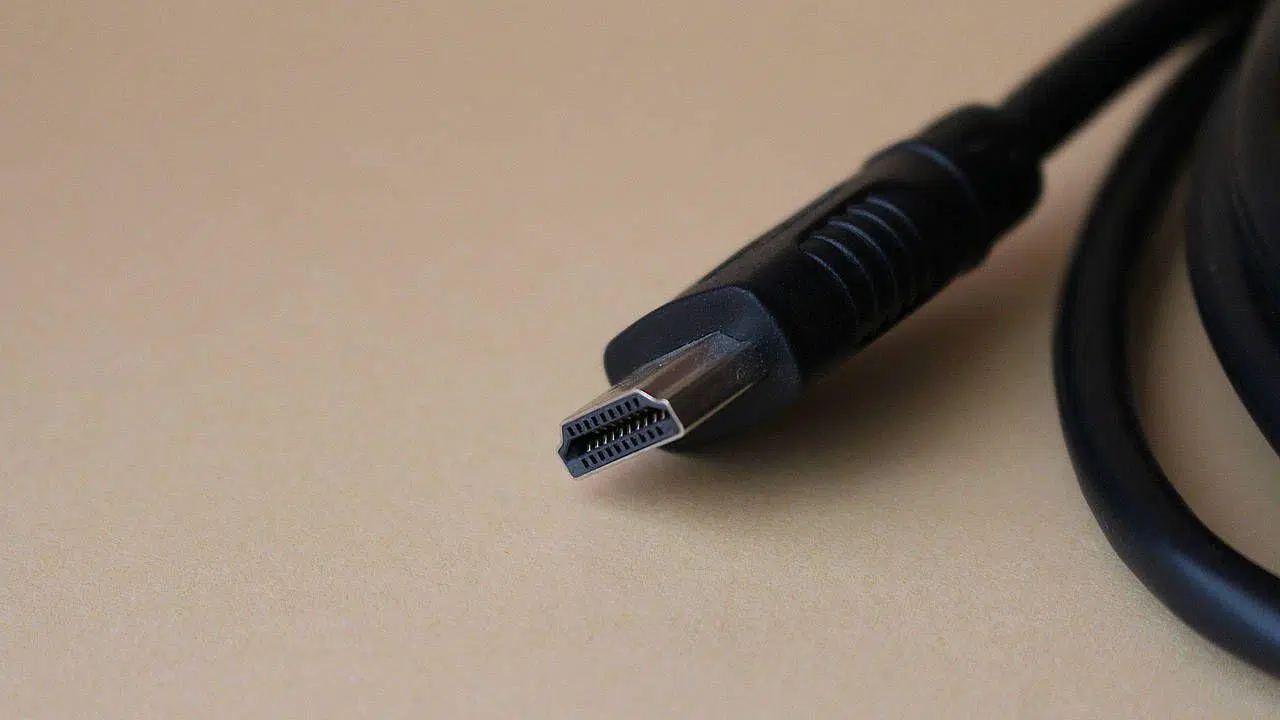
When you're building a new PC, upgrading your graphics card , or buying a monitor, it's normal to wonder whether HDMI or DisplayPort is better for video output . Everyone assumes HDMI is "the standard TV connection," but when you start seeing DisplayPort ports on graphics cards and gaming monitors, doubts quickly arise.
Furthermore, both standards have evolved over the years, adding new versions, increased bandwidth, compatibility with enormous resolutions, HDR, gaming features… In short, it's not as simple as saying one is good and the other is bad. In this article, you'll see all the important differences between HDMI and DisplayPort , what each offers, in which cases one or the other is superior, and how to choose the right connector depending on how you'll use your equipment.
What is HDMI and how has it evolved?
The HDMI standard was created to replace classic analog connectors like VGA and digital ones like DVI, unifying everything into a single cable capable of carrying digital video and multichannel audio simultaneously . This greatly simplified connecting players, consoles, and computers to modern televisions and monitors.
One of the drawbacks of HDMI is that it only carries digital signals , so it became definitively tied to the era of flat screens. These days this isn't a problem, because analog monitors and televisions are completely obsolete, but it's good to know if you come across very old hardware.
Another detail that complicates things a bit is that HDMI isn't just a single connector; there are three different physical formats: standard, mini, and micro . They all share the same signal logic, but the connector size varies depending on the device.
-
The standard HDMI or type A connector is the one you see on virtually all TVs, consoles, sound bars, and most desktop and laptop computers.
-
The mini HDMI or Type C connector is smaller and flatter, originally intended for video cameras, tablets, and compact devices where Type A wouldn't fit.
-
The micro HDMI or type D connector is even smaller, visually resembling a microUSB, and was widely used in cameras and small gadgets.
When buying a cable, you need to pay attention to both the version and the type of connector you need at each end, as you can find cables with HDMI AA, AC, AD, etc. The most common connector in the PC and television world is type A, but mini and micro sizes are still seen in the mobile and camera ecosystem.
Beyond the physical form, what truly makes the difference is the version of the standard. Each HDMI version upgrade has brought more bandwidth, new image and sound features, and additional compatibility. These are the main HDMI versions and what they offer :
-
HDMI 1.0 : It appeared in 2002 and its basic idea was to combine what DVI offered for video with digital audio in a single link. It allowed Full HD video (1920 × 1080) at 60 Hz, something that falls short today but was sufficient for most televisions at the time.
-
HDMI 1.1 : added support for DVD Audio , with home theater systems of the time in mind.
-
HDMI 1.2 : introduced the ability to use custom resolutions , without being limited to a closed list. This gave more flexibility to monitor and graphics card manufacturers.
-
HDMI 1.3 : increased bandwidth to support 2560 × 1440 at 60 Hz and added compatibility with high-definition audio formats such as Dolby TrueHD and DTS-HD Master Audio. The mini HDMI (Type C) connector was also introduced.
-
HDMI 1.4 : This was the first version with 4K support , although limited to 24 Hz , and designed more for cinema than desktop use. It also added 3D compatibility, the option to use the same cable as an Ethernet link, and the micro HDMI (type D) connector.
-
HDMI 2.0 : This became the dominant standard for many years. It supports 4K at 60Hz , up to four audio streams, and provides the foundation for HDR. It's the version used by most standard 4K TVs and many monitors.
-
HDMI 2.1 : It made a significant leap in bandwidth, reaching up to 48 Gbps . This allows it to handle 8K at 60 Hz or 4K at 120 Hz with HDR , as well as introducing gaming-oriented features like VRR (Variable Refresh Rate) and ALLM (Auto Low Latency Mode), along with eARC for lossless audio to soundbars and AV receivers. However, to truly take advantage of its capabilities, a certified " 48G " cable is required.
-
HDMI 2.2 and later extensions (many sources already refer to extensions within the 2.1 family): some documentation mentions even greater bandwidths and advanced features such as Fixed Rate Link or latency protocols to improve audio and image synchronization, expanding the focus to future image formats and very high refresh rates.
In practice, many manufacturers advertise “HDMI 2.1” even though they don't support all the features of that specification, so it's advisable to read the detailed technical specifications to confirm whether the port actually supports 4K 120 Hz, 8K, VRR, eARC and so on, or only some of it.
What is DisplayPort and why is it used so much in PCs?
DisplayPort is a slightly newer standard than HDMI: it was defined between 2006 and 2007 under the VESA umbrella with a very clear objective: to become the primary interface between PCs and monitors . From the outset, it was designed for professional and high-end environments, where bandwidth, high resolutions, and high refresh rates are truly important.
Physically, the DisplayPort connector is easily recognizable because one side is beveled , while the other is straight. Many versions include a small tab or locking mechanism to prevent accidental disconnections, which is useful if you frequently move your monitor or PC.
Like HDMI, DisplayPort has been steadily improving with each version. They all share a 20-pin connector , but the capabilities change significantly with each iteration. Here's a summary of the most important DisplayPort versions :
-
DisplayPort 1.0 : the first revision got off to a strong start, with a maximum of 10,8 Gbps of effective bandwidth and support for resolutions up to 2560 × 1440 at 60 Hz . It also introduced its own copy protection system (DPCP) and optional compatibility with HDCP, the protection used in HDMI.
-
DisplayPort 1.2 : Introduced in 2010, it doubled bandwidth to 21,6 Gbps thanks to HBR2 mode. It opened the door to 3D video, very high refresh rates such as 2560 × 1600 at 120 Hz or Full HD at 240 fps , and, above all, to Multi-Stream Transport (MST) , which allows daisy-chaining multiple monitors using a single graphics card port.
-
DisplayPort 1.3 : arrived in 2014 with 32,4 Gbps of bandwidth, supporting 4K at 120 Hz, 5K at 60 Hz, and 8K at 30 Hz . It also allows for multi-display 4K at 60 Hz configurations from a single port.
-
DisplayPort 1.4 : maintained the same raw bandwidth (32,4 Gbps), but introduced lossless DSC compression and formal support for 8K (7680 × 4320) at 60 Hz with HDR and multi-channel audio. It remains one of the most widespread versions in high-end gaming and professional monitors .
-
DisplayPort 2.0 : Introduced in 2019, it represents a massive leap to 77,4 Gbps . It enables 8K with HDR at 60 Hz , multiple 4K monitors at 144 Hz, or even 16K scenarios at 60 Hz in SDR. This capability positions it as the absolute benchmark for ultra-high-resolution and multi-monitor setups.
-
DisplayPort 2.1 : officially launched in 2022, it maintains the same maximum bandwidth as 2.0, but improves DisplayPort integration over USB-C and USB4 (DisplayPort Alt Mode), bandwidth management, and requires compatibility with technologies such as DSC and Panel Replay, in addition to ensuring that DP40 and DP80 cables perform at their best even at longer lengths.
One of DisplayPort's greatest strengths is that it operates internally using data packets , similar to how information moves across a network. This allows for more flexible bandwidth usage, distributing it across multiple monitors or adjusting settings to meet the specific needs of each display.
In addition to the full-size connector, there's the Mini DisplayPort , which is very popular in certain laptops and compact devices (Surface, some older Apple models, etc.). In these cases, it's common to see cables that have a Mini DisplayPort connector on one end and a standard DisplayPort or even HDMI connector on the other, taking advantage of the signal conversion.
Technical comparison: bandwidth, resolution, and refresh rate
If we focus on the big numbers, the main difference between HDMI and DisplayPort lies in the maximum available bandwidth and how it's utilized . This is what determines how high you can go in terms of resolution and refresh rate without resorting to compression or reducing color quality.
In the HDMI family, version 2.1 raises the limit to 48 Gbps . This allows for uncompressed 8K at 60 Hz or 4K at 120 Hz , and with certain techniques, it can be pushed even further. To achieve these speeds, you need a certified "48G" cable, as older or lower-quality HDMI cables simply won't cut it.
DisplayPort 2.0/2.1, on the other hand, reaches up to 77,4-80 Gbps of effective bandwidth , depending on the link mode. This enables it for much more demanding scenarios: multiple 8K monitors from a single PC , resolutions higher than 8K, and even 16K at 60 Hz in SDR using DSC compression. In short, in terms of raw power, DisplayPort is in a different league.
On a more practical level, both interfaces more than adequately cover most domestic and professional needs. For example, with current standards you have:
-
HDMI 2.1 : 4K at 120 Hz with HDR, 8K at 60 Hz, VRR and ALLM for gaming on consoles and televisions.
-
DisplayPort 1.4 : 1440p and 4K at high refresh rates (144 Hz or more) with HDR, especially thanks to DSC compression.
-
DisplayPort 2.0/2.1 : more than enough headroom for multiple 4K 144Hz or 8K 60Hz HDR monitors from a single high-end GPU.
The key here is that, while HDMI has focused on providing solid support for resolutions and rates designed for TVs and consoles , DisplayPort has always been one step ahead, seeking to meet the needs of the PC ecosystem and the professional environment , where high refresh rates, 10-bit color, HDR, and multi-display setups are commonplace.
Special features: audio, HDR, VRR and more
Beyond resolution and refresh rates, both HDMI and DisplayPort have incorporated advanced features to improve the user experience , especially in home theater and gaming.
In the realm of audio, HDMI takes center stage. Thanks to features like ARC and eARC (Audio Return Channel) , the HDMI cable itself can send the TV's audio signal back to a soundbar or AV amplifier without the need for separate optical cables. Furthermore, CEC allows multiple devices to control each other (turning on the soundbar when you turn on the TV, managing the volume with a single remote, etc.).
DisplayPort also transmits multi-channel audio , but it doesn't come loaded with features designed for the living room; instead, it focuses more on the direct connection between PC and monitor, where sound is usually not routed through an AV receiver, but through desktop speakers or headphones connected to the computer itself.
In gaming, HDMI 2.1 introduced standardized features such as VRR (Variable Refresh Rate) and ALLM . VRR synchronizes the screen's refresh rate with the console's frame rate, reducing screen tearing and stuttering, while ALLM allows the TV to automatically switch to low-latency mode when it detects you're gaming.
DisplayPort, on the other hand, has historically been the natural home of technologies like G-SYNC and FreeSync , derived from VRR, which have been working wonderfully for years on gaming monitors connected to PCs. Therefore, when you're looking for a 144Hz or 240Hz monitor for your computer, its best features will most likely be linked to the DP port.
Both standards support HDR, 10-bit color , and high-quality audio in their modern versions, so in this respect the difference is no longer so much about "who can" as about "who implements it better" in each type of device.
Typical applications: home, office, gaming, and professional use
When it comes down to it, rather than asking yourself which standard is "better" in the abstract, you're interested in knowing which one best fits the use you're going to give your monitor or television.
In the living room , HDMI reigns supreme. Almost all entertainment devices—TVs, game consoles, Blu-ray players, streaming devices, and soundbars—connect via HDMI, so it makes sense that the final connection to the TV should always be HDMI. If your PC has an HDMI output, you connect a cable and you're good to go; if it only has DisplayPort, you use a DP-to-HDMI adapter and you're all set.
In the PC ecosystem , especially for high-performance monitors, DisplayPort reigns supreme. Modern graphics cards typically include multiple DP ports precisely to facilitate setups with two, three, or more monitors. Thanks to MST, you can daisy-chain displays, and the available bandwidth allows you to combine high resolutions with high refresh rates without any issues.
For professional creative use (video editing, photography, 3D modeling, animation), DisplayPort is generally recommended as the primary connection to your work monitor, especially if you're using 4K or 5K with 10-bit color and HDR . If you also have a TV connected for reviewing material, it's common to use DisplayPort for the "editing" monitor and HDMI for the reference display or TV.
For general use and office applications , the choice is less critical. If your PC and monitor have HDMI, you can use it without issue and won't notice significant differences compared to DisplayPort at resolutions like 1080p or 1440p at 60 Hz. However, if you know you'll want to upgrade to 144 Hz or higher in the future, it's advisable that your monitor also has DisplayPort to avoid limiting your options.
What to choose for gaming: PC vs console
In the gaming world, the question is often repeated: which connector gives me the best performance and the fewest problems? The answer changes depending on whether you play on PC or console, and on the type of screen you have.
For PC gaming , DisplayPort is usually the preferred option. Most gaming monitors with 144Hz, 165Hz, 240Hz, or even higher refresh rates advertise their cutting-edge specifications using DisplayPort, and it's through this port that G-SYNC, FreeSync, and other variable refresh technologies work best. Furthermore, the greater bandwidth of DisplayPort 1.4 and 2.0 allows for combining resolutions like 1440p or 4K with very high refresh rates , something that more and more gamers are looking for.
If you have a monitor with HDMI and DisplayPort and you're going to connect a game console and a PC, the most logical thing to do is use HDMI for the console and DisplayPort for the computer . This ensures you get the most out of each device's capabilities without sacrificing any key features.
In any case, unless you're playing at high refresh rates or very demanding resolutions, you're not going to see a night-and-day difference between using HDMI and DisplayPort. The real difference is noticeable in 4K 120Hz, 1440p 240Hz, or 8K monitor setups , where bandwidth and compatibility with each standard are the limiting factors.
USB-C, DisplayPort Alt Mode and cross-standards adapters
In recent years, a third player has joined the party: USB-C with DisplayPort Alt Mode . Many modern laptops forgo full-size HDMI or DisplayPort ports and rely on USB-C for everything from charging to video.
When a USB-C port supports DisplayPort Alt Mode, it can output a DisplayPort signal through the USB-C connector . This means it functions internally as a DisplayPort port, but physically the connector is USB-C. With a suitable adapter or cable (USB-C to DisplayPort, or USB-C to HDMI), you can easily connect your laptop to an external monitor.
Furthermore, if the laptop's USB-C port supports standards such as Thunderbolt 3 or higher , you have the advantage that power, data, video, and audio can travel through a single cable, which greatly simplifies installation on clean desktops or compact workstations.
Because HDMI and DisplayPort speak different "languages," they are not directly compatible with each other . This means that a passive adapter, like the old VGA to DVI adapter, isn't enough; you need an adapter that physically converts the signal in one direction or the other.
In practice, there are two typical cases:
-
PC with DisplayPort → monitor/TV with HDMI : This is very common with desktop graphics cards that have several DisplayPort ports and few HDMI ports, while many entry-level monitors only have HDMI inputs. Relatively inexpensive and readily available DisplayPort-to-HDMI cables or adapters are used in this case.
-
Device with HDMI → monitor with DisplayPort : for example, a game console connected to a professional monitor that only has DP. This conversion is less common and the adapters are usually more expensive because the internal electronics are somewhat more complex.
When choosing an adapter, two things should be considered: the conversion direction (not all adapters work in both directions) and the maximum resolution/refresh rate they support . Most handle 1080p 60Hz without issue, but if you want 4K 60Hz or higher, make sure it clearly specifies this and that it also supports audio and, if needed, HDR.
Examples of equipment that takes advantage of HDMI and DisplayPort
To see all this implemented in real machines, some modern mini PCs combine several types of video output in the same chassis, so you can set up flexible configurations with one or more monitors , via both HDMI and DisplayPort.
An example of a balanced approach would be a compact mini PC that combines HDMI 2.0 and Mini DisplayPort 1.4 . With this combination, you can start using HDMI for a Full HD or 1440p monitor and later upgrade to a 4K monitor with DisplayPort without changing your computer, making better use of the DP port's bandwidth for high resolutions or refresh rates.
More powerful models integrate two HDMI 2.0 ports and several USB4 ports with DisplayPort output , allowing you to control up to four displays simultaneously. In these types of configurations, it's common to use:
-
HDMI for TVs or secondary monitors where you don't need as much refresh rate.
-
DisplayPort (direct or via USB4) for the main work or gaming monitor, where you're looking for 144 Hz, 4K, HDR or a combination of all of them.
These types of setups make it clear that the ideal is not to blindly commit to one standard, but to take advantage of each one where it best fits : HDMI in the home cinema ecosystem and DisplayPort to get the most out of a high-end PC monitor.
Given all of the above, it's easier to understand why the two standards coexist. HDMI remains the ubiquitous connector on televisions, consoles, and multimedia devices, with highly refined features for audio, control, and home theater, while DisplayPort has become the preferred tool for high-performance PC monitors with high refresh rates and complex multi-monitor setups. In practice, if your computer and display offer both options, the usual approach is to use DisplayPort when you're looking to maximize resolution and refresh rates , and to use HDMI when compatibility with other devices in the room is paramount. And if you also have USB-C ports with Alt Mode, you have an ace up your sleeve for connecting almost any combination of devices using the appropriate adapter.
Table of Contents
- 1 What is HDMI and how has it evolved?
- 2 What is DisplayPort and why is it used so much in PCs?
- 3 Technical comparison: bandwidth, resolution, and refresh rate
- 4 Special features: audio, HDR, VRR and more
- 5 Typical applications: home, office, gaming, and professional use
- 6 What to choose for gaming: PC vs console
- 7 USB-C, DisplayPort Alt Mode and cross-standards adapters
- 8 Examples of equipment that takes advantage of HDMI and DisplayPort