- Mobile phones automatically save WiFi passwords and it is possible to view them securely on modern Android and iOS devices.
- Android 10 or higher allows you to view and share keys using QR codes, reducing the need for root access and external apps.
- Since iOS 16, the iPhone displays saved WiFi passwords, and with iOS 18 the Passwords app centralizes their management.
- Using backups and password managers helps prevent losing passwords and maintain network security.
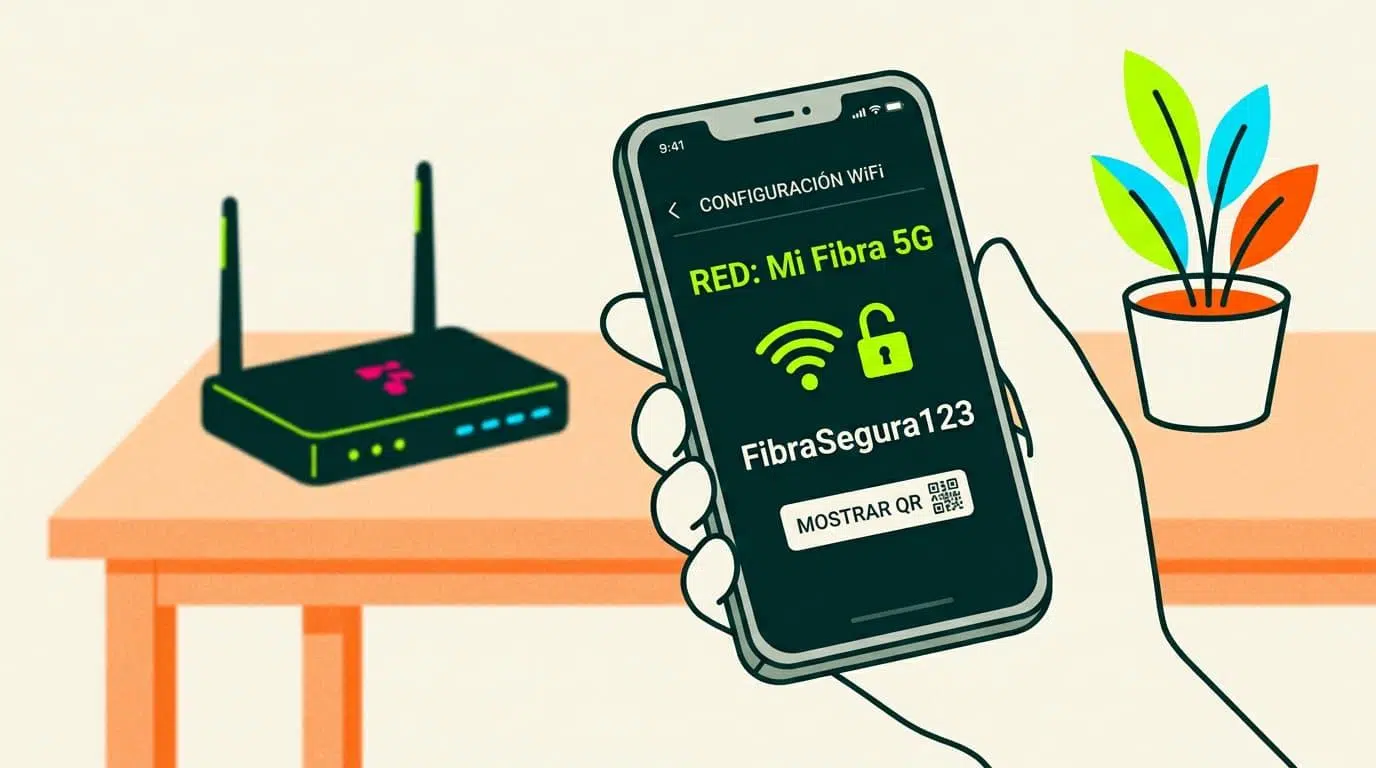
Every time you connect to a Wi-Fi network , your phone saves the password so you don't have to enter it again. It's incredibly convenient… until you need to share that password with someone, or connect from another device, and you discover you don't remember it or have it written down anywhere. The good news is that your phone remembers it for you.
WiFi passwords saved on your phone can be accessed on both Android and iPhone, and in many cases without needing root access or any unusual workarounds. However, the procedure varies depending on the operating system version and the manufacturer's custom interface , so it's important to understand what's possible and what the limitations are in each case.
Why does your phone remember WiFi passwords and you don't?
Managing dozens of passwords every day is an impossible task : social media, email, banks, streaming platforms, and, of course, the Wi-Fi passwords for home, work, or university. Ideally, each service should have its own strong password, but that makes them much easier to forget.
The phone acts as a kind of "digital keychain" where the credentials for Wi-Fi networks you've previously connected to are stored. So, when you're within range of that network again, the phone connects automatically without asking for the password again. The drawback is that, although the device has the password saved, it doesn't always display it directly.
For years, finding your Wi-Fi password on your phone was a real headache : on Android, you usually needed root access to read the internal file where the networks are stored, while on iOS, the only option was to use iCloud Keychain from a Mac. With recent versions of both operating systems, this has changed considerably.
Today, Android 10 or later and iOS 16 or later allow you to view many of these passwords directly from your phone's settings, verifying your identity with a PIN, pattern, fingerprint, or facial recognition. In addition, QR codes have become popular for sharing your network without having to dictate your password character by character.
How to view saved WiFi passwords on Android without root
If your phone has Android 10 or later , you're in luck: you can view the password of a saved Wi-Fi network without rooting it or installing any suspicious apps. Google added a native feature to share networks using a QR code, and the password is embedded within that code in plain text.
The standard procedure involves going through the phone's network settings , although menu names may vary slightly depending on the manufacturer (Samsung, Xiaomi, Motorola, etc.). The key is to locate the network you want to access and use the sharing option.
In general, these are the steps you follow on most mobile phones with Android 10 or higher, both for the current network and for other saved networks:
- Open the Settings app on your phone. and enter the section related to the connection: it is usually called "Networks and Internet", "Connections" or simply "Wi-Fi".
- Go to Wi-Fi and find the network you're interested in.It can be the active network (the one you are connected to) or one of those listed in "Saved Networks" or "Known Networks".
- Tap on the name of that network to open its details. In many cases you will see a "Share" button or a QR code icon.
- Tap on share or on the QR iconThe system will ask you to identify yourself with your unlocking method (PIN, pattern, password, fingerprint or facial recognition).
- After verifying your identity, a QR code will appear on the screen. which contains all the network information. On many Android devices, the password is displayed in plain text just below the code. If so, you can copy or write it down.
With custom interfaces like Samsung's or Xiaomi's , it's even easier, because in addition to generating the QR code, they directly display the key underneath, without needing to do anything else. This way, you can copy it from there or show it to anyone you want so they can enter it on their device.
If your phone only displays the QR code and not the password text , you can still find it without root access quite easily: by scanning the code. Normally, you'd do this with another phone, but you can also take a screenshot and use tools like Google Lens.
A very handy trick is to take a screenshot of the QR code and open that image with Google Photos. From there, tap the Google Lens icon, let it analyze the code, and you'll get the network details, including the SSID and password. It's an extra step, but it lets you avoid rooting your device without too much hassle.
Using QR codes in Android versions prior to Android 10
Before Google incorporated this feature into stock Android , some custom Android skins, especially those from Chinese manufacturers like Xiaomi (MIUI) and Huawei (EMUI), had already added the option to share your network using a QR code. This means that even in versions prior to Android 10, you might have a way to recover your password.
In these cases, the sharing option is usually limited to the network you're currently connected to , and you won't always have access to the full list of saved networks. Even so, it's usually more than enough for your home or work network.
The typical procedure for generating a QR code in these custom interfaces involves opening the settings, going to Wi-Fi, and tapping on the name of the active network. There you'll see a share icon or a QR code. Tapping it will open the screen with the code so another device can scan it directly.
The really useful part comes when you want to see the password in text and not just connect by scanning. One solution is to use another mobile phone to scan that code (with the camera or Google Lens) and thus read the complete information, which includes the password in plain text.
If you don't have another phone handy , the alternative is similar to Android 10: take a screenshot of the QR code, open it with Google Photos, and use Google Lens to interpret the content. Lens will detect that it's a Wi-Fi code and show you the network name and password.
It may seem like a lot of steps just to see the saved WiFi password , but compared to rooting your phone and messing with system files, it's a much more convenient process and far less risky for the security and stability of the device.
How to view saved WiFi passwords on rooted Android
When Android didn't allow you to view passwords natively , the only reliable way was to gain root access. Rooting a phone means obtaining administrator privileges over the system, which opens the door to modifying and viewing files that are normally inaccessible.
The file where Android stores Wi-Fi networks and their passwords is protected by default. With root access, certain apps can read it and present the information in an organized way. However, rooting has risks: it can void warranties, complicate updates, and, if done incorrectly, render the phone unusable.
If your phone is already rooted and you know what you're doing , there are several classic apps that allow you to list the networks you've connected to and display the password associated with each one. Two of the best-known are WiFi Key Recovery and WiFi Password Recovery.
- WiFi Key RecoveryIt's one of the simplest tools for checking saved WiFi passwords. Once installed, you open it, grant it root permissions, and the app displays a list of all stored networks, indicating the SSID, encryption type, and key (usually under the "psk" field).
- WiFi Password RecoveryIt works in a very similar way. After granting superuser permissions, you'll see a tab with all the networks registered on the device. From each entry, you can copy the password, easily share it with someone else, or even generate a QR code for another phone to connect by scanning it.
The positive side of these applications is that they centralize all the information in one place, without having to go network by network. However, it's important to emphasize that rooting is only recommended for advanced users who are fully aware of the security risks involved in granting superuser permissions to an app.
If your phone has Android 10 or higher, the most sensible thing to do is avoid rooting it for this reason alone and take advantage of the native functions to share and view passwords using QR codes and biometric authentication.
Backup and synchronization of WiFi networks on Android
Android not only saves passwords on the device itself , but can also back them up to the cloud by associating them with your Google account. This means that when you set up a new phone or reset an old one, the Wi-Fi networks you used will automatically reappear without you having to enter all the passwords again.
The option is usually found within the "Backup" or "Backup and Restore" settings. By enabling backups in Google, the system includes known networks and their passwords among the backed-up data, along with other items such as apps and basic settings.
When you turn on a new Android device and sign in with the same Google account , the restore process can restore all those networks. This means you often don't even need to remember the name of your home Wi-Fi network: your phone will connect automatically if it detects a signal.
However, backing up networks in the cloud means entrusting that information to Google . In return, you gain convenience when switching phones and reduce the risk of losing access because you've misplaced a piece of paper with the password or because the router is in a hard-to-reach place.
How to view WiFi passwords saved on iPhone
For a long time, iOS stored Wi-Fi passwords in iCloud Keychain , accessible from a Mac but not from the iPhone itself. If you wanted to retrieve a password, you had to use your computer, open the Keychain app, and search for the network. This changed with iOS 16 and was improved with iOS 18.
With iOS 16 and later, you no longer need to use a Mac to see your Wi-Fi password; your iPhone itself lets you reveal the password for the network you're connected to or any network saved in your account. The system protects this access by always requiring Face ID, Touch ID, or your passcode.
To view the Wi-Fi password you're connected to on your iPhone , the most direct way is through the system's basic settings. It's a quick process and doesn't require any additional apps.
- Go to Settings and tap on "Wi-Fi" to see the available networks and the network you are currently connected to.
- Tap the icon with the "i" inside a circle which appears next to the name of the active network. A screen will open with all the connection details.
- Locate the "Password" fieldYou'll see that it appears hidden by dots, similar to how passwords are hidden in other sections.
- Tap on that password fieldiOS will ask you to authenticate with Face ID, Touch ID, or by entering your device passcode.
- Once your identity is verified, the system will display the key in plain text.allowing you to read it, copy it, or share it with whomever you need.
You can also use this feature for networks you're not currently connected to but that have been saved on your iPhone or iPad. This is especially useful if you want to share your home network password when you're not there, or review the password for a network you used in the past.
Since iOS 16, you can access the complete list of saved networks directly in Settings, without needing a Mac or third-party tools. The option is a bit more hidden, but once you find it, the process is very similar to selecting the current network.
- Open Settings and go to "Wi-Fi" as if you were going to see the networks available at that moment.
- Tap on "Edit" in the upper right corner (In some languages, it may appear as "Edit Networks" or similar.) The system will ask you to authenticate with Face ID, Touch ID, or a passcode.
- After authentication you will see a list of all WiFi networks to which your device (and others associated with your iCloud account) have previously connected.
- Click on the network that interests you Then tap the "Password" field. Just like before, it will be hidden until you tap it.
- Authenticate when iOS prompts you Then the key will appear in plain text. You can copy it and paste it into a message, note, or trusted app.
iCloud Keychain syncing makes these passwords available on all your Apple devices connected to the same account: iPhone, iPad, and Mac. This allows you to retrieve a Wi-Fi password from your mobile device even if you only connected from your laptop, as long as Keychain was enabled.
The Passwords app on iOS 18 and later
With iOS 18, Apple introduced the Passwords app , a dedicated application designed to centrally manage credentials. It consolidates website and app passwords, two-step verification codes (2FA), and Wi-Fi networks, all within a simple interface.
Within the Passwords app, there's a dedicated Wi-Fi category that displays the networks you've connected to and their associated information. This eliminates the need to navigate through your system settings to find a network password.
- Open the Passwords app on your iPhone or iPad and unlock it with your password, Face ID, or Touch ID, depending on your settings.
- Tap on the "Wi-Fi" section to filter only wireless network keys, without mixing them with other logins.
- Select the network for which you want to obtain the passwordA record will be opened with information about that network.
- Tap on the password field so the system can reveal it. From there you can copy it, paste it into another app, or use the system's own secure sharing options.
The advantage of this new app is that it unifies the management of all your passwords in one place, with support for search and filters. If you frequently connect to many different networks, finding the specific password you're looking for is much faster than searching through Wi-Fi settings.
Furthermore, since it is a native Apple solution , the information is protected by the same security measures as the rest of the ecosystem, including encryption and biometric authentication, without needing to resort to third-party applications of dubious origin.
How to view your WiFi password from your mobile phone without compromising security
Beyond the technical steps to view saved passwords , it's important to remember that we're talking about sensitive data: anyone who has your WiFi password can use your connection, compromise your privacy, or even carry out illegal activities using your network.
Android and iOS have designed these features with a balance between convenience and security in mind. That's why there's always an authentication step (PIN, pattern, fingerprint, Face ID, Touch ID) before displaying your password; this prevents someone with physical access to your phone from seeing it without your permission.
On Android, the QR codes generated to share the network can be scanned by other devices, greatly simplifying the connection process and reducing password typing errors. In many cases, simply pointing the camera at the code and accepting the connection is enough, without needing to see the password itself.
On iOS, in addition to displaying the password, the system allows you to copy and share it through relatively secure channels, such as encrypted messages or via AirDrop to other nearby Apple devices. This way, you can help someone connect to your network without them having to see or memorize a string of characters.
If you're concerned about the security of your home network , it's a good idea to change your password from time to time , especially if you've shared it with many people or suspect someone might be using it without permission. However, when you change it, be sure to save it securely so you don't have to repeat the recovery process constantly.
Tips to avoid losing your WiFi password again
Even though you now know how to retrieve your Wi-Fi password from your mobile phone , it's best not to rely on this method all the time. Having an accessible and secure backup of your passwords saves you time and headaches when you change routers, phones, or operating systems.
A highly recommended option is to use a password manager , either one integrated into the system itself (like iCloud Keychain or Google's password manager) or a trusted, dedicated tool. In these, you can store your Wi-Fi network passwords along with all your other important passwords.
If you prefer a more traditional approach , you can write the password down in a secure physical location (for example, a notebook that never leaves your home) or save it in an encrypted note on your phone. The important thing is not to leave it on a piece of paper stuck to the router where anyone can see it.
When choosing your WiFi password, try to find a balance between security and memory: a very simple combination is easy to remember but also easy to guess; a completely random one is very secure, but you will almost always have to rely on your mobile phone or password manager to look it up.
Remember that changing your password regularly makes it harder for someone who obtained it long ago to remain logged in without your permission. After changing your password, review which devices have access and take the opportunity to clean up any computers you no longer use or that belonged to occasional guests.
In practice, knowing how to view the WiFi passwords saved on your mobile allows you to regain control over your network, easily share it with whomever you want, and migrate from one device to another without any problems, while maintaining a minimum level of security if you use the official Android and iOS features responsibly.
Table of Contents
- 1 Why does your phone remember WiFi passwords and you don't?
- 2 How to view saved WiFi passwords on Android without root
- 3 Using QR codes in Android versions prior to Android 10
- 4 How to view saved WiFi passwords on rooted Android
- 5 Backup and synchronization of WiFi networks on Android
- 6 How to view WiFi passwords saved on iPhone
- 7 The Passwords app on iOS 18 and later
- 8 How to view your WiFi password from your mobile phone without compromising security
- 9 Tips to avoid losing your WiFi password again