- NTFS is the preferred option for internal disks in Windows thanks to its security and robustness.
- exFAT stands out in external devices due to its great compatibility between Windows, Mac and Linux.
- The choice depends on whether you prioritize advanced data recovery features or cross-platform versatility.
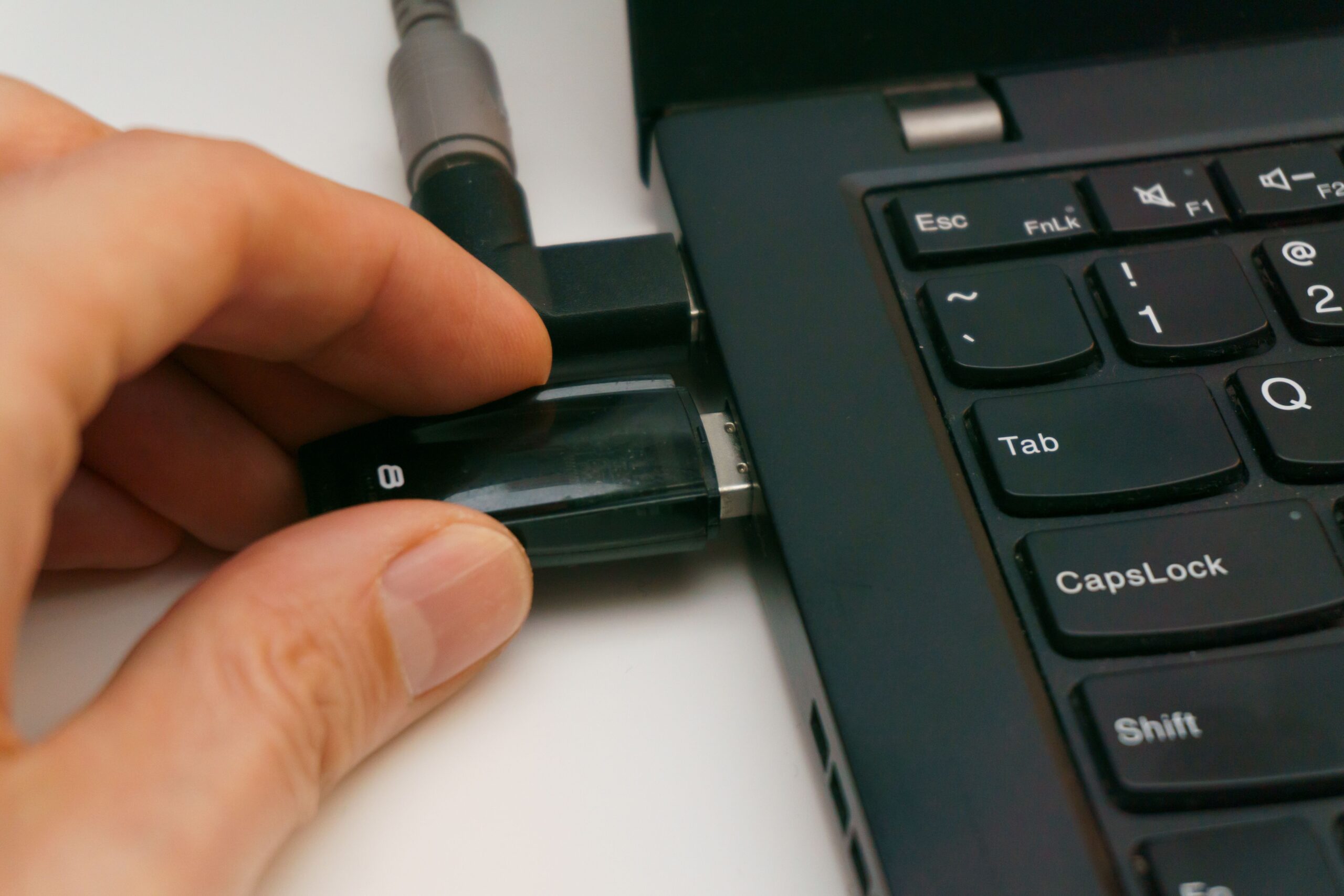
I'm sure it's happened to you: you connect a new hard drive or want to clean a USB drive, and suddenly Windows throws up a question that seems to come from another planet: Do you want to format it in NTFS or exFAT? For someone who isn't a computer expert, this might sound like gibberish, but choosing one or the other can make the difference between your files being readable anywhere or getting a nasty surprise when trying to transfer a large video.
The question isn't just which is "better," but what you're going to use the drive for . The hard drive where your operating system is installed is not the same as an SD card for your camera or an external hard drive for backups that you'll be moving between a PC and a Mac. Let's break all this down so you don't have to overthink it and can choose the option that best suits your needs.

What exactly is the NTFS system?
NTFS, or New Technology File System, is the standard that Microsoft designed back in 1993 to leave behind more rudimentary systems. Today, it's the default format for Windows ; if you buy a computer, your internal hard drive will most likely be formatted this way. Its main strength is its robustness.
One of its key features is journaling, or change logging . Essentially, the system records what it's going to do before it does it; if there's a power outage or the PC crashes, NTFS uses this log to prevent data corruption, something exFAT can't do. Furthermore, it offers advanced security permissions , allowing you to encrypt folders and set disk quotas so that a single user doesn't consume all the available space.
Discovering the exFAT: the lightweight alternative
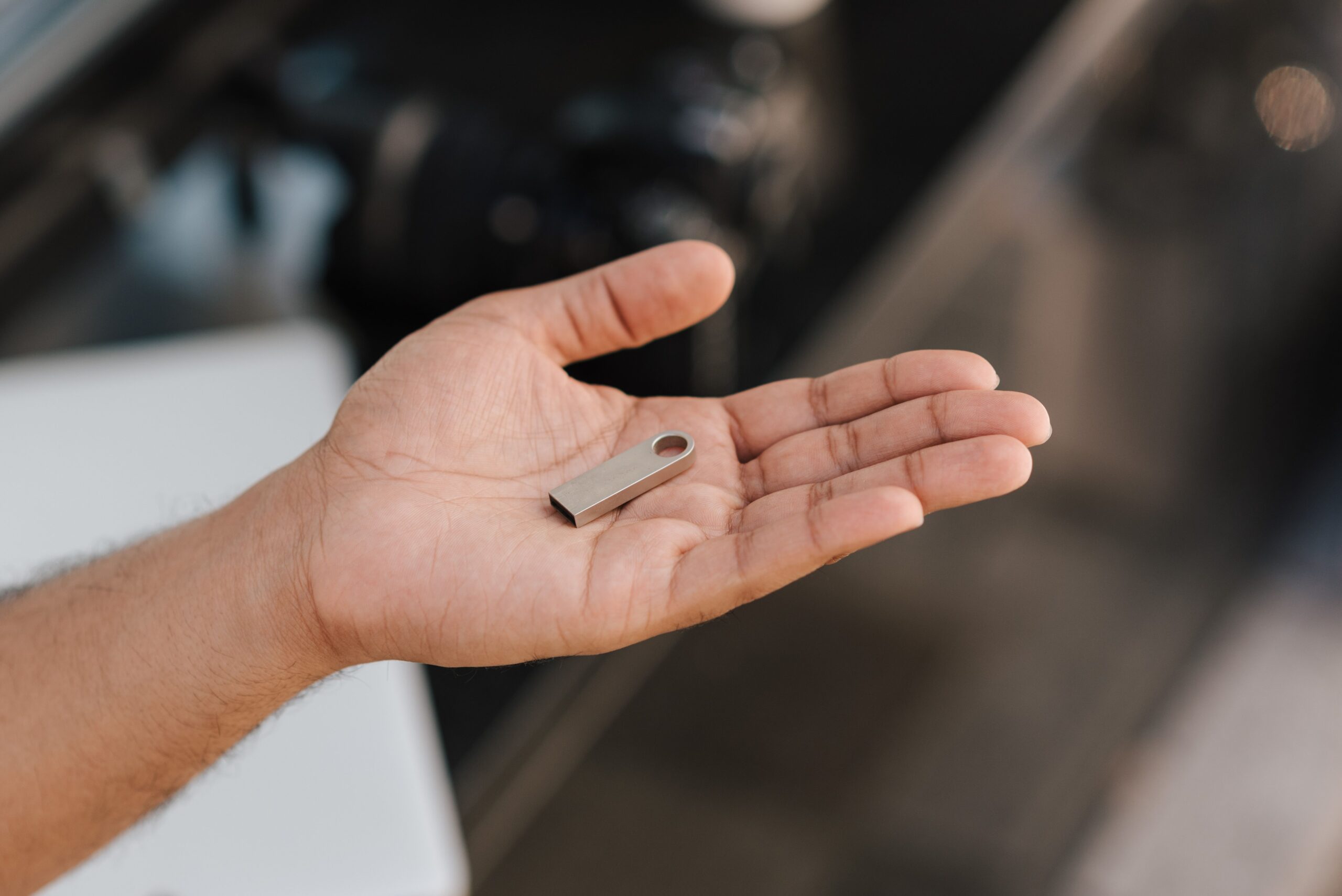
exFAT (Extended File Allocation Table) arrived in 2006 to solve the problems of the old FAT32. While FAT32 was compatible with everything but didn't let you save files larger than 4 GB (a problem for 4K videos), exFAT removes those size restrictions , allowing for gigantic files and partitions.

This format is optimized for flash memory , such as USB drives and SD cards, because it's much lighter and doesn't consume as many system resources. Its greatest advantage is its cross-platform compatibility : you can write and read data on Windows and macOS without having to install any unusual third-party programs, making it the king of removable storage devices.
Detailed comparison: Advantages and disadvantages
To make it clearer, let's analyze the strengths and weaknesses of each. NTFS is like a tank: safe and powerful, but heavy. exFAT is like a bicycle: agile and can go anywhere, but it doesn't have the same level of protection.
- Advantages of NTFS: It supports huge volumes (up to 16 TB), and manages them better. small file batches It offers top-notch security with built-in encryption. It's the logical choice for any internal Windows drive.
- Disadvantages of NTFS: It's a headache on Mac, because They only allow reading the filesIf you want to burn something to an NTFS disk from a Mac, you'll need external software. Also, it can be slow on disks with very little space.
- Advantages of exFAT: It's the perfect bridge between operating systems. It works on Windows, Mac and many Smart TVs or consoles. Furthermore, when saving medium and large files to USB, it generally performs better than NTFS.
- Cons of exFAT: Since it doesn't have journaling, it's more vulnerable to data loss If you disconnect the drive without security. It also lacks user permissions and native encryption.

Which one to choose depending on your device?
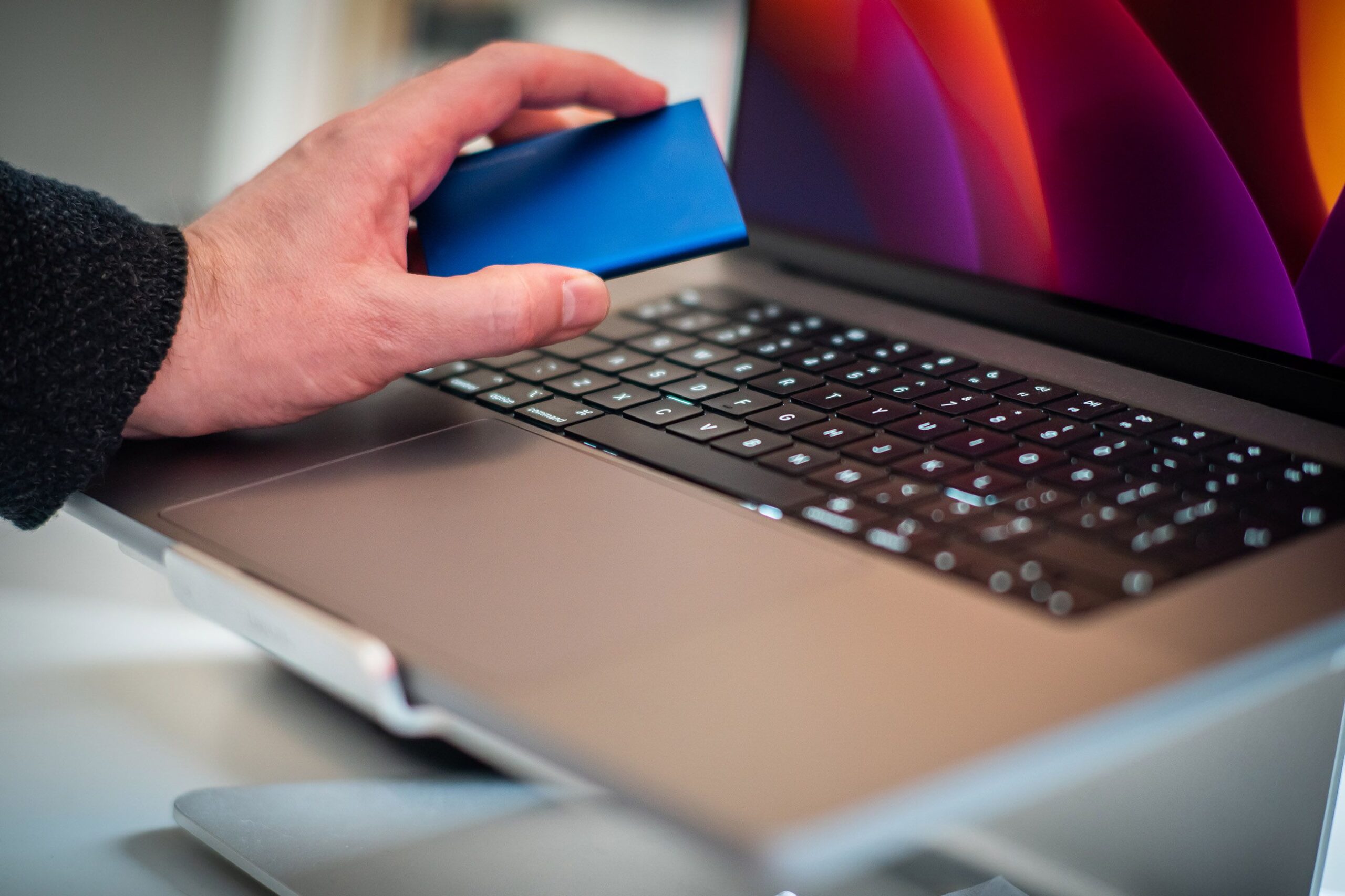
If you want to keep things simple, follow these golden rules. For any internal hard drive or SSD that will be installed in a Windows PC, always choose NTFS. There's no point in using anything else, as you need system stability and security for Windows to run smoothly.
Now, if we're talking about external drives, USB flash drives, or SD cards , things change. If you're going to move the drive between a Mac and a PC, exFAT is the only sensible option. Even if you only use Windows, exFAT is ideal for gaming or quickly transferring large files. However, if you have a huge external drive (over 128 GB) and will only use it with Windows, NTFS remains a very solid option due to its data management capabilities.
Practical tips for formatting
If you decide to change the format, remember that formatting erases absolutely everything . In Windows, you can do this from "Disk Management" by right-clicking on the drive. If for some reason the exFAT option doesn't appear, you can use the Diskpart command-line tool to force formatting via the command line.

One important detail: if you have many tiny files (like thousands of icons or text documents), NTFS is more efficient. In contrast, exFAT can waste space because its block size is larger (up to 64 KB), meaning a tiny file could take up much more space than its actual size on the disk.