- QNAP Security Center centralizes auditing, policies, and integration with antivirus, antimalware, and QuFirewall to strengthen NAS security.
- The file activity monitoring function detects typical ransomware patterns and allows you to define thresholds with automatic responses.
- Block-based snapshots and multi-version backups are the foundation for recovering data intact after an attack.
- Properly configuring notifications and security policies adapts the level of protection to home and corporate environments.
Protecting a NAS today is not just about having an antivirus and crossing your fingers. Ransomware and modern malware directly target your files, backups, and settingsAnd if your QNAP is caught unprepared, the shock can be considerable, both at home and in a business.
In this context, the following comes into play QNAP Security Center, the security “brain” integrated into QTS and QuTS heroIt handles system auditing, file activity monitoring, coordinating antivirus, antimalware, and firewalls, and activating automatic defenses when it detects anything unusual. Furthermore, it leverages NAS snapshots to help you recover your data even after an encryption attack.
Why a QNAP NAS is key against ransomware
A QNAP NAS is not just a network drive: It is a Linux-based storage platform, more resilient by design than many traditional Windows systems, and designed to centralize data from computers, mobiles, virtual machines, containers, public clouds, SaaS and file servers.
From a security standpoint, The NAS's greatest strength is the backup and the snapshotsQNAP allows backup and synchronization via RTRR, rsync, FTP and CIFS/SMB, as well as replicating data to other NAS devices or the cloud, with fast restores when something goes wrong or ransomware enters the scene.
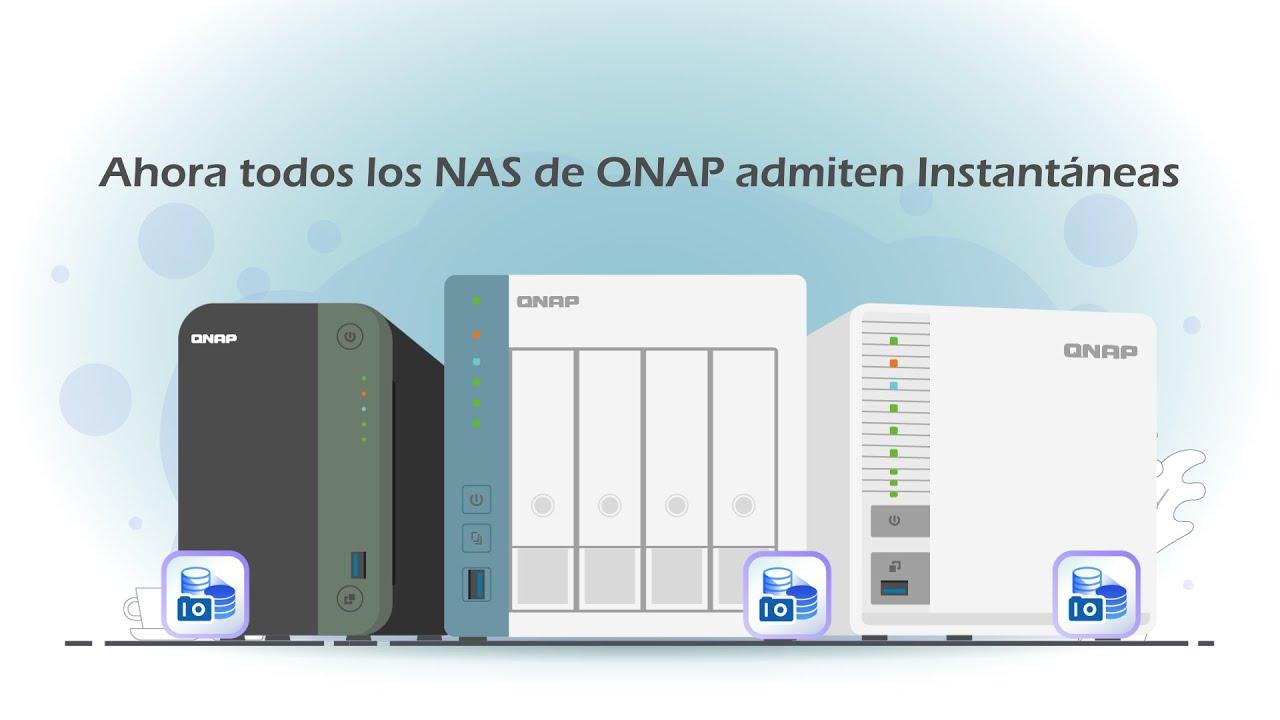
QNAP snapshots play a crucial role: They are block-based copies, independent of the file system.Even if the file system is corrupted or encrypted, those versions remain intact, so you can revert to a previous point and recover unencrypted files.
QNAP itself insists on a kind of "security mantra": Check if your NAS supports snapshots, perform regular backups, and create copies of multiple versions.This combination of traditional backups and snapshots is the foundation of ransomware protection, provided you also keep your firmware updated and use [the appropriate security measures]. strong passwords.
What is QNAP Security Center and how does it fit into the NAS?
QNAP Security Center is the central cybersecurity console for the NAS.More than just an antivirus, it functions as a control panel from which the security status is monitored, vulnerabilities are analyzed, policies are managed, and different protection tools are coordinated.
Its objective is twofold: On one hand, audit the NAS configuration and status, and on the other hand, apply automatic changes. (or guided) in the system and in the volumes when risks are detected. Thus, it is not limited to "warning", but can also react actively.
As soon as you open the application, you'll find a clear panel with several well-differentiated modules: Security Checkup, Antivirus, Malware Remover and QuFirewallSecurity Center acts as the "conductor" of all of them, offering a unified view and reducing the time you have to spend searching through different QTS or QuTS hero menus.
The interface design is quite understated: There aren't too many fireworks, but there are shortcuts and detailed explanations.For home users with some experience it is easy to use, and for corporate environments it allows a level of granular control sufficient to adapt to demanding security policies.
Requirements, installation and initial decisions
To be able to use the latest Security Center capabilities, especially those geared towards ransomware, QTS 5.2.0 or higher, QuTS hero h5.2.0 or QuTScloud c5.2.0 is requiredOn these systems, the app is available from the QNAP App Center.
The process is simple: Open the app store, search for “Security Center”, and install the latest versionIf your NAS has multiple storage pools, you'll be prompted to choose which volume to install the application on. Before proceeding, it's advisable to have your disks, RAID, volumes, and shared folders already configured to ensure the audit is meaningful.
It should be noted that The new advanced file activity monitoring features have started as a beta versionIn some models you may have to join the beta program to try them, although QNAP is gradually incorporating them as standard features.
Upon launching Security Center for the first time, a key screen appears: the selection of the base security policyIt's an important initial decision, because it sets the level of rigor that will be applied to your configuration.
Security policies: basic, intermediate, advanced, and customized
Security Center proposes the following from the start three predefined security profiles (Basic, Intermediate and Advanced), in addition to the option of creating a customized policy tailored to the details.
La Basic policy is designed for NAS devices isolated from the InternetLocated on a private network with no externally exposed services and containing non-sensitive data, this reduces warnings and restrictions, making it suitable for those who prioritize simplicity over maximum protection.
La Intermediate policy is usually the most reasonable for an "advanced" home user, which uses myQNAPcloud, media servers or secure remote accessIt increases the level of checks and recommendations, but without excessively blocking network functions.
La Advanced policy increases protection by cutting certain functionalities and tightening rules.This is more geared towards professional environments or businesses where the NAS stores critical data and is exposed to less reliable networks.
If none of these fit your scenario, You can define a custom policy and activate or deactivate specific rules.This way, very strict checks are combined with exceptions for services you really need (such as a specific HTTP port, a web server, or notifications configured to your liking).
Security Checkup: Security audit with guided actions
The heart of the audit portion is Security Checkup, the module responsible for checking the NAS, assessing risks, and proposing correctionsThis is the point where it's best to start after choosing a security policy.
When launching an analysis, The system scans network configurations, permissions, active services, open ports, administrator user, notifications, and access policies. and other parameters that influence how exposed the NAS is. Depending on the hardware, number of disks, connections, and services, the task may take more or less time.
The result is presented quite clearly: an overall security score and a list of alerts ordered by priority or criticalityEach alert includes text explaining what is happening, why it is risky, and what impact it has on the overall security of the system.
The most useful is that Security Center adds a direct link to the settings section related to each detected problem.Instead of wasting time searching for the setting in the QTS menus, you jump to the specific panel and can apply the changes instantly, either automatically (when that option is offered) or by following a wizard.
If you don't want to follow all the recommendations to the letter, You can "skip" certain warningsFor example, maintaining a non-standard HTTP port, using a web server for a specific need, or having certain types of notifications disabled. Security Center will still warn you, but you decide if that risk is acceptable.
Integration with QuFirewall antivirus, antimalware and firewall
Security Center alone doesn't work miracles; it shines when It combines with the security apps of the QNAP ecosystem.which are also managed from its main interface.
For the antivirus part, The system offers ClamAV as a free integrated solution.This is sufficient for many users, and you can use McAfee with a paid license or trial period if you're looking for additional features. You can schedule scans or run them on demand, and decide what to do with the detected files: quarantine or delete them.
In addition, there is a specific tool for malware removal focused on threats that affect the NAS itselfAlthough it may seem redundant with antivirus, its focus is different: while antivirus mainly looks at the impact on Windows systems or clients accessing the NAS, antimalware focuses on files or scripts capable of compromising QTS/QuTS hero.
In the App Center, within the Security section, you will also find QuFirewall, QNAP's integrated firewallIts function is to control what traffic enters and leaves the NAS using rules by IP, subnet, region or predefined profile (Basic protection, include subnets only, restricted security, etc.).
For advanced analysis, QuFirewall can enable detailed event and packet capture, something more geared towards network administrators or corporate scenarios where intrusion attempts or attack patterns are to be investigated.
Monitoring for unusual file activity: the key to fighting ransomware
Where Security Center truly sets itself apart from a conventional antivirus is in the File Activity Monitoring functionThis feature is specifically designed to detect typical ransomware behaviors and other attacks that modify files en masse.
The idea is simple, but very effective: The system analyzes file activity on volumes and shared folders that you choose.establishing a “normal” pattern of changes after a minimum reference period (around seven days). From then on, any unusual spike is considered suspicious.
For now, this function It allows monitoring up to 20 sources simultaneously. (between volumes and shared folders). From the Security Center panel, you choose which areas you want to monitor closely: storage of critical documents, company projects, internal backups, etc.
In the configuration of each source, You can adjust the activity threshold and view graphs showing the number of file changes. at different times. Below a certain level, the system understands that everything is within normal limits; when it rises above that level, the alarms are triggered.
Detection is based, above all, on Count name changes, modifications, and mass deeds in a short periodThis is precisely what usually happens when ransomware starts encrypting entire directories. The malware doesn't need to be known by its signature; what gives away the attack is its anomalous behavior toward the data.
Thresholds, alerts, and automatic actions in response to suspicious spikes
For each monitored volume or folder, Security Center allows Define two threshold levels: one medium and one highWhen the activity exceeds each of them, a different type of alert can be triggered and, most interestingly, an automatic reaction.
In practical terms, you establish something like this: “If the activity exceeds this average value, warn; if it reaches this high value, apply protective measures.”This double layer reduces false positives and allows you to find out about unusual behavior before a data crisis erupts.
Each threshold includes an option to "Select actions". Within that menu, You have three main answers that can be combined depending on the criticality of the situation:
- Pause scheduled snapshotsIf you continue generating snapshots of already encrypted or corrupted data, you'll only be saving unusable versions. By stopping the schedule, you avoid overwriting good snapshots with faulty copies.
- Switch the volume or folder to read-only modeIt is a very powerful measure for Stop ransomware that is encrypting filesBy blocking writing, the malware can no longer modify data, giving you time to investigate and restore from snapshots or external backups.
- Create a new snapshot of the shared folderThis action generates a snapshot at the exact moment of the alert. It can serve as a photograph of the state before the attack (if triggered early) and as an additional reference for recovery.
In addition to these general actions, You can go a step further and monitor specific directories within a volumewith its own alerts and reactions. This is very useful when you have particularly critical areas (for example, databases, accounting, or production projects) and you want an extra level of monitoring over them.
Notifications and alert management: many options, a bit of a learning curve
Detection without notification is of little use, so Security Center includes a fairly flexible notification system, although not always intuitive at firstThe idea is that you find out about problems quickly without having to be connected to the NAS panel all day.
The setup involves two steps: Choose the communication channel and define what type of alerts will be sentFor a home user, the usual approach is to use email and, if necessary, push notifications via the Qmanager mobile app.
In professional environments or with multiple NAS devices, QNAP offers integration with Qmiix, its multi-platform automation platformThrough it, you can orchestrate alert sending to Slack, Microsoft Teams, Zoom, or even (for a time) Skype, as well as generate more complex flows involving other applications and services.
This range of channels makes it The notification screen should have plenty of options, fields, and parameters.This might seem a bit overwhelming at first. However, to cover the basics, you only need to set up your email and, if you want something more immediate, the Qmanager app on your mobile device.
In scenarios where security is critical, it is highly recommended Carefully define which events should trigger an alert. (policy changes, malware detection, file activity spikes, firewall blocks, etc.) and which responsible parties they are directed to, in order to avoid both excessive noise and a lack of key warnings.
Best practices for backups and snapshots with QNAP
In addition to everything that Security Center offers, QNAP emphasizes a robust backup and snapshot management strategy as a first line of defense against data loss and ransomware.
The “three-step plan” that QNAP usually proposes is quite sensible: Verify that your NAS supports snapshots, schedule regular backups, and maintain multiple versions using snapshots.That way, if a version is affected by encryption or a mass deletion, you can revert to previous levels.
Block-based snapshots have another important advantage: They are space-efficient and allow you to quickly restore systems and files to a specific point in time.It's not just about recovering a single file; you can also undo deep changes to the NAS's data structure after an attack.
In terms of connectivity, QNAP facilitates copies to other NAS servers, FTP servers, public clouds, or even SaaS servicesThis fits with the classic 3-2-1 rule (three copies of your data, on two different media, with at least one off-site copy), which remains one of the best defenses against any incident.
By combining these tools effectively with Security Center, You achieve a "defense in depth" approach: early detection, attack containment, maintenance of healthy copies, and agile restoration when all else fails.
The entire ecosystem QNAP Security Center, with its configuration auditing, antivirus and antimalware integration, QuFirewall firewall, file activity monitoring, and flexible notification system, makes the NAS much better equipped to face ransomware and current threats; if accompanied by well-configured snapshots, regular backups, and good habits (updated firmware, strong passwords, and controlled internet exposure) reduce the likelihood of suffering a permanent disaster. are drastically reduced and they allow you to sleep much more peacefully, both at home and in the office.

Table of Contents
- Why a QNAP NAS is key against ransomware
- What is QNAP Security Center and how does it fit into the NAS?
- Requirements, installation and initial decisions
- Security policies: basic, intermediate, advanced, and customized
- Security Checkup: Security audit with guided actions
- Integration with QuFirewall antivirus, antimalware and firewall
- Monitoring for unusual file activity: the key to fighting ransomware
- Thresholds, alerts, and automatic actions in response to suspicious spikes
- Notifications and alert management: many options, a bit of a learning curve
- Best practices for backups and snapshots with QNAP