- Social media, streaming, and browsing applications are the most energy-intensive due to their intensive use of screens, GPS, and data.
- It is essential to monitor actual battery consumption from Android's battery settings to identify excessive background processes.
- Solutions such as app hibernation, restricting permissions, and clearing the cache can slow down energy drain.

Does your phone ever run out of battery just when you need it most, and you can't figure out why? Don't worry, it's not always because the battery is old or you need to buy a new phone. Often, the real culprit is daily use and certain apps that drain the battery, even when they're not open on your screen.
In this guide we'll take an in-depth look at which apps are draining your Android device, the reasons why the battery percentage drops so quickly, and, most importantly, real tricks to extend battery life without having to delete all your favorite apps.

Why does my phone battery drain so fast?
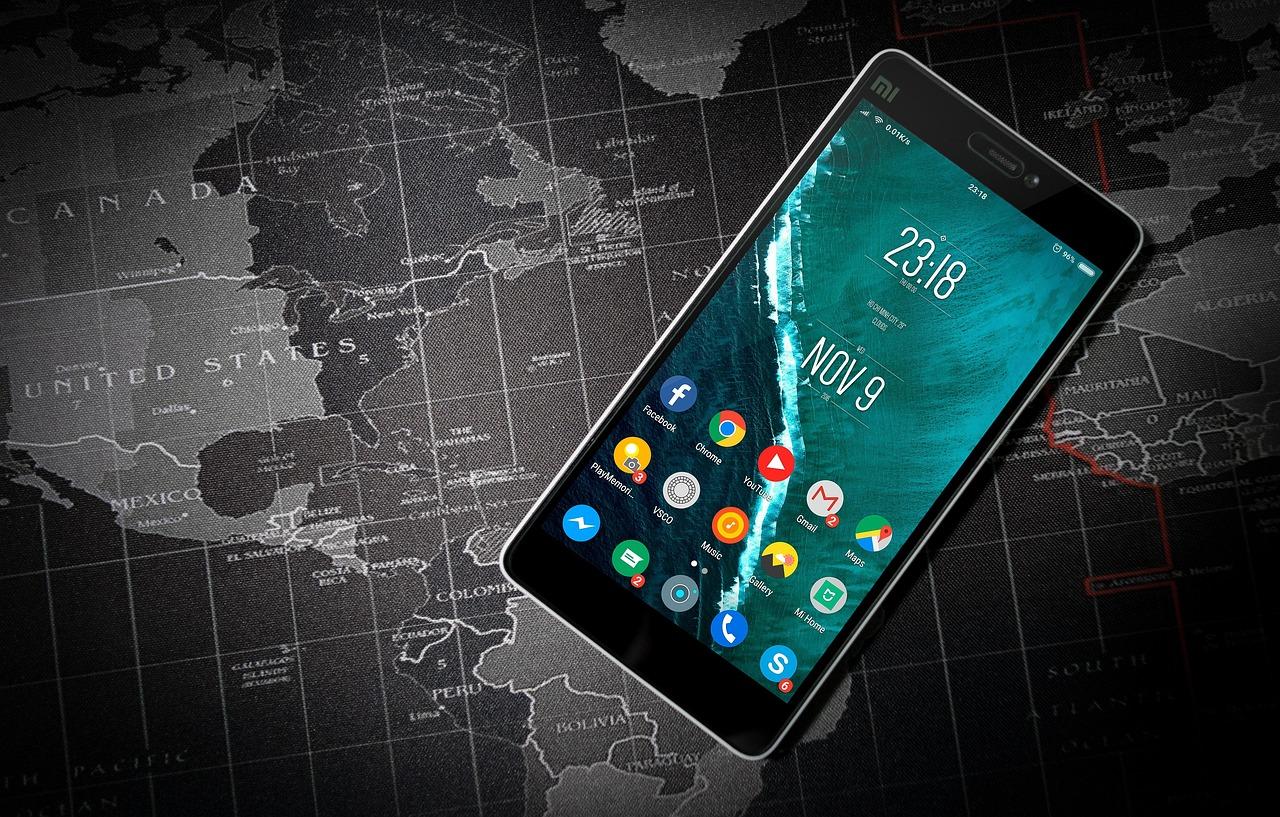
There are a thousand reasons why your battery drains so quickly. Some are obvious, like having the brightness at maximum, the phone being a few years old, or being in an area with terrible coverage. But the most common problem is apps running in the background.
Many of these tools continue to consume resources even when you're not using them: they update your feed, send notifications, use GPS to track your location, and constantly sync data. Furthermore, if your internet connection is unstable, your device has to work much harder to load data, which significantly increases energy consumption. Therefore, if you notice that everything is slow or freezing, the problem might be with your network, not your hardware.

The apps that consume the most battery
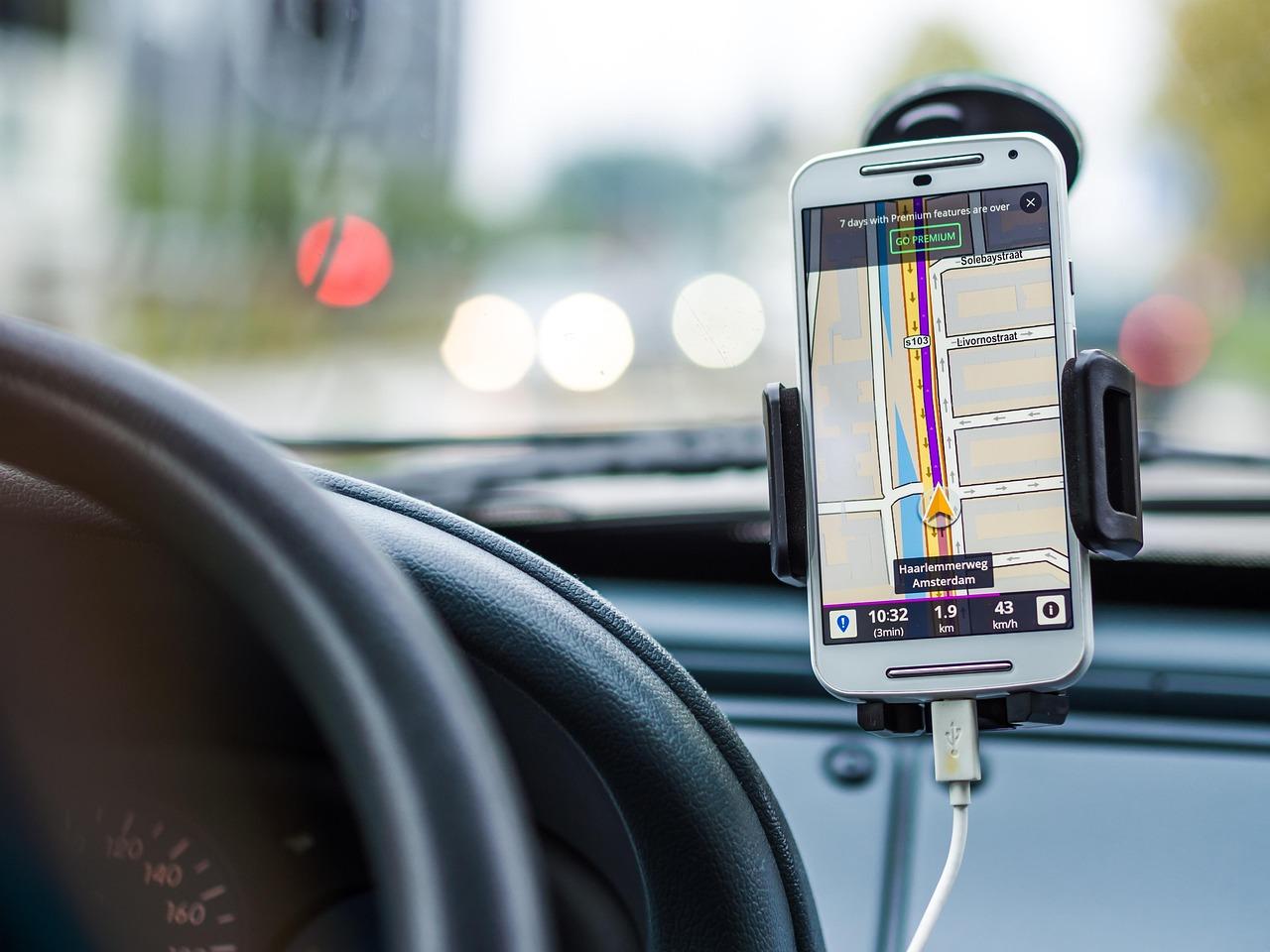
Not all apps use the same amount of data. The ones that consume the most energy tend to share some characteristics: they use a lot of video, constant location tracking, calls, or run heavy processes in the background. Here are the main ones:
- Social Network: Facebook is one of the worst because it does everything (videos, groups, camera, messaging). Instagram and TikTok are also to blame, especially because of the automatic video playback And the infinite scrolling that keeps the screen on for hours. Messenger, meanwhile, keeps connections active so you don't miss a single message.
- Video and Streaming Platforms: YouTube, Netflix, and Twitch require high-quality image processing, a constantly active screen, and a stable internet connection. If you also use mobile data instead of WiFiThe drain is much more aggressive. Spotify and Apple Music also use up a lot of data, especially if you use lossless audio.
- Maps and Navigation: Google Maps and Waze are real battery hogs because they combine GPS, data, and an on screen. To avoid getting stranded, the ideal solution is download offline maps.
- Health and Sport: Apps like Fitbit, Strava, or Google Fit are often synced with wearables and record steps or routes using GPS, which generates a constant and exhausting monitoring for the battery.
- Instant messaging: WhatsApp and Telegram can use a lot of data if you have very active groups or if you have the automatic file download and frequent backups.
- Assistants and Smart Home: Amazon Alexa or Google Home stay listening or managing devices in the background, consuming energy even if you don't give them commands.

How to find the culprit on your Android

Before you start randomly deleting apps, it's best to check the actual data. Android has built-in tools for this. Just go to Settings > Battery > Battery usage . There you'll see a list ordered by percentage; those at the top are the suspicious ones. If you see an app using a lot of battery in the background, you can change its setting to "Restricted" to limit its activity.
There are also physical signs: if your phone gets very hot even when you're not playing anything demanding, it's likely that an internal process is stuck or a poorly optimized app is consuming maximum resources. In these cases, it's helpful to know the battery health and capacity on your Android device to rule out physical damage.

External tools and advanced solutions
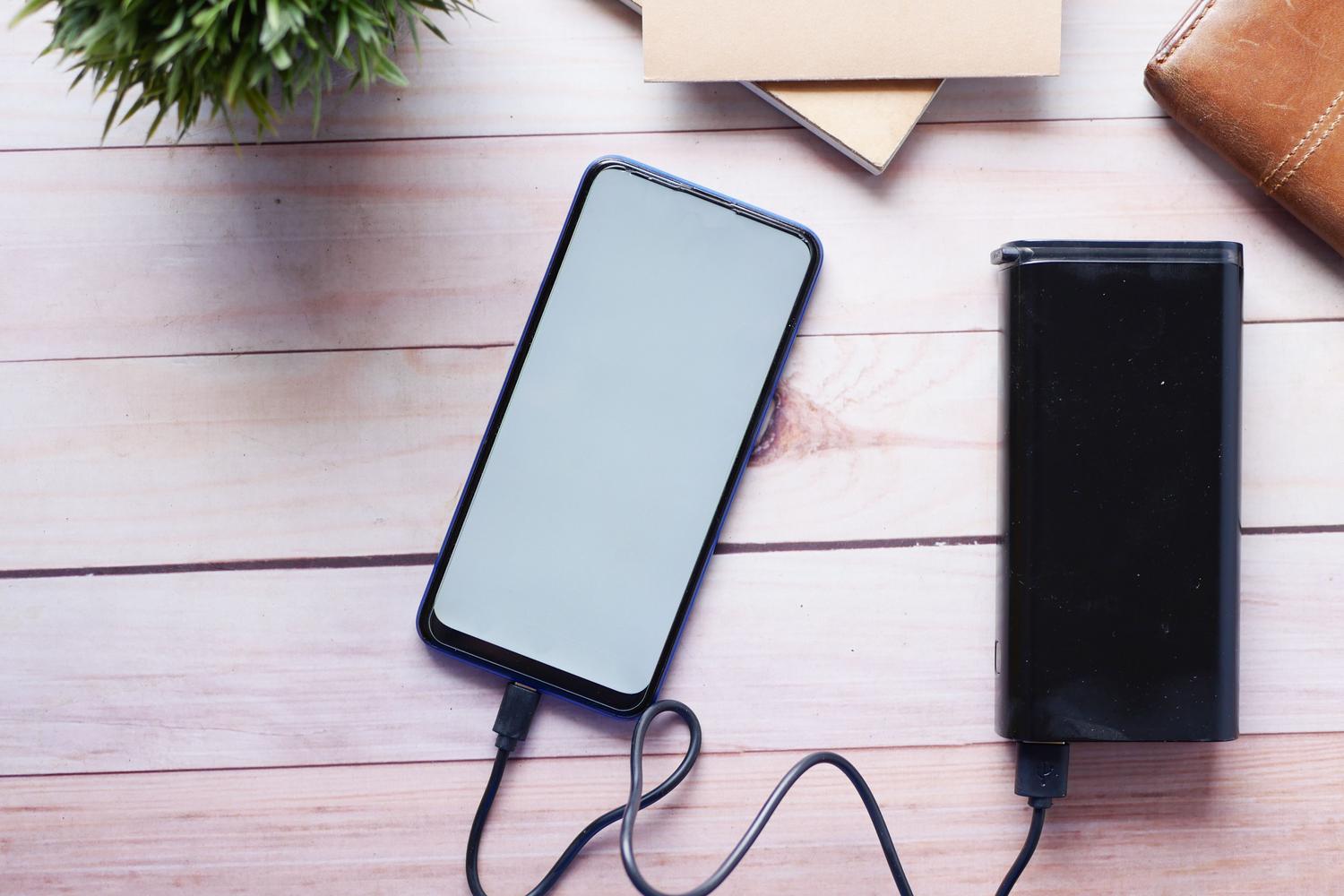
If the built-in settings don't suit you, there are apps on Google Play that can help. AccuBattery is great for viewing detailed charging and discharging statistics, while Greenify lets you hibernate unused apps so they don't wake up the processor. Some antivirus programs even include power optimizers.
A special case is the Google app (the search and Discover app). Sometimes it gets stuck in a process and starts draining the battery uncontrollably. In these cases, the best thing to do is go to Settings > Apps > Google and select "Clear storage" and "Force stop" to restart it. If nothing works, you can temporarily disable it.
Extra tips for optimizing energy
To make your phone last longer, you can apply these quick adjustments: use adaptive brightness , disable interface animations, and keep your software up to date, as updates usually bring efficiency improvements. It's also advisable to check permissions ; if a flashlight app requests access to your location, it's likely draining your battery unnecessarily.
To better manage your usage, remember that forcing the stop of system apps like Google Play Services is not recommended, as it could destabilize the overall functioning of your phone.
Taking control of energy consumption involves monitoring the battery level, limiting background processes for social media and streaming apps, and knowing when to reset an app that has frozen. By adjusting location permissions and optimizing screen brightness, any user can significantly extend the life of their daily charge.
