- Microsoft offers a login helper tool and a recovery form as the primary ways to regain access to Outlook and Microsoft accounts.
- The recovery form works by comparing data that only the owner should know, so it's best to provide as much information as possible and use common devices.
- If two-step authentication is enabled without backup methods, even Microsoft support has very limited options for recovering the account.
- Strengthening security after regaining access, with various verification methods and good digital hygiene, greatly reduces the risk of losing the account again.
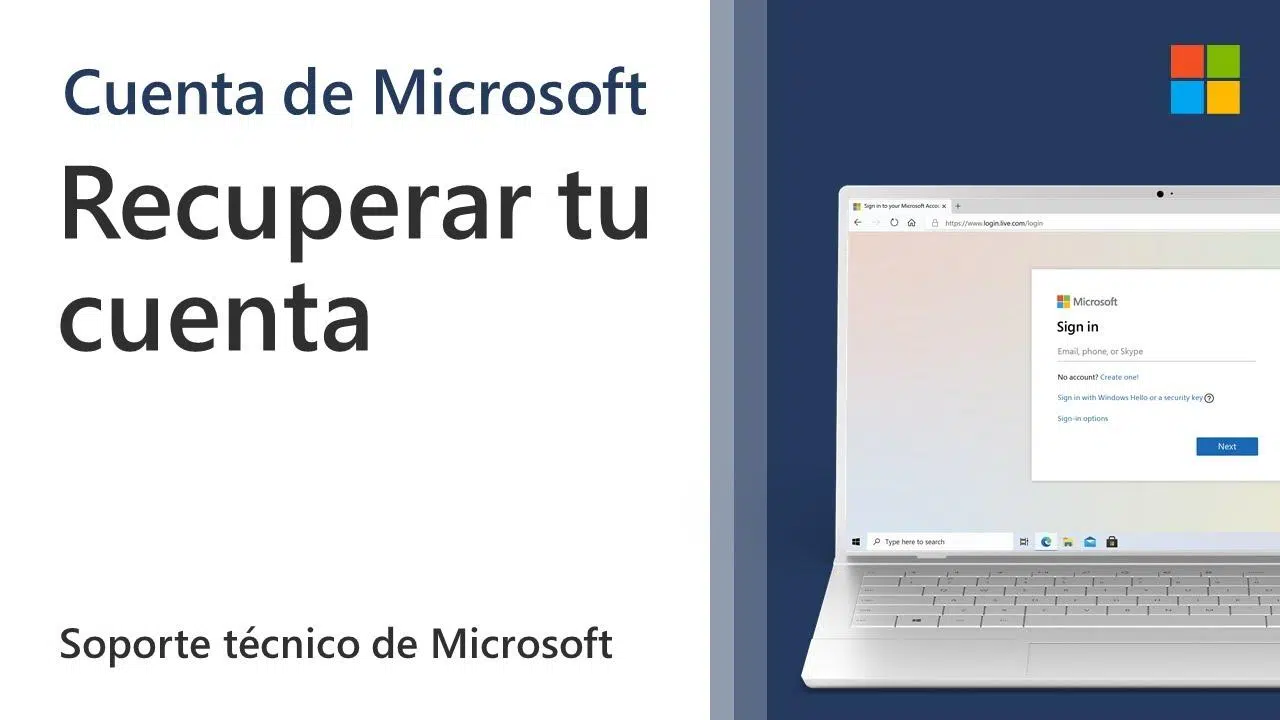
Losing access to your Outlook account or any Microsoft account (Outlook, Hotmail, Xbox, Skype, etc.) is one of those situations that tests anyone's patience. Suddenly you can't log into your email, your associated services stop working, and everything gets complicated just when you need it most.
In this guide, you'll find clear, everyday explanations of all the options Microsoft offers for recovering a locked, compromised, or closed account , what to do when the problem is two-factor authentication (Authenticator, SMS), and how to proceed if you've been receiving suspicious login attempts for a while. It's not magic, but understanding how the system works will greatly improve your chances of regaining control.
Why you might lose access to your Outlook account
The first step is understanding why you might suddenly see messages like "your account is locked" or "we can't sign you in ." Microsoft usually temporarily blocks accounts when it detects unusual activity: logins from uncommon countries, many failed attempts in a row, or activity that appears to be from a bot or attacker.
This block isn't a punishment, but a measure to prevent fraud, account theft, or abuse . The problem is that, from the user's perspective, all you see is that you can't log in, and this generates a lot of stress, especially if that account is linked to important services like Xbox, Minecraft, digital purchases, or subscriptions.
You can also lose access if you've enabled two-step authentication (2FA) and then lose your phone, uninstall Microsoft Authenticator, change your phone number, or no longer have any trusted devices signed in. In these cases, even if you remember your password, the system will still ask for additional verification that you no longer have access to.
Another common scenario is that the account was closed by you or deleted due to inactivity . If you closed it voluntarily, there's a limited time to recover it. But if you haven't logged in for years, it may have been permanently deleted, and in that case, there's no going back.
Official Microsoft tools to recover access
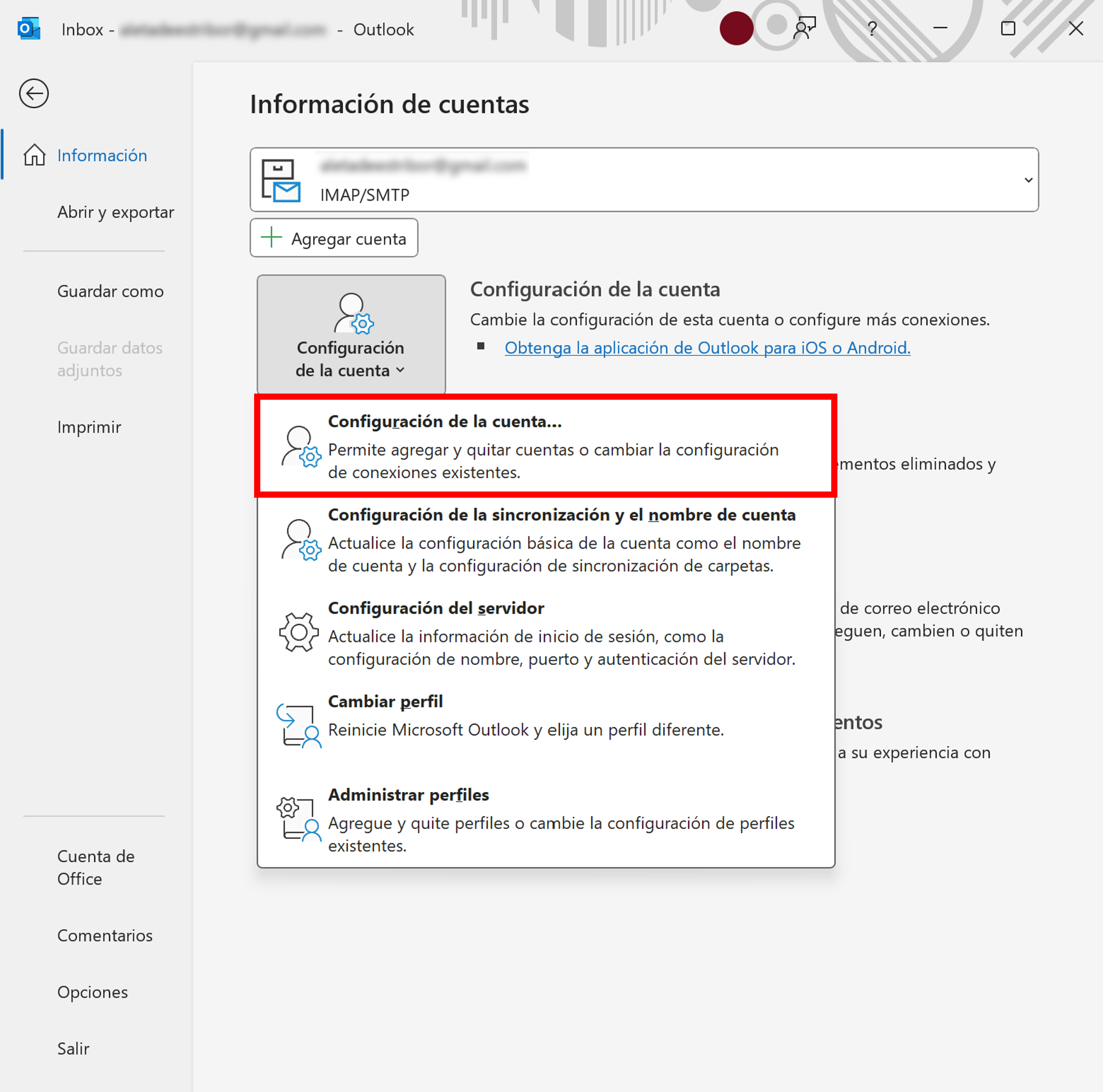
Microsoft centralizes almost all login problems in an online utility called, depending on the translation, the "Login Helper Application" or "Login Assistant ." It's basically a wizard that asks you questions about what's happening and guides you along the appropriate path based on your specific situation.
This tool will ask you to enter the email address or phone number you want to use to log in, and from there, it will perform automatic checks. If it detects a block due to suspicious activity, a password problem, a non-existent user account, or any other typical issue, it will show you the suggested steps to resolve it.
In many cases, this assistant is enough to unlock your account, receive a security code , or reset your password. If the system doesn't detect any technical issues but you still can't access your account, the assistant will offer more detailed self-help instructions or direct you to other specific support pages.
If you still can't log in after following these instructions, Microsoft will refer you to the most demanding procedure: the account recovery form . This form is the core of the entire process when you no longer have access to the usual verification methods.
Microsoft account recovery form: what it is and when to use it
When you don't have access to your recovery email, phone, or the Authenticator app, the only real resource Microsoft offers is the recovery form at account.live.com/acsr . There's no "magic" shortcut or support agent who can skip this process for you.
This form is designed to help you prove you are the legitimate owner of the account using information only you should know : personal details, account usage, linked services, contacts, previous passwords, etc. The closer your information matches what Microsoft has on file, the greater your chances of success.
It's important to understand that this is a self-managed and automated process . Even Microsoft's own support agents have their hands tied: they can't see or modify your account's internal data; they can only guide you on how to fill out the form and what steps to follow.
Each request is typically reviewed within approximately 24 hours . You will receive a response at the alternate email address you provided at the start of the process, not in the account you are trying to recover.
If Microsoft cannot verify your identity, the answer will be negative, but you can try again up to twice a day , for as many days as you want, always providing more data and more precise answers in each new attempt.
Preparations before filling out the recovery form
To improve your chances of success, it's a good idea to prepare thoroughly before filling out the form. Taking a few preliminary steps can make all the difference and prevent you from repeating the process over and over again without any results.
The first thing to do is make sure you have an active email address that you can access. This is the account where Microsoft will send you all communications regarding the recovery process: confirmations, instructions, acceptance or rejection notices, etc. It can be your personal email address from another provider (Gmail, for example) or the email address of a trusted family member or friend.
If you don't currently have an alternative account available, you can create a new, free outlook.com account directly from the Microsoft sign-in page by selecting the "Create one" option. This new account will serve as your contact mailbox during the process.
The second step is to gather as much information as possible related to the account you want to recover: Microsoft services you used with it, devices you logged in from, subscription details if any, and even contact details or messages you remember.
Keep in mind that the form is designed to ask questions that are difficult for an attacker to answer, but relatively easy for the legitimate owner. The more specific you can be , the better Microsoft's internal verification system will work.
How to fill out the recovery form step by step
When completing the form at account.live.com/acsr, there are several important details to consider to avoid missing out on this opportunity. Filling it out hastily and without thinking usually results in almost certain rejection.
Whenever possible, try to access the form from a familiar device and location —that is, a computer or mobile device you've used to log in to that account before, and connected from your home or office. Microsoft's security system also takes this context into account, and recognizing a familiar device can work in your favor.
Fill in all the questions , even if some require you to rely on your memory and make a rough guess. Incorrect answers won't be penalized, but leaving fields blank will cause you to lose opportunities for matching the data with the actual figures.
The questions can range from old passwords you remember using, to email addresses of your regular contacts , subject lines of messages you've sent, services like Xbox, Minecraft, Skype, or subscriptions linked to that account. If you see an "add more" button, use it and add as much as you can.
If at any point the system displays the message “The Microsoft account you entered does not exist ,” double-check the spelling of the email address or phone number. If you are sure it is spelled correctly and it is still not recognized, the problem may be that the username is no longer valid or the account has been completely deleted.
What happens after submitting the form
Once you submit the form, you'll need to be patient. The verification isn't instant: Microsoft's system analyzes all the data you provided and will send an email to the alternative address you indicated at the beginning of the process within about 24 hours .
If the verification fails and the system concludes that there aren't enough matches, you'll see a message like "We couldn't verify your account ." In that case, it's not the end of the road: you can try again as many times as you like, up to a maximum of two attempts per day, adjusting and expanding the information you provide.
Once the system verifies that the information matches its records, you will receive an email with instructions on how to log back into your account . This will typically include a link or procedure for setting a new password and regaining access to your full profile.
Once you gain access, it's vital to take the opportunity to strengthen security : review recovery data, clean up any suspicious changes, and add alternative verification methods. Failing to do so could lead to the same situation later, and you might not be so lucky next time.
At this point, it's highly recommended that you review Microsoft's documentation on how to maintain a secure account and facilitate future password resets . There are specific sections dedicated to adding additional verification methods, updating security information, and configuring alerts for suspicious login attempts.
What to do if your Outlook account has been hacked
Often, the problem isn't that you've forgotten your password, but that someone has gained unauthorized access. If you've noticed logins from unusual locations, messages you don't remember sending, or changes to your settings, you should treat your account as if it's been compromised by malware or an attacker.
Before making any changes to your account, it's a good idea to make sure your PC is clean. If you're using Windows 8.1, Windows 10, or Windows 11, you already have Windows Defender built in , which offers protection against viruses and other types of malware. Make sure it's up to date and run a full scan.
To run a scan on these versions of Windows, simply click the Start button , type "Windows Defender" in the search box, and open the tool. From there, follow the on-screen instructions to scan your entire system and remove any malware it finds.
After cleaning your computer, the next step is to log in to your account and change your password as soon as possible . If you can no longer log in because the attacker changed it, use the password reset option from the Microsoft sign-in page and follow the verification steps.
Once you regain control, carefully review your account settings, especially sections like Connected Accounts, Forwarding, and Autoresponders . Often, when someone gains unauthorized access, they take the opportunity to redirect messages, add suspicious forwarding addresses, or set up malicious autoresponders.
Problems with two-step authentication (2FA) and Microsoft Authenticator
Two-factor authentication (2FA) is one of the best defenses against unauthorized access, but it can also become your biggest enemy if you lose the device that generates the codes and you didn't have a backup method. This is especially problematic when you only had Microsoft Authenticator as your verification method.
Consider this typical scenario: you had two-step verification enabled only through the Authenticator app, with no SMS, secondary email, or backup codes. Your phone breaks, is stolen, or you have to perform a factory reset, and your Authenticator data disappears. To make matters worse, you're logged out of all trusted browsers and devices connected to your account.
In this situation, even if you manage to reset your password via email , when you try to log in, the system will again ask for the second factor, which you can no longer access. It's a rather frustrating loop, and many users report repeatedly filling out the recovery form without getting a helpful response.
Microsoft is very clear on this point: if your account had two-step verification enabled and you don't have any alternative method (security codes, another phone number, another email address, a restored app, a device still connected), there is no manual recovery procedure. Not even internal support can bypass 2FA.
While it may not be the answer you want to hear, the key is prevention: if you manage to recover your account at any point, always set up several security methods (for example, Authenticator + SMS + alternate email) and save the recovery codes in a secure location that doesn't depend solely on your mobile phone.
Accounts closed, deleted due to inactivity, and reopened
There's another type of access loss related to the account's lifespan . When you voluntarily close your Microsoft account, the system doesn't delete it instantly: a grace period, usually 30 or 60 days, opens, during which you can change your mind and recover it.
During that period, simply go to account.microsoft.com , sign in with that account, and follow the on-screen instructions. You'll be asked to receive and enter a security code, and once confirmed, the account will be reopened with all the subscriptions, profiles, and content it had before it was closed.
If that grace period has passed, things change: the account is considered permanently closed and can no longer be reopened . The same applies if you haven't logged in for more than two years: for system cleanup and policy compliance reasons, Microsoft may delete inactive accounts, and there's no way to recover them once deleted.
If you try to log in and see messages like " username is no longer working" or "no account found with that identifier," it's very likely you're experiencing one of these issues. Again, the solution is to create a new account and, if necessary, reconfigure services like Xbox or subscriptions with a different address.
For questions related to account closure, reopening, deadlines, and statuses, Microsoft offers specific articles that also link to resources such as "How to close a Microsoft account" or "How to check if your email address is a Microsoft account," which can help you confirm the exact situation.
Additional support options and contact information for Microsoft
When self-help isn't enough, the logical thing to do is seek assistance from someone on the other end. Microsoft offers various technical support options for Outlook.com and Microsoft accounts , although it's important to be realistic: when it comes to account recovery, their options are very limited for security reasons.
If you can sign in to any account (even if it's not the problematic one), you can access support on Outlook.com by clicking the Help section in the menu bar and typing your question. If the automated replies don't resolve your issue, at the bottom of the page you'll see a "Need more help?" section where you can select yes to view additional contact options.
From the main Microsoft support page, you can also go to " Contact Microsoft Support ," describe your problem, and click "Get help." If the system determines you need direct assistance, it will offer the option to "Contact technical support" to redirect you to the most appropriate channel (chat, email, phone, depending on the country and service).
Even so, even when talking to a real person, if the problem is that you can't get past two-step verification or fail to pass the recovery form, the answer is usually the same: the agent has no way to manually unlock the account or modify your internal security methods.
You can also use official forums and communities like the Outlook.com community , where other users (and sometimes Microsoft moderators) answer questions, share experiences, and suggest practical solutions. It's not an official recovery channel, but it can give you ideas about what information to include in the form or how to interpret certain error messages.
Best practices to protect and avoid losing access again
Once you've gotten over the initial shock, or even if you're still struggling with access, it's worth taking note of some best practices to minimize the risk of losing your account in the future . These are small habits that can save you a lot of headaches.
In terms of security, the most important thing is to have a good, up-to-date antivirus program and run regular scans , especially if you use Windows and frequently download files or open attachments. Keeping your device clean reduces the risk of someone stealing your password or gaining access to your login credentials.
At the account level, it's crucial to use strong, unique passwords that you don't reuse across other services. If you suspect your account has been compromised, change your password from a clean computer and review all security settings and contact information to ensure no one has added data you don't recognize.
With two-step authentication enabled, the key is not to rely on a single method. Combine the Microsoft Authenticator app with a phone number, an alternate email address, and recovery codes stored in a secure location. If you switch phones, be sure to migrate your Authenticator settings or temporarily disable it before losing your old device.
Finally, don't neglect account activity: checking notifications for unusual logins and logging in occasionally, even if you don't use it daily, will give you time to react to suspicious access and help you keep everything under control.
With all this information, dealing with a locked or locked Outlook account is no longer an incomprehensible maze: you know what the login helper does, how the recovery form works, the limitations of two-step verification, and the true extent of Microsoft support. With good preparation, accurate information , and a little patience, your chances of regaining control and strengthening your account security increase significantly.
