- Windows groups accessibility into three main blocks: vision, hearing and interaction, with integrated and increasingly comprehensive tools.
- Features such as Narrator, Magnifier, color filters, live subtitles and voice control allow the system to be adapted to different disabilities.
- Keyboard, mouse, and eye-control options offer alternatives to traditional interaction, improving the autonomy of users with reduced mobility.
- Windows accessibility is also useful for users without disabilities, by improving comfort, productivity, and customization of the environment.
La accessibility in Windows It has gone from being a virtually unknown extra to becoming a key component of the system. Today, both Windows 10 and Windows 11 include a good number of tools designed to allow people with visual, hearing, or motor disabilities to use the computer with much greater independence.
These features are not only of interest to users with specific needs: many are very useful for improve comfort, productivity and user experience for anyone. If you're bothered by the font size, have trouble following some animations, or prefer to control your PC with your voice, the accessibility options will be incredibly useful.
What is accessibility in Windows and how has it evolved?
When we talk about accessibility in Windows We're referring to all those built-in features that allow the operating system to adapt to different ways of seeing, hearing, and using the computer. The goal is that someone who can't see the screen, who has hearing loss in one ear, or who can't use the mouse properly, can continue using the computer without being excluded.
For years, Windows lagged far behind Apple in this area. In older versions like Windows 7, tools such as Narrator or Magnifier were very basic and, in many cases, They only covered very specific needs.The real leap forward came with Windows 10 and has been consolidated in Windows 11, where accessibility is already present from the installation.
Today we can say that Windows offers a fairly complete ecosystem: advanced screen reader, magnifier, color filters, high-contrast themes, subtitles, speech recognition, keyboard and mouse control, eye tracking, and more. All of this is grouped by type of need to make it easier to configure.
How to access accessibility options in Windows 10 and Windows 11
In modern versions of the system, Microsoft has placed all accessibility features in a very visible location. In Windows 10, the menu is called Ease of access, while in Windows 11 it is simply called AccessibilityBut the philosophy is the same.
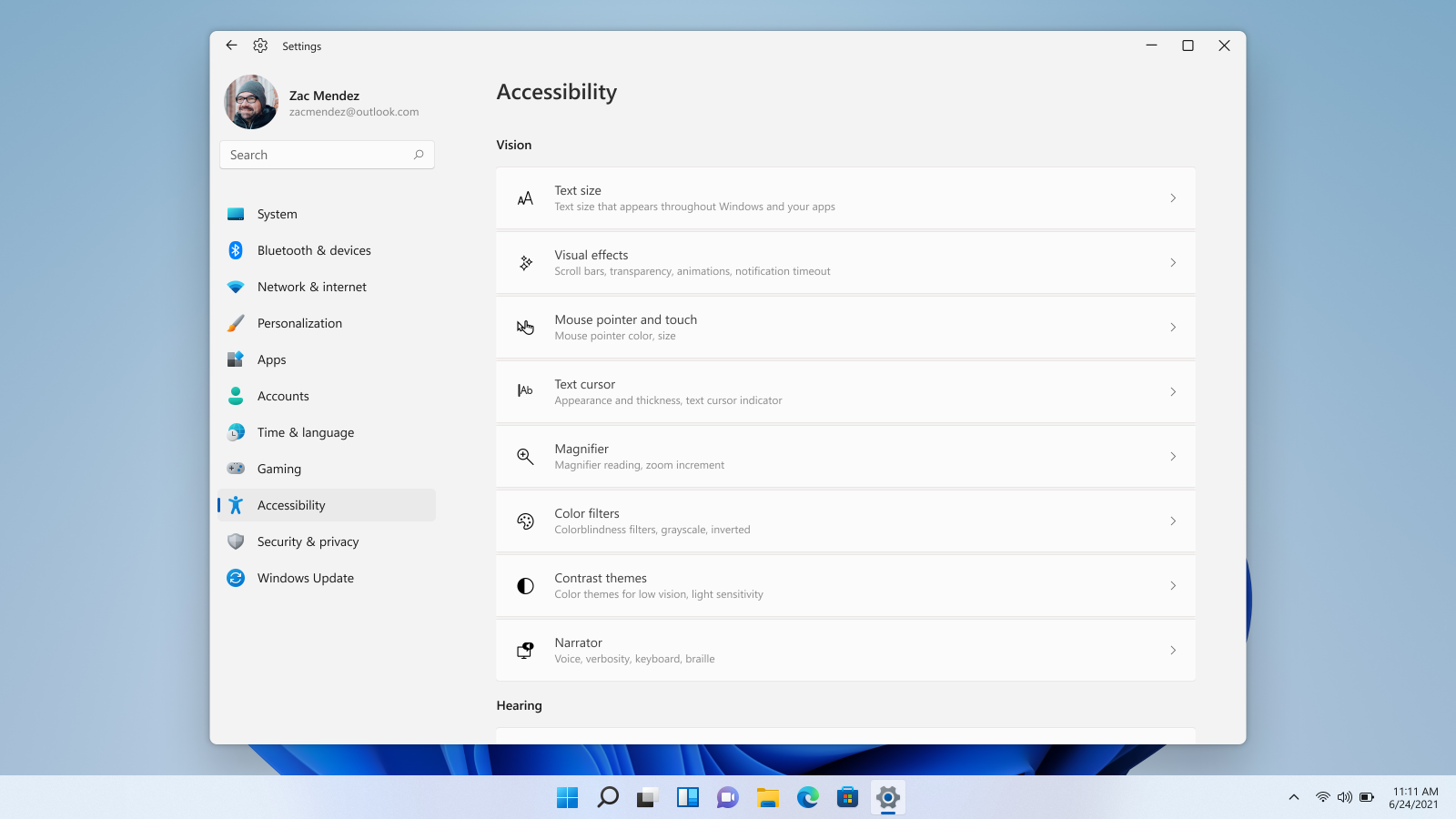
In Windows 11, the fastest way is to open the application Configuration using the Windows + I combinationIn the left-hand column, you'll see the Accessibility section. Inside, everything is organized into three main blocks: Vision, Hearing, and Interaction. Each category groups related settings, such as color filters, subtitles, and voice control.
Another very practical way to access a specific tool is to use the Windows integrated searchSimply open the search box and type "accessibility" or the name of the feature (for example, "Narrator," "Magnifier," or "Closed Captions"). The system will usually take you directly to the specific settings page for that tool.
In Windows 10 the process is very similar: from the Start menu, access Settings and, once inside, choose Ease of accessThere you'll see the same ideas: separate options for vision, hearing, and interaction, although with a slightly different interface than Windows 11.
Vision-related accessibility options
the block of Vision It is possibly the most comprehensive. It is designed for blind people, those with low vision, those with residual vision, or those with difficulty distinguishing certain colors, but its settings are also useful for anyone who wants to better customize what they see on the screen.
Screen settings, text size and scale
One of the first settings you'll find is the text size. Windows 11 allows you to Increase the font size quite generously It's used both in the system and in many applications. For those with presbyopia or who simply work far from the monitor, it's a change that makes a real difference.
Alongside the text size, you have the overall interface scale, which you'll find in the Display section of Settings. There you can make everything (windows, menus, icons) appear larger or smaller. By combining scale and text size, It's easy to find the ideal balance for your monitor and your eyesight.
These settings also control brightness, night mode, and desktop background. Some people with low vision prefer not to have a background image. better distinguish the icons on the desktopSo Windows allows you to leave a plain and more neutral background.
Cursor, mouse pointer, and text cursor
Another important section is that of cursor and pointerHere you can change the size and color of the mouse pointer so it's more visible against any background. For users with limited vision or who easily lose track of the mouse, being able to enlarge it and give it a bright color is almost essential.
You can also change the thickness of the text cursor, that is, the vertical bar that blinks when you type. If you make it thicker, It's much easier to find where you're typing.This is very useful when vision is reduced or there is a lot of text on the screen.
Windows also allows you to control the appearance of touch indicators on touchscreen devices. You can adjust how the circles or marks that appear when you touch the screen are displayed, and from here you can also access advanced mouse and touchpad settings.
Magnifying glass: flexible screen enlargement
The tool Land It's a classic Windows accessibility feature, but it's been greatly improved in recent versions. Its function is to magnify a portion of the screen so that content appears larger without needing to physically move closer to the monitor.
You can activate Magnifier from Settings or directly with the shortcut Windows + plus (+) keyOnce it's running, you can choose the zoom level, define how much it zooms in at a time, and decide whether you want it to start automatically with Windows. You can even have it appear on the login screen if you need it right away.
The Magnifier view is quite flexible: it can be used full screen, as a floating window-like lens, or fixed to a specific area. Furthermore, you can configure what it should track: the mouse, the keyboard focus, the position where you type text, or even the Narrator cursor if you're using a screen reader. There are also options such as... edge smoothing to make the enlarged letters look better, or to invert the colors to increase contrast.
Color filters, high contrast, and contrast themes
For those who are colorblind or have other difficulties distinguishing colors, Windows includes specific color filtersYou can activate them from the Accessibility menu and, in many cases, assign them a keyboard shortcut to quickly switch between them depending on what you're doing.
Alongside these filters is the high contrast option in Windows 10 and the contrasting themes In Windows 11, these themes aren't just about inverting colors; they're complete themes that intelligently adjust backgrounds, text, and interface elements to make the differences between them more noticeable. They're designed for people with low vision or light sensitivity, but many use them simply because they find them more comfortable.
Narrator: The built-in screen reader
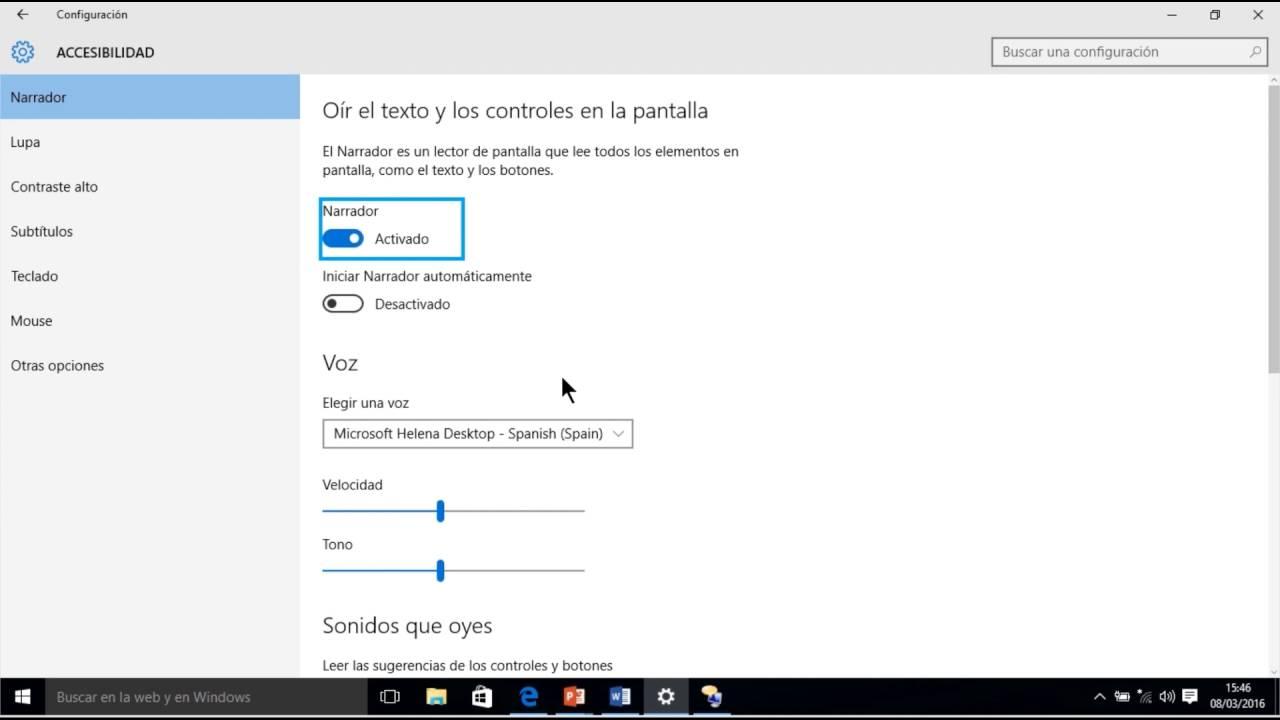
El Narrator It's the native Windows screen reader, the tool that converts everything on the screen into speech. With it, you can read documents, browse web pages, navigate menus, and generally control your computer without needing to see the screen.
It can be activated from the Accessibility menu or with the shortcut Windows + Ctrl + Enter (Enter). The first time you turn it on, a welcome screen appears with explanations and links to a quick start guide. From that same page, you can decide whether Narrator should start before or after logging in and whether it should be displayed minimized.
The Narrator settings are quite extensive. Among other things, they allow Change the voice used, add new voices, and adjust the speed, pitch, and volume.You can also control the attenuation of audio from other applications when the Narrator speaks, as well as the sound output device.
As for how the system "speaks," you can define the level of detail of the information it announces (for example, whether you read only the text or also the formatting), the emphasis it places on capital letters or other styles, whether it should provide the phonetics of the letters, how it respects punctuation pauses, and what kind of contextual help it gives about interface elements.
There are specific sections for typing feedback: you can specify whether you want Narrator to read each character, each word, both, or neither, as well as whether it should alert you when you press function or navigation keys. There's also an audible alert when Caps Lock is activated, which is very useful for avoid accidentally typing large blocks of text with Caps Lock on..
On the keyboard, you can choose which key will act as the Narrator modifier (for special shortcuts), whether that key will be locked or must be held down, and whether you want to create custom shortcuts. There are also specific options for when you're using a touch keyboard.
The narrator can also work with braille using a Braille display or Braille screen Compatible. Finally, it offers the ability to sync all your settings with your Microsoft account so that your adjustments are applied across all your devices, and also includes an option to send error reports to Microsoft.
Hearing-related accessibility options
The tools for users with hearing problems They focus primarily on how sound is managed and on providing visual alternatives when there are alerts or spoken content. Although less numerous than visual ones, they have improved considerably with Windows 11.
Audio and mono sound settings
From the Accessibility menu, in both Windows 10 and Windows 11, you can control the overall system volume and the volume of specific devices or applications. This is useful, for example, for raise the volume of a video call and lower the volume of a game without having to go application by application.
One very interesting option is mono audio. If a person hears better with one ear than the other, or can only use one earbud, activating mono audio makes it so that the left and right channels mix so that no part of the sound is lost. This way you don't depend on stereo separation to fully understand what's playing.
Optional subtitles and live subtitles
In the subtitles section, Windows allows you to adjust the color, transparency, style, and size of the text, as well as effects like borders and backgrounds. These are the classic optional subtitles for videos and content that already include them, but adapted to the user's visual needs.
Windows 11 goes a step further with the live subtitlesThis feature can listen to any audio coming from the device's speakers and transcribe it in real time as on-screen text. You can move the subtitle box wherever you want so it doesn't get in the way, and on some devices with artificial intelligence capabilities, it's even possible to translate the content on the fly.
This feature is key for deaf or hard-of-hearing users, but it's also very useful if you need to watch a video silently, follow a presentation without disturbing others, or better understand audio in another language relying on the text.
Additionally, in Accessibility there are settings that allow you to display visual alerts when system alerts sound, so that if you cannot hear a sound, you will see some kind of notification on the screen or a flashing light.
Accessibility options for interaction and mobility
The section of Soil-structure This group includes alternatives to the traditional use of a keyboard and mouse. It's geared towards people with limited hand and arm mobility, but it can also be interesting if you want to explore other ways to control your PC.
Voice control and voice recognition
This section contains the voice options. Windows integrates speech recognition for dictating text and controlling some system functions by speaking. In Windows 11, there's a specific section called Voice, from which you can configure these settings. voice typing and control commandsas well as integration with assistants like Cortana where it remains available.
Dictation allows you to transform what you say into the microphone into text in writing fields, documents, or messages. It's a very practical option if you find typing difficult, if you tire quickly from typing, or if you're simply faster at speaking than typing.
Keyboard: on-screen, special keys and shortcuts
Within the Keyboard section, the main functions aim to reduce the need for complicated keystrokes. One of the best known is the on-screen keyboard, which displays a virtual keyboard on the monitor so you can type with a mouse, trackpad, mouth pointer, or other pointing devices.
You can also activate special keys, which allow you to press shortcuts like Ctrl + Alt + Delete or Windows + another key without having to hold them all down at once. This is very useful if You can't or you have difficulty holding down several keys simultaneouslyWindows can also emit a sound when Caps Lock, Num Lock, or Scroll Lock are pressed so you always know if they are activated.
There are specific settings to configure the speed at which keys repeat when held down, the initial delay before repetition, and other options that help prevent accidental keystrokes. You can also configure the Snipping Tool to open directly when you press Print Screen, which It makes taking screenshots much easier. to people who don't have a good grasp of various shortcuts.
Mouse and pointer control from the keyboard
In the Mouse section, the most notable accessibility feature is the ability to control the pointer using the numeric keypad. By activating the mouse keysThe numeric keypad is used to move the cursor, click, and drag, so that a person who cannot operate a physical mouse has another way to point.
From here you can also access the standard mouse settings, where you can change the pointer speed, swap buttons for left-handed users, or modify the appearance. Combined with the pointer size and color adjustments, this allows you to... create an experience tailored to each user.
Eye control and tracking technologies
In recent versions of Windows, a section has appeared for the eye controlThis technology, still considered in preview or beta in many cases, is designed for use with external devices that track eye movement. The idea is that the user can move the pointer and perform actions simply by looking at certain points on the screen.
Along with this, eye-tracking and text-to-speech options are also mentioned, which can be integrated with third-party devices. These solutions are especially relevant for people with very limited mobility who cannot use a keyboard or mouse in the conventional way. Although they are not yet as widespread as other features, their presence in the Accessibility menu indicates that Microsoft is clearly committed to this approach..
Accessibility in the educational and professional environment
Windows remains the most widely used operating system in schools and businesses, and its Accessibility menu plays a vital role in ensuring equal opportunities. From Start > Settings > Accessibility, both teachers and administrators can Quickly adjust the equipment to the needs of each student or worker.
In education, the Vision block is frequently used to increase text size, apply high-contrast themes, or configure Narrator for blind or low-vision students. The Hearing block is used to adjust audio channels, enable subtitles, and integrate these with accessible classroom materials.
In interaction, features such as the on-screen keyboard, keyboard-based mouse control, and voice access are key for students with motor difficulties. They also allow students to... people with physical disabilities can perform their work using the same digital environment as the rest, with very specific adaptations but integrated into the system itself.
Taken together, all these tools show that Microsoft has understood that not everyone uses the computer in the same way and that accessibility is not an extra, but a necessary condition for anyone to participate in the digital world, whether studying, working or simply enjoying their computer at home.

Table of Contents
- What is accessibility in Windows and how has it evolved?
- How to access accessibility options in Windows 10 and Windows 11
- Vision-related accessibility options
- Hearing-related accessibility options
- Accessibility options for interaction and mobility
- Accessibility in the educational and professional environment