- Safe mode temporarily disables third-party applications to isolate performance issues.
- It allows you to identify whether the slowness or freezing comes from external software or a system problem.
- It facilitates the removal of malware and corrupted applications that prevent normal operation.

Have you ever had your Android phone suddenly become incredibly slow or freeze for no apparent reason? It's a frustrating situation, but before you throw in the towel or assume your hardware is beyond repair, there's a trick up your sleeve called Safe Mode . This feature is essentially a diagnostic environment that starts the system with only the essentials, excluding any apps you've downloaded. This allows you to determine if the problem is caused by a poorly installed app or a virus.
Imagine it's like temporarily wiping the slate clean; your phone returns to a state similar to when you first took it out of the box. If you notice the device is incredibly fast and error-free while in this mode, you have your answer: a third-party app is causing problems . In this article, we'll explain in detail how to enter and exit this state, and what steps to take to completely clean your phone.
What exactly does safe mode consist of?
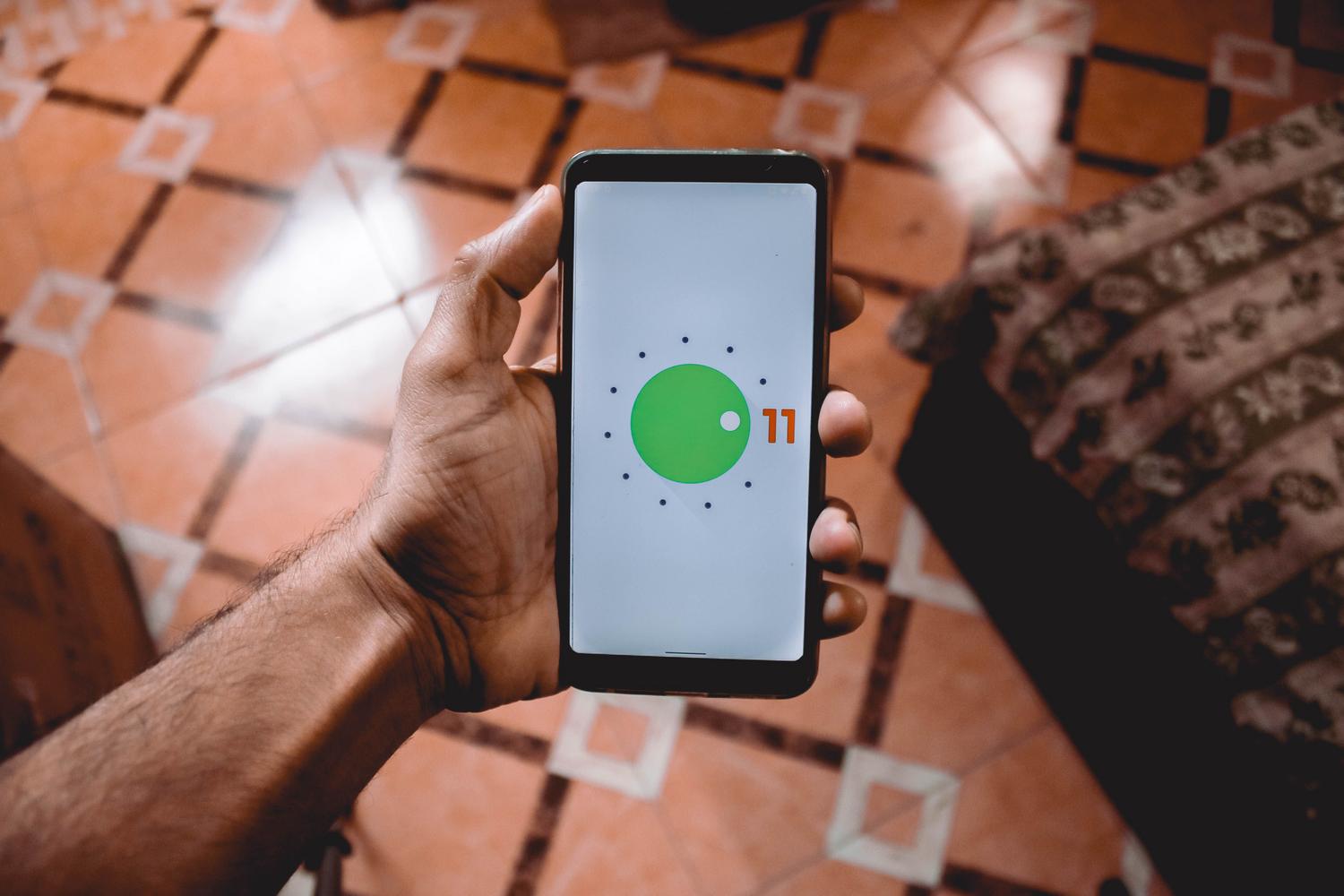
This system is a built-in Android analysis tool that isolates essential manufacturer software from third-party applications. When activated, all tools you've downloaded from the Play Store or via APK files are temporarily disabled . This is vital for detecting if a recent update has broken the system or if you've installed malicious software that's consuming resources in the background.
When you're in this mode, you'll notice that the icons of downloaded apps appear grayed out and you can't open them. This is a clear sign that the system has created a barrier so that only pre-installed apps work, allowing you to analyze the device's behavior without interference.
Situations where activating this function is key
- Extreme slowness and freezing: If the phone takes forever to open the menu or the screen freezes, safe mode helps rule out a physical problem with the device.
- Abnormal battery drain: There are applications that, even if you don't use them, continue working and They devour energyIf the battery lasts longer in safe mode, you know what to look for.
- Spontaneous restarts: When your phone turns itself off and on, it's usually a sign of a software conflict that this mode can help to isolate.
- Connectivity issues: Sometimes, a misconfigured networking app or VPN can interfere with Wi-Fi or Bluetooth; testing your device without these apps is the best way to troubleshoot. confirm the fault.
- Malware presence: Some viruses block access to normal settings. Safe mode neutralizes them, allowing you to delete them without resistance.
Step-by-step guide to entering safe mode

Depending on whether your phone is turned on or completely dead, the process will differ. Keep in mind that while most brands follow a similar pattern, it can vary slightly between a Samsung, a Pixel, and a Xiaomi.
If the device is turned on
The easiest way is through the power menu. First, access the quick settings by swiping down or pressing and holding the power button. When you see the "Power off" or "Restart" option on the screen, press and hold it for a few seconds. A prompt will appear asking if you want to restart in safe mode; simply accept, and the phone will do the rest.
If you have a very modern model (like the latest Pixels), you may need to combine the power button with the volume up button to bring up the advanced power menu.
If the device is turned off or unresponsive
In cases where the touchscreen isn't working or the phone is off, we'll use the physical buttons. Press and hold the power button, and the moment the manufacturer's logo appears on the screen, release the power button and immediately press the volume down button . Keep holding it until the system has fully booted up.
Once inside, you'll know you've succeeded because you'll see the words "Safe Mode" in the bottom left corner of the screen. Note that on some models, airplane mode is automatically activated for safety; if you need internet access to find a solution, remember to deactivate it manually.
How to exit safe mode and return to normal
Once you've finished your tests or deleted the problematic app, returning to normal mode is a breeze. The most common way is simply to restart your phone from the power menu. If your device doesn't have a direct restart option, turn it off completely and then turn it back on.
If for some reason your phone is "stuck" in this mode, try the following:
- Notification panel: Some models display an alert that says "Safe Mode enabled"; tap on it to disable it and restart.
- Forced restart: Press and hold the power button for about 10 or 15 seconds until the computer turns off and restarts.
- Button review: Check that the volume down button is not clogged with dirt or due to an incorrectly fitted cover, as this forces the boot into safe mode.
What should you do once you're inside to identify the culprit app?

Being in safe mode is only half the battle; now comes the detective work. If your phone is running smoothly, the problem is one of your apps. To find it, I recommend checking your recent downloads in the Google Play Store. Go to your profile, tap "Manage apps & device," and sort the list by the most recently installed or updated apps.
If you suspect an app is corrupted, you have three options: First, try clearing the app's cache in Settings > Apps to remove any corrupted temporary files. If that doesn't work, try clearing the app's data (keep in mind that you'll lose any active sessions). And as a last resort, uninstall the app completely.
Drastic solutions when nothing else works
If your phone is still slow or freezing even in safe mode, the problem is likely more serious, such as corrupted system files or a hardware failure. In this case, you can try entering recovery mode by holding down the power button and volume up while booting to clear the cache partition.
If all else fails, the final solution is a factory reset . This will erase absolutely all the content on your device, leaving it like new. It's crucial that you make a backup beforehand, but be careful: if the problem was a virus, you could reinfect your phone by restoring the backup.
Understanding how safe mode works can save you from unpleasant surprises and unnecessary trips to the repair shop. By isolating external applications, you can quickly diagnose whether the problem is faulty software, optimize performance by removing digital junk, and ensure your Android device always runs at peak speed without security risks.