- Update the router's firmware and change all default passwords, including the administrator password, to reduce known vulnerabilities.
- Configure WiFi with WPA3 or WPA2-AES encryption, an unidentifiable SSID, and a strong password, avoiding outdated protocols and insecure options.
- Strengthen security by disabling remote management, WPS, and UPnP when not needed, limiting ports, and using the built-in firewall.
- Separate devices on a guest network, regularly check connected equipment, and keep all devices updated for continuous protection.
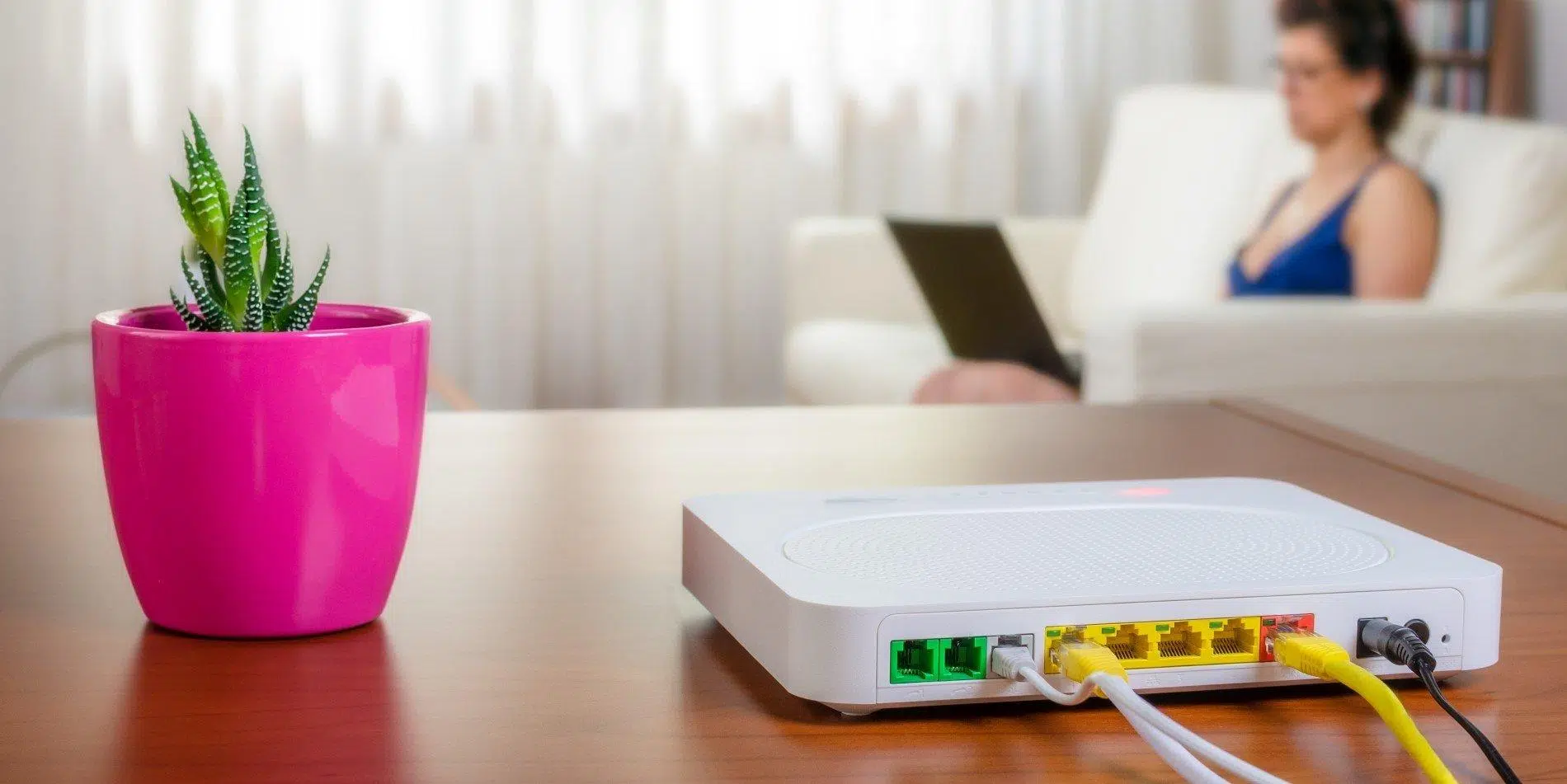
If you've ever thought your home Wi-Fi is "fine because it works" but never bothered to check your router settings, you have a security risk right in the middle of your living room . Your router is the gateway to the internet for all your devices: computers, phones, smart TVs, IP cameras, smart speakers... if that gateway isn't properly closed, anyone can get in.
Beyond a neighbor secretly connecting to your network, a misconfigured router can allow your communications to be intercepted, personal data to be stolen, or your connection to be used to commit crimes . The good news is that you don't need to be a system administrator to make it much more secure: with a few well-thought-out adjustments, you can significantly strengthen your home or small office network.
Why is securing your router settings so important?
The router acts as a gatekeeper between your private network and the outside world: it decides what comes in, what goes out, and who connects . Just as you wouldn't leave your front door open, it doesn't make sense to leave your router with all its "factory" settings and without checking them. Almost all devices come with generic parameters designed for fast connections, not for maximum security.
We're not just talking about the Wi-Fi network. Firewall settings, wireless encryption, DHCP, Network Address Translation (NAT) , open ports, and much more also come into play. Every incorrect setting is another crack through which an attacker can snoop or infiltrate.
Furthermore, routers are devices that remain switched on almost 24/7, often for years, without anyone touching them. This means that, if you don't update them, they accumulate known vulnerabilities that cybercriminals know how to exploit . Just like you update your mobile phone or PC, your router also needs maintenance.
To make matters worse, a compromised router doesn't just affect performance. It can be used as part of a botnet, carry out DDoS attacks , manipulate DNS to redirect you to fake bank or social media websites , or enable man-in-the-middle attacks on your communications.
In short: protecting your router is protecting your network, your devices, and, in many cases, your digital identity and your wallet . It's worth taking the time to do it.
Risks of a misconfigured router
When router settings are left at their factory defaults or are messed with haphazardly, the problems go far beyond a slow connection. The main cyber risks can be grouped into several categories that are important to keep in mind.
One of the most immediate effects is unauthorized access to the network. An intruder who manages to connect to your Wi-Fi can consume your bandwidth, saturate the network, and cause outages or a significant drop in speed . This, while annoying, is almost the least of the problems.
The theft of information circulating over the network is far more serious. A poorly secured router can make it easy for someone to intercept traffic, sniff data, or monitor which pages you visit and which services you use, and even steal credentials and sensitive data , especially if you access sites without sufficient encryption or use insecure protocols.
If the attacker manages to compromise the router, they can take control of the entire local network, gaining access to shared files, cameras, microphones, or connected storage devices . From there, they can spy on users, geolocate devices, extract photos or documents, or even lock them with malware.
Another worrying scenario is the infamous DNS hijacking. An attacker modifies the DNS servers configured on your router so that when you type the URL for your online banking or social network, instead of the legitimate site, you end up on a fake copy designed to steal your username and password . To your eyes, "everything seems normal," but in reality, you're talking to the cybercriminal.
Don't forget the legal risk: if someone uses your connection to send mass spam, launch denial-of-service (DoS/DDoS) attacks, or download illegal content, the IP address that will be recorded is that of your router . Proving it wasn't you can be a real headache.
Finally, many malware campaigns target vulnerable routers to turn them into bots. Once infected, your computer can degrade your performance while participating in coordinated attacks , all without you noticing anything obvious beyond an erratic connection.
Before touching anything: access and back up the settings
Before you start changing settings, it's best to do things in a somewhat organized way. First, access the router's control panel securely and, if possible, save a copy of the current configuration in case you need to revert to a previous state.
Ideally, if you're physically close to the router, connect your computer using an Ethernet cable. A wired connection avoids interference and reduces the risk of accidentally connecting to a public or someone else's Wi-Fi network while adjusting sensitive settings. If you have no other option but to use Wi-Fi, make sure you're on your own network.
In most cases, you can access your router by typing an address like 192.168.1.1 or 192.168.0.1 into your web browser . This information is usually found on a sticker on the bottom or back of the device, along with the default administrator username and password.
If you don't have the sticker or manual, you can search online for the exact model of your router (often supplied by your internet service provider: Movistar, Orange, Vodafone, Jazztel, etc.) and consult the official guide . On many older models, the default credentials are combinations like admin/admin, admin/1234, or similar, which obviously need to be changed as soon as possible.
Once you're in the management panel, locate the option to export or save the current configuration . Not all routers allow this, but if yours does, use it. This way, you can restore the previous state if a test goes wrong or if you change something that leaves you without a connection.
Updating the firmware: the first step to closing holes
Manufacturers and internet service providers regularly release new firmware versions to add features, improve performance, and patch vulnerabilities that could be exploited by attackers . If you've been using the same router for years and have never updated it, it's quite likely you're vulnerable to documented bugs.
Depending on the model, the update process can be automatic or manual. Many modern routers have a "check for updates" option within the administration menu, or even a mobile app to check for and run the update . For others, you'll need to download the file from the official website and upload it manually through the control panel.
On ISP-provided routers, updates are often pushed remotely, usually in the early hours of the morning, which is noticeable because the device restarts on its own from time to time . Even so, it's a good idea to access the control panel and check which firmware version you have installed and whether it matches the latest version documented for your model.
While you're doing this, make sure your devices (PC, mobile, tablet) are also up to date, as many WiFi compatibility or security problems are reduced simply by keeping both the router and the devices that connect to it updated.
WiFi security: network name, encryption, and password
The next major area is wireless network security. This involves three key elements: the network name (SSID), the encryption method, and the Wi-Fi password . Together, these determine how easy or difficult it will be for a third party to try to infiltrate the network.
Starting with the network name, avoiding default SSIDs is a good idea. Many routers come with identifiers like MOVISTAR_XXXX, JAZZTEL_1234, Livebox-ABCD, etc. This gives away clues about the model and the carrier, making it easier for an attacker to find generic credentials or exploit specific vulnerabilities . Change the SSID to something that doesn't identify you or reveal the brand of the equipment or your location.
Regarding encryption, it's recommended nowadays to use WPA3-Personal whenever your router and devices support it . It's the most modern and robust standard. If that option isn't available, configure at least WPA2-Personal (AES). Avoid WEP, older WPA, or mixed modes like WPA/WPA2 with TKIP at all costs, as they are insecure and, in some cases, can even reduce performance.
Your Wi-Fi password should be strong and unique. Never use your name, your dog's name, or "Madrid2024". Ideally, create a long password that mixes uppercase and lowercase letters, numbers, and symbols , with no direct connection to your network name or personal information. A password manager can make this task much easier.
If your provider gave you the router with a random password printed on a sticker, that's acceptable as a starting point, but it's still advisable to change it to one that you control and that isn't easily guessed from the SSID . And if you ever forget the password, you can always reset the router to its factory settings, knowing that you'll then have to reconfigure everything.
Regarding hiding your SSID, it's important to understand one thing: it offers virtually no real security . "Hidden" networks continue to broadcast and can be detected with basic Wi-Fi analysis tools, and they also force your devices to constantly broadcast their name, which can compromise your privacy. It's better to leave it visible and focus on strong encryption and a robust password.
Security settings recommended by manufacturers and Apple
Some manufacturers, and Apple in particular for its ecosystem, publish fairly clear guides on which settings to use to avoid "unsafe network" or "weak security" warnings. Applying these guidelines usually improves both the security and stability of the connection.
Regarding wireless security, the recommendation is to use WPA3-Personal whenever possible, or a WPA2/WPA3 Transitional mode if you have a mix of modern and older equipment. If neither is available, the minimum acceptable option is WPA2-Personal with AES encryption.
Using older protocols like WPA-only, WEP (even "dynamic" variants with 802.1X), or any configuration that includes TKIP in the cipher name is strongly discouraged . These options are not only vulnerable, but can also cause performance issues and constant alerts on newer devices.
It is also recommended that all bands on a single router (2,4 GHz, 5 GHz, and, if applicable, 6 GHz) share the same SSID in a typical home network. Assigning different names to each band can cause devices to fail to connect properly or to switch between them erratically , which is especially problematic with mobile devices.
Another issue that can trigger warnings on iPhones, iPads, or Macs is the blocking of encrypted DNS . If your router or internet service provider doesn't allow DNS over HTTPS or DNS over TLS, some systems will display warnings. In these cases, updating the firmware, reviewing the recommended security settings, and, if necessary, contacting your internet service provider or switching to a more modern public DNS server is usually the solution.
Regarding system services, Apple insists that location services be enabled for wireless networks on its devices, as regulations in each country limit channels and transmission power. If you completely disable Wi-Fi-related location services, you may experience problems seeing nearby networks , using AirDrop or AirPlay, or connecting reliably to access points.
Router administration: administrator password, remote access, and WPS
One of the most critical settings, and one that many people forget, is the router's administrator password. This isn't the Wi-Fi password, but the one used to access the control panel. Leaving it at the default values is practically inviting anyone to try it.
Normally, when you log in for the first time, you'll see usernames like admin, 1234, or even blank. The first thing you should do once you're in is go to the "Administration," "Security," or "Advanced Settings" section and change the administrator password to a strong, unique one . If your router allows it, change the username as well; don't leave it as the typical "admin."
Closely related to this is remote access to the console. Some models allow you to manage the router from outside the local network, via the internet. This is convenient if you manage many installations or need to access it from work, but for a home, it's generally an unnecessary risk.
If you don't have a very specific need, disable remote administration. On many routers, if you want to block it completely, you can set the management IP address to 0.0.0.0 or 255.255.255.255, or simply uncheck the "remote administration" box in the security menu. The fewer access points you expose to the internet, the better.
Another sensitive issue is Wi-Fi Protected Setup (WPS) . This feature was invented to simplify connecting new devices, either by pressing a physical button or entering an 8-digit PIN. The problem is that this PIN can be attacked using brute force, drastically reducing the security of WPA2 encryption.
Whenever possible, access your router's WPS menu and disable it. It's true that connecting a new device will take a little longer (you'll have to enter the password), but the risk of an active WPS doesn't outweigh the supposed convenience . If you need to connect repeaters or powerline adapters, you only need to do it once.
Firewall, NAT, ports and UPnP: controlling what comes in and out
Behind the "user-friendly" part of the router lies a set of networking functions that determine how it communicates with the internet. The most important of these are the firewall, Network Address Translation (NAT), port management, and services like UPnP.
Almost all modern routers include a built-in firewall capable of filtering incoming and outgoing traffic based on security rules . It's advisable to keep it enabled, and only open specific ports if you truly need to for online gaming, home servers, IP cameras, or other specific services.
NAT is the function that translates private IP addresses on your internal network to the public IP address assigned to you by your internet service provider. Normally, only the router performs this translation. If you have NAT enabled on more than one device (for example, on a modem and then on an additional router) , you may encounter the common problem of "double NAT"—to avoid this, see how to connect two routers correctly.
When we talk about opening or closing ports, we're referring to specifying which types of incoming connections you allow from the internet to your network. Your router has 65.536 theoretical ports; by default, most are closed. You should only open the ports that are strictly necessary and close them when they are no longer in use , because an open, unused port is an invitation for attackers to exploit it. If you're unsure, follow a guide on how to open ports on your router safely.
UPnP (Universal Plug and Play) is another dangerous convenience. It allows applications and devices on your local network to automatically open and close ports on your router, without you having to configure anything. It sounds good, but if malware gets installed on your PC or console, it can use UPnP to gain access to the internet without you even noticing . Many people prefer to disable UPnP and manually manage the ports they need.
Some routers also offer "DMZ host": essentially, specifying an internal IP address that is more exposed (less filtered) to the outside world. This feature only makes sense in very specific and controlled scenarios. In a standard home environment, it's much safer not to use DMZ at all.
DHCP, DNS, and other network settings to monitor
Beyond the wireless aspect, there are network settings worth reviewing to avoid conflicts and reduce the attack surface. The main ones are the DHCP server, DNS configuration, and parameters such as radio modes and channel width.
The router's DHCP server is responsible for assigning internal IP addresses to each connected device. Typically, there is only one DHCP server on the network. If you accidentally enable DHCP on another device (for example, a second router in incorrect mode) , you may experience IP conflicts, resulting in devices being unable to browse the internet or resources becoming unavailable.
The DHCP lease time indicates how long an IP address is reserved for a specific device. If you have many devices connecting and disconnecting, you might want to reduce this time so that addresses are recycled more quickly . In a typical home, the default values are usually sufficient.
Regarding DNS, your router typically uses your internet provider's servers and distributes them to your devices. You can change the DNS settings on your router if you want to use faster public DNS servers or those that better support encrypted queries. However, be aware: if you configure a DNS server that doesn't support encrypted DNS and your devices rely on this feature, you may receive privacy warnings.
Regarding Wi-Fi radio modes (802.11n, ac, ax, etc.) and bands (2,4 GHz, 5 GHz, 6 GHz), it's generally a good idea to keep all compatible modes enabled , so that each device uses the latest one it supports. However, on the 2,4 GHz band, it's recommended to set the channel width to 20 MHz to reduce interference with Bluetooth and other nearby networks.
On the 5 GHz and 6 GHz bands, you can allow higher bandwidths and automatic channel selection to better utilize data capacity. If your router doesn't handle automatic channel selection well, you can manually test different channels and choose the one with the least interference and greatest stability , especially if you live in a building with many nearby networks.
MAC filtering, client isolation, and whitelisting/blacklisting
Many routers include additional access control features, such as MAC address filtering, Wi-Fi client isolation, and whitelisting/blacklisting. While these have their uses, it's important to understand their limitations to avoid over-reliance on them.
The MAC address is a unique identifier for each device's network interface card. MAC filtering allows you to say, "These devices can connect, these cannot." On paper, this sounds like total control, but the reality is that any moderately skilled attacker can spoof an authorized MAC address , so this mechanism should not be used as the sole security barrier.
Whitelists (allowing only certain devices) and blacklists (blocking specific ones) can serve as an additional layer to remove unwanted devices you've detected on the network , or to limit who connects in environments where you control all the hardware. But always in conjunction with good encryption and strong passwords.
WiFi client isolation (sometimes called "AP isolation" or "client isolation") prevents devices connected to the same wireless network from seeing each other. This is especially useful in guest networks or public areas , where you don't want one client's laptop to be able to scan another client's mobile phone.
Enabling this isolation on your home's guest network reduces the risk of a visitor with an infected laptop attacking your other devices. However, you might not want to enable it on your main network if you rely on file sharing, using network printers, or streaming content to smart TVs.
In short, these features are useful tools within a global strategy: they don't replace modern encryption or strong passwords , but they help to fine-tune who connects and how devices can interact with each other.
Guest network, access control, and responsible use
One of the best practices for keeping your network clean and organized is to separate the traffic from your main devices from that of guests, less reliable devices, or smart home gadgets. That's what guest Wi-Fi networks are for , and almost all modern routers allow you to create them.
The idea is simple: in your router's menu, you enable a second wireless network with its own name and password, and specify whether it will have access to other devices on your internal network or only to the internet. Ideally, guests should only be able to access the network and not see your computers, NAS devices, or printers.
This guest network is perfect for when people come to your house, for children or teenagers who don't really monitor what they download, and for "cheap" IoT devices that don't inspire much confidence, such as smart bulbs, Wi-Fi plugs, or cameras from lesser-known brands . If any of them are compromised, the potential damage is quite limited.
Some routers also allow you to limit bandwidth or filter certain content on the guest network. This way, you can prevent someone from hogging the connection by downloading excessively or block websites inappropriate for children. Configuring these restrictions is usually found within the parental control or QoS settings.
Another good habit is to change your Wi-Fi (or guest network) password from time to time , especially if you've shared it with a lot of people. You don't need to be obsessive, but changing it regularly reduces the risk of an old password being leaked or written down somewhere insecure.
Finally, remember that your router isn't indestructible or foolproof. If you're not going to use it for several days (long trips, vacations, etc.), turning it off completely eliminates the attack surface and saves some energy. It's the ultimate security measure: what's turned off can't be hacked.
Cybersecurity monitoring, maintenance, and habits
Setting up your router correctly once is important, but security isn't static. Over time, new vulnerabilities appear, you add devices, your habits change… that's why it's a good idea to periodically review certain aspects and adopt good usage habits.
Periodically (for example, once a month), access your router's control panel and review the list of connected devices, both wired and Wi-Fi. If you see names or MAC addresses you don't recognize, you may have intruders on your network . In that case, immediately change your Wi-Fi password, consider enabling MAC filtering, and review other security settings.
There are network scanning apps and tools that can help you create an inventory of your devices, detect open ports, and alert you to potential vulnerabilities . Many modern routers even include "security scan" features that check their own configuration and that of connected devices.
Don't forget that even if your router is secure, an outdated or infected device is just as dangerous an entry point. Keep all your operating systems, browsers, and applications up to date , and use reliable security solutions on your computers and mobile devices.
If you're particularly concerned about privacy while browsing, installing a VPN directly on your router might be worth considering. This way, all traffic leaving your network passes through an encrypted tunnel to the VPN provider . However, it needs to be configured correctly, and you should be aware that it can affect performance.
Ultimately, the key is combining a good initial setup with minimal monitoring and updates. You don't need to be an expert to maintain a very decent level of security if you take some time to understand the basics and don't leave your router unattended for years.
Taking some time to review the firmware, adjust WiFi encryption, change default passwords, disable unnecessary access such as WPS or remote administration, and take advantage of features like guest networks or the built-in firewall transforms an ordinary router into a much more reliable guardian of your connection, your devices, and your personal information.
