- Transforming the mobile interface into a Windows or macOS-like work environment using floating windows.
- Native compatibility on recent Google Pixel devices and Samsung DeX ecosystem on S series tablets.
- Advanced multitasking capability through connection to external monitors and Bluetooth peripherals.
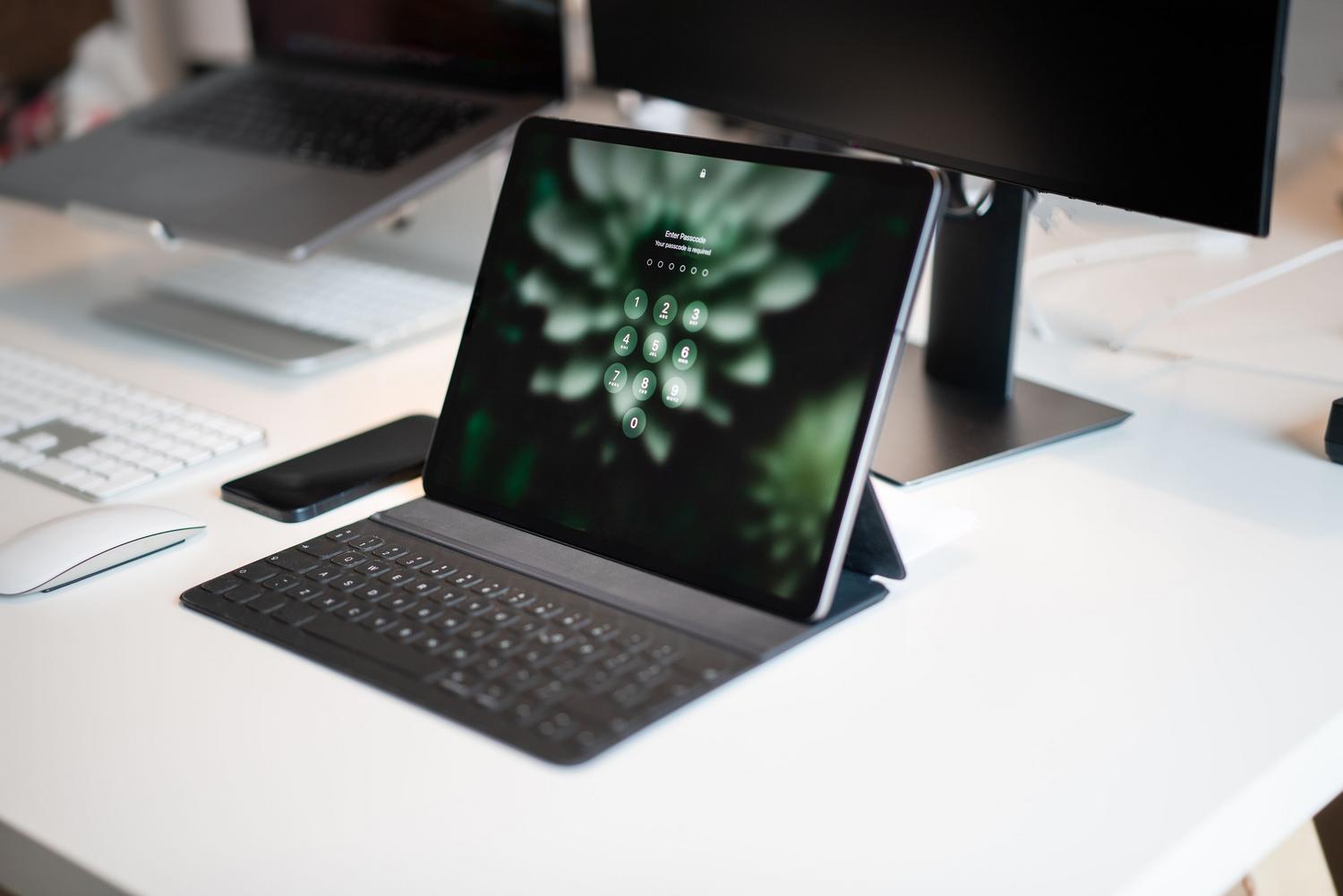
Have you ever felt that your tablet or phone is missing that final push to become a computer ? Well, Google and other manufacturers have decided to break down that barrier by integrating a desktop mode that's a game-changer. Basically, it's about leaving behind the limitation of a single full-screen application and moving to a system of floating and resizable windows , much like what we do every day on a Windows PC or Mac.
This feature is a real boon for those looking to maximize productivity without lugging around a laptop . Whether you have a cutting-edge Pixel or a powerful Samsung tablet, the ability to customize your workspace lets you juggle multiple tasks simultaneously, transforming a mobile device into a highly versatile hybrid workstation .
What exactly does desktop mode consist of?
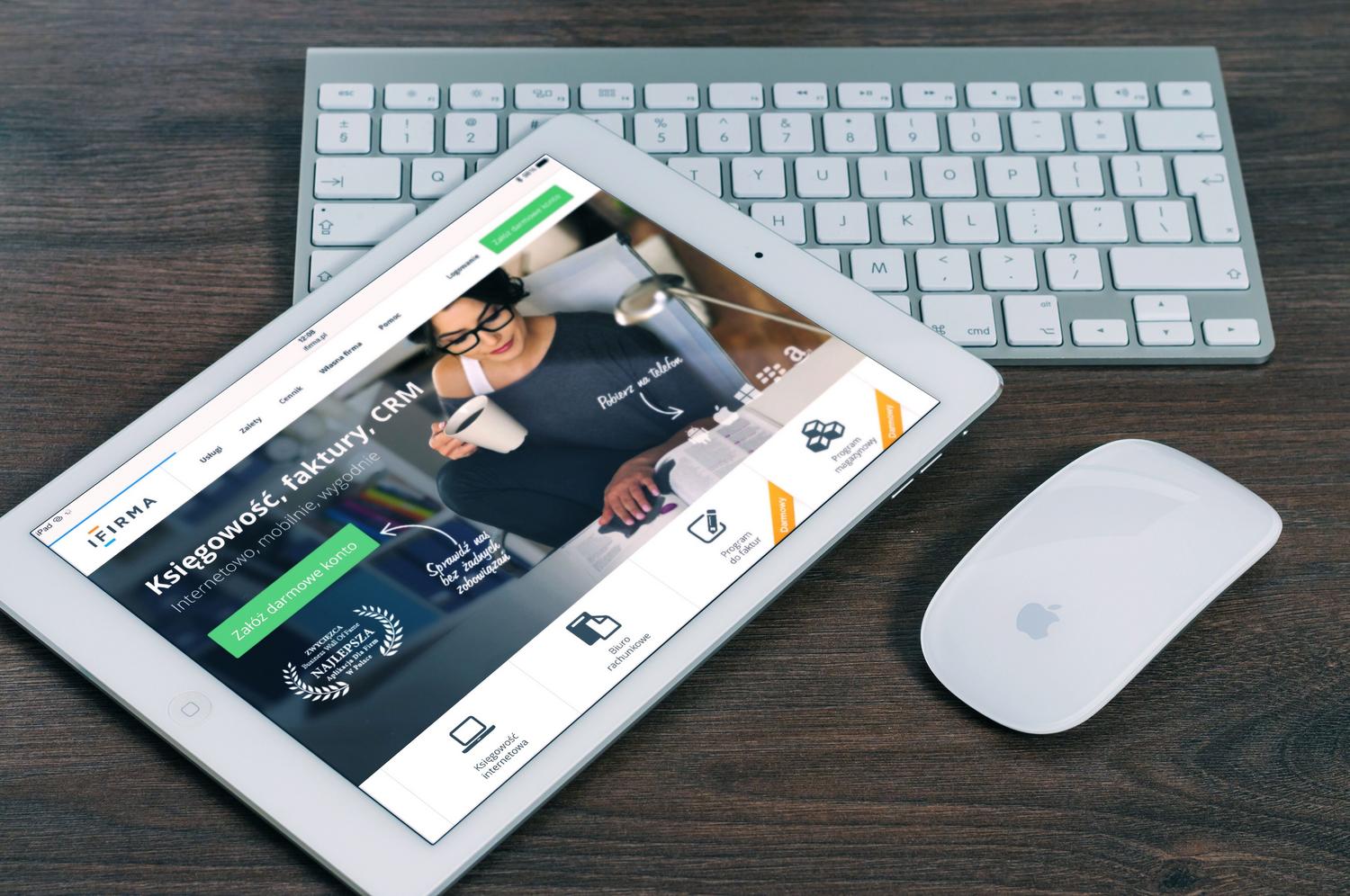
Unlike the conventional mobile interface, this mode transforms the system's visual appearance. When activated, a desktop appears with a dock at the bottom where open applications reside, similar to a computer's taskbar. At the top, there's a status bar that displays the time, battery level, and active connections.
The most powerful feature is that apps no longer take up the entire screen by default. We can open multiple apps in separate windows , move them anywhere on the monitor, and adjust their size as needed. This means you can be writing an email while consulting a PDF document and have a WhatsApp chat open in the corner, all without having to constantly switch between apps.
How to access and activate this feature
Depending on your device, the process for activating this feature varies slightly. For Google Pixel users (especially those using the Pixel 8 or later) , the function is built-in. The process is simple: just connect your phone to an external monitor using a USB-C to HDMI adapter . The system will detect the screen and ask if you want to simply mirror the image or enter desktop mode ; choose the latter, and you're all set.
If you prefer Samsung tablets, the renowned Samsung DeX remains king. On models like the Tab S10 Ultra with One UI, you can configure the quick panel button in the connected devices settings to "switch to desktop workspace." This way, with a single tap on the quick menu, you can switch from tablet mode to professional desktop mode.
For the more adventurous or those using specific Android versions (like Android 15 or 16), there are ways to enable this through developer options . By activating settings like "Freeform windows" or "Force activities to be resizable," you can force this behavior. There are even tools like scrcpy that allow you to project a secondary screen onto your PC with a custom resolution and DPI, making your phone function as an external computer with its screen turned off.
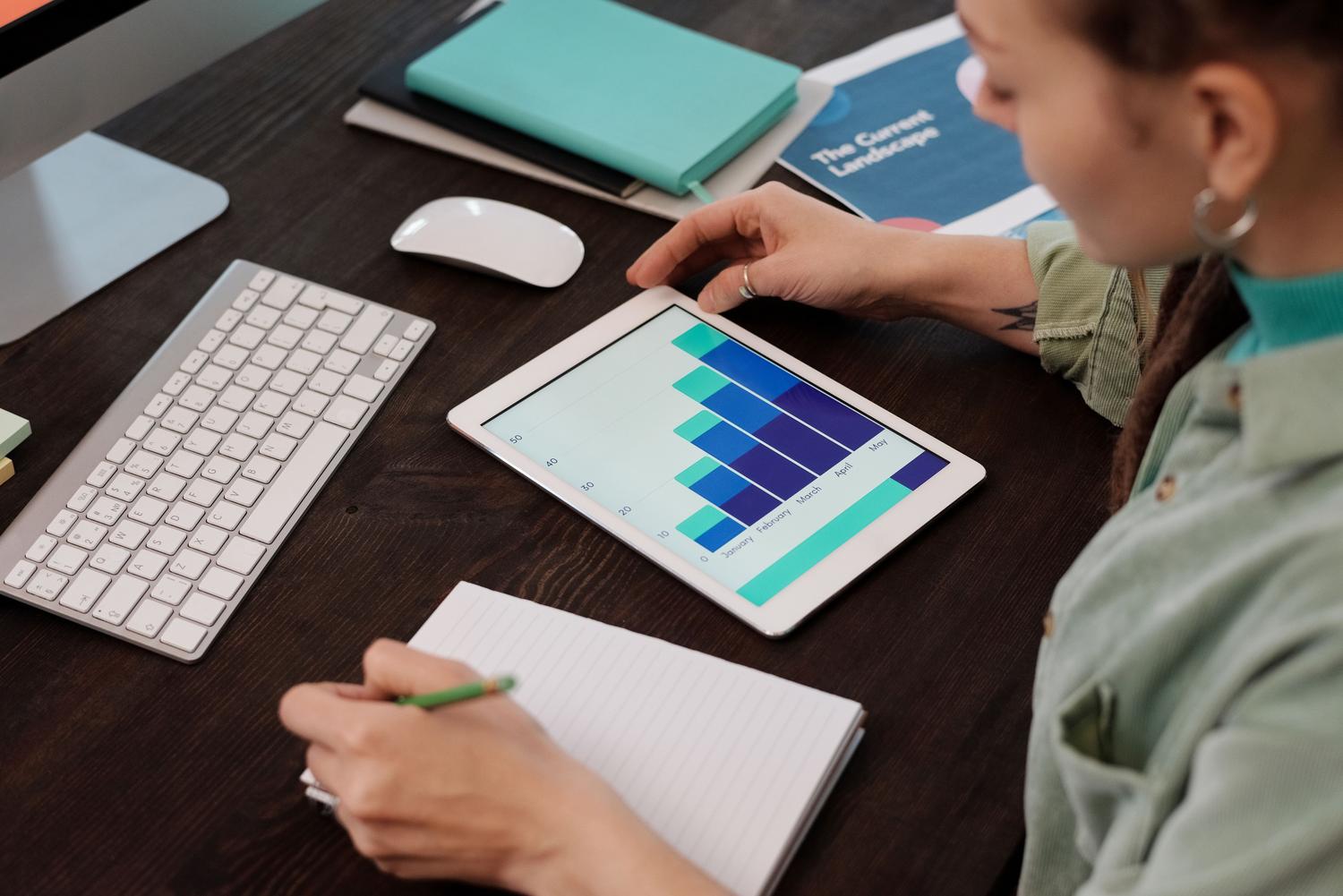
Once your desktop is active, managing windows is intuitive. To resize a window, simply drag any of its corners . To move an application, just press and hold its header bar and drag it. For those who prefer keyboard shortcuts, there are very useful key combinations , such as Alt + Tab, to quickly switch between open applications.
The system also offers classic controls in the upper right corner of each window: maximize, minimize, and close . If you minimize an app, it will be saved to the taskbar so you can access it at any time. Additionally, you can switch between full-screen, split-screen, or desktop mode depending on the task you're performing.
Connecting peripherals and external displays
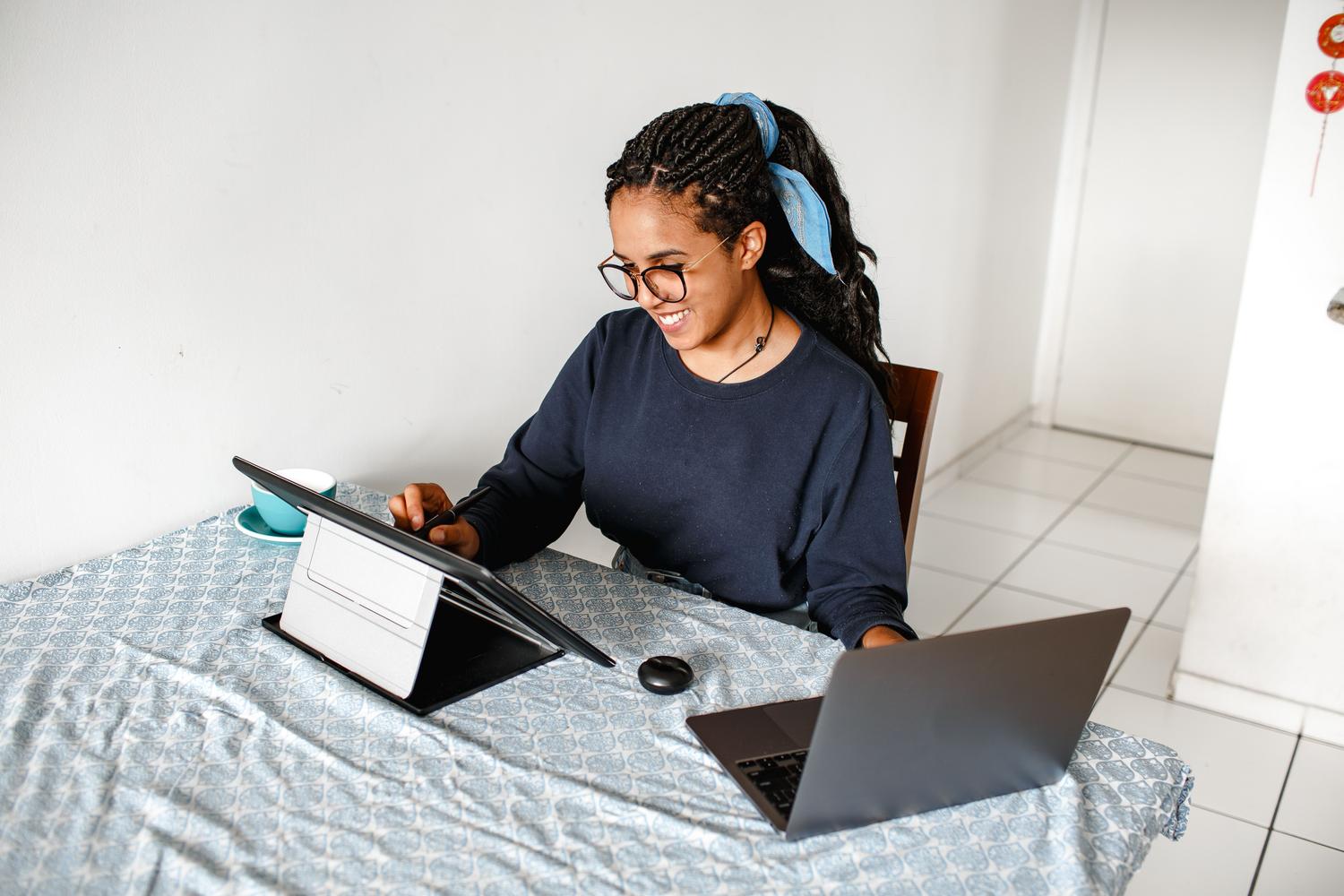
For the complete experience, connecting a keyboard and mouse is essential , either via Bluetooth or a USB hub. This transforms the interaction, allowing you to navigate menus with cursor precision. When connecting a monitor, Android offers two modes: Mirror mode, which mirrors your phone's screen, or Desktop mode , which creates a separate session where you can work on the monitor while continuing to use the phone's screen for other tasks.
It's important to mention that you can drag windows between your phone's screen and the external monitor , which is a huge advantage for organizing information. However, keep in mind that this won't work if you have an app open in full-screen mode on one of the monitors.
Real-world use cases and limitations
This system is ideal for freelancers or remote workers who travel frequently and prefer to carry minimal equipment. Light office tasks, email management, and video calls become much more convenient. However, it's not all perfect; file and folder management on Android remains more basic than on a true desktop operating system, and using command-line terminals requires extra steps.
Nevertheless, the integration of this function into the Android codebase (especially since Android 16) means that it will no longer be exclusive to one brand, but that any manufacturer will be able to implement it , democratizing the ability to turn a smartphone into a serious work tool.
Desktop mode represents the ultimate bridge between mobility and productivity, allowing an Android device to behave like a computer using floating windows, external peripherals, and monitors. While there's still room for improvement in file management, the ability to handle true multitasking on Pixel and Samsung devices makes mobile a viable alternative for those seeking a lightweight device without sacrificing the efficiency of a desktop environment.