- Windows 11 allows you to generate QR codes to connect devices to the WiFi network without typing the password.
- It is possible to view the passwords saved in the system to share them manually or through external tools.
- The system includes advanced features such as mobile wireless coverage zones and random MAC address management.
I'm sure it's happened to you a thousand times: someone comes to your house or office and the first thing they ask for is the Wi-Fi password. The problem is that sometimes passwords are real tongue twisters full of capital letters, numbers, and symbols that drive anyone crazy trying to type them on their phone.
To avoid this hassle, Microsoft has implemented solutions in Windows 11 that make this process incredibly easy. Now you no longer need to struggle to read the sticker on your router hidden behind the furniture, as you can manage and share your connection in a much more modern and efficient way.
Generate the QR code to share your network
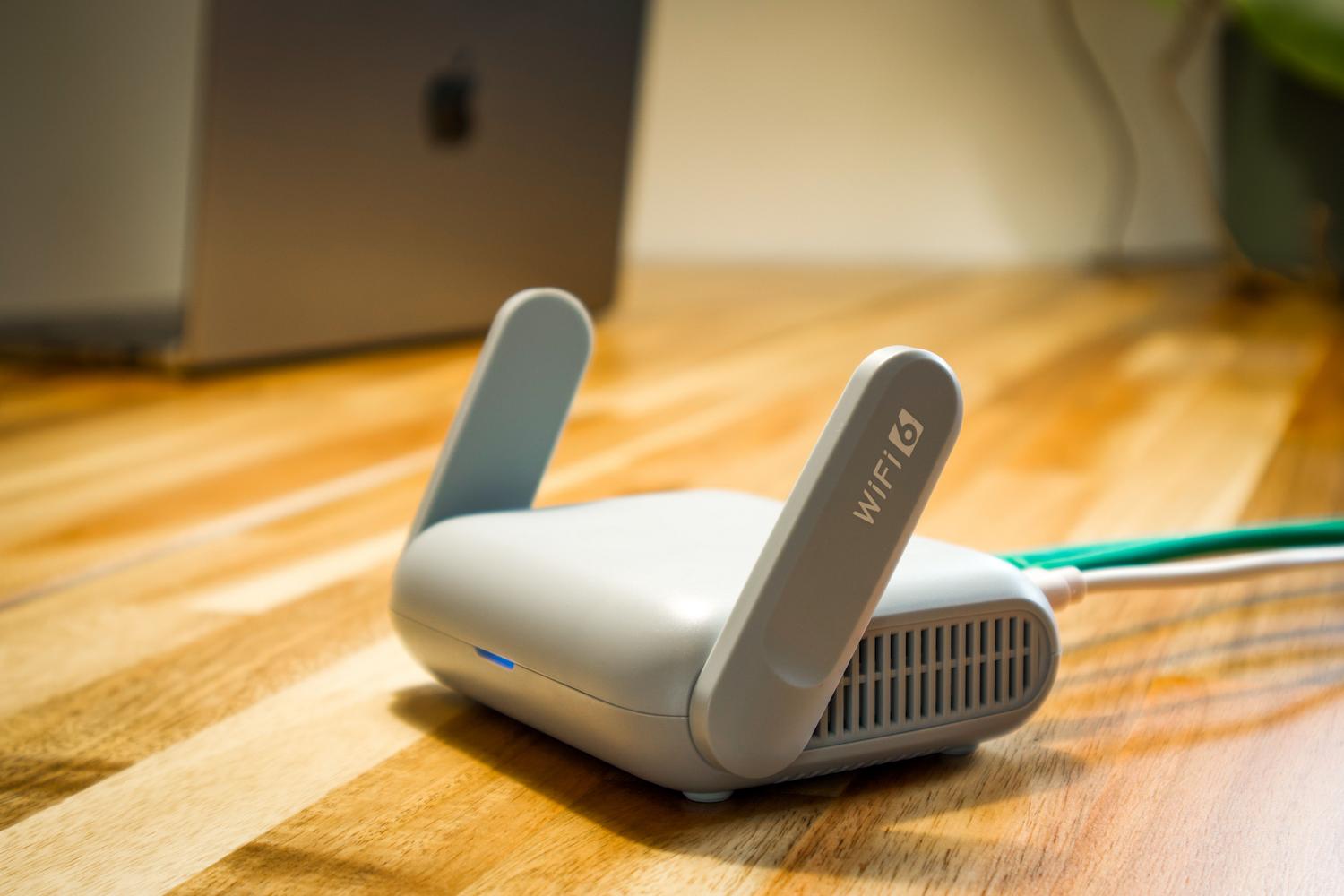
In the latest versions of Windows 11, especially in development branches like Canary, the ability to create a QR code directly from the system has been integrated. To do this, go to the settings menu and find the properties of your current Wi-Fi network. Once there, the system will not only allow you to see the password in plain text, but will also display a QR code that any smartphone can scan.
This method is ideal because it allows the new device to connect without you having to type a single letter , eliminating any typing errors. Furthermore, this feature is also available when you set up your computer as a mobile hotspot, making it easy for others to quickly connect to your network.
How to connect a device using QR code

If you need to connect to a network and you have a QR code in front of you, the process on Windows is very simple if you have a built-in camera. Just open the Camera app and switch to barcode scanning mode . When you point the camera at the QR code, the system will recognize the network information and display a link that takes you directly to the network settings.
From there, you just need to confirm that you want to add that network and accept the automatic connection . It's a very quick alternative that's widely used in cafes or shared workspaces where the QR code is usually posted on the wall.
Recover your password if you have forgotten it
If you don't have the QR code option or prefer to share the password via WhatsApp or email, you can retrieve it from your PC. One of the easiest ways is to go to Settings > Network & Internet and look for the network properties option. Clicking "Display" will reveal the saved password.
For those who prefer the classic method or use older versions, there's the option through the Network and Sharing Center. By accessing Wireless Properties and the Security tab , you can check the "Show characters" box to see the network security key. Alternatively, if you're feeling more technical, you can open the Command Prompt and use the command `netsh wlan show profile` followed by your network name and the instruction `key=clear` to retrieve the key.
Turn your PC into a mobile hotspot
Windows 11 lets your computer act as a router, sharing your Ethernet or mobile data connection with other devices. To turn on Mobile Hotspot , go to Network & Internet and toggle the switch. Here you can customize the network name and create an easy-to-remember password.
The most convenient way is to use the Quick Settings shortcut in the taskbar . With a single click, you can turn the access point on or off and see how many devices are connected in real time. You can also manage everything from the control panel if you need to change the frequency band or the SSID name.
Privacy and security: Random MAC addresses
When our PC searches for Wi-Fi networks, it emits a signal that includes the hardware's physical or MAC address. The problem is that some shopping malls or stores use this to track our movements within the establishment. To prevent this, Windows offers the option to use random hardware addresses.
You can activate this feature globally for all networks or configure it specifically for a particular connection from the Manage Known Networks menu. This changes the device's digital identity, making it much harder for someone to track your wireless activity.
Alternatives to other systems and common solutions
If you need to share your network between an iPhone and an Android device, things get complicated because Apple's system is very closed. While there isn't a universal native function, you can use the Shortcuts app on iOS to manually generate a QR code with the copied password. On Android, since version 10, it's built-in: simply tap the connected network in settings and select the option to share via QR code.
For common errors, such as when Windows "forgets" the password, the most effective solution is to remove the known network and reconnect by checking the automatic connection box. If the problem persists, uninstalling the network adapter driver from Device Manager and restarting the computer usually resolves most software conflicts.
Connection management in Windows 11 has evolved so that we no longer need to write down passwords on paper. Whether through QR code generation, mobile hotspots, or protecting our identity with random MAC addresses, the system offers comprehensive tools to make sharing internet access an instant and secure process for any user.