- Battery optimization settings to keep processes running.
- Use of multitasking lock functions and developer settings.
- Deep suspension management in specific customization layers.

I'm sure it's happened to you: you open your phone and realize that the app you need for work or important notifications has gone to sleep. Android is a very clever system, but sometimes it goes overboard with resource management, closing processes we consider vital just to squeeze out a few extra minutes of battery life.
This behavior isn't a bug, but rather a system feature designed to prevent the device from overheating or the battery from draining too quickly. However, when you rely on a messaging or delivery app, having it suspended by the system can be a real headache . Luckily, there are several tricks and settings, from the simplest to some more hidden ones, to take full control.
The problem of energy optimization
The heart of the matter lies in the 'Doze' system and RAM management. Android constantly monitors what you're using and what you're not; if it detects that an app has been running in the background for a while, it puts it into hibernation mode to free up memory. If you also have general battery saver mode enabled, the system becomes much more aggressive, limiting data synchronization and location access.
When you notice that you've stopped receiving notifications, it's most likely because the system has decided that the app isn't a priority. To fix this, the first thing to do is disable general power saving if you need everything to run at maximum power, even though this will impact your device's battery life.
Steps to prevent an app from closing
If you don't want to disable global power saving, you can go to the specifics and configure each app separately. This is the most precise method to ensure Android doesn't interfere with what it shouldn't.
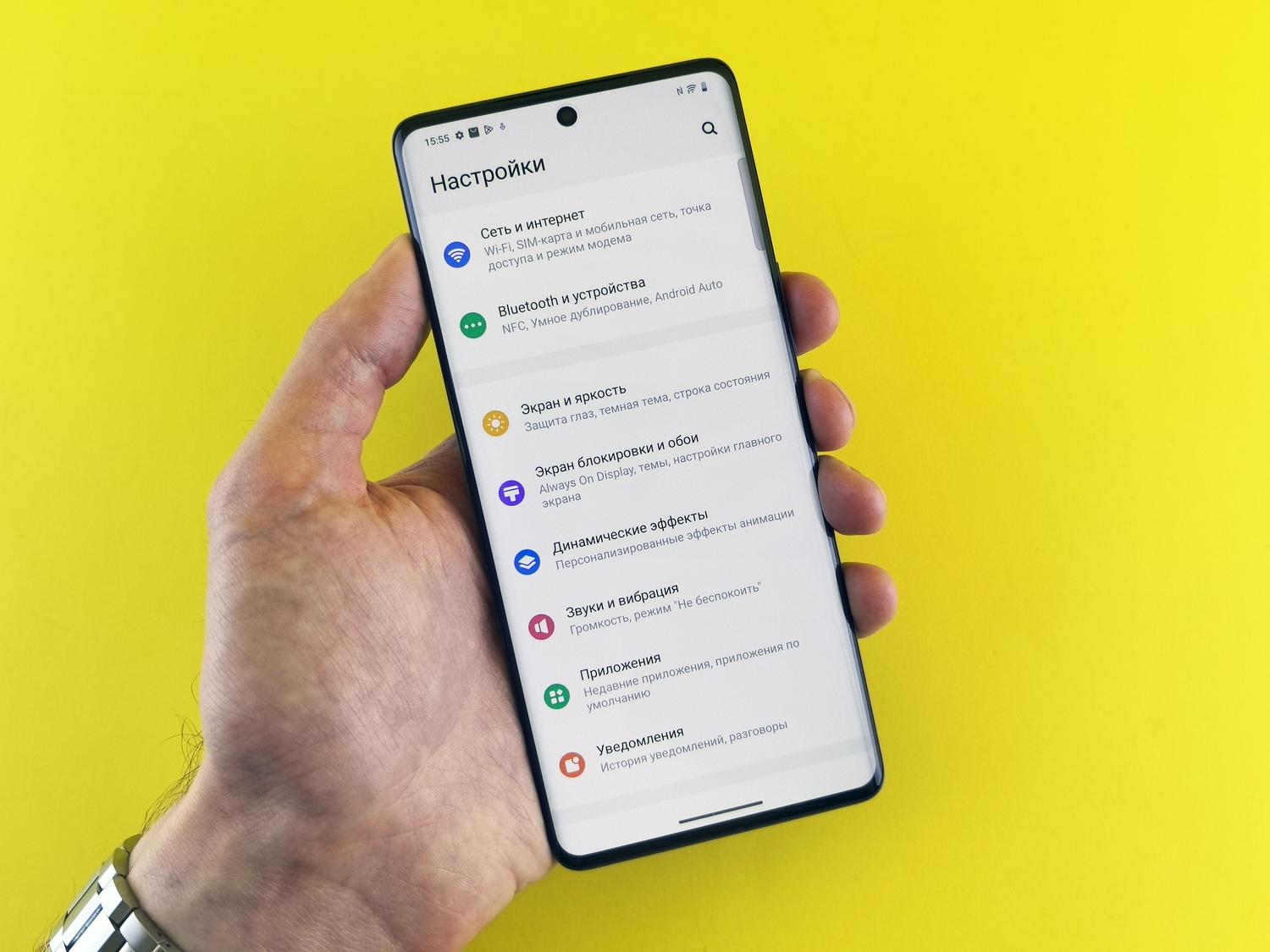
- Go into the Settings menu and look for the Applications section.
- Select the tool that is giving you problems and go to the Battery section.
- Look for the optimization option and select it. "Not optimizing"This tells the system that, even though the app is consuming energy, it should not be closed.
On some devices, the path is slightly different: Settings > Apps > App battery usage > Turn off "Allow background usage" (in the sense of restricting it) or look for the "No restrictions" option.
Tips and tricks based on your mobile phone brand

Not all Android devices are the same. Customization layers like MIUI (Xiaomi), One UI (Samsung), or ColorOS (OPPO) add their own rules. For example, Samsung devices have a feature called "Deep Sleep Apps ." If your app is listed there, it will never run in the background unless you manually open it. You need to go to Device Maintenance > Battery > Deep Sleep Apps and remove the app from that list.
For Xiaomi, Redmi, or POCO devices, there's a quick and easy trick. Open the multitasking view (where you see all your open apps), press and hold the app window you want to save, and then tap the lock icon . Locking it tells the system that the app is untouchable and shouldn't be purged to free up RAM.
Advanced settings for expert users
If none of the above works, we can delve into the system's "basement": Developer Options. To activate them, go to About phone and tap the Build number seven times until your phone notifies you that you are now a developer.
Once inside this hidden menu, you have several powerful tools:
- Background Process Limit: You can choose how many apps can be active. If you set it to "No processes," your phone will be incredibly fast, but you'll close everything as soon as you exit the app.
- Background usage check: Here you can see which software is being forced to close to save energy and uncheck the switch for the applications you want to keep running.
- Suspend execution of cached applications: It's an option designed to optimize battery life, but if you notice that your apps take forever to start because they're always suspending, Check if this option is interfering..
The balance between performance and battery life
It's important to understand that closing apps isn't necessarily a bad thing. In fact, it has clear advantages, such as preventing the processor from overloading, reducing the risk of overheating , and protecting your privacy, since it prevents some apps from collecting data in the background without your knowledge. Furthermore, clearing app caches and data can help if the problem is related to performance rather than power consumption.
To keep your phone running smoothly, it's best to combine these adjustments with the habit of uninstalling bloatware or apps you no longer use. If an app is pre-installed and can't be deleted, it's best to disable it completely from the Settings menu so it doesn't consume any processor clock cycles.
To prevent Android from suspending your apps, the key is to navigate between individual battery optimization, locking multitasking, and, in extreme cases, configuring developer options, always balancing the need to receive real-time notifications with battery drain and hardware health.