Having an infotainment system that guides us along the way and plays our favorite music is wonderful, but when the interface starts to stutter, the experience becomes frustrating. It's infuriating that Android Auto runs slowlywith animations that look like a slideshow or the Google assistant just keeps thinking forever while we just want to get to our destination.
The strangest thing is that this problem doesn't discriminate; it can happen to someone with an entry-level phone or someone who's spent a fortune on the latest premium model. Sometimes the system works perfectly and then, suddenly, without us having touched a single thing, it starts jerking They respond with an unbearable delay, turning a peaceful trip into a technological headache.
Common causes after an update
Sometimes a technical irony occurs: we update everything to make it work better, and yet the latest version brings some bug or software flaw which slows down the system's response. If you notice that the lag appeared right after installing a new version of Android or the Auto app itself, you may be experiencing an optimization error and need to... How to fix the "Application not responding" error on Android.
In these cases, the most sensible solution is usually to wait for the next patch from Google or the vehicle manufacturer. However, to rule out the car as the problem, it's advisable to try the phone in a different vehicle. Always keep the console firmware The car's Android Auto app and the phone's own operating system are the first fundamental steps to avoid performance errors.
Wireless connection problems
Wireless mode offers ultimate convenience, but it's also the most prone to failure. If you experience a extremely low frame rateIf the audio cuts out or the steering wheel controls take 20 seconds to respond, the culprit is usually signal stability. Factors such as overly thick phone cases, external interference, or even battery status They can affect fluency, so it's advisable to apply Tricks to optimize the battery on Android.
An effective solution is to completely disconnect the phone and the car. Simply deleting Bluetooth from the phone isn't enough; you need to go into the vehicle's settings and forget all devices previously connected to start the synchronization from scratch. If you're a Samsung user, there's a key trick: go into the Smart Wi-Fi settings and Disable Wi-Fi power saving, as this usually eliminates latency immediately.
When cable isn't the ultimate solution
Many people think that switching to a wired connection solves everything, and while it's usually more stable, it also has its pitfalls. If the system continues to run slowly or disconnects on its own, the problem may lie with the USB cable qualityGoogle recommends high-quality cables that do not exceed 1.82 meters to avoid signal loss.
If you've tried several cables and the problem persists, it's possible that the connection port The problem might be with the phone or car's USB port, which could be dirty or damaged. One way to check is to connect the phone to another device; if it works correctly there, the problem is likely with the vehicle's USB port.
Application and memory optimization
It's not always a connection problem; sometimes it's a matter of network congestion. It has been observed that having too many apps installed And having apps enabled in the Android Auto menu can hinder performance. Paradoxically, simpler phones with fewer apps installed often run more smoothly than powerful devices loaded with software.
If you notice that the lag only occurs with a specific app, such as Waze or Spotify, try clear cache of that application or reinstall it. Additionally, it's very helpful to perform a general clearing of the Android Auto cache from the phone's storage menu to delete temporary files that may be corrupting the data flow.
Beware of unofficial Android stereos
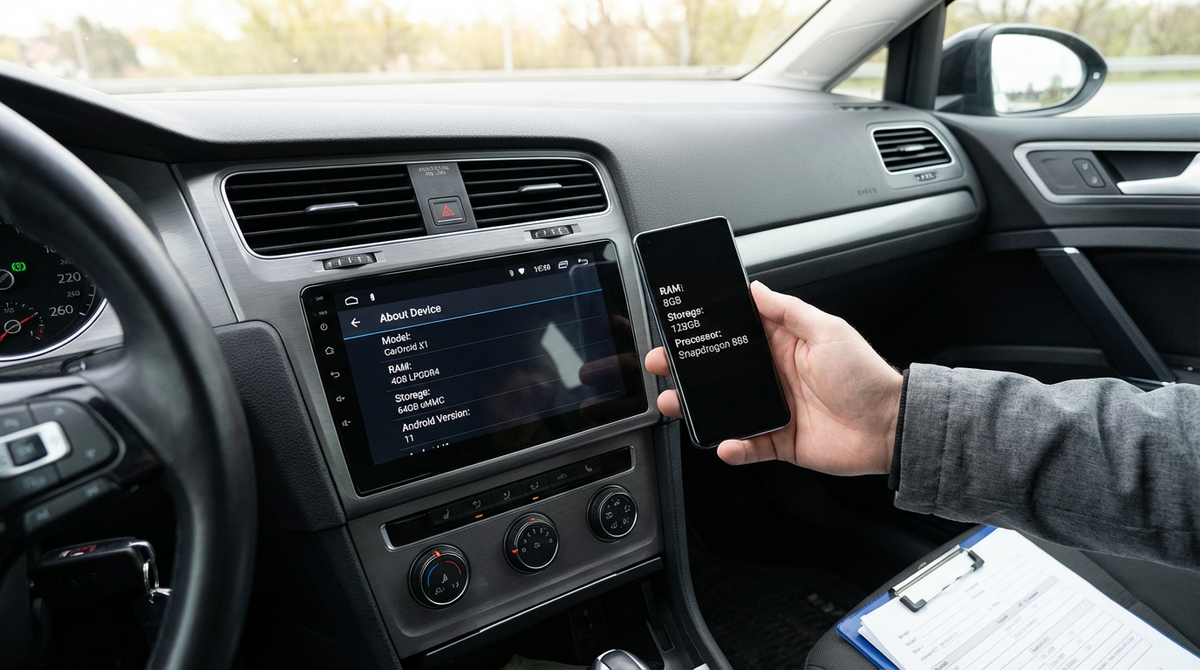
If you've installed a Chinese screen or a generic Android stereo, you might be falling victim to fake specificationsSome devices advertise 8GB of RAM but actually have much less, causing apps to constantly restart when switching between the map and music.
To verify this, you can perform a stress test by opening several resource-intensive apps simultaneously. If the system The UI freezes or restartsIt's likely the hardware won't be able to handle the load. Tools like H2testw can be used to check if the storage capacity is real or if the system has been manipulated to show more capacity than it actually has.
To resolve most of these issues, the ideal solution is to keep the system free of unnecessary apps. check the quality of the cablesDisable aggressive power saving features on Wi-Fi and, in extreme cases, perform a factory reset of network settings or the Android Auto app to restore original smoothness.