- Combining monitoring apps with system settings allows you to significantly reduce battery consumption on Android.
- Controlling wakelocks, bloatware, and unnecessary connections is key to getting your phone into deep sleep mode and reducing its background resource consumption.
- Taking care of your battery's health involves avoiding heat, extreme charging, and updating both Android and apps with power consumption issues.
- Cleaning up storage and checking the hardware status helps maintain performance and, in turn, improve the overall battery life of the device.
If you have an Android phone and you've noticed that the battery life isn't what it used to be, you're not alone. The combination of poorly optimized apps, high screen brightness, always-on connections, and a worn-out battery can mean you won't make it to the end of the day even if you barely use your phone.
The good news is that nowadays we have many options: from advanced tools to measure and understand consumption, to system settings and small tricks that make a big difference. With a few well-chosen apps and by changing a few habits , you can extend both the daily battery life and the overall lifespan of your Android device.
Why your Android battery is lasting less and less
Before you start installing apps willy-nilly, it's a good idea to understand what's going on. Every battery has a limited lifespan in charge cycles ; over the years it loses capacity and can no longer store the same mAh as when the phone was new.
Besides age, frequent full charges to 100% and always letting the battery drop below 10% accelerate wear and tear. Heat is also detrimental: if the device overheats frequently, the battery degrades much faster even when you're not using it.
On the other hand, the Android system itself tries to estimate how much battery each app uses, but it uses predefined manufacturer profiles that often don't reflect reality . This means that the standard battery panel doesn't always accurately reflect your apps' actual power consumption.
In addition to all this, there are apps running in the background, processes preventing the phone from entering deep sleep mode, and connections that remain active unnecessarily. The sum of these small, constant power drains can deplete the battery even with the screen off.
AccuBattery and other apps to measure and understand actual consumption
One of the most powerful tools for understanding your battery's condition is AccuBattery. This app doesn't just display the remaining percentage ; it measures actual usage based on data from the device's charging controller.
Instead of relying on generic profiles, AccuBattery calculates the battery's actual capacity in mAh based on charge and discharge cycles. This allows you to see, for example, if your battery only retains 70% of its original capacity and understand why it no longer lasts a full day.
The app combines this data with information about which app is in the foreground to show the actual battery consumption per app, both in use and in standby mode . This way you can discover which apps are truly power hogs and which ones barely impact battery life.
Another key feature of AccuBattery is its wear and tear monitoring with each charge. The app tells you how much "damage" the battery suffers during each charging session and allows you to set alarms to disconnect the charger before reaching 100%, which is highly recommended if you want to extend the battery's lifespan.
Among its standout features are: remaining battery life, estimated screen-on and screen-off usage , percentage of time spent in deep sleep, and persistent notifications with real-time statistics. The Pro version adds dark themes (ideal for AMOLED displays), a complete history of past sessions, and removes ads.
Apps to monitor health, temperature and hardware status
AccuBattery isn't the only option if you want to monitor your battery in detail. There are other tools that, while they don't always directly manage power consumption, provide valuable information about the device's health, temperature, and overall performance.
One of these is the "Battery Life & Health" app. This type of application focuses on providing a quick overview of the battery's status with a single tap : current charge level, temperature, voltage, technology used, and, in some cases, the ability to "calibrate" the battery's status within the system.
Although calibration doesn't physically regenerate the battery, it can help Android correctly readjust charge percentages and readings , which is useful when you see sudden battery jumps or abrupt shutdowns with high percentages.
There are also apps like Electron, designed specifically to protect your battery's health. With Electron, you can set smart alarms to prevent your phone from exceeding recommended charging levels , for example, stopping around 80-90%, or alerting you when it drops below dangerous levels like 20% or 15%.
With this strategy, you avoid the extremes that most damage lithium batteries: constant 100% full charges and deep discharges until they almost shut down . Furthermore, Electron displays detailed information on battery health, temperature, and estimated time remaining, making it a kind of "medical monitor" for your battery.
Device information tools to prevent overheating
Another way to optimize and extend battery life is to know what's happening with the rest of the hardware. Apps like Castro, InWare, or Device Info offer real-time dashboards showing the status of the CPU, RAM, sensors, and, of course, the battery.
Castro, for example, lets you see the battery temperature and RAM or CPU usage in real time . It even includes widgets so you can have this data on your home screen without having to constantly open the app.
InWare does something similar but with a very polished interface, in the style of Material Design. It displays the SoC your phone uses, the resources you're consuming, RAM data, and other components . It's ideal if you want to understand whether the power consumption problem is due to excessive processor usage or poorly managed processes.
Device Info, on the other hand, goes a step further, becoming almost a complete diagnostic tool. It not only shows you the storage capacity used, the Android version, and the installed sensors , but also allows you to run specific tests to check the status of different parts of the device.
With all this information at hand, it's easier to make decisions: avoid heavy games when the temperature is high , close apps that abuse the CPU, or detect if a specific version of Android is causing problems with excessive power consumption.
How to adjust Android to use less battery without strange apps
Beyond installing third-party tools, the Android system itself offers a good range of settings to reduce power consumption. Some are very obvious, but others are often overlooked and make a significant difference in daily use.
First, check your screen settings. Reducing the auto-off time and lowering the brightness a couple of notches can give you extra hours of battery life if you tend to spend a lot of time looking at your phone. If your device allows it, enable automatic brightness so the system adapts to the ambient light.
It's also worth checking things like keyboard vibration and sounds. Each vibration uses a small amount of energy , and although it may seem insignificant, it adds up by the end of the day, especially if you type a lot.
Another key point is limiting apps that consume too much data in the background. From Android settings, you can restrict the background activity of the most resource-intensive apps or even uninstall them if you rarely use them.
Don't forget to activate features like "Smart Battery" or adaptive power management modes if your phone has them. These options analyze your usage habits and automatically adjust which apps can run in the background , preventing unnecessary processes from draining your battery.
Finally, consider enabling dark mode if your phone has an AMOLED screen. On these panels, every black pixel is literally off and consumes no power , so a well-implemented dark mode can result in significant savings.
Battery saving mode and power profiles on Android and Samsung
When you see the percentage plummeting, the most effective solution is to activate the system's battery saver mode. On stock Android, you can enable it from Settings > Battery > Battery saver, and schedule when it turns on or let it activate automatically when the percentage drops below a certain point.
When activated, this mode limits or disables background activity, enables dark mode, and reduces animations and effects . It can also restrict some connections and delay notifications from unimportant apps.
On Samsung Galaxy phones, in addition to the classic power saving mode, you have more advanced power profiles. From the battery settings, you can reduce the maximum CPU speed , lower the brightness, and disable features like Always On Display to squeeze even more battery life out of your phone.
The practical difference between a high-performance mode and a power-saving profile on some Galaxy devices can reach up to 50% battery consumption in the same amount of use. If you prioritize battery life over raw power, it's worth sticking to a moderate or power-saving profile most of the time.
The key is to adjust these modes to your usage style: you can configure them to only come into play when you really need them, or keep them permanently active if your battery is already quite worn out.
Control wakelocks and background processes that drain battery
One of the biggest battery drainers is wakelocks, mechanisms that prevent the phone from entering deep sleep when the screen is off . If an app gets too clever and keeps the device constantly awake, battery consumption skyrockets even if you think it's "idle."
Tools like WakeLock Detector Lite can help you identify which apps are blocking deep sleep mode . This app requires a little setup using a computer, but once it's ready, it will show you which programs are keeping your phone awake and for how long.
In many cases, unexpected culprits like the Google app, email clients, or system services appear at the top of the list. Reinstalling the problematic app, changing the sync frequency, or disabling unnecessary features usually reduces wakelocks dramatically.
Another very useful step is to combat bloatware, that is, all those manufacturer or carrier apps that you don't use at all. From the application settings, you can disable or uninstall anything you don't need , especially news services, proprietary stores, or duplicate utilities.
On some Samsung phones, for example, you have "Device Maintenance" options that allow you to put apps into constant sleep mode so they barely use any resources in the background . Taking advantage of these tools is a lifesaver if you want your phone to truly rest when you turn off the screen.
Built-in battery managers and power-saving tools
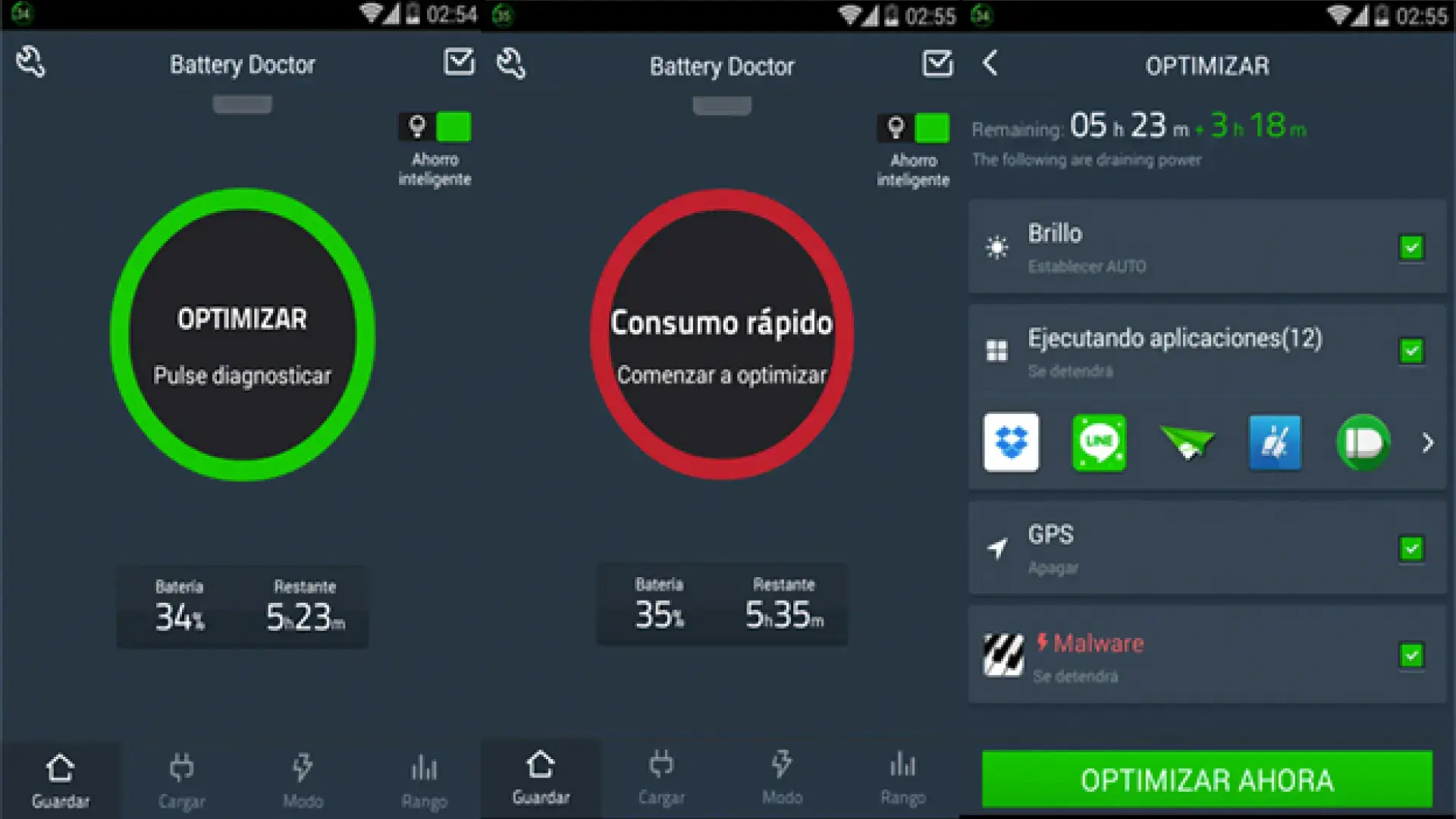
In addition to Android's built-in power-saving modes, there are apps specifically designed to extend battery life, such as Battery Doctor (Battery Saver). This app combines remaining time calculation functions with process cleaning tools.
One of its features is a guided "three-charge" process that, according to the developers, can slightly improve battery performance . While it's not a miracle cure, it can recalibrate system readings and make the percentage more stable.
The most interesting feature is its process manager: Battery Doctor lets you instantly close background apps that are consuming resources without your knowledge . This way, if you tend to have many apps open, you can significantly reduce unnecessary resource consumption.
Another useful feature is that the app tells you how long the battery would last performing specific activities , such as playing a particular game or watching YouTube videos continuously. This helps you plan better and know when it's best to conserve battery.
Even so, it's wise to use these kinds of tools judiciously. Constantly killing processes can cause some apps to restart repeatedly, consuming more energy each time they restart than if they were left idle . Ideally, focus on the apps that are truly abusing the system and leave alone those that Android already manages well.
Connections, brightness, and simple tricks that make a big difference
No matter how much you optimize with apps, if you have all your connections active all day, your battery will suffer, and if you also experience connection problems, the drain can get even worse. Bluetooth, NFC, GPS, Wi-Fi, and mobile data all contribute to constant battery drain , especially if your phone is constantly searching for networks or devices.
A basic but effective trick: if you don't regularly use NFC for payments or pairing, disable it completely, because on many phones its impact on battery life is significant . Bluetooth consumes less power, but if you don't have any devices connected, you can also turn it off to save a little more battery.
When you're in an area with good Wi-Fi coverage, it's best to connect to that network and minimize your mobile data usage . Mobile radio consumes more data, especially if the signal is weak and your phone is straining the connection.
If you're going to be without coverage or a connection for a while (for example, on the subway or while traveling), airplane mode is your best friend. Activating it prevents your phone from constantly searching for a signal and networks , drastically reducing battery consumption in those situations.
As for battery-draining activities: prolonged browsing, videos, graphically demanding games, music streaming, or hotspot sharing. Limiting these activities when your battery is low or only doing them when you're plugged in can be the difference between making it to the end of the day or not.
Save battery by avoiding overloading and optimizing the screen
The battery suffers not only from screen-on time, but also from what you demand of your phone while it's on. Frequent camera use, video recording, playing highly interactive games, or editing demanding content all increase CPU, GPU, and sensor usage, and therefore power consumption.
If the device is already experiencing poor ventilation or is in direct sunlight, the heat will increase and the battery will degrade faster. It's best to avoid intense use when you notice the phone is getting very hot and let it rest for a few minutes.
Another interesting strategy is to reduce power consumption on the screen itself. In addition to brightness adjustments, apps like Pixel Filter allow you to turn off a percentage of the panel's pixels to consume less energy without significantly impacting image sharpness on many models.
When properly configured, these solutions can provide extra battery life, especially on devices with large, high-resolution screens. They don't replace good overall power management, but they are a useful addition if you want to get the most out of every mAh.
In any case, the best advice is to combine all this with reasonable use of demanding apps: limit your gaming time when you're running low, avoid long periods of watching videos with maximum brightness, and, if possible, use wired or low-power Bluetooth headphones instead of using speakers at very high volume.
Updating Android, checking apps, and when to consider a reset
If, despite all the adjustments, you continue to notice abnormal battery consumption, the problem may lie with the system itself or a specific app. The first step is to check for available Android updates by going to Settings > System > Software update.
Manufacturers often release patches that fix power consumption issues, so keeping your system up to date is essential. You should also check for app updates on Google Play , especially for those related to the camera, system, or Google services.
In some cases, a specific version of an app may have a bug that triggers wakelocks or excessive CPU usage. Updating the app, or if necessary, uninstalling and reinstalling it, usually resolves these issues without the need for drastic measures.
If nothing else works and the battery drains in just a few hours without a clear explanation, you might need to consider a factory reset. However, keep in mind that this step will erase all data, apps, and settings from your phone , so before proceeding, it's advisable to create a complete backup to your Google account or a computer.
After the reset, it's a good idea to install apps one by one , checking the battery's behavior in between. That way, if a problem reappears right after installing a certain app, you'll have identified the culprit without going crazy.
Clean and manage storage to improve performance and consumption
Although storage might seem unrelated to battery life, a phone with nearly full memory tends to run slower and use more power . The system has to work harder to read and write data, and apps may behave erratically.
Tools like Files by Google are ideal for keeping storage under control. They analyze your device's contents for duplicate files, very large videos, old downloads, and junk generated by apps , making cleanup easy with just a few taps.
Another veteran is SD Maid, a well-known Android app that focuses on removing leftover files from uninstalled applications, orphaned caches, and unnecessary files . Its free version is already quite powerful, and the Pro version adds more advanced features for demanding users.
Even so, it's wise to use these types of cleaners with caution, because they often focus on clearing cache or closing background apps. In many cases, the cache helps apps run faster and use less data by not having to download everything every time , so clearing it indiscriminately isn't always the best idea.
If you want a simple and effective strategy to free up space, you can follow three basic steps: first, sort the apps by size in settings and uninstall the ones that take up a lot of space and that you don't use ; second, go to the gallery and delete or move to a computer the videos that you no longer need to have locally; and third, clean up the content of the heaviest chats and groups from WhatsApp, which often take up several gigabytes without you realizing it.
When to contact the manufacturer or consider changing the battery
There comes a point where, no matter how much you optimize, physics takes over. If your phone's battery only retains a small percentage of its original capacity, it's normal that it won't last until the end of the day, even if you take the best possible care of it.
In these cases, and especially if the device suddenly shuts down with a high battery percentage, swells slightly, or overheats while charging, the wisest course of action is to contact the official technical service or the manufacturer's support . They can diagnose whether the battery is damaged and if a replacement is worthwhile.
If your phone still has a removable battery or is easy to open at a professional repair shop, replacing it can literally breathe new life into the device and extend its lifespan for several more years. If that's not feasible or the cost is approaching that of a new model, it might be time to consider getting a new phone.
Meanwhile, applying all of the above—apps like AccuBattery or Electron, wakelock and bloatware management, brightness and connection adjustments, power saving modes, storage cleaning, and keeping updates up to date— will allow you to get the most out of your Android's remaining battery and prevent it from degrading too much , making the phone usable for much longer.