- First, check if the problem is coming from the operator or your local network by checking the router, lights, and any other issues.
- Isolate the problem by testing with multiple devices, both wired and Wi-Fi, and verifying the IP assignment.
- Use ping, DNS change, driver update, and antivirus/VPN check to rule out software blocks.
- If nothing works, check your hardware (router, cables, network card) and consider resetting your network or router to factory settings.
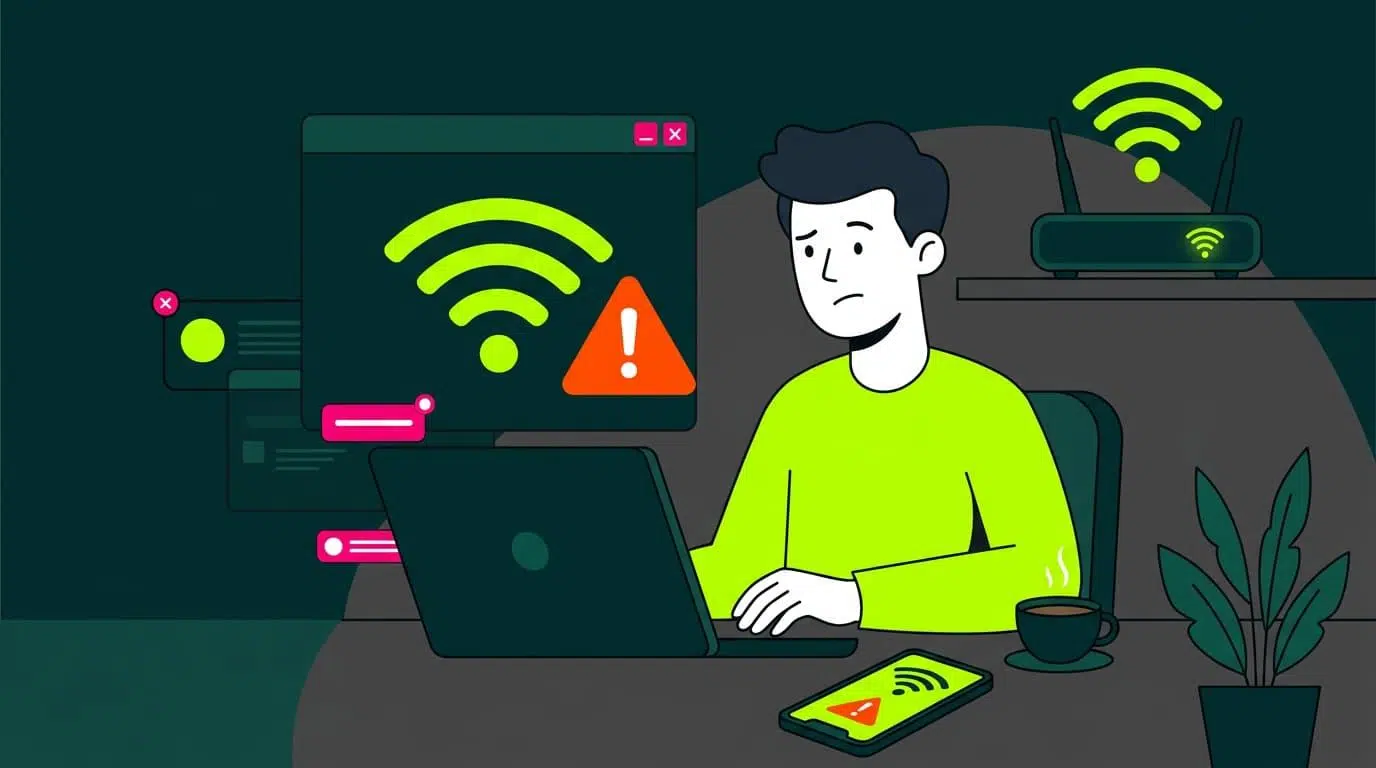
Being at work, watching a show, or playing an online game, and suddenly having the internet cut out, is one of the most frustrating things that can happen at home. Often, we don't even know where to begin—whether it's the router, the computer, the phone, or the internet provider—and we just fiddle with things blindly without much success.
The good news is that, with a little methodology, you can diagnose why you don't have an internet connection and fix it yourself in most cases. In this comprehensive guide, we'll go through all the possible checks step by step: from the basics (router, cables, Wi-Fi) to advanced settings for IP, DNS, drivers, antivirus, VPN, and hardware failures.
First of all: understand exactly what is going wrong

The first step is to determine whether the problem lies with your local network (Wi-Fi or wired) or with the internet connection provided by your internet service provider. Wi-Fi and the internet are not the same thing: Wi-Fi only connects your device to the router; it is the router (or modem) that connects to the internet "highway."
When you see messages like "connected, no internet access" or similar, it usually means that your mobile phone or computer is communicating with the router, but the router is unable to reach the internet or there is something in the configuration that is preventing it.
A good starting point is to ask yourself if the problem is a one-off or recurring issue . If it happens constantly, there's probably a configuration problem, a hardware issue, or even a problem with your internet service provider. If it's very sporadic, it could be a temporary outage on the provider's end or a temporary router malfunction.
It's also important to determine if the connection is completely down, very slow, or intermittent . It's not the same to be unable to open any websites as it is to notice that everything loads with agonizing slowness or that there are micro-cuts when streaming video.
First filter: Is it a problem with your operator or your home?
Before you drive yourself crazy trying to adjust your computer settings, it's worth checking if the problem is external. Often the issue lies with your Internet Service Provider (ISP) , and there's nothing you can do but wait.
Start by looking at the lights on your router or modem . Most models have an LED that indicates the internet connection: if it's solid green, everything is fine; if it's orange, red, off, or flashing strangely, it's a sign that the router isn't syncing properly with your internet service provider's network.
Each company interprets its LEDs in its own way (for example, on a Movistar router a solid red light on “Internet” usually indicates a hardware or firmware failure; on some Vodafone models a flashing red light may indicate PPPoE authentication problems), so it is best to consult the manual or online guide for the specific model.
If you suspect a widespread outage, use mobile data to visit websites like Downdetector or similar services to see if other users are reporting problems with your carrier or even with a specific website or app. You can also check your carrier's customer area or their social media channels, where they often post outage notices.
Another option is to call or chat with your service provider . They can check if there's an outage in your area, if your line is down in their system, or if maintenance is being carried out. If the issue is with the network, there's little you can do at home except be patient.
Narrowing down the problem: try with multiple devices
One of the quickest ways to figure out what's wrong is to check if only one device is failing or if everything at home is down . If your computer isn't browsing the internet, try using your mobile phone, tablet, or any other device connected to your Wi-Fi.
If all devices lose internet access, the problem is almost certainly with your router, your local network, or your internet service provider . However, if all other devices can browse normally and only one device is experiencing the issue, then the problem lies with that specific device (network card, configuration, antivirus software, operating system, etc.).
When using another device, try running various tests : open several well-known websites, use an app that uses the internet (for example, YouTube or Spotify), and even run a speed test to see if the connection is stable.
Don't forget that you might have an intermediate scenario: one PC connected via Ethernet fails , but the rest of the devices connected via Wi-Fi work perfectly. In that case, the problem could be with the Ethernet cable itself, the router port, or the PC's network card.
Basic check of the router, cables and local network status
If you're already sure the problem is at home, the next step is to check your local network infrastructure : router, possible switches, cabling, and access points.
Double-check the LEDs on your router and any switches . A lit LAN light indicates a physical connection to your wired devices. A lit Wi-Fi light means the wireless network is broadcasting. If the Internet light is off or an error color, the problem is with the router's outgoing connection.
Take a few minutes to inspect all your Ethernet and fiber/coaxial cables . Make sure they aren't badly bent, pinched by furniture, frayed, or have broken clips. A cable that "looks fine" can cause micro-disconnections or speed drops. If you have another cable lying around, try it.
Beware of a common mistake: connecting both ends of the same cable to the router in two different LAN ports. This creates a loop that can completely mess up your network: you'll see Wi-Fi, the router will appear to be on, but you won't be able to browse the internet. If you see a cable going in and out of the router, disconnect it and restart it.
If everything seems fine but problems persist, it's a good idea to completely restart your router : turn it off using the power button or unplug it, wait at least 30 seconds, and then plug it back in. First, let the modem/ONT (in fiber installations with separate equipment) boot up, and then the router. This power cycle resolves many internal process errors or firmware crashes.
Are you connecting via Wi-Fi or cable? How to rule out physical problems
To diagnose the problem correctly, it's vital to know if it occurs via Wi-Fi, wired connection, or both . Ideally, whenever possible, critical tests should be performed using a direct wired connection to the router.
If your computer has an Ethernet port, connect it to the router with a network cable and look for the connection icon in the taskbar (on Windows) or menu bar (on macOS). The screen symbol with a cable indicates a wired connection; the waves indicate a Wi-Fi connection.
In Windows, go to Control Panel > Network and Sharing Center and click on the "Ethernet" connection to see its status. If "Speed" shows 100 Mbps, 1 Gbps, or something similar, the physical connection is working. If it says "cable disconnected" or there is no connection, check the cable and port.
If you can't use a cable because your device doesn't have an Ethernet port or you don't have a cable, focus on the status of the Wi-Fi signal : coverage bars, changes when you get closer to the router, areas of the house where the signal disappears or becomes unstable.
Keep in mind that routers have an ideal location: a more or less central, elevated area without large metal obstacles, concrete walls, or closed cabinets. If you have it hidden in a corner, inside a piece of furniture, or next to microwaves and other appliances, the coverage will suffer.
Check if your network card is receiving a correct IP address
A common cause of "I have Wi-Fi but no internet" is that the device isn't receiving a valid IP address from the router. Without a private IP address from the local network, there's no functional connection.
In Windows, from the network connection status, click on Details . You should see an IP address of the type 192.168.xx, a subnet mask (usually 255.255.255.0), and a default gateway (usually 192.168.0.1, 192.168.1.1, or similar).
Even faster: open the Start menu, type cmd, enter the console and run ipconfigYou will see the IP configuration of all interfaces: check that the active one has the correct private address, mask, and gateway.
If you see an IP address like 169.xxx , it means the device has automatically configured itself using APIPA because it hasn't received an IP address from the DHCP server (usually the router). In other words, your router isn't assigning it an address, or the DHCP server has crashed.
In that case, try restarting your router . If you still have IP address 169.xxx, there may be a serious problem with the router's DHCP or advanced network settings. In some cases, this can be resolved by restoring the router to factory settings (using your internet service provider's username and password).
Ping the router, the internet, and a domain: key tests
Once you have a correct IP address, it's time to verify connectivity step by step . The ping command is perfect for this, on Windows, macOS, and Linux.
First, ping the Default Gateway (your router). On Windows: open cmd and run something like ping 192.168.1.1 (replace with your router's actual IP address, which you saw earlier in Details or with ipconfig).
If the router doesn't respond when you ping it, there's a connection problem between your device and the router: cable, network card, Wi-Fi, local firewall, or an incorrect IP configuration. If it responds quickly and without latency , your local network is working.
The next step is to ping a Internet server by IP, for example ping 8.8.8.8 (Google's public DNS server). If this fails but the ping to the router works fine, it means the router is not connecting to the internet (operator down, fiber cable disconnected, incorrect WAN configuration, etc.).
If pinging 8.8.8.8 works without problems, finally try pinging a domain, for example ping www.google.es o ping www.redeszone.netIf it works by IP but not by domain, the problem lies with the DNS serversYour computer or router is not resolving names correctly.
DNS problems: change servers and clear cache
When you can browse by IP address but websites won't open by name, it's almost certainly a DNS issue . Often, your internet service provider's DNS servers are down or slow, and simply switching to a different one will fix the problem.
In Windows you can go to Settings > Network & Internet > Change adapter options , right-click on your network, select Properties, choose “Internet Protocol Version 4 (TCP/IPv4)” and in Properties check “Obtain IP address automatically” and, if you want, manually set DNS servers such as 8.8.8.8 and 8.8.4.4 (Google) or 1.1.1.1 (Cloudflare).
It is also important to empty the local DNS cachewhich may be corrupted. In Windows, open cmd and run ipconfig /flushdnsOn macOS, open Terminal and use a command like sudo dscacheutil -flushcache; sudo killall -HUP mDNSResponder (depending on the macOS version, the command may vary slightly).
On smartphones, the DNS cache is easily cleared when turn airplane mode on and off or by restarting the device. On Android, you can also clear certain caches from Chrome by going to chrome://net-internals/#dns and clicking on “Clear host cache”.
If everything returns to normal after changing your DNS and clearing your cache, you know the problem was with the previous servers , not your internet connection. You can keep the new DNS settings permanently to avoid similar issues.
Troubleshooters for Windows and macOS
Modern operating systems include automatic network diagnostic tools that, while not magic, do resolve many common cases without having to manually enter commands.
In Windows 10 and 11, you can go to Settings > System > Troubleshoot > Other troubleshooters and run the one specifically for "Network & Internet". This wizard checks for misassigned IP addresses, missing drivers, disabled adapters, or key services that aren't running.
On macOS, hold down the Option key and click the Wi-Fi icon in the menu bar to open Wireless Diagnostics . This utility can analyze your connection, log recurring problems, and suggest changes to your channel, settings, or router location.
If the connection works on your computer but fails only on your mobile device , look in your smartphone's settings for "Network Diagnostics" tools or similar, or check specific guides for Android and iPhone, because sometimes the problem lies in battery saving settings, permissions, or misconfigured VPN profiles.
Although these tools do not replace manual analysis, they are a quick way to detect typical errors and apply automatic solutions without the need for advanced technical knowledge.
Antivirus, firewall and VPN: when security leaves you without internet
Often, the culprit behind your lack of internet connection isn't your router or internet provider, but rather a misconfigured security software . An overly aggressive antivirus or firewall can block all network traffic without you even realizing it.
If you suspect this because the problem started right after installing or updating a security suite, try temporarily disabling your antivirus and firewall (just for a few minutes) and see if the connection comes back to life.
If disabling them resolves the issue, it's time to review their configuration in detail : firewall rules, network mode (public/private), protection against unknown connections, etc. Ideally, you should find a balance between security and usability, avoiding a wall so high that even you can't access the internet.
Something similar happens with VPNs . They are very useful for encrypting traffic, bypassing geographical restrictions, or protecting yourself on public networks, but if the server you connect to is down, overloaded, or misconfigured, your device may remain "connected without internet."
To rule out VPN issues, disconnect it completely and try browsing without it. If everything works fine without the VPN, try other servers within the app, check your DNS settings, and disable options like the "kill switch" while you're testing.
Advanced configuration: IP, gateway, subnet mask, and IPv6
Once you've checked the basics and are still having problems, it's time to look at more advanced network settings, especially if you've ever configured static IP addresses or messed with things on the router.
In home networks, the most practical approach is to let the router assign IPs automatically via DHCP . If you have a static IP address on any device, make sure it's within the allowed private ranges (10.xxx, 172.16.xx – 172.31.xx or 192.168.xx), that the subnet mask is correct, and that the default gateway matches the router's IP address.
In Windows, if you suspect something is corrupted in the network stack, you can perform a TCP/IP reset from the command prompt. Open Command Prompt as administrator and run:
netsh winsock reset
netsh int ip reset
Then restart your PC for the changes to take effect. This usually fixes persistent problems with addresses, gateways, or unusual configurations that have become "stuck."
Many routers and operating systems also support IPv6 . On home networks that still rely almost entirely on IPv4, having IPv6 enabled on older devices or outdated routers can cause unusual conflicts. If you experience strange outages, you can try disabling IPv6 in your network adapter settings to see if it improves stability.
Wi-Fi: signal, channels, bands and device saturation
If you're sure that everything works reasonably well via cable but the Wi-Fi connection is unstable, slow, or drops out , then the problem lies in the wireless part of the network.
The first thing to do is assess the signal strength . If the bars rise when you get closer to the router and everything suddenly works, it's likely that you're outside the optimal coverage area in your usual location or there's a lot of interference (thick walls, appliances, neighboring networks, etc.).
Most routers broadcast on two bands: 2,4 GHz and 5 GHz . The 2,4 GHz band has a longer range but is much more congested (and affected by microwaves, Bluetooth, etc.). The 5 GHz band is faster and more stable at short distances, but penetrates walls less effectively. If you're experiencing dropouts, try switching between bands or using different SSIDs if your router allows it.
Within each band, there are Wi-Fi channels . In buildings with many neighbors, several routers may be broadcasting on the same channel, causing overlaps that degrade the connection. With Wi-Fi analyzer apps (on Android) or the Wireless Diagnostics tool on macOS, you can see which channels are the cleanest and manually configure them on your router (for 2,4 GHz, channels 1, 6, and 11 are usually the best).
Don't forget to check the list of devices connected to your Wi-Fi on your router's control panel. If many devices are streaming video, downloading games, or backing up to the cloud, the bandwidth will be shared, and everything will slow down. Some routers even limit the maximum number of simultaneous connections.
If you detect any unknown devices, delete or block them and change your Wi-Fi password to a strong one (WPA2/WPA3). A hacked router or an open network can cause performance problems and, even worse, security issues.
Network drivers, quick startup, and system updates
Another common source of problems is network adapter drivers , especially in Windows. After a system update, an outdated driver can start causing issues and lead to disconnections, Wi-Fi errors, or the adapter simply disappearing from the network.
To check, open Device Manager , expand "Network adapters," right-click on your network adapter (Wi-Fi or Ethernet), and click "Update driver." If Windows doesn't find anything, visit the website of your motherboard, laptop, or network card manufacturer and download the latest driver.
In more serious cases, it's advisable to uninstall the device from Device Manager (by checking the box "Attempt to remove the driver for this device") and restart your computer so that Windows automatically reinstalls the driver. Before doing so, it's a good idea to have the correct driver downloaded to a USB drive, just in case.
On some PCs, Windows' Fast Startup feature (which hibernates part of the system to boot faster) can prevent certain network services from starting up properly after a shutdown. Disabling it from Control Panel > Hardware and Sound > Power Options > Choose what the power buttons do can restore a stable connection.
On macOS, it's also a good idea to review startup items in System Settings > General > Startup Items & Extensions, removing or disabling unnecessary applications that may interfere with the network at startup.
Check the hardware: network card, router, and cabling
Not everything can be fixed with software: sometimes the problem is purely due to faulty hardware . An old router, a network card that's starting to fail, or a damaged Ethernet cable can be responsible for a chaotic connection.
If you suspect your PC's network card, a very clear test is to use a USB-to-Ethernet adapter . If the connection works perfectly with the USB adapter, it points to a faulty integrated network port (or internal Wi-Fi module).
Also check the LEDs on the Ethernet ports of both the router and the computer: if no light comes on when you plug in the cable, it means there's no physical connection. Try a different cable and a different port on the router to rule that out.
Routers also have a lifespan. Models older than 5-6 years, which only support older standards (Wi-Fi 4 / 802.11no and even earlier), can struggle with multiple modern devices connected simultaneously, especially if you're streaming 4K, working remotely with video calls, or playing online games.
If your network equipment is outdated, consider upgrading to a router that supports Wi-Fi 5 or Wi-Fi 6 , and if you use wired internet, make sure your modem supports recent standards such as DOCSIS 3.0 or 3.1 (on wired connections).
Resetting the network: the “nuclear button” when nothing else works
When you have tried everything reasonable and still have no solution, you can resort to more drastic measures such as resetting the router to factory settings or completely resetting the computer's network configuration.
To reset your router, use a paperclip or similar object to press and hold the physical reset button (usually hidden in a small hole) for 10-30 seconds, until the lights change. This will erase all custom settings: Wi-Fi name and password, open ports, guest networks, etc.
Before doing so, make sure you have your router's access credentials written down and, if your operator has given it to you pre-configured, check their website to see how to restore it to its original state (sometimes it's automatic, other times you have to enter a username and password for PPPoE, VLAN, etc.).
On Windows, you can perform a full network reset from Settings > Network & Internet > Status > Network reset. This deletes all Wi-Fi profiles, restarts adapters, and restores settings to their default state. Have your network passwords handy, as you'll need to re-enter them.
On macOS, you can remove the Wi-Fi service from Settings/System Preferences > Network (using the "-" button) and add it again using the "+" button. Alternatively, you can forget the current network and reconnect from scratch, as if it were the first time.
With all this troubleshooting, from checking lights and cables to tweaking DNS, drivers, Wi-Fi, antivirus, and advanced IP settings, you should be able to pinpoint where your internet connection is breaking down and apply the most appropriate solution. Ultimately, it's about going step by step: checking if it's an issue with your internet service provider, narrowing down the problem to a single device, verifying that your local network is working, confirming that you have internet access, and ensuring that no faulty software or hardware is blocking the connection. With a little organization and patience, you should be able to restore the stable connection you need for work, study, or simply enjoying your online leisure time.

Table of Contents
- 1 First of all: understand exactly what is going wrong
- 2 First filter: Is it a problem with your operator or your home?
- 3 Narrowing down the problem: try with multiple devices
- 4 Basic check of the router, cables and local network status
- 5 Are you connecting via Wi-Fi or cable? How to rule out physical problems
- 6 Check if your network card is receiving a correct IP address
- 7 Ping the router, the internet, and a domain: key tests
- 8 DNS problems: change servers and clear cache
- 9 Troubleshooters for Windows and macOS
- 10 Antivirus, firewall and VPN: when security leaves you without internet
- 11 Advanced configuration: IP, gateway, subnet mask, and IPv6
- 12 Wi-Fi: signal, channels, bands and device saturation
- 13 Network drivers, quick startup, and system updates
- 14 Check the hardware: network card, router, and cabling
- 15 Resetting the network: the “nuclear button” when nothing else works