- FRITZ!Box allows you to replace the Movistar/O2 HGU for Internet and VoIP, using the appropriate GPON key and VLAN.
- The FRITZ!OS interface centralizes the management of connection, telephony, WiFi, local network, home automation and network diagnostics.
- The FRITZ!Box 7590 offers extensive WiFi options: advanced security, guest network, repeater mode, and access control.
- Mesh network integration with FRITZ!Powerline repeaters and PLC extends coverage with a single managed WiFi network.
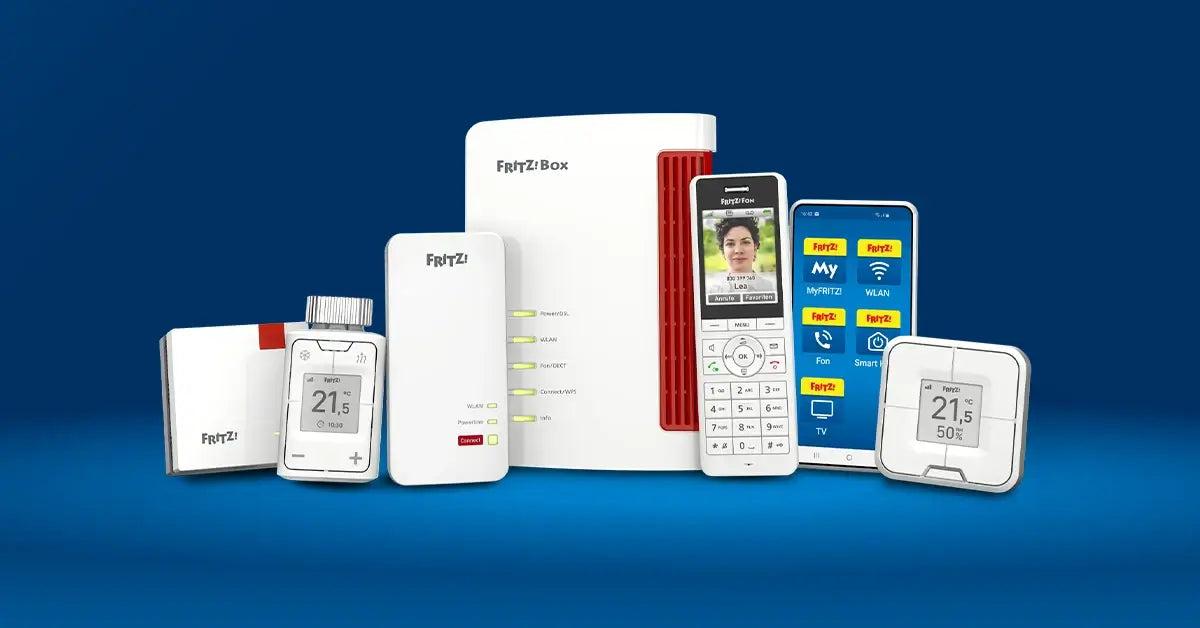
FRITZ!Box routers have become a very serious option For those who want to go beyond the typical ISP router and have real control over their network: Internet, VoIP landline, advanced WiFi, Mesh, home automation, and much more. If you're coming from a Movistar or O2 HGU and are considering switching to a FRITZ!Box, or if you simply want to learn how to explore all its options, here's a comprehensive guide in Spanish (Spain), explained clearly and directly.
Throughout this article we will see, step by step and in great detailThis guide will cover how to replace the Movistar/O2 HGU with a FRITZ!Box 5590 Fiber or 5530 Fiber, how to access and manage the FRITZ!OS interface, how to configure and secure Wi-Fi on a FRITZ!Box 7590, how to create a guest network, how to use the router as a repeater, and how to integrate it into a mesh network. The goal is that, by the time you finish reading, you'll be able to set up your network perfectly without relying on the ISP's equipment.
Replace the Movistar/O2 HGU router with a FRITZ!Box Fiber
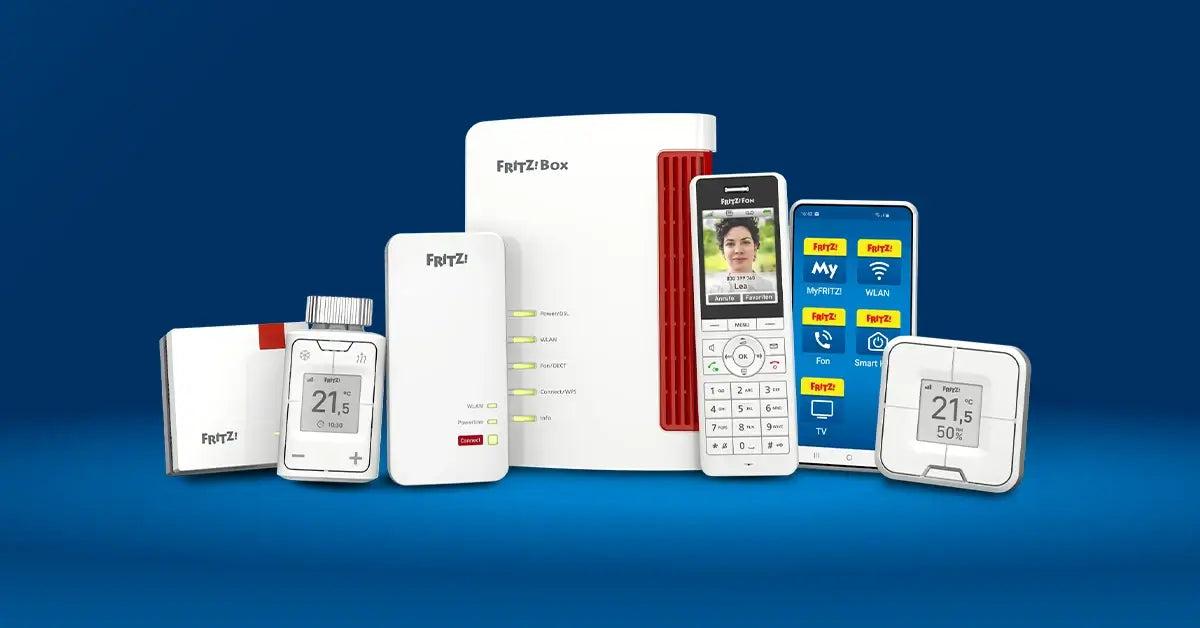
If you have Movistar or O2 fiber and want to use your own router For those managing both internet and landline via VoIP, the FRITZ!Box 5590 Fiber and FRITZ!Box 5530 Fiber models are among the most interesting. Developed and manufactured in Europe, they integrate a fiber ONT and IP PBX, allowing you to forget about the operator's HGU… with one important caveat: they do not support Movistar's triple VLAN or per-port VLAN for Movistar Plus+.
This detail has a key consequenceIf you have Movistar Plus+ (IPTV), you won't be able to watch it using only the FRITZ!Box 5590 or 5530, as these models don't replicate the triple VLAN setup (Internet, VoIP, and TV) managed by the operator's router. You will be able to have internet and landline over IP, but TV will be unavailable unless you keep the HGU or set up a more complex solution.
If your priority is having a powerful router with modern WiFi With Wi-Fi 6 in these Fiber models, good QoS management, integrated IP telephony, and a stable network, replacing the HGU is entirely feasible. The process we'll describe works for both Movistar and O2, as they share the same internet and telephony access parameters. Basically, you'll need to extract the GPON password from your HGU, enter it into the FRITZ!Box, and configure the PPPoE connection with the appropriate VLAN.
How to obtain the GPON password for the Movistar/O2 HGU
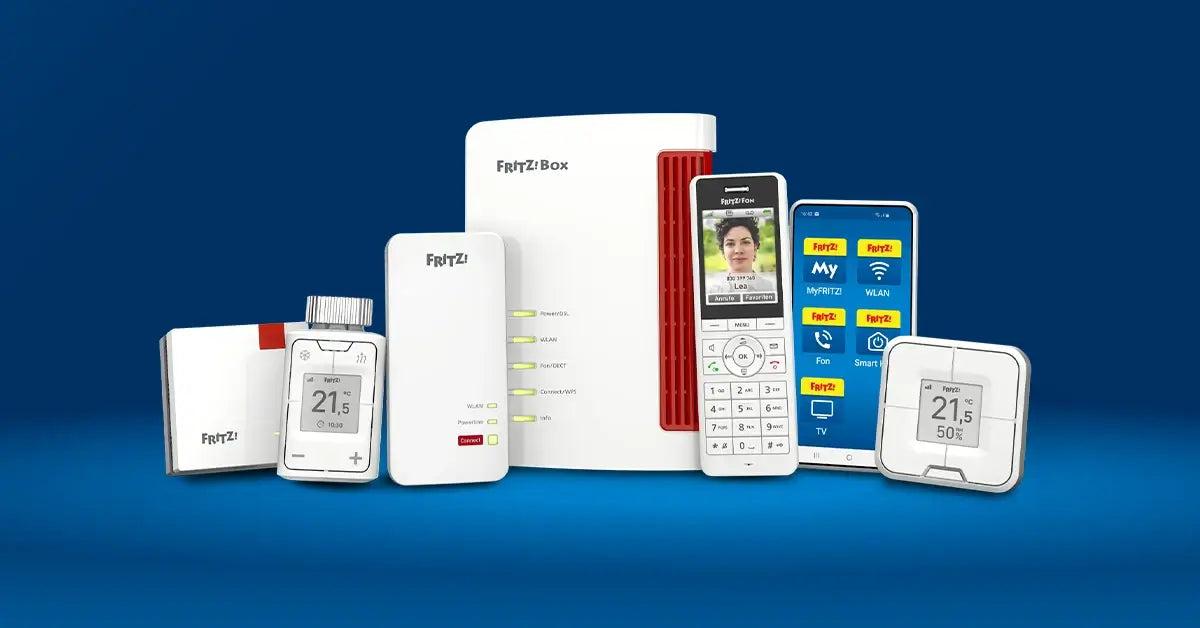
The GPON key is the ONT identifier This is the code that Movistar/O2 associates with your fiber optic line. It's a hexadecimal code, usually 20 characters long, that the HGU uses to authenticate itself on the operator's optical network. If you don't transfer this identifier to the FRITZ!Box with integrated ONT, the operator won't grant you network access and you won't have internet.
First of all, disconnect the fiber optic patch cable from the optical port of the HGUTurn on the router and connect to it from a computer or mobile device. It's important that the device starts up without being connected to the operator's OLT to avoid any unexpected changes during the process.
First way to obtain the GPON keyAccess the special HGU installation URL. Open your browser and type the address:
https://192.168.1.1/instalacion
The router will redirect you to a setup wizard where you will need to enter the administrator password. If you have never changed it, it is printed on the sticker on the bottom of the HGU. If you have changed it and don't remember it, you will need to perform a factory reset (press and hold the reset button for a few seconds) to restore the default settings and be able to log in.
Within the installation menu you will see a field similar to “ONT Identification” or a section where the GPON password is displayed. Copy it exactly and save it in a notepad or text document, respecting uppercase/lowercase letters and the exact length. That is the credential you will later enter into the FRITZ!Box.
Second way to locate the GPON password: through the HGU's own standard web administration interface. In this case, go to:
https://192.168.1.1
Log in with administrator username/password and navigate through the advanced menus. The typical path is usually: Menu > Advanced Settings > accept the prompt, and from there look for an option similar to “Management > GPON Password” or “GPON Password Configuration”. The same GPON key you saw in the wizard should appear there.
It is crucial that you do not change that ONT identifier on the HGUIf you change it and then want to go back to using the original router, the ONT will stop authenticating correctly and you'll be without service until the operator re-provisions it. Just read and copy the password, without changing it.
Setting up the Internet connection on FRITZ!Box 5590/5530 Fiber
Once you have the GPON password, you can proceed to the FRITZ!BoxBoth the 5590 Fiber and the 5530 Fiber share the same FRITZ!OS interface and the same menus for configuring fiber, so the steps are identical in both models.
Connect the fiber optic cable directly to the optical port of the FRITZ!Box Connect the appropriate device (usually labeled Fiber) and turn it on. Then, using a computer or mobile device connected to the FRITZ!Box via cable or Wi-Fi, access the administration interface.
Go to the menu “Internet > Access data > Internet access”There you will see a form with several fields to configure the provider and connection type. Fill in the information as follows for Movistar/O2 FTTH:
- Provider: Select “Other” and, if you wish, write “Movistar” or “O2” as a descriptive name.
- Internet access via: Choose “Fiber (fiber optic)” or the equivalent option offered by FRITZ!OS for your model.
- Are login details required? Mark that you do.
- PPPoE Username: adslppp@telefonicanetpa
- PPPoE Password: adslppp
- Is an ONT installation ID required? Select yes and enter the GPON password that you extracted from the HGU.
When expanding the advanced connection options (usually listed as “Connection Settings” or similar), you'll find speed and VLAN parameters. It's recommended to specify the following here:
- Downstream and upstream speed: Enter the profile you have contracted (for example, 1000 Mbps/1000 Mbps for 1 Gbps symmetrical). This helps the FRITZ!Box better manage QoS and prioritization.
- VLAN configuration for Internet: Select “Use VLAN for Internet access” and set the VLAN identifier to 6, which is the one Movistar/O2 uses for browsing.
Save the changes with the “Apply” buttonThe FRITZ!Box will initiate the connection process: GPON authentication with the operator's OLT, establishment of the PPPoE session, and obtaining a public IP address. This process may take approximately one minute.
To check that everything is working correctly, go to “Internet > Internet Monitor”You should see that the FRITZ!Box indicates an active connection, an assigned public IP address, and configured DNS servers. The established connection and fiber synchronization speed will also be displayed on the main screen.
If you want to see more technical details about the fiber (optical power, exchange you're connecting to, GPON link status, etc.), go to “Internet > Connection Information”. There, FRITZ!OS displays advanced data about the physical layer of the fiber connection between your FRITZ!Box and the operator's network.
Configure Movistar/O2 VoIP telephony on FRITZ!Box Fiber
With the internet working, the next step is landline telephony via VoIP.This is one of the strengths of FRITZ!Box routers. These devices integrate an IP PBX that allows you to connect analog phones via the RJ-11 port, as well as DECT wireless devices directly to the router.
For Movistar/O2 VoIP to work correctlyTo do this, you need to configure a specific VLAN for telephony and register your landline number as your own number with the appropriate settings. It's recommended to configure the connection settings first and then create the number.
Go to the “Telephony > Own numbers” menu and then to the “Connection settings” tab.There you will see several parameters related to how the FRITZ!Box connects to the operator's VoIP platform:
- Keep port forwarding enabled for telephony on an internet router: Set a 1-minute interval for associations to renew and prevent incoming calls from dropping.
- DSL/WAN connection settings: indicates that a VLAN is needed for IP telephony.
- VLAN identifier for VoIP: sets the value 3.
- Pbit or priority: Use the value 4, which is the usual value for prioritizing voice.
- Use a separate (PVC) connection for IP telephony: Leave it enabled so that voice traffic travels through its own logical channel.
- Are login credentials required for that connection? No; select automatic IP acquisition via DHCP.
Once you have finished adjusting these values, click on “Apply”.The FRITZ!Box will be responsible for setting up the specific VoIP session on VLAN 3 and preparing the environment to register your landline phone number.
Now it's time to register the phone numberWithin "Telephony > Own numbers", go to the "Phone numbers" tab and choose the "New phone number" option. In the wizard that appears, select "Other provider" as your phone carrier.
Fill out the form with your landline details, adjusting these fields (we will use as an example a generic number 949111111, you must put your real number with prefix):
- Phone number for connection: Your landline number with area code, for example 949111111.
- Internal telephone number in the FRITZ!Box: You can use the same number to identify it within the router.
In the “Access Data” section, enter your authentication information. that Movistar/O2 VoIP requires:
- Username: your landline number, for example 949111111.
- Authentication name: Your number again, 949111111.
- Password: the key associated with that service (in many example guides the number is repeated, but it is advisable to use the one that your operator has set).
- Registrar (SIP registrar): telefonica.net
- Proxy Server: 10.31.255.134:5070 (IP and port of the SIP signaling proxy that manages the calls).
In the “Other configuration options” sectionNormally, you should leave the values recommended by FRITZ!OS for Movistar/O2, only adjusting advanced parameters if you have very specific needs. Click "Next," check the box "Verify phone number after clicking Apply," and complete the wizard.
The FRITZ!Box will perform a registration check of the number on Telefónica's VoIP platform. If everything is correct, you'll see your number in green and with an "active" status in the "Own Numbers" list. From there, you can edit the settings again if you want to adjust ringtones, dialing rules, etc.
On the FRITZ!Box main screen, both Internet and telephony should now appear in green.You can test the calls using an analog phone connected to the router's RJ-11 port or a compatible DECT phone, such as FRITZ!Fon models, paired with the FRITZ!Box DECT base.
Accessing and handling the FRITZ!Box interface (FRITZ!OS)
The FRITZ!Box web interface is the command center for the entire systemFrom there you control the internet, phone, Wi-Fi, local network, home automation, diagnostics, and updates. It's very intuitive, but it's a good idea to know what each section offers to get the most out of it.
To access the interface, the most common method is to use the computer's local IP address.Many models come pre-configured with an address like 192.168.178.1, which you can type directly into your browser's address bar and press Enter. You can also use the URL fritz.box in some installations.
Upon logging in, the router will ask for your administration password.This code is printed on the back or bottom of the FRITZ!Box and is the one you should change after the initial setup for security reasons. Once entered, you will access the main panel.
The initial screen displays a fairly clear summary of the network status: Internet connection type, negotiated speed, connected devices (wired and WiFi), bands in use, possible traffic priorities and the status of special functions such as the answering machine or the integrated NAS server.
In the top left corner you'll see the classic "hamburger menu" (three horizontal lines) which opens a sidebar with all the main sections of FRITZ!OS. Although they may vary slightly depending on the model, you will typically find:
- General view: the home page with the system summary.
- Website: connection monitor, access data, content filters, access permissions, MyFRITZ! settings and other options.
- Telephony: call log, answering machine, contact list, alarms, fax, call management, telephone devices and DECT telephony.
- Local Area Network (or Home Network): mesh network settings, LAN parameters, USB and storage configuration, media server and FRITZ!Box name.
- Wi-Fi: It controls wireless networks, channels, security, scheduling, and guest access.
- Domotics: Management of compatible smart devices, creation of groups, automations and consumption tracking.
- Diagnosis: Functionality tests, security checks, and tools for detecting network problems.
- System: Event logging, email notifications, FRITZ!Box user management, buttons and LED indicators, language and region, firmware protection and update.
At the bottom of the interface there is usually a shortcut to the “Assistants”These are small, step-by-step guides that help you set up the internet, add phones, adjust Wi-Fi, or create a guest network without having to delve too deeply into menus. There's also an integrated help section with explanations of each option.
Setting up and securing the WiFi network on FRITZ!Box 7590
The WiFi connection is the aspect that gets messed with most often on a FRITZ!Box 7590This router is ideal for both home and small office environments. It offers comprehensive wireless capabilities and allows you to adjust numerous parameters to balance coverage, speed, and security.
One of the first common adjustments is deciding which frequency bands to use2,4 GHz, 5 GHz, or both simultaneously. The 2,4 GHz band offers greater range and compatibility with older devices, but it is slower and prone to congestion. The 5 GHz band offers higher speeds and less interference, although its range is somewhat shorter.
In most cases, the most practical solution is to leave both bands activated. and allow each device to connect to the one that best suits it. The FRITZ!Box itself can manage a single "combined" network, or you can use different SSIDs for each band if you prefer to distinguish them.
To activate or deactivate bands on the FRITZ!Box 7590Access its web interface. In addition to the private IP address configured on your network, this model typically allows access via a special address such as:
IP: 169.254.1.1 (mask 255.255.0.0)
Once inside the router, click on the “WiFi” menu.In the drop-down menu, select “Wireless Network”. On the right, you will see the main configuration options, including enabling the WiFi network and the names (SSIDs) of the 2,4 and 5 GHz bands.
Make sure the “Active Wireless Network” box is checked on the bands you want to have operational. You can leave both active and assign a network name to each, or the same name if you prefer the band change to be more transparent for users.
Apply and save the changesAfter a few seconds, nearby devices (mobile phones, laptops, etc.) should detect the Wi-Fi networks you just configured. It's a good idea to check from a smartphone that you can see both bands if you've set them up separately.
Change WiFi password and encryption (WPA2/WPA)
Another essential setting is changing the default WiFi password.It's not a good idea to leave the password on the sticker in, both for security reasons and because it's usually difficult to remember. Ideally, you should create a strong password that you can manage without getting overwhelmed.
Access the FRITZ!Box 7590 panel again Then, in the left-hand menu, go to "WiFi" and then to "Security". Within this section, and on the encryption tab, you will find the "WPA Encryption" section or something similar where you can change the access keys.
Scroll to the area where “Wireless Network Key” appears.This field defines the password that devices will use to connect to the Wi-Fi. You can set a different key for each band or use a single key if you prefer.
To make your password strong, combine several types of characters.Lowercase letters, numbers, and special symbols are allowed, and uppercase letters are also acceptable. A reasonable minimum is 12 characters, although you can make it considerably longer. As you type, the FRITZ!Box interface indicates the security level it considers the password to have.
Regarding encryption, the current recommendation is to use WPA2 (CCMP)Many models also offer a mixed WPA + WPA2 option designed for compatibility with very old devices, but if all your equipment is relatively modern, it's best to stick with WPA2 for enhanced security.
Always avoid leaving weak configurations. Use WEP or WPA (TKIP) without WPA2, and don't leave the default password. These are two common mistakes that open the door to unauthorized access to your network.
Additional WiFi security options on the FRITZ!Box 7590
In addition to password and encryption, the FRITZ!Box offers other options to strengthen wireless security. They are not mandatory, but managing them properly helps to have a network that is somewhat more protected against abuse.
One of them is the WPS (Wi-Fi Protected Setup) systemWPS allows you to connect devices simply by pressing a button on the router or entering a PIN. It's convenient, but it has also had vulnerabilities in the past. In the Wi-Fi security section, you can enable or disable WPS as needed.
If you uncheck the option corresponding to WPSBy doing this, you'll be disabling this automatic pairing mechanism, forcing you to always enter the Wi-Fi password manually. It might be slightly more inconvenient, but it also prevents someone from trying to exploit vulnerabilities in WPS.
Other security features include filtering connected devicesCheck which devices have authenticated to the network and use MAC address-based access rules if you want to limit which devices can connect. However, MAC filtering isn't foolproof (it can be spoofed), so it should be seen as an extra measure, not the foundation of security.
In a home environment, with a strong WPA2 password and updated firmwareThe most critical point is usually already reasonably covered. You can fine-tune the remaining options to have a little more control and reduce unwanted access.
Create and configure a guest WiFi network
The "Guest Access" function of the FRITZ!Box 7590 is extremely useful If you receive visitors at home or have a small office where clients, suppliers, or external personnel come in, this allows you to create a separate Wi-Fi network for them, without giving them direct access to your internal network.
This additional network significantly improves securitySince guests won't be able to see or reach your personal or corporate equipment, this is especially advantageous for businesses because it eliminates the need to hire a second line of service just for meeting rooms or common areas.
To activate the guest network, go to the “WiFi > Guest Access” menu.Check the "Guest access active" box and the FRITZ!Box will enable a new SSID specifically for this use, with its own password.
Choose an identifying network nameFor example, use "Office Guests" or something similar, and select the encryption type. It's recommended to leave it on WPA2 (CCMP) and create a strong password, even if it's a bit easier to dictate to guests.
After saving the changes, the FRITZ!Box will begin broadcasting that guest network.From a mobile phone, laptop, or other device, you can view the new WiFi network and connect using the password you have set, keeping the main network where your usual devices are located isolated.
In addition, the settings panel offers several very interesting advanced options. to control the behavior of that guest network:
- Limit internet applications: You can make it so that only web browsing and email are allowed, blocking other types of traffic (P2P downloads, online games, etc.).
- Display a welcome page: It allows guests, upon connecting, to see an initial page with a logo and informative text about the service, terms of use, connection time, etc.
- Allow guest devices to communicate with each other: If you uncheck it, each guest can browse the Internet, but cannot see or communicate with other devices on that same network.
- Automatic deactivation of guest access: You can make the network turn off automatically after a specific number of hours, which is very useful when you set up WiFi for a specific event.
If you want to fine-tune the control even furtherFrom the “Internet > Filters > Prioritization” section you can set additional restrictions, such as blocking certain websites or prioritizing bandwidth for other services over guest network traffic.
Using the FRITZ!Box 7590 as a WiFi repeater
Another interesting feature of the FRITZ!Box 7590 is its ability to act as a WiFi repeater. from another FRITZ!Box router, thus extending the range of the wireless network without having to run additional cables. It is especially practical in large houses or multi-story dwellings.
In this mode, the 7590 connects via WiFi to a base network It is transmitted by another FRITZ!Box and "repeats" the signal, creating a second coverage area. It's not as efficient as an Ethernet cable, but for many scenarios it's more than sufficient and very easy to deploy.
To configure it, go to the “WiFi > Repeater” menu on the FRITZ!Box 7590There you can choose the base network you want to connect to, which will usually be the main WiFi network of the router acting as the master.
Select that network and enter the corresponding password.The 7590 will connect as a WiFi client to that SSID and begin forwarding traffic to the devices connected to it (either via WiFi or cable). Apply the changes and wait for the connection to be established.
Keep in mind that performance will depend heavily on the quality of the link. between the base router and the 7590. It is advisable to place them in an intermediate position: so that the 7590 receives a decent signal from the main router, but far enough away to really extend the coverage in the area you are interested in.
The FRITZ!Box also allows for other expansion options, such as encrypted access point setups over Ethernet cable or the use of dedicated FRITZ!Repeater repeaters, but the 7590's direct repeater mode is a quick solution when you can't or don't want to run cables.
Integrate the FRITZ!Box into a Mesh network
When a single WiFi network falls short of covering the entire houseThe most elegant solution today is to set up a mesh network. FRITZ!Boxes can act as the "center" of this mesh, coordinating other devices such as FRITZ!WLAN Repeaters or FRITZ!Powerline adapters with WiFi.
In a Mesh network, all access points share the same network name. (SSID) and the same password. The devices move around the house, automatically connecting to the spot with the best signal, without you having to manually change networks.
For Mesh to work properly, you need a minimum version of FRITZ!OS 6.90 or higher on all devices involved (router, repeaters, PLC, etc.). If any device has an outdated firmware version, you will need to update it.
The update is performed from the section “System > Update > FRITZ!OS Version” from each device's menu. It's advisable to keep the entire ecosystem aligned to a recent version to take advantage of improvements in stability, security, and Mesh features.
Once a day, the central FRITZ!Box coordinates the mesh and displays all the nodes. From the menu “Home Network > General Information” (or “Local Network > General Information”, depending on the translation). There you will see a map with the connected devices, their connection type (WiFi, PLC, etc.) and their status.
From that same screen you can add new repeaters or PLCs. With one click, you can initiate remote firmware updates, rename devices, and verify their integration into the mesh network. The setup process is usually very simple: press one button on the master FRITZ!Box and another on the device to be integrated.
Among the compatible devices, the FRITZ!WLAN Repeater stands out., specifically designed to extend wireless coverage, and the FRITZ!Powerline with WiFi, which uses the electrical network as a means of transporting data to the area where you need coverage and there creates an access point linked to the Mesh.
With this combination of central router, repeaters and PLCYou can cover virtually any home or small office with a single, consistent WiFi network, with seamless roaming and centralized control from the FRITZ!Box itself.
Knowing all these possibilities well —replacing the Movistar/O2 HGU with a FRITZ!Box Fiber, mastering the FRITZ!OS interface, carefully adjusting the 7590's WiFi, creating guest networks, using the router as a repeater, and taking advantage of the Mesh network— It allows you to take your home or small business network to a level far superior to that of standard operator equipment, gaining control, flexibility and security with a reasonable effort once you know where to start.
Table of Contents
- Replace the Movistar/O2 HGU router with a FRITZ!Box Fiber
- How to obtain the GPON password for the Movistar/O2 HGU
- Setting up the Internet connection on FRITZ!Box 5590/5530 Fiber
- Configure Movistar/O2 VoIP telephony on FRITZ!Box Fiber
- Accessing and handling the FRITZ!Box interface (FRITZ!OS)
- Setting up and securing the WiFi network on FRITZ!Box 7590
- Change WiFi password and encryption (WPA2/WPA)
- Additional WiFi security options on the FRITZ!Box 7590
- Create and configure a guest WiFi network
- Using the FRITZ!Box 7590 as a WiFi repeater
- Integrate the FRITZ!Box into a Mesh network