- Brackets IDE is an open source code editor focused on web development, with advanced features like live preview and fast editing for HTML, CSS, and JavaScript.
- The community has maintained and evolved the project since Adobe's withdrawal, releasing new versions and ensuring broad compatibility with extensions and platforms.
- Its easy installation, extensive customization capabilities, and visual focus set it apart from other editors, making it ideal for both beginners and front-end professionals.
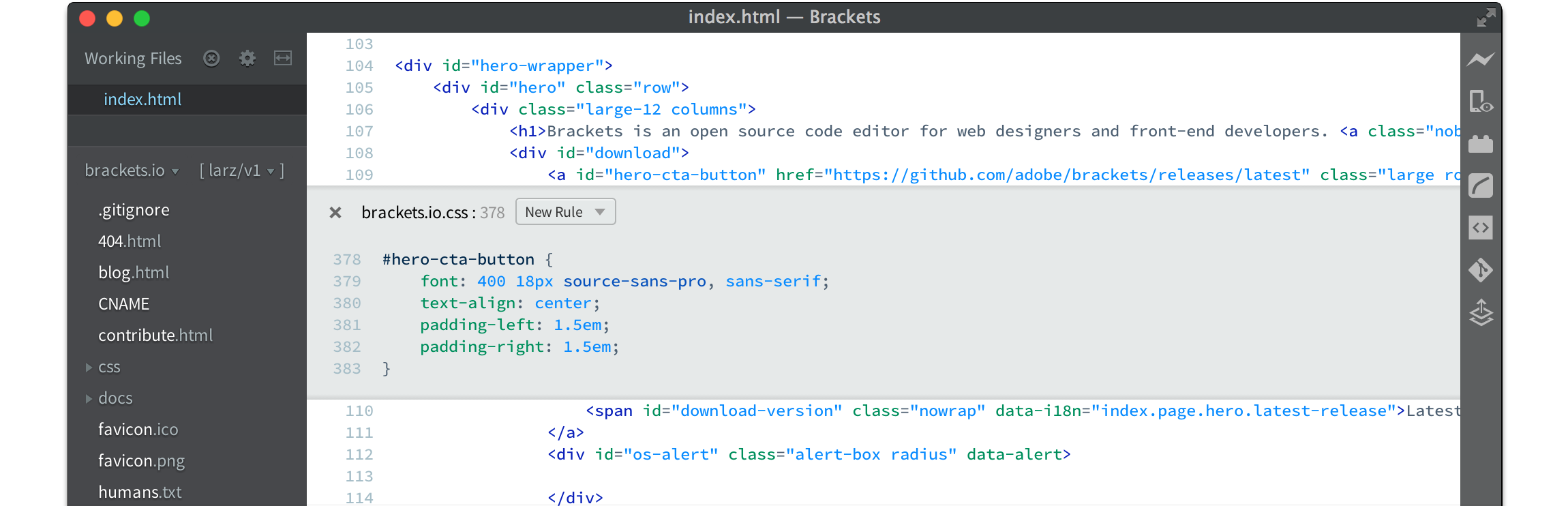
The world of web development is constantly evolving , and within this whirlwind of change, code editors play a key role. For those who work with HTML, CSS, and JavaScript, choosing the right tool can make all the difference in productivity and user experience . Brackets IDE , born within Adobe and continued by an active community, has positioned itself as a preferred choice for thousands of developers.
In this comprehensive guide, we'll explore the world of Brackets in depth . From its history and evolution to the most powerful features that set it apart from other editors, we'll cover installation, configuration, customization through extensions, alternatives, and much more. If you're looking to learn about or get the most out of Brackets IDE, this article will answer all your questions with a practical and straightforward approach, written in Spanish (Spain) and with clear examples for any user level.
What is Brackets IDE and what is its history?
Brackets is a source code editor focused on web development , specifically designed for working with HTML, CSS, and JavaScript. Its main distinguishing feature is the ease with which you can edit, view, and debug code in real time, all within a modern, lightweight, and customizable interface.
Originally developed by Adobe Inc. , Brackets was launched as an open-source project in 2011. The goal was clear: to create a tool specifically for web designers and developers, one that truly understands the creative workflow and needs of those working with web technologies. Version 1.0 was released in 2014, moving beyond the experimental stage and establishing itself as a serious alternative to other editors like Sublime Text and Atom.
The Brackets engine is built using JavaScript, HTML, and CSS , allowing for unlimited extensibility and a very active community that contributes plugins, bug fixes, and constant improvements. Its MIT license guarantees that it is completely free and open source, something increasingly valued in the software world.
In September 2021, Adobe announced the end of official support for Brackets. However, far from being forgotten, the developer community took up the mantle and continues to evolve the project, releasing improved versions on GitHub and keeping the official website active.
Currently, Brackets continues to be developed by the community , and has become an example of how an open source project can survive and modernize thanks to the drive of those who use and improve it daily.
Main features of Brackets IDE
One of Brackets' greatest strengths and the reasons it has won over a legion of users is its set of features designed for modern web development . Let's review the most relevant ones and how they can help you in your day-to-day work:
- Open Source and multiplatform: Brackets is completely free under the MIT license, and can be installed on Windows, macOS, and most Linux distributions (although releases on Linux may be somewhat delayed compared to other systems).
- Live Preview: A key feature that allows you to see code changes instantly reflected in the browser, without having to manually save files. Ideal for HTML and CSS projects where visual agility is key.
- Quick Edit: By selecting an HTML tag or CSS property, you can edit its style or value inline, without changing files or losing the context of what you're doing.
- Efficient project managementBrackets allows you to open a folder as a project, making it easier to work with multiple files and structure them logically. It also has a side panel for navigating between resources.
- Extensions and customization: There's a robust ecosystem of extensions that let you add features, themes, keyboard shortcuts, and more.
- Advanced support for HTML5 and CSS3: Includes auto-completion, contextual help and color-coded syntax highlighting to minimize errors and improve readability.
- Integration with Github and Gitlab: You can manage the versioning of your code without leaving the editor environment.
- Split editing mode: You can work with two files at once, either horizontally or vertically, maximizing efficiency when you need to compare or edit multiple parts of your project simultaneously.
- Multilanguage supportAlthough the primary focus is web development, Brackets also offers basic support for other languages such as PHP, Python, C, C++, Java, among others.
- Intuitive interface with customizable themes: You can customize the editor's visual appearance to your liking thanks to a wide collection of light and dark themes.
Furthermore, Brackets is capable of handling more than 38 file types , allowing you to work simultaneously on different resources of your web project and keep everything under control.
Advantages of using Brackets over other editors
There are many code editors on the market , such as Visual Studio Code, Sublime Text, Atom, and Notepad++. However, Brackets stands out for a number of unique advantages, especially if your specialty is front-end web development:
- Lightness and speed: Brackets is optimized to be resource-efficient, allowing you to work smoothly even on low-power computers.
- Focus on creative flow: Everything about Brackets is designed with web designers and developers in mind, from its interface to its flagship features like Live Preview and fast inline editing.
- Intelligent project managementBy opening an entire folder as a project, you won't have to search for individual files. Everything you need will be within easy reach, neatly organized in the side panel.
- Visual editing of styles and colors: You can preview CSS colors by simply hovering over the hexadecimal value, and even modify them on the fly without leaving the editor.
- Easy automation and customization: Thanks to the extension ecosystem, you can customize Brackets to your needs, automate routine tasks, and add new features in just a few clicks.
- Constant community updatesAlthough Adobe has discontinued official support, the community continues to release new versions, fixing bugs and adding relevant improvements.
- Documentation and active forums: There are a large number of resources, tutorials, and forums where you can resolve your doubts or share tips.
If you're coming from other editors like Sublime Text, you'll notice some differences: for example, in Brackets you can only have one project open at a time, but the workflow is much more focused and less prone to dispersion. Additionally, while in Sublime you need to install many extensions to match basic functionality, in Brackets they come built-in.
Brackets after Adobe: the continuation of a community project
Adobe's 2021 announcement that it would end support for Brackets came as a shock to many users . However, far from being forgotten, the editor was embraced and sustained by the developer community and open-source enthusiasts.
The official website ( brackets.io ) is still active and serves as a download point for updated versions, although now managed by the community. Currently, you can find recent releases such as version 2.0.1 and later, available for Windows and macOS (the Linux version, although announced, is often delayed).
Thanks to this community push, Brackets continues to offer its hallmarks: lightness, power, and a visual and creative approach geared towards those who design and program modern web interfaces.
A significant milestone is the launch of Phoenix Code Editor ( https://phcode.dev/ ), an advanced online version based on Brackets that can be used directly from a browser without any installation. This further expands the editor's capabilities and makes it accessible from any device, while maintaining the open-source philosophy and user-centric approach.
How to download and install Brackets IDE
The process of downloading and installing Brackets is extremely simple , even for those with no prior experience:
- Visit the official website, https://brackets.io/.
- The system will automatically detect your operating system (Windows, Mac or Linux) and it will offer you the corresponding download.
- Simply download the executable and, once downloaded, double-click to install the program on your computer.
- When you open it for the first time, a welcome file will appear with a brief guide to quickly familiarize you with the interface and key features.
On Linux operating systems, especially Debian and derivatives, it may be necessary to install some additional dependencies or use community-maintained packages. It is recommended to consult the official documentation or specialized forums if you have any questions.
Brackets is a lightweight software , which takes up around 75 MB and requires hardly any resources to run, adapting great to both old and modern computers.
Initial setup and customization of Brackets IDE
One of Brackets' greatest strengths is how easy it is to customize from the very beginning. The initial experience itself includes suggestions for tailoring the environment to your liking:
- Font size: You can easily adjust it from the menu View or using keyboard shortcuts (CTRL + / COMMAND + to zoom in; CTRL – / COMMAND + to zoom out).
- visual themesBrackets includes light and dark themes (like Brackets Light and Brackets Dark) by default, but you can find many more from the extension manager. Changing the theme helps you work more comfortably, especially in dimly lit environments.
- Project management: It's common to open a folder as a project so you have all your files organized and available in the side panel. This way, every time you open Brackets, you'll have direct access to your workspace.
Upon first launch, you'll find a clean and intuitive environment, with the main panels visible and key features easily accessible. The learning curve is very gentle, and in just a few minutes, you'll be ready to start coding.
Managing Extensions in Brackets: How to Boost the Editor
Brackets' true potential is unlocked by installing extensions , which allow you to add everything from new features to radical changes in appearance or task automation. The process is very similar to that of other well-known browsers like Google Chrome, making it easy for users of all skill levels to adapt.
To manage extensions in Brackets:
- Access the menu File → Manage Extensions (also available from an icon in the top bar).
- Explore the catalog, which includes hundreds of free extensions sorted by popularity, usefulness, compatibility, and more.
- Install the desired extension by clicking on the corresponding button (usually, Install).
Some interesting extensions include:
- Emmet: Allows you to expand HTML and CSS shortcuts and abbreviations to create complete structures with a single keystroke. It's ideal for fast, productive layout.
- Beautify: Automatically indents and sorts code, improving readability and ensuring good programming practices.
- Custom Themes: Expand the variety of visual themes and colors to suit your work environment.
Thanks to its open architecture, you can even develop your own extensions with basic knowledge of JavaScript, HTML, and CSS.
Key Brackets features that make web development easier
Brackets is packed with features designed to make life easier for web developers . These include:
- Syntax highlighting and color codingWhen working with HTML, CSS, and JavaScript, it's very easy to identify closing tag or brace errors, as the editor clearly points out where the problems lie.
- Color PreviewWhen you hover over a hexadecimal color value in CSS, a preview appears. You can easily modify the color without leaving the context of the code.
- Quick style editing: Select an HTML tag and press the appropriate shortcut to directly edit its associated CSS, without having to switch between files.
- Advanced Search and Replace: Find and modify lines of code with great speed, including the ability to search within entire projects.
- Split view: Perfect for working in parallel on two different files or on different parts of the same document.
- Intelligent project management: The folder and file structure is displayed in a side panel, with options for easy organization and access to resources.
- Multi-language support: Although its main focus is web development, you can also work on Python, Java, C, PHP scripts, or even Markdown files.
These features, combined with the ability to customize the environment through extensions, make Brackets one of the most versatile editors, especially focused on efficiency and creativity.
Differences and comparison of Brackets with other popular editors
When choosing a code editor, it's common to compare several options . Let's see how Brackets differs from competitors like Sublime Text, Atom, and Visual Studio Code:
- Ease of use: Brackets is much more straightforward and easier to learn than Sublime Text or Atom, making it ideal for those taking their first steps in web development.
- Web focusWhile Sublime and VS Code aim to be general-purpose editors for all kinds of languages, Brackets has specialized from the start in HTML, CSS, and JavaScript, resulting in a tailored experience.
- Live preview: While some competitors have incorporated similar features, Brackets' native integration remains one of the most polished and fastest.
- Lightness: Resource consumption is very low, allowing it to be used even on computers with older or limited hardware.
- Project managementUnlike other editors, Brackets only allows you to have one project open at a time, which helps maintain focus and avoid distraction.
- Generating HTML and Lorem Ipsum structuresYou can create complex HTML structures by typing abbreviations (e.g., html:5) and expanding them with the Tab key. You can also add filler text (Lorem Ipsum) by simply typing 'lorem' and pressing Tab.
- Community Updates: Following Adobe's departure, the community continues to improve the editor, fixing bugs and adapting it to new needs.
- Installation and configuration: Both installation and initial customization are quick and easy compared to other more complex editors.
Ultimately, Brackets is ideal for those who prioritize web editing and are looking for a simple, intuitive, and highly productive environment.
How to quickly layout web pages with Brackets
One of the most amazing features of Brackets is the ability to create complete HTML structures in just a few steps , by combining the right extensions and clever shortcuts.
For example, thanks to the Emmet extension , you can write the structure of a page (header, main, footer, divs, sections, etc.) on a single line and expand it by pressing the tab key. This way, in seconds you'll have all the necessary tags ready, nested and with the correct hierarchy.
Another useful trick is the ability to create nested elements using the > symbol and group them in parentheses. For example:
<header>(h1+h2)</header><main>(section>h2+p*2)+ul>li*3</main><footer>p</footer>
By expanding this formula, Brackets automatically generates the desired structure, which greatly speeds up web page layout.
Additionally, you can insert filler text by simply typing 'lorem' and pressing Tab, which is especially convenient for quick testing or prototyping.
Essential Extensions for Braces
Brackets' added value lies in its extension system . Here are some of the most highly recommended for any web developer:
- Emmet: Converts abbreviations into fully expanded HTML and CSS code, making it easy to create complex structures in a single line. You can type, for example, 'html:5' and convert it into the entire HTML5 page skeleton by pressing Tab.
- Beautify: Automatically indents code, ensuring a clean and orderly structure in large or collaborative projects.
- Color picker: Allows you to select colors using a visual interface and copies the value in hexadecimal, RGBA, etc. format.
- Git integrationIf you work on versioned projects, this extension makes it easy to manage commits and branches directly from the editor.
- HTML Boilerplate: Expand basic templates to get started quickly.
- Brackets Icons: Adds icons to files in the side panel, improving visual organization.
The extension ecosystem is kept alive by the community, so it's common to find new features and regular updates.
Advanced Configuration and Productivity Tips
To get the most out of Brackets, here are some tips and tricks to help you work more comfortably and efficiently:
- Keyboard shortcuts: Memorize the most common ones (open/close files, switch tabs, edit online) to speed up repetitive tasks.
- Split view: Use this if you need to compare files or work on two code segments at the same time.
- Custom Themes: Try different color schemes depending on the time of day or environment (light for day, dark for night).
- snippets: Use or create your own reusable code snippets to avoid errors and save time.
- Configurations per project: Customize project-specific settings (indentation, formatting, etc.).
Limitations and aspects to take into account in Brackets
While Brackets is a powerful and versatile tool, it has some limitations that are important to know:
- It doesn't allow you to work with more than one project open at a time, which can be inconvenient if you're switching between multiple projects at the same time.
- Some advanced features offered by editors like Visual Studio Code or Atom may require additional extensions in Brackets.
- Official support and synchronization have slowed down since the community took over, although regular updates are still available.
- The latest versions may not be available for all operating systems immediately, with Linux being the most affected in terms of delays.
Despite these issues, the experience and agility that Brackets offers in its core field—web development—continues to make a difference.
Brackets on Linux: Installation and Compatibility
Installing Brackets on GNU/Linux -based systems (Debian, Ubuntu and derivatives) is possible, although it may require some additional steps because versions are not always updated as quickly as on Windows or Mac.
It's best to download the latest version from the official website or the GitHub repository. In some cases, you may need to install prior dependencies such as Node.js or certain graphics packages. There are detailed guides and forums where other users have shared experiences and solutions for specific cases.
In any case, once installed, the performance and user experience are virtually identical to other systems, while maintaining all key functionalities.
Brackets in the Cloud: Phoenix Code Editor and Other Online Alternatives
Web development increasingly demands mobility and flexibility. That's why the arrival of Phoenix Code Editor has been so well received by the community. Based on Brackets, Phoenix is an online code editor that maintains the essence of the original project but can be run directly in the browser, without any additional installations.
This allows you to work on any device, from anywhere, and easily share projects. Plus, the same features remain the same: live preview, quick editing, extension support, and more.
In addition to Phoenix, there are other alternatives based on Brackets or compatible with its extensions, demonstrating the vitality of the ecosystem and its ability to adapt to new ways of working in the cloud.
Community and support: forums, documentation, and user groups
Since its inception, Brackets has had a very active user community . There are official forums, social media groups, and numerous blogs that share tips, extensions, and solutions to common problems.
The official documentation is extensive and covers everything from basic installation to plugin development and integration with external tools. There are even guides for adapting Brackets to other languages, including Spanish.
If you have any questions or want to share your own scripts, you're sure to find a network of users willing to help and learn from you.
Programming language support and compatibility
While Brackets' primary focus is web development, the editor supports over 38 file types , allowing you to work in PHP, Python, Java, C, C++, Perl, Ruby, and many other languages as well.
This is especially useful in modern projects that combine frontend and backend, or in collaborative projects involving multiple technologies. However, you'll find the most polished experience in HTML, CSS, and JavaScript.
Installing Brackets on Debian and Derivatives: Steps and Tips
Installing Brackets on Debian and Debian-based systems can be done in several ways. Usually, it's enough to download the .deb package from the official website or find the latest version in the community-maintained repository.
If you experience any issues with dependencies or compatibility, it's a good idea to update your system and make sure you have the latest versions of Node.js or other libraries that Brackets may require.
Once installed, it works identically to Windows or Mac, allowing you to take full advantage of its features.
Recommendations for use and tricks to squeeze out brackets
To get the most out of Brackets, here are some practical tips :
- Organize your projects into folders and use the side panel to quickly access resources and files.
- Customize keyboard shortcuts to optimize your workflow.
- Browse the extensions catalog regularly to discover new and useful tools.
- Use live preview to detect visual errors in real time and speed up development.
- Experiment with different themes until you find the one that best suits your vision and work environment.
Feel free to check out specialized forums and blogs to stay up-to-date on new developments and share your own discoveries or developed extensions.
Brackets in the current context: Is this publisher worth investing in in 2024?
Despite the rise of editors like Visual Studio Code and the popularity of online tools, Brackets still holds a significant place among those seeking a focused, lightweight, and creative editor . Its continued community support, the emergence of spin-off projects like Phoenix, and its extensive extension library make it a serious option for any web developer. Furthermore, its ease of use and low resource consumption make it ideal for students, teachers, freelancers, and small teams.
If your daily work focuses on HTML, CSS, and JavaScript, and you appreciate the benefits of an environment focused on productivity and visual editing, Brackets remains a safe bet.
Its experience and advantages make it much more than a simple code editor. It's a development environment designed by and for those who specialize in web design and programming, with an active community and sufficient resources to tackle projects of any size.
