- XAML Studio allows you to edit and preview XAML live, with real interaction on the interface.
- It includes advanced tools such as Binding Debugger, Data Context Editor, and visual explorers.
- It can be downloaded from the Microsoft Store or compiled from its open source repository under the MIT license.
- It offers control over telemetry and is geared towards alleviating frustration for Visual Studio designers.
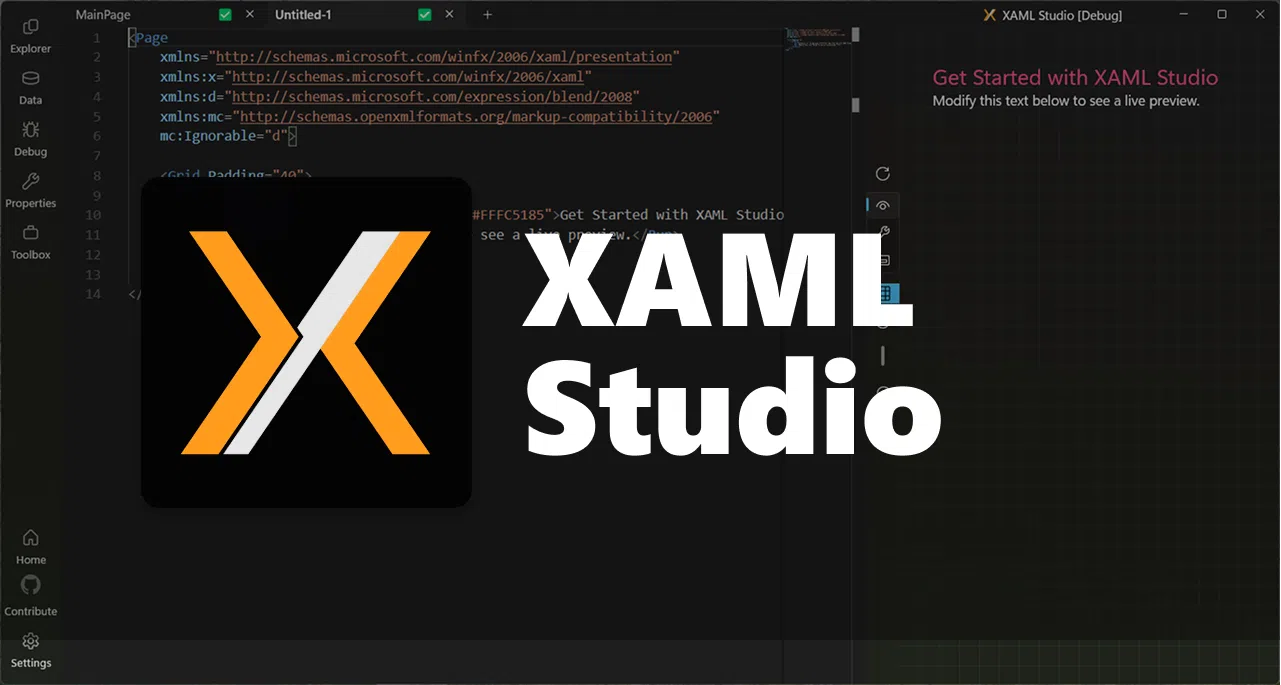
If you work with XAML to create interfaces in Windows , you've probably encountered struggles with the Visual Studio designer, interminable compilation times, or impossible-to-locate data binding errors. This is where XAML Studio comes in, an application designed precisely to let you test, debug, and experiment with XAML quickly and with less friction.
Throughout this article, we'll take a detailed look at what XAML Studio is, how it helps you prototype WinUI and UWP interfaces in minutes, what tools it offers for debugging links, managing test data, navigating the visual tree, and much more. You'll also see how to download it from the Microsoft Store, what the requirements are if you want to compile it from source code, and how all of this fits into the current context of developers who are somewhat fed up with Visual Studio designers.
What is XAML Studio and who is it for?
XAML Studio is a Windows application focused on XAML development , originally created as a Microsoft Garage project and now released as an open-source project within the .NET Foundation. Its main purpose is to allow you to write XAML, see it working instantly, and interact with the interface as if it were part of your own app.
It is especially geared towards developers working with WinUI XAML and UWP applications , although it is also very useful if you come from WPF and want to experiment with modern Fluent design concepts, styles, templates and visual states without having to build a complete solution each time.
Unlike Visual Studio, which is more geared towards the complete development cycle, XAML Studio acts as an ideas lab for the visual layer : you copy a XAML fragment, paste it, adjust it, see the result instantly, play with the data, check bindings, and when you're satisfied, you take the code to your real project.
Furthermore, being an open source project, its evolution is open to the community: any developer can review the code, propose changes , submit improvements and participate in the discussion of new features through the public repository.
Key features of XAML Studio for prototyping interfaces
One of XAML Studio's strengths is that it brings together a set of tools in a single application designed for testing designs, creating screen layouts, and debugging links with minimal downtime. It's not just a XAML viewer, but an interactive environment for rapidly iterating on your UI.
Among its most important capabilities is live editing: you can write or modify XAML code in the editor and instantly see a fully functional preview . This preview window allows for real interaction: pressing buttons, changing states, moving sliders, or testing behaviors just as you would in the final app.
Another striking feature is the ability to experiment with XAML navigation using a breadcrumb trail. This allows you to easily move through complex structures, see exactly where in the tree you're working, and quickly locate the elements you want to adjust.
In addition, XAML Studio includes a set of shortcuts and quick preview options: reload content, activate alignment grids, apply clipping, or change themes, all from a quick access menu designed to streamline the trial-and-error cycle.
Live editing and preview interaction
The foundation of XAML Studio is its Live Edit and Interaction system , a live editing feature that eliminates the need to compile the entire solution every time you change a color, spacing, or template. You write code, save, or even leave it unsaved, and the interface refreshes so you can see the result instantly.
This preview is fully interactive, meaning you can test real-world interface behaviors : navigate controls, trigger events, and see how elements behave when styles, triggers, and visual states are combined. It's a lifesaver for prototyping because it helps you decide much faster what looks good and what doesn't.
Furthermore, XAML Studio includes alignment guides on the design surface , making it easy to position elements consistently and detect misalignments that might otherwise go unnoticed. This allows you to achieve a cleaner layout without having to make countless blind margin adjustments.
In complex design systems, where WinUI and Fluent offer a lot of possibilities with shadows, rounded edges, and adaptive layouts, having a well-integrated interactive preview helps you avoid much of the frustration typical of fine-tuning in production.
Debugging bindings and exploring the visual tree
One of the real headaches in WPF, UWP, or WinUI is silent data binding errors . When a binding fails, you often only see an empty value and little else, making it difficult to understand what's happening. XAML Studio includes a Binding Debugger designed to shed light on these kinds of problems.
With the Binding Debugger, you can visually review how your model's properties connect to the controls in the interface. The tool displays the status of each binding, the last values used , and helps you quickly pinpoint which binding is failing and why. For complex mockups with large amounts of data, this saves a significant amount of time.
Related to this, XAML Studio integrates visual tree explorers and visual states , accessible from the Properties panel. The visual tree explorer shows you the complete hierarchy of controls and elements that make up the screen, allowing you to select any node and view its properties, styles, and relationships.
The visual state explorer, meanwhile, makes it easy to see and switch between different states of a view (for example, normal, pointed, pressed, disabled), which is crucial when working with custom controls or advanced templates. This allows you to quickly test how each state affects your design without having to manually force each situation in the actual application.
Data management with Data Context Editor
Testing an interface without real data is like designing blind. That's why XAML Studio includes a Data Context Editor , a tool that lets you easily define your view's data context to populate it with test information.
From this editor, you can connect your UI to both static and dynamic data sources: for example, load JSON from a local file or a REST API and use it as the DataContext for your controls. This allows you to see how the layout behaves with long text, large collections, or boundary values, which is crucial for robust design.
This ability to mix XAML with test data, without having to set up your entire application infrastructure, allows you to iterate faster on the visual appearance and distribution of information, and saves you from setting up ad hoc sample projects just to see how a form looks with real data.
XAML Studio can also restore documents and their data context when you reopen the application, thanks to its auto-save system, which saves you from having to reconfigure the data source every time you want to continue testing a specific design.
Productivity tools: IntelliSense, auto-save, and more
In addition to its purely visual features, XAML Studio integrates several productivity tools that make your day-to-day work easier when writing XAML intensively . One of the most useful is IntelliSense support, which suggests properties, types, control names, and namespaces as you type.
This IntelliSense not only speeds up code writing, but also helps prevent typos in bindings, paths, and attributes , especially in long structures of styles, templates, or shared resources. If you're already familiar with IntelliSense in Visual Studio, you'll feel right at home.
Another very practical feature is the automatic saving and restoration of documents . XAML Studio can automatically save your work and, when you reopen the application, retrieve the tabs and documents you were using, so you can continue exactly where you left off without having to open files one by one.
The interface includes a Documentation Toolbox that serves as a shortcut to examples, help, and references for controls and properties. This allows you to consult documentation without leaving the tool , which is especially convenient when testing less familiar APIs or WinUI-specific properties.
Design aids: Fluent UI, guides, and namespaces
Recent versions of the project have featured a revamped interface based on Fluent UI , Microsoft's modern design system. This update is noticeable both in the tool's visual appearance and in the way it integrates current controls, themes, and layouts.
To help you with layout, XAML Studio includes alignment guides and grids on the preview surface. These guides make it easy to align margins, padding, and layouts, and are especially useful when you're trying to replicate pixel-perfect designs or when you want to ensure elements are properly aligned without having to measure everything manually.
Another area where the tool lends a hand is in managing XAML namespaces. With its Namespace Helpers, you can add and correct xmlns more efficiently, avoiding the common problem of incomplete or duplicate declarations that break markup or generate annoying warnings.
Small improvements for daily use have also been incorporated, such as the ability to duplicate open tabs from the context menu , which is great when you want to experiment with two variations of the same layout without losing your original version or having to create a new file from scratch.
Folder support and resource management
One of the major developments in XAML Studio has been support for external folders and resources . This means you can work with a set of related files, not just a single isolated XAML file.
Thanks to this feature, the application can handle loading images from folders, design data files , and other supplementary resources that typically accompany the actual interfaces. For example, you might have a set of test images for a carousel, icons for buttons, or JSON files that act as a data source.
This folder support brings XAML Studio much closer to a real-world workflow, rather than just being a simple sandbox. It allows you to set up small test scenarios that mimic the resource structure of a full application , but with the lightweight nature of an environment designed solely for prototyping.
All of this, combined with the rest of the preview, binding, and navigation tools, makes XAML Studio a very attractive option for those who want to refine their screens before integrating them into a heavyweight solution.
Download from Microsoft Store and manual installation
For most users, the easiest way to get started is to download XAML Studio directly from the Microsoft Store . It's available there as a free app, so all you have to do is search for it, install it, and start experimenting with XAML in minutes.
The store version, according to available information, is still on branch 1.1, while the most active development takes place on the dev branch of the project repository. This is important if you want to access the latest features or contribute to development, as there may be differences between what you see in the store and what's in the source code.
If you prefer to install it manually from the repository, or compile it yourself, there are a number of minimum requirements related to Visual Studio that you should keep in mind to ensure everything works properly.
Compile XAML Studio from source code
If you want to go a step further and compile XAML Studio from its source code , you will need to prepare your environment in Visual Studio with specific components geared towards the development of modern Windows applications.
First, you need to install the Windows application development workload in Visual Studio. This workload includes everything related to UWP applications, WinUI, and other modern XAML technologies on the Windows platform.
Additionally, you will need to have the Universal Windows Platform tools installed , as well as the specific Windows SDK 17763. Without this SDK, some parts of the project may not compile correctly, so it's advisable to check this in the Visual Studio installer before opening the solution.
Once you have all the components, when you open the repository, make sure the project called XAMLStudio is marked as the startup project within the solution. Then, simply press F5 to run in debug mode and launch the application from your own development environment.
Open source project, licenses and code of conduct
Because it's published as a .NET Foundation project , XAML Studio is distributed under the MIT License, one of the most permissive open-source licenses. This means you can review, modify, reuse, and contribute to the code quite freely, as long as you respect the usual attribution terms.
The repository includes a NOTICE.json file with third-party attributions , which matches the information displayed within the application itself regarding the external libraries used. If you are concerned about license compliance in enterprise environments, this file is a useful reference for seeing which components have been incorporated.
The project has adopted the Microsoft Open Source Code of Conduct , so participating in issues, pull requests, or discussions requires adherence to clear rules of conduct: respect, professionalism, and zero tolerance for harassment. There is also a FAQ page about the code of conduct and a contact address ( [email protected] ) for questions or issues.
For those who want to actively collaborate, the CONTRIBUTING.md file describes how to propose changes, submit contributions, and report issues . It details the recommended way to work with branches, the code review workflow, and other practical aspects of collaborating on the project.
Telemetry, privacy, and data collection
Like many other modern applications, XAML Studio included telemetry mechanisms to collect usage information , with the goal of understanding which features are used most, how the app performs on different document sizes, and what types of errors occur most frequently.
The good news is that the application itself offers clear control over this telemetry: from the settings page, in the Feedback section , you can change the Diagnostic Data option to "No" to disable data collection from the distributed application itself.
It is worth noting that, according to project information, App Center —the platform used as the basis for telemetry— has been deprecated and, at the moment, active telemetry is not being used in version v2 while an alternative solution for diagnostics is being decided.
In any case, Microsoft states that the software may collect information about application usage, which could be used to improve services and products . If you, as a developer, use features that may collect end-user data (for example, service integrations in your own apps), you must comply with applicable law and provide appropriate privacy notices and policies, linking to Microsoft's privacy statement where appropriate.
Brand, logos and use of trademarks
The repository and the application itself may contain trademarks and logos of Microsoft or other third parties. The project makes it clear that the use of these trademarks is subject to Microsoft's official branding guidelines.
If you decide to create modified versions of the project or alternative distributions, you must do so in a way that does not cause confusion or suggest official sponsorship by Microsoft when no such relationship exists. This rule is especially important if you redistribute binaries or integrate parts of the project into commercial products.
Similarly, any third-party logos or trademarks used in the code are subject to the policies of those third parties, so it is advisable to review these aspects if you intend to reuse large parts of the application in your own public projects.
Context: Frustration with Visual Studio designers and the value of XAML Studio
The release of XAML Studio as an open-source project came at a time when many developers were expressing dissatisfaction with Visual Studio's visual designers . Performance issues, crashes, inconsistent behavior, and difficulties debugging complex XAML were recurring complaints.
In this scenario, XAML Studio is perceived as a kind of escape valve: a lightweight tool, specifically focused on XAML design and testing, that reduces some of the friction of the traditional edit-compile-run cycle. It doesn't aim to replace Visual Studio, but rather to complement its expertise in the area where it hurts the most: rapid iteration on the interface.
This approach also aligns with the concerns of those learning technologies like WinUI, WPF, or UWP. For many, the combination of .sln files, complex configurations, and packaging into executables can be a real headache, especially at the beginning. Having a standalone tool to focus solely on the XAML layer makes the learning and experimentation process much smoother.
In short, XAML Studio has found its niche as a highly valued application for those who dedicate a significant portion of their time to building and refining user interfaces in the Windows ecosystem, offering a more agile and less cumbersome environment for manipulating XAML on a daily basis.
For anyone starting out with C#, WPF, UWP, or WinUI, or for those who are already gray-haired in XAML but still struggle with slow testing and confusing debugging, having a tool like XAML Studio at hand represents a significant change in how you approach prototyping , debug complex bindings, and validate designs before integrating them into large projects—all with the flexibility of an open-source project and the peace of mind of being able to control what data is shared and how it is used.