- Overclocking increases the CPU and GPU frequency to achieve more performance, at the cost of higher temperatures, increased power consumption, and potentially a shorter lifespan.
- It is essential to first check temperatures, stability and hardware compatibility with stress tests and benchmarks before increasing frequencies.
- The adjustments are made primarily from the BIOS for the CPU and with software such as MSI Afterburner for the GPU, always with gradual increases.
- The success of overclocking depends on good cooling, constant monitoring, and careful management of voltage and power limits.
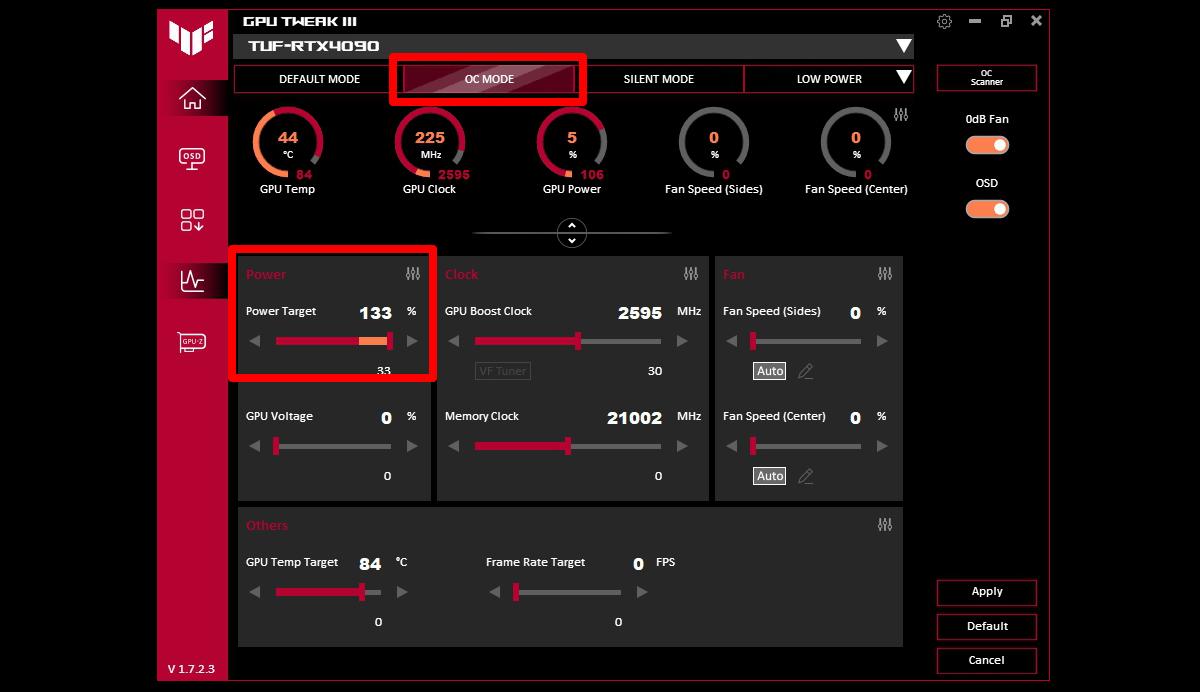
If you're thinking about tinkering with the CPU and GPU overclocking But you're more lost than a penguin in the desert, don't worry: that's normal at first. Between BIOS, voltages, temperatures, benchmarks, and programs with strange names, it's easy to get confused if no one explains it to you calmly.
In this article we will see, step by step, How to get the most out of your processor and graphics card In a relatively safe way, it explains what tools you need, what real risks there are, what performance you can expect, and in what cases it's not worth complicating things. All of this is presented in Spanish (from Spain), with a friendly tone, but without leaving out any important details.
What is CPU and GPU overclocking and what is it used for?
When we talk about overclocking, we are referring to increase the operating frequency of a component exceeding the manufacturer's specifications. In computing, it's common to increase the speed of the CPU, GPU, and even RAM to get more performance without changing the hardware.
By increasing the frequency, the component is able to perform more operations per secondThis translates into more frames per second in games, shorter render times in video editing, greater agility when compressing files, or, in general, a more "awake" system.
The speed of a processor depends primarily on two factors: the base frequency (or base clock), which comes from the motherboard, and the core multiplierMultiplying the base frequency (usually 100 MHz) by the multiplier gives the final frequency in GHz. Overclocking basically consists of increasing that multiplier, and sometimes the voltage, to achieve higher speeds.
On a CPU that operates at, for example, 3,6 GHz, it's possible, with a good configuration and cooling, to overclock it to something like 4,4 or 4,6 GHz. That increase of clock cycles per second It generates faster electrical signals within the chip and makes the CPU process data faster.
All of this is not limited to just the central processor: modern graphics cards (Nvidia GeForce and AMD Radeon) support core and memory overclocking, and the same is true for many models of RAM, which can operate at frequencies higher than those indicated by the factory.
Is overclocking worth it? Advantages and when it pays off
The main motivation for overclocking is Gain free performanceor almost free. Instead of spend money on a new CPU or GPUYou can squeeze out a few extra FPS or improve smoothness in heavy tasks simply by fine-tuning the settings.
The greatest benefits are usually seen in older or lower mid-range equipmentwhere a good overclock can bring performance closer to that offered by modern, higher-end components. In laboratory tests like those from 3DMark, it has been observed that, in many cases, machines with the worst specifications are the ones that achieve the greatest percentage improvement when overclocked.
On new, powerful PCs, it's also possible to increase performance somewhat, but the improvements are usually more modest. In those cases, the difference between stock and overclocked settings can be just a few percentage points, especially in games that are highly GPU-dependent where the CPU is not the main bottleneck.
For gaming, CPU and GPU overclocking can help Increase FPS and smooth out drops, especially in very CPU-dependent games, in eSports at many Hz (144, 240 Hz) or when you are looking to take full advantage of a high refresh rate monitor. If your operating system is a mess and you have a thousand programs By consuming resources in the background, it's best to optimize the software first before getting complicated with overclocking.
In productivity tasks such as video editing, 3D rendering, or code compilation, a good, stable overclock can reduce waiting times quite noticeably. In a rendering project, for example, those minutes you cut each time translate into many hours in the long run.
Check if your CPU and GPU can be overclocked
Not all processors or graphics cards accept overclocking in the same way, so the first thing to know is... if your hardware is truly “overclockable” and how flexible it is.
In the case of Intel, the processors that end in the letter “K” or “KF” (like an Intel Core i7-9700K) and the "X" series models come with an unlocked multiplier. This means the BIOS allows you to increase the core multiplier without having to touch the system's base clock, making overclocking much easier.
If your Intel CPU is not a K or X model, the multiplier is generally locked and you can only play, in a limited way, with the global base clock of the motherboardThis affects not only the CPU, but also the RAM, the PCI Express connection, and other components, so the safe upside margin is quite small.
At AMD the situation is simpler: all modern Ryzen CPUs They have an unlocked multiplier, so they come "ready" for overclocking. In the case of graphics cards, both current Nvidia GeForce and AMD Radeon cards allow you to increase core and memory frequencies with the appropriate utilities.
If you want to check your processor in more detail, you can use tools like CPU-ZCheck the technical specifications on the manufacturer's website or look in the Windows Task Manager, under the Performance tab, to compare the base and maximum frequencies. Information about whether the multiplier is locked is also usually found in the BIOS.
Basic tools for overclocking and monitoring
Before you touch any settings, you need a small software "toolbox" to See what your system is doing at all times and measure whether the improvements really pay off.
For the graphics part, tools such as MSI Afterburner They're practically standard. They allow you to modify GPU frequencies and voltages, adjust the fan curve, and view real-time usage, temperatures, and speeds during games or benchmarks.
To control system temperatures and sensors, programs such as HWINFO, HWMonitor, Core Temp or SpeedFan They show you the temperature of the CPU, GPU, motherboard, and other components, as well as voltages, power consumption, and fan speeds. They are essential to ensure you don't overheat.
Regarding performance and stability testing, tools such as Prime95, Cinebench, AIDA64, Intel BurnTest, OCCT or 3DMark They subject your PC to intense loads to check if the overclock holds up without errors or crashes. 3DMark, for example, focuses heavily on graphics performance and gaming.
To view specific CPU and GPU information, CPU-Z and GPU-Z They show the exact model, the real-time frequencies, the voltage, and other technical details that are very useful for knowing where you start and how far you can go.
Preparation: temperatures, stability and starting performance
Before uploading anything, you need to make sure the equipment is healthy. The first thing to do is check the current CPU and GPU temperature Under idle and light load, using HWINFO or a similar tool. If they're already running very hot out of the box, it's best to fix that before thinking about overclocking.
If you notice your processor reaching high temperatures while performing basic tasks, you likely have a problem with cooling, dried-out thermal paste, or poor case ventilationIn that case, it's advisable to clean the fans, improve airflow, or even consider a better heatsink before adjusting frequencies.
The next step is to make a stress test with factory settings To verify that the system is stable as it comes from the factory, programs like Prime95, OCCT, or AIDA64 can keep the CPU at 100% load for one or two hours. Meanwhile, you should monitor the temperatures to ensure they don't spike.
It's important to do it this way because, if you later experience crashes or blue screens after increasing the frequency, you'll know the problem stems from the overclocking and not from a system that was already unstable. This way, You have a clear reference point for stability. on which to compare.
Once stability has been verified, it's time to measure the base performance of your computerThis is where benchmarks like Cinebench (very useful for CPU testing), 3DMark (for gaming), or even specific synthetic tests for the GPU or memory come into play. Record the scores, average and maximum FPS, and maximum temperatures.
Access the BIOS and automatic or manual overclocking options
The truly reliable way to overclock the CPU is through Enter the BIOS or UEFI of the motherboard, which is where the essential parameters of frequency, voltage and core behavior are located.
To enter the BIOS, turn off your computer and turn it back on while repeatedly pressing the key specified by your manufacturer. It's usually... Delete (DEL), F2, F10 or F12Depending on the motherboard or laptop, a message like "Press F2 to enter Setup" usually appears on the boot screen, indicating the exact key.
Each brand structures the menu differently, but there is almost always a section called OC, Overclocking, Advanced CPU Core Settings, Tweaker or something similar. That's where multipliers, voltages, power limits, and other key parameters are adjusted.
Many modern plates also include profiles of automatic overclocking or predefined OC levelsThey usually offer a small frequency increase within limits considered safe by the manufacturer, in a fairly simple way, although the results are rarely as good as a well-tuned manual adjustment.
If you're just starting out and hesitant to touch too many things, automatic mode can serve as a good introduction, but if you want to get the most out of it, the best way is still the... Manual overclocking with small increments and stability tests between each change.
Changing the CPU multiplier and voltage step by step
The main setting you'll need to adjust in the BIOS is the CPU multiplierSince the base frequency of the motherboard is usually 100 MHz, a multiplier of 36 implies 3,6 GHz, a multiplier of 40 would be 4,0 GHz, and so on. The idea is to increase that value gradually.
A reasonable strategy is to increase the multiplier one point at a time (for example, from 36 to 37, then to 38, etc.) and restart Windows after each change to perform a quick stability test and temperature measurement. This way you can quickly detect the point at which the system starts to fail.
If increasing the multiplier causes the system to become unstable, resulting in crashes, blue screens, or errors in tests, it's usually a sign that it needs further adjustment. a little more CPU voltageIn the BIOS you will see a Vcore value which, by default, may be set to “Auto” or around 1,20-1,25 V depending on the CPU.
You can try increasing that voltage very gradually, for example in steps of 0,01-0,02 V, until you find a point where the CPU can handle the new frequency without serious errors. Values around 1,35 1,40-V They are generally considered a pragmatic limit for daily use in many modern CPUs, although it depends on the specific model and the cooling you have.
The essential thing is that every time you increase the multiplier or voltage, you cast again. stress tests and observing temperatures and behaviorWhen you find a point where the system remains stable for hours and temperatures are within reasonable limits, you'll know you've found a "stable" overclock for everyday use.
What is GPU overclocking and how is it done with programs like MSI Afterburner?
GPU overclocking is usually done from Windows using tools such as MSI Afterburnerwhich allow you to increase the frequency of the graphics core, the video memory and adjust the fan curve without touching the card's BIOS.
The philosophy is very similar to that of the CPU: it's about gradually increase the valuesTest stability with benchmarks or demanding games and monitor temperatures to ensure they don't spike. Many users start by increasing the memory by a small percentage, then the core clock, and from there they experiment.
Afterburner and similar programs also allow you to modify the power and temperature limits that the card is willing to accept. By slightly increasing them, the GPU stops limiting itself so quickly and maintains higher frequencies for longer, although always at the cost of consuming more power and generating more heat.
In modern Nvidia and AMD graphics cards, the driver and BIOS themselves usually apply protection mechanisms (throttling, power limiting, etc.) that automatically reduce the frequency if a certain threshold is exceeded, so it is relatively difficult to "fry" a graphics card just by increasing the frequency a little.
In any case, the same principles apply: use benchmarks like Unigine Heaven, 3DMark, or very demanding games To test stability and check for artifacts (strange pixels, lines, flickering) or crashes. If these occur, lower the frequency or voltage slightly until the problems disappear.
Advanced methods: physical jumpers and low-level changes
Besides overclocking via BIOS or software, there are more "old school" methods such as modify jumpers or bridges on the motherboard or graphics card to change the electrical configuration of the circuit. This involves opening the equipment and physically touching the components.
A jumper is basically a small plastic connector with a metallic interior that is placed over specific pins on the motherboard or card to to open or close a circuitChanging its position modifies things like the base multiplier or certain voltage limits in older or very specific devices.
These types of modifications are delicate; they require advanced knowledge of electronics and circuit board designand are generally not recommended for beginner users. An error when moving a jumper or performing a physical mod can render the motherboard or graphics card unusable.
That's why, in practice, almost all users today resort to overclocking via BIOS and softwarewhich offers enough room for improvement without having to physically tamper with the circuit or risk the hardware so much.
Real risks of overclocking: temperature, stability, and warranty
Although overclocking is much safer nowadays than it was years ago, it is still a way of pushing the hardware beyond what the manufacturer guaranteesThis involves risks that should be kept in mind before taking the plunge.
One of the clearest risks is the increase in temperature and electricity consumptionAn overclocked CPU or GPU generates more heat, and if the cooling system isn't adequate, the component can spend many hours operating at high temperatures. In the short term, the system usually protects itself by reducing the frequency or shutting down, but in the long term, that extra heat can accelerate degradation.
There is also the issue of the system instabilityPushing components to their limits increases the likelihood of crashes, random restarts, game errors, or even data corruption if the failure occurs during a write operation. That's why it's always a good idea to keep backups of important data.
Another point is the warranty: in many cases, overclocking is considered a modification not officially supportedThis may void the manufacturer's warranty. While proving certain types of overclocking is difficult, there are situations (for example, physical modifications or a modified BIOS) where it can become quite clear.
Regarding lifespan, increasing the voltage and frequency of the CPU or GPU subjects the transistors to a additional ongoing stressThis can shorten its theoretical lifespan (from, for example, 15-20 years to 12-15 years), although in practice most users upgrade their PC long before that limit becomes a real problem.
Is overclocking safe these days?
With modern hardware and a little common sense, overclocking is relatively It's safe as long as it's done sensibly.Modern CPUs and GPUs include protections that reduce frequency, limit power consumption, or even shut down the equipment if things get too extreme.
This makes it quite difficult to "fry" a processor simply by changing the multiplier a few points or by performing moderate voltage tests. More commonly, if you go too far, the PC will fail to boot, get stuck in a boot loop, or display a blue screen until you restore reasonable settings.
If your computer fails to boot after a BIOS change, almost all motherboards offer options such as Clear CMOS or Reset CMOSThis can be done either via a dedicated button or a specific jumper. Activating it erases the BIOS settings and restores the system to its factory configuration.
In the worst-case scenario, you can always resort to the classic method of remove the battery from the motherboard (the typical coin cell battery), wait a few seconds, and replace it. This will cause the BIOS to lose its stored configuration, and upon startup, all values will be restored to their defaults.
However, even if it's difficult to destroy the hardware in one fell swoop, the extra thermal and electrical stress does exist, and in the long run can shorten the component's lifespanIt's not usually dramatic, but it's something to keep in mind when deciding how much you want to tighten it.
How to diagnose and troubleshoot problems after overclocking
If after overclocking you start noticing strange behavior (crashes, game errors, graphical artifacts), it's time to to conduct a systematic diagnosis to find the problem area and correct it.
The first step is to relaunch stability tests and benchmarks such as Prime95, Cinebench, AIDA64, or OCCT for the CPU, and 3DMark, Unigine Heaven, or other GPU benchmarks. The goal is to reproduce the problems under load and see if the system consistently fails.
While you're doing these tests, it's essential monitor temperature in real time Using tools like HWMonitor, Core Temp, or SpeedFan, you can check the temperature of a CPU. Ideally, even under heavy load, the CPU should stay within a reasonable range, approximately between 40 and 65 °C under moderate use, without dangerously approaching the maximum temperature specified by the manufacturer.
If you notice that problems arise when the temperature rises significantly, or that the equipment thermally throttles, the solution lies in lower multiplier and voltageImprove cooling or reduce the power limit. Less overclocking means less heat, lower power consumption, and a greater safety margin.
Nor should we forget the software aspect: outdated graphics drivers, a very old BIOS, or chipset drivers can cause instabilities that are exacerbated by overclocking. Maintain drivers and BIOS up to date It helps the system communicate correctly with the CPU, GPU, and the rest of the components.
Laptops, overclocking, and their limitations
In theory, you can also overclock a laptop's CPU if the processor is unlocked and the BIOS allows it, but in practice it's something that It is not usually recommended for most users.
Laptops have components packed very tightly, with much more limited cooling systems than desktop towers. As frequency and voltage increase, the heat generated can fire quicklyand the equipment does not always have enough ventilation margin to dissipate it without excessive noise or without suffering continuous thermal throttling.
For this reason, many manufacturers lock both the CPU and the BIOS to prevent adjustments to critical frequency or voltage parameters. Some advanced gaming models do allow certain adjustments, but generally, you should proceed with extreme caution.
If you still decide to try and your laptop has an unlocked CPU, the procedure would be very similar to that of a desktop computer: gradual BIOS adjustments, stability tests, temperature monitoring And be very careful with voltages. Any excessive increase can significantly shorten the equipment's lifespan.
As a safer alternative for laptops, it usually gives better results. Optimize software, reduce background programs, clean the system, and take care of cooling. (cooling pads, dust cleaning, thermal paste replacement) rather than getting into aggressive overclocking.
Optimization and overclocking software for less advanced users
For those who are not comfortable messing with BIOS or technical parameters, there are third-party utilities that greatly simplify both the system optimization such as certain forms of controlled overclockingespecially on GPUs.
Some programs take care of closing background processes, stopping unnecessary services while you play, and freeing up RAM, so that so that the hardware you already have can perform at its best without needing to increase frequencies. It's a less aggressive way to improve gaming performance without increasing the risk.
There are also gaming-focused programs that, in addition to optimization, integrate simplified overclocking functions of the GPU. They analyze your configuration, propose a performance profile, and automatically apply changes to frequency and ventilation to get a little more out of your graphics card.
While these tools don't replace the flexibility of manual overclocking, they are very useful for users who prefer a more flexible solution. “One click and you’re done”However, it's important to remember that any increase in frequency implies extra heat, so it's still necessary to monitor temperatures.
In any case, whether you choose tools like these or do manual overclocking, the key is that the system remains stable. stable, cool and with predictable behaviorIf you start noticing strange errors, it's wise to backtrack a bit on the settings.
With all of the above, it is clear that CPU and GPU overclocking can be a very effective way to Get the most out of a PC without changing hardwareprovided that you understand what you are doing, you progress little by little, you monitor temperatures and stability, and you accept that there is a certain compromise between performance, noise, consumption and the lifespan of the components.
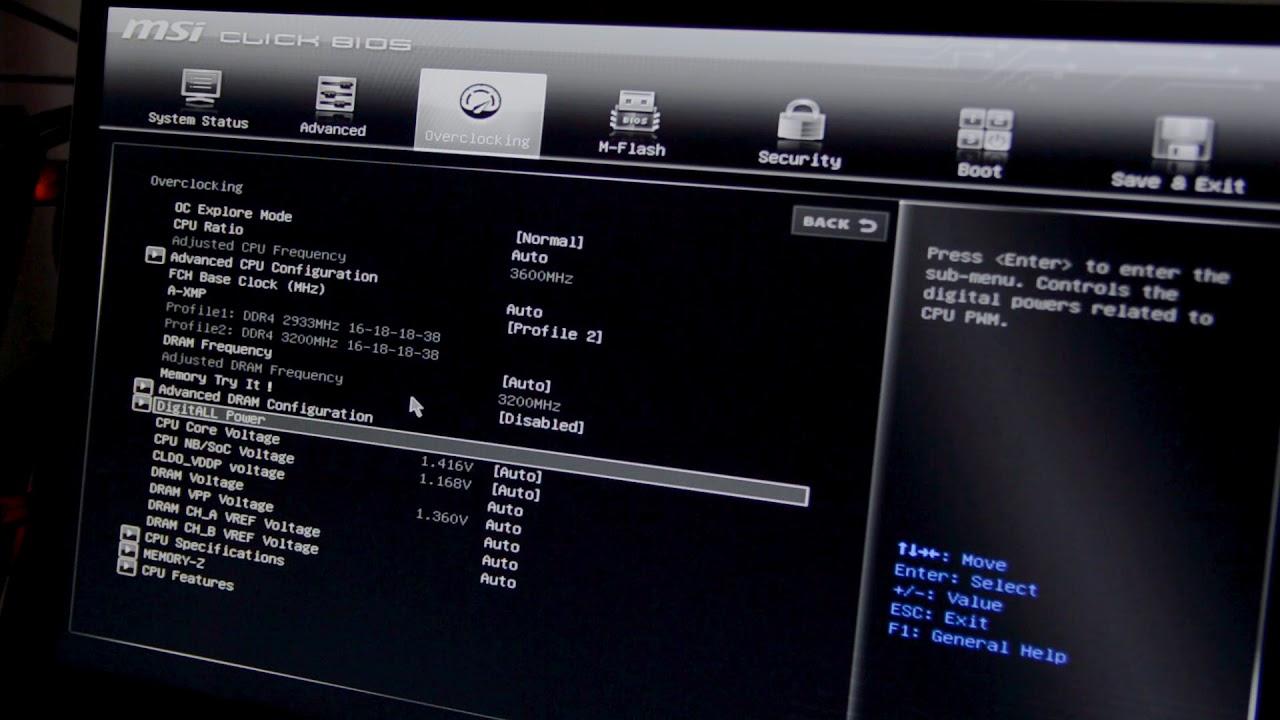
Table of Contents
- What is CPU and GPU overclocking and what is it used for?
- Is overclocking worth it? Advantages and when it pays off
- Check if your CPU and GPU can be overclocked
- Basic tools for overclocking and monitoring
- Preparation: temperatures, stability and starting performance
- Access the BIOS and automatic or manual overclocking options
- Changing the CPU multiplier and voltage step by step
- What is GPU overclocking and how is it done with programs like MSI Afterburner?
- Advanced methods: physical jumpers and low-level changes
- Real risks of overclocking: temperature, stability, and warranty
- Is overclocking safe these days?
- How to diagnose and troubleshoot problems after overclocking
- Laptops, overclocking, and their limitations
- Optimization and overclocking software for less advanced users