- Key differences between the Pro and Home editions, highlighting security features and remote management.
- Detailed analysis of the system's internal utilities and quick access via the Advanced User Menu.
- Recommendations for external software and optimization tools to boost team performance.
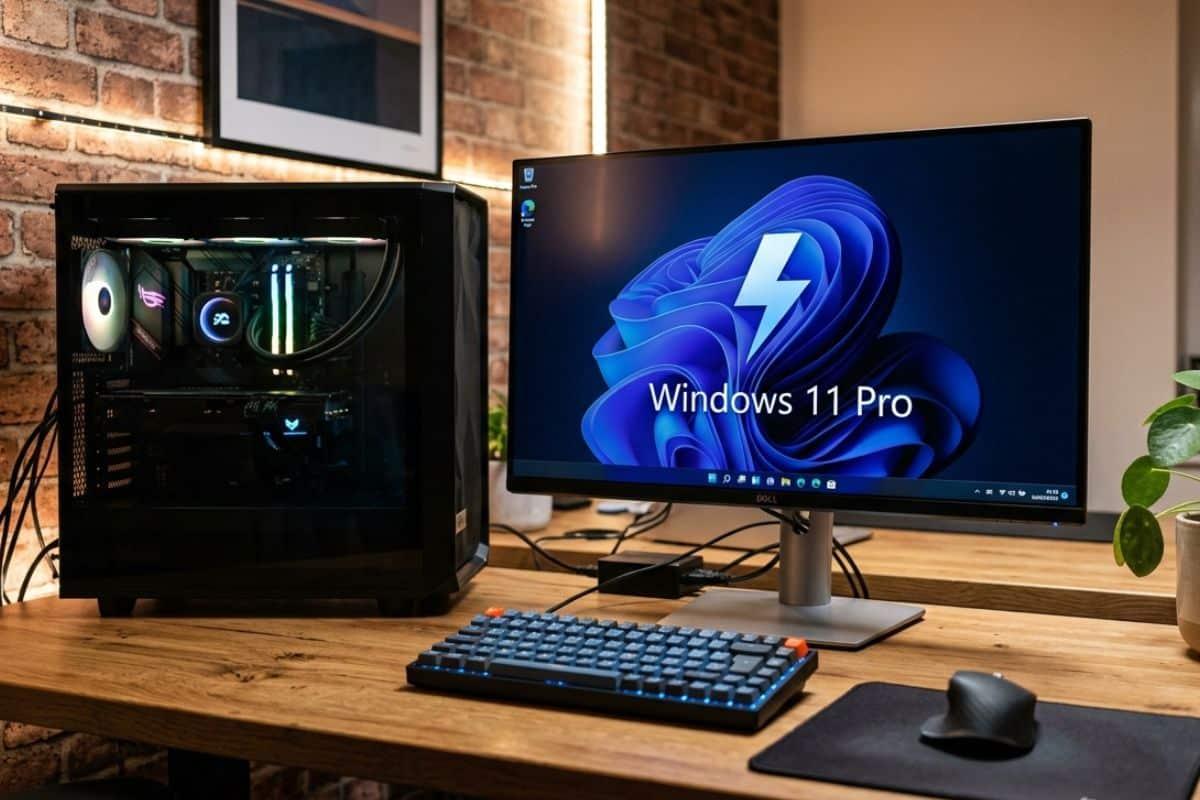
Many people think that upgrading to Windows 11 Pro is simply paying more for a system that looks exactly the same as the Home version. The reality is that, although the interface is the same, under the hood lies an arsenal of professional tools that can be life-changing for anyone who works with a computer daily or needs complete control over their hardware.
The most curious thing is that many users already have this version without realizing it, since many mini PCs and business-oriented computers come with the Pro edition pre-installed . If you consider yourself an advanced user or manage multiple computers, it's worth taking a look at these features that make all the difference and understanding the real differences between Windows 11 Home and Pro.

Exclusive Features of the Pro Edition
One of the crown jewels is Remote Desktop. Unlike the Home version, which only allows you to connect to other computers, the Pro version lets your PC receive remote connections natively. This is a godsend if you work remotely and need to access your office computer from home without installing third-party software.
In terms of security, BitLocker is the standard. This tool allows you to encrypt entire drives so that, in case of theft or disk removal, no one can read the data without the key. It is essential for anyone handling sensitive client information or private projects on laptops.
For those who love to experiment, Hyper-V is the ideal choice, as it allows you to create virtual machines without leaving Windows. You can set up a Linux environment or test suspicious software on a clean installation without fear of damaging your main system , provided you have enough RAM and processing power.

If you want to take control to the next level, the Local Group Policy Editor is where the magic happens. Here you can adjust system behaviors that don't appear in the normal settings menu, such as restricting access to certain folders or managing Windows Update with an iron fist. However, you have to be careful because an incorrect change can cause problems.
We can't forget Windows Sandbox. It's an isolated, disposable environment where you can run any program. The best part is that when you close the window, everything you've done disappears , making it the perfect tool for analyzing files you're unsure about before opening them in your real session.
For the corporate environment, Domain Joining and Assigned Access are vital. The former allows an administrator to centralize permissions and security policies across an entire network of PCs. The latter, known as kiosk mode, limits the computer to a single, specific application , ideal for hotel receptions or information screens in stores.
Internal Utilities and System Administration
Windows offers a host of built-in tools to make the system run smoothly. The Settings app is the modern hub, but for those who prefer the classic approach, the Control Panel is still there for adjusting hardware and network settings , even though Microsoft is gradually migrating everything.

Task Manager is your everyday tool for monitoring CPU and RAM usage or closing programs that have frozen. On the other hand, Computer Management is a central hub where you can manage disks and services from a single location.
If your PC is giving you trouble, the Event Viewer is your best friend, as it keeps a detailed log of errors and blue screens. Similarly, System Configuration (msconfig) is key for diagnosing startup problems by enabling or disabling services at startup; following a guide to troubleshooting Windows 11 issues can be helpful.
For the more adventurous, the Registry Editor (regedit) allows you to modify the system's low-level configuration database . It's the ultimate tool for advanced tweaks, although it's recommended to create a backup before making any changes to avoid Windows failing to boot.
We also have System Information, which gives us a complete overview of the installed hardware and drivers, and Advanced System Settings, where we can tweak environment variables and system performance to squeeze every last drop of power out of the diagnostic tool in Windows 11.
The Advanced Menu (Windows + X)

There's a quick shortcut every user should know: right-click on the Start button or press Windows + X. This menu displays shortcuts to the most critical tools without having to navigate through countless folders.
From here, we quickly access the Windows Terminal, which now unifies the Command Prompt and PowerShell into a single interface. We also have access to Device Manager to update drivers and Disk Management to change drive letters or create VHD partitions . If you want to delve deeper, you can learn how to install and get the most out of PowerShell in Windows 11.
Other useful options include the Mobility Center (laptops only) for managing battery and brightness, and the Run option , which lets you launch any system manager by typing its quick command, saving a lot of time.
Recommended Software to Enhance Windows
Beyond what Microsoft offers, there are applications that are true game-changers. Microsoft PowerToys is a must-have; it includes tools like PowerRename and the ability to keep windows always visible , drastically improving productivity.

For finding files instantly, Everything is vastly superior to the native Windows search engine due to its immediate indexing speed . If you're looking for a cleaner look, TranslucentTB lets you make the taskbar transparent , while Quicklook allows you to preview files using the spacebar.
For maintenance, Revo Uninstaller is the best option for removing programs completely , eliminating registry traces that a standard uninstaller misses. For disk space analysis, WizTree is the fastest way to see which files are filling up your storage.
For multimedia enthusiasts, PotPlayer stands out for its support of automatic subtitles and MadVR. And if you want to monitor network traffic, Traffic Monitor adds a very discreet and elegant speed meter directly to the taskbar.
We have a very powerful ecosystem that combines the security of BitLocker, the versatility of Hyper-V, and the full control of the Group Policy Editor, complemented by external applications that polish the user experience and optimize hardware performance in Windows 11 Pro.
