- Understanding the types of FFB effects (constant, periodic, and dynamic) is key to not distorting the sensations sent by the simulator.
- Proper driver installation and disabling artificial effects in the steering wheel software allow the game to control FFB more accurately.
- The use of tools such as LUTs, telemetry, and specific HUDs helps to avoid clipping and achieve a linear and detailed force response.
- The best FFB setting is the one that combines realism, comfort, and consistency, adapted to the steering wheel and preferences of each driver.
If you have a steering wheel and you're wondering how to make the force feedback feel natural, detailed, and useful , you're not alone. Setting it up properly makes all the difference between driving blind and feeling exactly what the car is doing under your hands: when it's slipping, when it's gripping, and when you're being too heavy on the brakes or the accelerator.
The goal isn't simply for the wheel to "pull hard," but for it to help you drive fast and comfortably. We'll gather and clearly organize everything you need to know to configure Force Feedback on PC (especially in simulators like Assetto Corsa and iRacing), explaining concepts, typical values, advanced tricks like using LUTs, and, most importantly, why you make each adjustment.
What exactly is Force Feedback and why is it so important?
When we talk about force feedback (FFB), we're referring to a system where the simulator sends forces to the steering wheel via motors so you feel in your hands what you would feel in a real car: steering weight, bumps, vibrations, loss of grip, lateral support, etc. When properly configured, the steering wheel becomes an extension of the car's handling.
It's important to understand that force feedback (FFB) isn't just about "how much force" the wheel pulls, but how those forces are distributed over time , what kind of effects are generated, and how they combine. Therefore, more force doesn't always mean more realism or more speed; often it's the opposite.
Furthermore, each steering wheel has its own peculiarities: a Logitech G27/G29/G920 doesn't respond the same way as a T500RS, a Fanatec, or a Direct Drive system. Therefore, you should only use online configurations as a reference, and then adapt them to your hardware and your own preferences.
Types of Force Feedback effects: static and dynamic
Understanding them helps you avoid blindly changing parameters and know what you are altering when you change an option.
CONSTANT (Constant)
A constant force maintains a fixed level as long as the game is applying it. If the simulator decides to send 30% of your maximum force to your base, that force will remain there for the duration specified by the game, without changing unless a change is ordered.
In practice, simulators often use this constant force to simulate the continuous effort you exert when holding the steering wheel as the car is supported in a curve by G-forces, combining speed, steering angle, and aerodynamic load.
PERIODIC (Periodic)
A periodic force varies over time following a pattern (a wave), defined by its amplitude and frequency. Imagine a repeating vibration: that's a periodic force. It can range from a small, high-frequency hum to a slow, very noticeable sway.
This type of effect is used to reproduce bumps, pianos, uneven surfaces, or sharp impacts . At high frequencies, it feels like a rapid rumble; at low frequencies, it can simulate strong vibrations, for example, when you drive over a large curb or experience an impact.
SPRING (Pier)
The "spring" effect is a force that increases the further you move from a certain steering wheel position (usually the center). It's the classic behavior whereby, if you release the steering wheel, it... It tends to return to the central position on its own.It can also be defined with negative values so that instead of centering, the steering wheel wants to go to one side.
In simulation, many games already use their own suspension and steering models, so ideally you should not add artificial springs via driver , unless the game requires it or you are playing an arcade title.
DAMPER (Shock Absorber)
The damping force controls how the steering wheel responds to movement; it acts as a kind of dynamic frictionIf you apply it while the steering wheel is being centered by a spring-like force, it behaves like the shock absorber of a suspension: it controls the speed and smoothness with which the rim returns to the center.
Games use it to make the steering wheel feel heavier, more stable, or more progressive when turning. When applied correctly, it can give a great sense of quality, but too much can mask the subtle details of the road surface.
Spring and damper effects are considered dynamic because they depend on how you move the steering wheel (position and speed). They are the ones that make the most of the steering wheel's hardware, as they require very quick responses for the sensation to be believable.
Conversely, the CONSTANT and PERIODIC effects are categorized as static , since once the game defines them, they operate according to their parameters without directly depending on your steering angle or axle acceleration. The simulator can vary them over time, but they don't "listen" to what you're doing with the steering wheel as much.
Steering wheel installation and basic configuration on the PC
Before we delve into fine-tuning, we need to get the most obvious things in order: drivers, manufacturer's software, and initial calibration . If you're comfortable with PCs, this will be routine, but if not, you'll save yourself a lot of trouble by following a few basic steps.
It's always best to download the latest driver from the manufacturer's official website (Logitech, Thrustmaster, Fanatec, etc.) instead of relying on the one Windows might install automatically, and to review how to remove unnecessary applications in Windows 11 to free up resources. Newer versions usually improve compatibility and fix bugs related to force feedback.
Very important: Do not connect the steering wheel to the computer until the driver installer prompts you to do so. The manufacturer's assistant will usually tell you when it's time to plug in and turn on the steering wheel so the system can detect it correctly and perform the initial calibration.
Along with the driver, a control application is installed (Logitech G Hub, Thrustmaster Control Panel, Fanatec Control Panel, etc.). This is where you'll set the basic configuration: generally, it's best to set the forces to 100% in the manufacturer's panel and disable all damping effects, artificial auto-centering, or additional filters, so that the simulator has complete control of the FFB.
The idea is that the game sends the "pure" signal and the wheel reproduces it without any additives. Anything that "doubles" effects (one spring in the driver and another in the game, for example) usually distorts the actual behavior and generates strange oscillations.
Key concepts before touching on Force Feedback
Once the steering wheel is installed, the most delicate part begins: adjusting the force feedback. This is a process that takes time, and it's normal to tweak the settings as you improve your skill level , change cars, or even as your steering wheel wears out.
First, forget the idea that there's a magic, universal setup . What you find in forums or videos is a guide, not the absolute truth. Your personal taste, your driving style, your physical strength, and the type of steering wheel you have matter more than any number you see out there.
Furthermore, two units of the same steering wheel model can behave somewhat differently, and over time, the grease dries out, there is play, the belts or gears change… All of this means that a few small periodic adjustments are very beneficial for the FFB.
One key point: don't be afraid to change, but do it wisely. Before making any significant changes, always save a backup of your settings (or write the values down in a notebook). If you get caught up in changing parameters haphazardly, it's very easy to end up not even knowing what you liked in the first place.
Also keep in mind that the feeling you get isn't instantaneous; your body develops muscle memory over time . Every track, every car, and every force you apply to the steering wheel is recorded in your brain. When you change the settings, you might initially feel like you're "driving worse," even if the adjustment is objectively better. Give yourself a few days before judging the change.
“More FFB is better” and other common mistakes
One of the most common mistakes when starting out is to recklessly increase the feedback force because "the more you pull the steering wheel, the more realistic it feels ." The initial impression is spectacular: the car seems alive, you feel every movement... and you think you're going faster.
In practice, if the force feedback is excessive, you not only tire much more quickly (it feels like you're at the gym with a pair of dumbbells), but you also lose useful information . When the force consistently reaches 100%, the flywheel enters what is called "clipping": anything above that limit is flattened and becomes indistinct.
This means you no longer distinguish between medium and maximum support, or between a light touch and a hard jolt. Ideally, the steering wheel should have enough force travel to express everything, from subtle details to major impacts.
Your brain needs to adapt to the new sensations : another classic example is trying FFB and noticing that, although it feels better, your times temporarily worsen. Give yourself an adjustment period before evaluating the change.
And one last warning: a poorly configured and fully forced force feedback (FFB) is not only less informative, it also shortens the lifespan of the flywheel . Constantly pushing the motors to their limits increases wear and tear and can take its toll in the long run.
Configure Force Feedback in iRacing
In iRacing there are two levels of adjustment : those you make within the simulator itself (in the options menu) and those you set on the steering wheel's control panel. Let's focus first on what you adjust within the game.
The first step is to complete the steering wheel calibration wizard in the OPTIONS menu. The simulator will ask you to turn the wheel lock-to-lock, then 90 degrees to the left , and finally center it. With these steps, iRacing calculates the actual degrees of your steering range.
Once this is done, several key parameters appear :
Wheel range
It's the total angle, meaning how many degrees the steering wheel turns from lock to lock. Each car has an ideal value in real-world driving, but normally you'll leave it as the assistant determines at first. Later, if you want, you can fine-tune it car by car.
Map range
Define how much the car's steering wheel turns when you turn it all the way to the lock. Again, the recommended setting is... Don't touch it at first and let the simulator itself decide what is correct.
Linear mode
There's quite a bit of debate here. With linear mode activated, the forces sent by iRacing are in a 1:1 ratio with the internal simulation: double the force in the game should be double at the wheel. The problem is that Many low-end or mid-range steering wheels are not linear at all. by hardware.
In practice, the actual response of the motor does not follow a perfect line , so in some setups disabling linear mode and compensating with other settings gives a better feel.
A popular trick with mid-range steering wheels is to activate linear mode and increase the MinForce setting by 4-6 points above normal to compensate for the motor's initial dead zone. The key, as always, is to experiment and see if it provides more detail in the center without generating any unusual vibrations.
Dampen oscillations
This box adds a filter that It reduces steering wheel oscillations at low speeds. Or when you're stopped, those strange jerks that sometimes appear when there isn't enough friction. It hardly affects it at high speed, so it's usually a good idea to have it on if your steering wheel tends to "wobble" when you're stopped.
Regarding the base force feedback (FFB) in iRacing, there are two common approaches among advanced drivers. One involves looking at the telemetry to see what the typical peak torque is on a good lap (without much wheel spin) and setting the game force to that value or slightly above. The other approach, widely used by top teams, is to set the wheel base to 100% power and adjust only the game force until you have a comfortable weight without excessive wheel spin.
For example, one driver might use 30 Nm of force in the game and 50% at the base, while another with the same base would prefer 60 Nm in the game and 100% power at the wheel. Mathematically, they achieve very similar levels, but the second driver would have the ability to better feel force spikes above the level at which the first driver would already be experiencing clipping.
Advanced FFB configuration in Assetto Corsa with Content Manager
Assetto Corsa offers many possibilities for fine-tuning force feedback, especially if you use Content Manager, Custom Shaders Patch, and a custom LUT . Let's look at a typical workflow for Logitech wheels like the G29 or G920, but it's also valid for other models.
Make sure you have the following installed (all of this can be obtained for free):
- Assetto Corsa (obviously).
- Content Manager as a launcher and manager.
- Custom Shaders Patch (CSP).
- A modern climate/graphics package like PURE (formerly known as SOL).
Once all of this is ready, open Content Manager and go to Settings → Custom Shaders Patch . In the left-hand menu, under “extensions”, find the FFB Tweaks section and activate it in basic mode.
The most important thing here is to activate the "more physically accurate gyro implementation" option . This setting makes the steering wheel follow the direction the front wheels want to go much more realistically, which is key to feeling the car "lively" and especially useful when drifting or when you lose traction at the rear.
If you don't know the other parameters, it's best to leave them at their default values , since the bulk of the improvement comes from that improved gyro.
Next, in Content Manager, go to Settings → Assetto Corsa → Controls → Axes . Here, you should check that the steering axis is correctly detected and that you're using the full range from 0% to 100% without any strange dead zones. In most cases, calibrating and ensuring the full range of motion is sufficient.
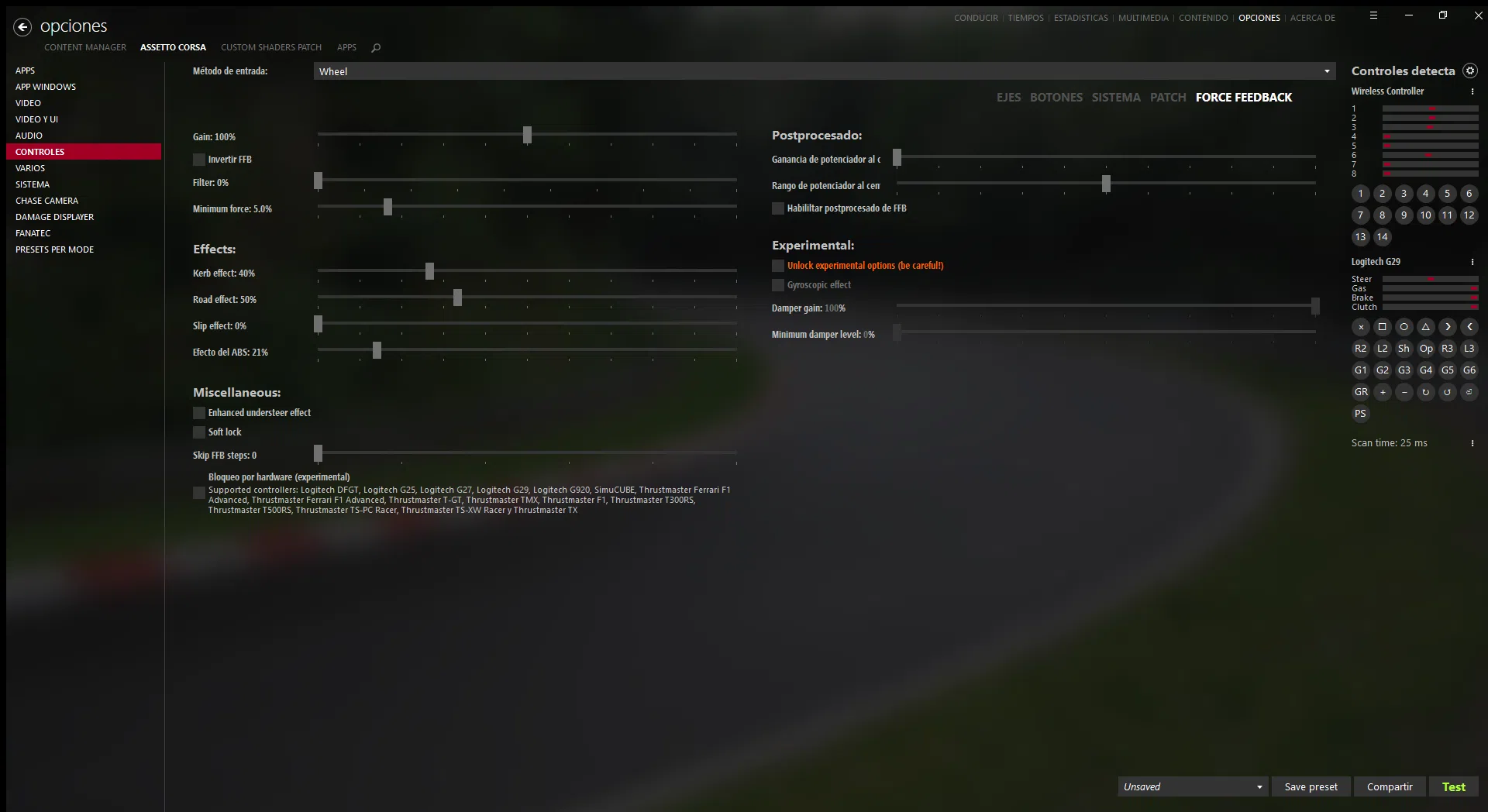
Having done this, we go to Settings → Assetto Corsa → Controls → Force Feedback , where the "heart" of the matter lies.
Gain
A theoretical starting point for well-tuned cars is to have the overall gain between 68% and 78%. However, many base cars or older mods feel too weak at those values. Therefore, a practical approach is to leave the 100% profit on the menu and then, on the track, lower the car's FFB until it stops clipping (or activate "auto" mode).
Content Manager and some advanced HUDs allow you to see when you're clipping in real time, helping you adjust without blind trial and error. This ensures you're leveraging the full potential of your content without overloading it.
Filter and minimum force
The overall filter is usually left at 0% to avoid artificially smoothing the response. minimum force (Min Force) compensates for the initial dead zone of the motor in many belt or gear-driven flywheels; on the Logitech G2X it usually works well around 3%, although it depends on your unit.
Additional effects (kerbs, road, ABS, skidding…)
Here comes a controversial but very important point: the most advisable approach in a “realistic” way is set all these effects to 0%Why? Because the physical force feedback (FFB) from the suspension and tire model should already include information about kerbs, bumps, and skidding. Raising these sliders above 0% adds an artificial layer that exaggerates these events.
A 0% setting on these sliders is conceptually equivalent to strictly adhering to what the simulator is calculating. Any additional value beyond that is unrealistic and "turbo" performance.
The only reasonable exception might be the ABS effect , which causes the steering wheel to vibrate when braking hard as the car locks up. It's not entirely realistic to a real road car, but it can be helpful. In that case, it's best to keep it low (below 20%), because at high values it becomes very annoying and uses up too much of the force feedback's "resolution."
Various settings
In the miscellaneous options section, it is common to:
- Turn off the "enhanced understeer effect" if you drift or want a more authentic feel. It might help some people perceive when the car is understeering, but others find it distracting. counterintuitive to control skids.
- Activate softlock, which simulates the physical limit of the steering wheel when you reach the maximum angle of the real car.
- Leave “Skip FFB steps” at 0% to avoid losing resolution.
In the post-processing section, two gain parameters are offered, along with the option to enable FFB post-processing. For now, both gains are left at 0%, and post-processing is only activated when a LUT has been generated , as we will see shortly.
The reduction of force feedback (FFB) at low speeds is usually configured with a low-speed threshold around 10 km/h and a low-speed force of 100%. Many prefer not to adjust this too much to avoid distorting the handling during slow maneuvers.
In the "Experimental" section of Assetto Corsa's FFB, there are effects like an old-style gyro. It's not recommended to activate them if you're already using the improved gyro from CSP , because they overlap and can completely break the FFB. It's best to leave these experimental options disabled.
Calibrate the steering wheel with a LUT file in Assetto Corsa
The next step for fine-tuning is to use a LUT (Look-Up Table) file that corrects the non-linearity of your steering wheel. This is especially useful on budget models like the G29/G920, where the force response isn't uniform throughout the entire range.
What the LUT does is basically measure how the engine actually responds to different levels of force and generate a table that Assetto Corsa uses to compensate for those deviations, so that what comes out of the game translates as best as possible into physical forces.
To create that LUT you need two programs :
- WheelCheck (for example, version 1.72).
- LUT Generator (for example, version 0.15).
The summarized procedure would be :
1. Run WheelCheck and select the test called “linear step log 2: linear force test”.
2. Change the default number of steps (usually 50) to a higher value, at least 100. Some recommend 200 or even 500 steps. The more steps, the better the definition of the curve, at the cost of taking longer.
When the test starts , the program will repeatedly move the steering wheel for a few minutes (between 3 and 10, depending on the steps you choose), varying the force applied and measuring the actual response. When finished, it will generate a data file that is usually saved in the "My Documents" folder in Windows.
3. Open LUT Generator and load that WheelCheck file.
4. The program will generate the correction table and save it as a .lut file, usually in the Assetto Corsa configuration path. You can give it a descriptive name, for example “G920_custom_200_steps.lut”.
Finally, in Content Manager, go back to Settings → Assetto Corsa → Controls → Force Feedback and in the Post-processing section, enable “enable FFB post-processing”. In the mode, choose LUT and select the file you just generated from the dropdown menu. If it doesn't appear, use the “import LUT” option and navigate to where you saved it.
With this, Assetto Corsa will start using your custom LUT and the steering wheel behavior will be much more consistent throughout the entire force range , especially noticeable in the low and mid-range.
Other adjustments and good habits for a solid FFB
Beyond sliders and menus, there are several habits and details that make a difference when it comes to having consistent and lasting Force Feedback.
One of these is the physical maintenance of the steering wheel. Every 1-2 years it's a good idea to open the steering wheel, clean it, and lubricate its moving parts (gears, bearings, etc.), always using appropriate products. A dry steering wheel becomes stiffer, generates strange noises, and can lose useful power or break prematurely.
The car you choose also matters. Not all mods are equally polished; some older base cars have noticeably poor or strange force feedback compared to modern mods with more refined physics . If you notice something odd with a particular car, try a different mod from another author before blaming your settings alone.
In Assetto Corsa, it's crucial to enable the "use extended physics" option on the driving screen (the "Drive" window for single-player). The three dots next to this option allow you to activate extended physics as the default for all cars. This improves consistency and detail in many recent mods.
On the other hand, you should monitor your force feedback (FFB) to ensure it doesn't constantly decrease. Use HUDs like CMRT Complete HUD or similar to see in real time how much of the FFB bar you're using. Ideally, on a good lap, your maximum force should be around 80-90% of your capacity. If you easily reach 100%, you need to reduce your force, because you're losing the ability to differentiate between medium and maximum effort.
Finally, remember there's no shame in adjusting the force feedback to your fitness level. If a 40-minute session exhausts you because the wheel feels too stiff, you're more likely to make mistakes. Push yourself to the limit without burning out, and always prioritize clear feedback over flashy gameplay.
With all of the above, combining a correct installation, the sensible use of effects (constant, periodic, dynamic), specific calibration for each simulator, and response correction through LUTs, it is possible to achieve Force Feedback that not only impresses on the first day, but truly helps you drive better, take care of your hardware, and enjoy each lap much more.