- The ergonomic height of the monitor is based on aligning the upper or slightly lower edge at eye level, allowing a slightly downward gaze without straining the neck.
- The ideal distance is around 50 cm and should be adapted to the size of the screen, avoiding twists or tilts of the head to see the corners and thus reducing eye strain.
- Monitor arms and stands, along with laptop risers and adjustable desks, make it easy to adjust height, angle, and position for a neutral neck, shoulder, and back posture.
- A good ergonomic setup should be complemented with frequent breaks, changes of posture, and adjustments to lighting, brightness, and contrast to protect joints and eyesight.
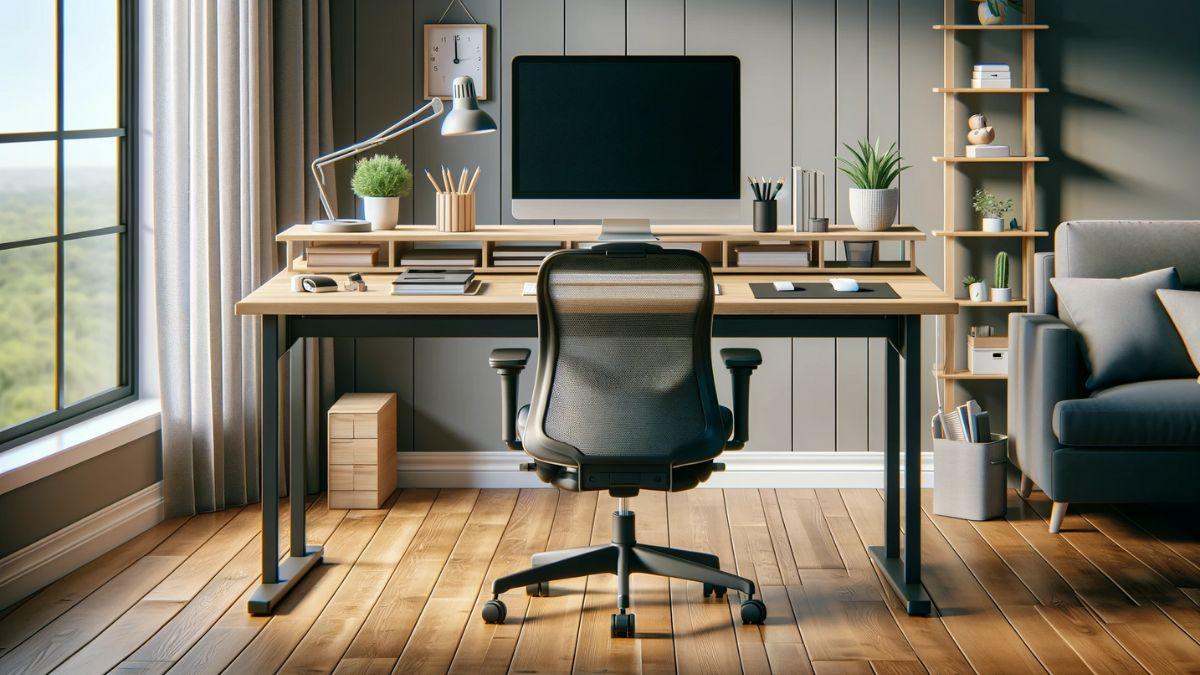
If you spend many hours in front of the computer and end up with a stiff neck, a sore back, and tired eyes, it's very likely that your monitor's ergonomic height is incorrectly set . It's not just a matter of comfort: improper screen placement can lead to chronic discomfort and reduce your ability to concentrate.
Properly adjusting the height, distance, tilt, and position of your monitor isn't complicated, but you do need to know what to look for and what mistakes to avoid. Throughout this article, you'll find clear and practical guidelines for positioning your monitor at the correct height , understanding how it affects your neck, back, and eyesight, and what accessories can help (monitor arms, risers, laptop stands , adjustable desks, etc.).
Why does the ergonomic height of the monitor matter so much?

When we work long hours in front of a screen, a poor workstation setup can lead to pain in the neck, shoulders, and lower back . We often blame the chair or the desk, but the monitor is one of the main culprits behind awkward postures.
If the monitor is too high, you'll have to raise your chin and extend your neck backward . This position shifts the center of gravity of the head and forces the neck muscles to work harder, which promotes muscle tension and joint stiffness.
If it's too low, you'll usually end up with excessive neck flexion and leaning your torso forward . Although the neck can tolerate some flexion, maintaining it for hours increases the strain on the cervical muscles and can lead to pain, tension headaches, and upper back strain.
Lateral rotations also contribute: when the monitor is positioned sideways, the body tends to rotate the neck and sometimes the torso to look at the screen. This sustained rotation, even if only a few degrees, eventually causes discomfort in the neck, shoulders, and upper back.
Besides straining your neck, an incorrect screen height worsens your overall posture. It's very easy to start hunching your back, jutting your head forward, and rounding your shoulders , which contributes to lower back pain, fatigue, and even a feeling of mental exhaustion from sheer discomfort.
Ideal monitor height: reference for placing the screen
The most widely accepted starting point in ergonomics is that the top edge of the monitor should be at eye level or slightly below . This way, when you look at the center of the screen, your gaze moves down slightly, without needing to bend your neck.
For a more precise reference point, many experts recommend aligning your eyes with a point located 5 to 10 cm below the top edge of the monitor. This aligns with the natural way our eyes rest, tending to look slightly downwards when at rest.
Another way to look at it: sit with your back against the chair back, relax your shoulders, and look straight ahead. The screen should be between eye level and about 30 degrees below your line of sight . If you have to noticeably raise or lower your chin to see properly, the height is incorrect.
Some experts suggest positioning the center of the screen at eye level as an alternative . This setup can be comfortable for people who sit very upright and use a well-adjusted headrest, especially with high-end chairs. However, it's not a universal solution, as most people don't have such well-designed chairs or maintain such a pronounced upright posture throughout the day.
Whatever criteria you use, the important thing is that the screen allows you to keep your neck neutral, your gaze slightly downwards and your head aligned with your torso , without forcing or extending or flexing excessively.
Correct distance to the monitor and screen size
Height isn't the only key factor: you also need to adjust your viewing distance to avoid eye strain and unnecessary neck movements . A good rule of thumb is to position your monitor about 50 cm from your eyes, roughly the length of your outstretched arm.
Extend your arm forward and touch the screen: if you can barely reach it or are far beyond it, check the distance. This reference point, however, should be adjusted to the monitor's size and your visual acuity , and also depends on whether you're working with a laptop or desktop computer , as each format determines the ideal distance and size.
If you find yourself having to crane your neck to read the corners of the screen , it's a sign that you're sitting too close or that the screen is too large for your current viewing distance. Increasing the font size and zoom in your applications can also help prevent you from unconsciously squinting.
In multi-monitor office setups, it's common to end up straining your neck from constant twisting. If you spend many hours in this situation, it might be wiser to consider an ultrawide monitor that displays all the information on a single surface, reducing the need to turn your neck repeatedly.
Don't forget that if you have vision problems, it's essential to have your prescription checked by a professional . Adjusting the distance won't help if you're straining your eyes because you're not wearing the correct glasses or because you're using glasses designed for a different distance.
Viewing angle, tilt, and screen brightness
The monitor's orientation is just as important as its height. A poorly adjusted angle will force you to bend your neck, lean forward, or turn your head to avoid glare or get a better view of the content.
The goal is to position the screen within a comfortable viewing angle, between the horizontal line of your eyes and about 30 degrees below your line of sight . This way, your eyes look straight ahead and slightly downward, without needing to raise or lower your chin excessively.
To complete this adjustment, most ergonomics manuals recommend tilting the monitor slightly backward, about 10 to 20 degrees . This way, the distance between your eyes and the top and bottom of the screen remains more uniform, improving readability and reducing eye strain.
If your monitor doesn't allow tilting, you can use DIY tricks, such as placing filing cabinets or books under the stand to achieve the desired angle. Just make sure the base is stable and that the screen isn't at risk of falling over with even the slightest bump.
Glare and reflections on the screen are another silent enemy. When a lot of light comes in from windows or poorly positioned lamps, you'll tend to move your body, crane your neck, or turn away to avoid those glares. In the long run, this constant adjustment causes unnecessary muscle strain.
To minimize this problem, it's very helpful to move the monitor away from direct sunlight from windows, use blinds or curtains, or adjust the lighting . If you work in a very bright environment, matte panels greatly reduce reflections. If you can't replace your monitor, there are inexpensive anti-glare films that can be applied directly to the screen.
Frontal placement of the monitor and general posture
Although it may seem obvious, in many offices and home offices the monitor is positioned to one side of the desk . This forces you to work with your neck constantly turned, even if the turn seems small.
The recommendation is to always position the monitor directly in front of your body, aligned with the center of your torso . If you have an external keyboard and mouse, place them centered as well, so you don't have to twist your torso to type or use the mouse.
This frontal alignment helps keep the head, neck, and spine in a straight line , promoting a more natural posture and reducing tension in the shoulders and cervical spine. In dual-monitor setups, it's best to place the primary monitor directly in front and the secondary monitor slightly to the side, avoiding spending most of the day looking out of the corner of your eye.
Don't forget that proper ergonomics also include a suitable chair with lumbar support, adjustable height, and a stable backrest , as well as a table that allows you to comfortably position your legs. Sitting on a kitchen stool or a backless chair to save money can be very costly for your back if you spend many hours in front of the computer.
Furthermore, even if you achieve a perfect monitor and chair adjustment, it's not advisable to remain motionless for hours. It's recommended to change position frequently, move around a bit in your chair, and get up periodically to improve blood circulation and reduce strain on your joints.
Key accessories: monitor arms and mounts
Often, achieving a truly comfortable setup requires more than simply placing the monitor on its built-in stand. You frequently need an articulating arm or a height-adjustable stand to position the screen at the exact height and distance you need.
Monitor arms are especially useful because they offer a wide range of adjustment in height, depth, tilt, and even swivel . They usually stay firmly in place once adjusted, without needing constant readjustment, and allow you to share the screen with another person with a simple twist.
They are a very interesting option in "hot desking" environments, where different workers use the same workstation on different shifts and need to quickly adjust the monitor to their own height . They are also ideal for those who frequently change posture or alternate tasks that require different viewing angles.
To use an articulating arm, the monitor must be VESA mount compatible , typically in 75x75 or 100x100 format , with four mounting holes on the back. Additionally, each arm has a weight limit, so you must ensure your monitor falls within that range for a secure fit.
When working with two screens, there are dual arms that allow you to adjust each monitor independently , maintaining ergonomics and workspace efficiency. This solution avoids the need to improvise with different stands and makes it easier to maintain a consistent visual line between both screens.
If you're looking for something simpler, monitor risers are another option. They sit on your desk and raise the screen to a fixed height or several preset levels . Many include storage compartments for your keyboard, mouse, phone, or other small accessories, helping to keep your workspace tidy.
Although these lifts don't offer as much flexibility as an articulated arm, they are very effective when the monitor will remain in the same position most of the time and you don't need to change the height frequently.
Laptops and ergonomics: how to raise the screen
Working with a laptop presents an additional problem: the screen and keyboard are attached . If you position the computer at the correct height for viewing the screen, the keyboard is too high; if you position it at the correct height for your hands, the screen is too low, forcing you to bend your neck.
The best solution is to use a laptop stand combined with an external keyboard and mouse . The stand allows you to raise and tilt the screen to an ergonomic height, while the external peripherals are placed on the desk at a comfortable wrist height.
Many of these stands offer multiple tilt positions (for example, 15, 20, 25, 30, 35, and 40 degrees), making it easy to adjust the screen angle to your liking without blocking the laptop's bottom ventilation . Models made of aluminum alloy are typically lightweight, foldable, and easy to carry, allowing you to maintain good ergonomics even when moving between home, the office, or cafes.
Obviously, when you raise your laptop to eye level, the position becomes impractical for typing directly on the keyboard. That's why investing in a good external keyboard and mouse combo is almost essential , preferably wireless to avoid cable clutter and keep your desk clear.
With this setup, you can position your laptop at the height of a conventional monitor and place the keyboard and mouse where they are truly comfortable for your hands . This solves two problems at once: your neck is no longer bent and your wrists are placed in a more neutral position.
Height-adjustable desks and global workstation adjustment
In recent years, height-adjustable desks have become popular as a way to alternate between sitting and standing while working . Beyond that advantage, they are very useful for fine-tuning the ergonomics of the chair-desk-monitor setup.
With a height-adjustable desk, you can adjust the height of the entire work surface so that the monitor, keyboard, and mouse are in optimal positions whether you're sitting or working standing up. This allows you to keep the monitor at the correct eye level without being so dependent on the fixed height of a conventional desk.
This flexibility helps prevent muscle discomfort and stiffness, since breaking up your posture and changing position reduces the load on the same structures throughout the day. Furthermore, when combined with a monitor arm or suitable support, the ability to customize your workstation is greatly enhanced.
When choosing this type of desk, it's important to ensure the height range meets your needs , whether sitting or standing, and that the structure is stable so the monitor doesn't vibrate while typing. Models with quality wood tabletops also offer a warmer and more aesthetically pleasing finish to the workspace.
Overall, a well-configured height-adjustable desk allows the monitor height to always remain within the ergonomic range , regardless of whether you prefer to work sitting down at the computer or get up for a while to stretch your legs.
Healthy habits: breaks, movement, and eye care
No matter how perfectly the monitor height is adjusted, if you spend hours without moving or looking away from the screen, sooner or later physical discomfort and mental fatigue will appear . Ergonomics also includes your usage habits.
A common recommendation is to avoid sitting for more than an hour at a time without getting up . Every 60 minutes, try to stand up for 10 to 15 minutes: walk around a bit, stretch your arms and legs, look out a window, or change tasks to give your eyes and joints a break.
For your eyes, the so-called 20-20-20 rule is very helpful : every 20 minutes, look at an object about 6 meters away for at least 20 seconds. This reduces eye strain, dry eyes, and the feeling of tired eyes at the end of the day.
Adjusting your monitor's brightness and contrast to a comfortable level is also important. If the screen is too bright or too dim, you'll experience increased eye strain, headaches, and a tendency to move closer to or further away from the screen. Ideally, the monitor's brightness should match the ambient light without being too bright.
Also, try to check your posture from time to time. It's easy to start the day sitting up straight and, as the hours go by, end up leaning forward, resting your chin on your hand, or hunching your back without realizing it. Doing quick self-checks periodically allows you to correct your posture in time, before the tension builds up too much.
Finally, staying well hydrated and getting some physical activity outside of work hours helps your muscles and joints better tolerate the hours spent in front of the computer . Ergonomics depends not only on the desk and screen, but also on your overall physical condition.
With a monitor positioned at the correct eye level, at a reasonable distance, without annoying glare, and properly centered in relation to your body, supported by a decent chair, an adjustable desk, and with the help of armrests, stands, or height-adjustable desks when necessary, it's much easier to work or play for hours while reducing neck, back, and eye pain . If you add regular breaks and some movement, your workspace can become a much healthier and more comfortable environment without any major complications.