- Basic desktop peripherals are divided into input, output, storage and communication, and are essential for interacting with the PC.
- Keyboard, mouse, monitor, audio system and external storage units form the core of any balanced configuration.
- For gaming or professional work, specific peripherals are recommended that provide greater precision, speed, and image or sound quality.
- Before buying, it is key to consider intended use, compatibility, budget and quality to choose the peripherals you really need.
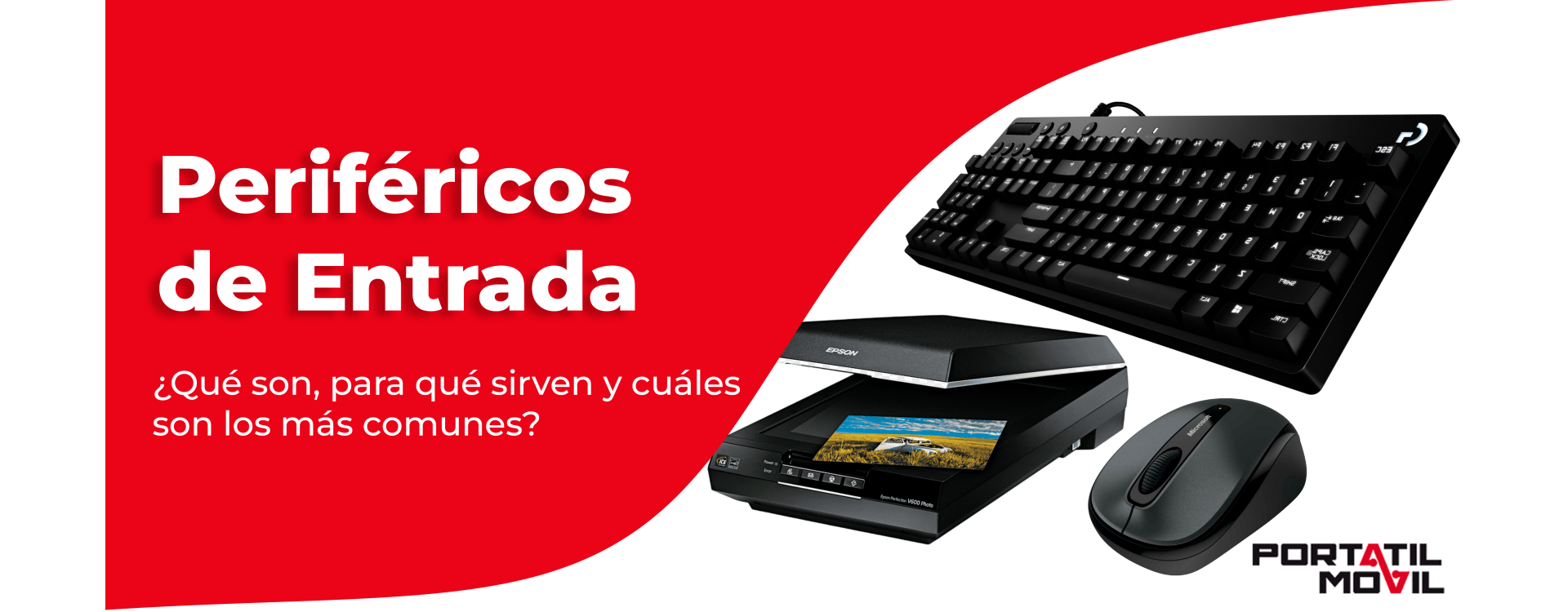
If you have a desktop computer, the basic peripherals make all the difference between a machine that merely functions and one that's a pleasure to use for work, study, gaming, or watching multimedia content. Beyond the tower itself, having good input, output, storage, and communication devices is key to gaining comfort, precision, and performance in your daily work.
In this article, you'll find a complete guide to desktop PC peripherals : what they are, the different types available, which ones are considered essential, the options for gaming or professional work, and what to look for before buying. Everything is explained in easy-to-understand language, but without sacrificing technical accuracy.
What are the basic peripherals of a desktop computer?
When we talk about peripherals, we're referring to external devices that connect to the computer to expand its functions or make interacting with it more convenient. They aren't part of the PC's "core" components ( motherboard, processor, RAM , etc.), but they're what allow you to use it normally.
These devices can be input, output, input/output, storage, or communication devices . They connect primarily via USB, HDMI, DisplayPort, Bluetooth, Wi-Fi, or other specific ports, and some are integrated into the monitor or the computer case itself, although they are still considered peripherals.
A typical desktop computer will include at least a tower, monitor, keyboard, and mouse . From there, you can add a printer, speakers, headphones, webcam, microphone, external hard drives, etc., depending on your needs.
Types of peripherals: input, output, storage, and communication
To fully understand how all these devices are organized, it is important to be clear about the function of each category of peripherals and how they are involved in the exchange of information between the computer and the outside world.
Input devices are those that allow you to enter data or commands from outside into the PC. These include the keyboard, mouse, scanner, graphics tablet, stylus, or webcam when it is only capturing images.
On the opposite side we find output peripherals , whose role is to display or reproduce the information processed by the CPU in a way that is understandable to the user: monitors, speakers, headphones or printers are the most common.
There are also storage peripherals , which are responsible for saving data so you can access it later or move it from one computer to another. External hard drives, portable SSDs, USB flash drives, and even older media like CD-ROMs and DVDs fall into this category.
Finally, it is important not to forget communication peripherals , those that allow your computer to connect with other devices or networks: network cards, modems, routers or WiFi access points are the most representative.
Essential desktop input peripherals
Most of the actions you perform at your PC begin with an input device. Choosing the right peripherals is essential for working more comfortably, being more productive, and avoiding long-term physical discomfort.
Keyboards: the heart of PC interaction
The keyboard is one of the most basic and essential peripherals, as it allows you to enter text, keyboard shortcuts , and commands to the system . Not all keyboards are the same, and it's worth knowing the differences before making a decision.
On one hand, there are membrane keyboards , the most common and affordable type. They offer a softer and quieter feel, perfect for home, office, or study use where discretion is key.
At the other end of the spectrum are mechanical keyboards , highly valued by those who spend many hours typing or gaming. Each key has its own switch, providing a more precise keystroke and far greater durability, at the cost of a higher price and increased noise.
There are also ergonomic, compact, wireless or hybrid keyboards that combine various technologies to improve hand posture, save space or reduce cables on the desk.
As an example of a keyboard for daily and professional use, a model like the TRUST TK-350 would fit into the basic peripheral category: comfortable keys, wireless connection and an affordable price geared towards office tasks and web browsing.
Mice: precision and comfort in your hand
The mouse is the perfect complement to the keyboard and is essential on any desktop computer . With it, you control the pointer on the screen, click on options, drag files, and perform all kinds of actions.
Today, almost all mice are optical or laser , far superior to the old ball models. You can find them wired or wireless, with ergonomic designs that fit the shape of your hand, and with additional programmable buttons to speed up tasks and shortcuts.
If productivity and mobility are your priorities, a simple wireless mouse like the Logitech B170 provides a stable wireless connection, a compact size, and ease of transport and use anywhere.
In contrast, for gaming, mice with high sensitivity (adjustable DPI), more buttons, customization software , and a design built to withstand hours of intense use are usually sought after.
Regardless of the model, it is always recommended to use an opaque mouse pad, which improves sensor accuracy, reduces wear on the mouse feet, and makes movement smoother.
Graphics tablets and touch screens
For those who work with images, design, illustration or photo retouching, the graphics tablet becomes an almost indispensable peripheral, as it allows you to draw with a digital pen in a very natural way , with different levels of pressure and stroke control that is difficult to achieve with a mouse.
These tablets send the position and pressure of the pen to the computer , so your strokes appear instantly on the screen in design or drawing applications. For a desktop PC focused on creativity, it's one of the most highly recommended peripherals.
On the other hand, touchscreens function as both input and output devices, since they display images to the user, but at the same time register the touches or gestures you make on the panel, sending them to the operating system.
Document scanners and digitizers
The scanner remains a very useful peripheral in home and professional environments where paper is used, because it converts physical documents into digital files . You can scan old photos, contracts, invoices, or any sheet of paper to save it as an image or PDF.
In many cases , multifunction printers that integrate a scanner are used , as they take up less space and are cheaper than buying both devices separately.
Webcams: essential for video calls
Webcams have become almost mandatory with the rise of teleworking, online classes and remote communication, as they allow capturing real-time video for video calls, streaming or recordings.
Although many laptops already include them as standard, in desktop computers it is common to use external webcams with higher resolution , better light management, autofocus and, in some cases, an integrated microphone.
Microphones: clear voice for work and leisure
A good microphone makes all the difference when you're making video calls, recording podcasts, dictating texts, or playing online games while talking to other people. There are simple microphones that connect via mini-jack or USB, as well as professional models with high-quality audio.
Many computers come with a basic microphone built into the monitor or webcam, but if you want clearer, noise-free sound , it's best to opt for a dedicated microphone, especially if you often work with voice.
Other specialized input devices
In addition to the above, there are input peripherals designed for very specific uses, such as joysticks and gamepads , which offer more precise control in flight simulators, cars, or action games.
You can also find light pens, digitizers specifically designed for presentations, or video capture devices that allow you to input the signal from a professional camera or console into your computer.
Output peripherals: image and sound on the desktop
It's not very useful for a computer to process information at high speed if you can't then see or hear the results with good quality . This is where the most important output peripherals come into play: monitor, printer, and audio system.
Monitors: panel types and key factors for choosing
The monitor is the primary output device for a desktop PC, as it displays everything processed by the graphics card . Choosing the right monitor is critical for both comfortable work and enjoying games and multimedia content.
Currently , IPS, VA, TN, and OLED panels are mainly used , each with its own strengths and weaknesses:
IPS monitors stand out for offering very faithful colors and wide viewing angles , making them ideal for graphic design, photography and video, as well as being very well-balanced for general gaming.
VA panels provide superior contrast with deeper blacks and very vivid colors, which is great for watching series, movies or playing games with dark scenes, although their viewing angles are usually somewhat more limited than those of IPS panels.
TN monitors are the most economical option, with very fast response times, but more modest image quality and viewing angles , so they are usually reserved for low-budget configurations or very specific uses.
OLED panels offer outstanding image quality, with perfect blacks and very low response times, designed for those seeking the ultimate visual experience , especially in video games and HDR content, although their price is usually higher.
If you want a gaming monitor, in addition to the panel type you should look at the resolution (Full HD, 2K, 4K…), the refresh rate (144 Hz, 240 Hz…) and compatibility with technologies such as FreeSync or G-Sync.
Printers: still very much present
The printer remains one of the most frequently used output devices when you need physical copies of documents, reports, forms, or photographs . In a home desktop or small office, the most common choice is between two main types.
Inkjet printers are versatile, print both text and photos well, and are suitable for moderate print volumes.
Laser printers stand out for their speed, text clarity, and lower cost per page , making them very attractive for offices or people who print frequently.
In many cases, multifunction printers are chosen that include a scanner and sometimes a fax machine, allowing scanning, copying, and printing from a single device.
Speakers and headphones: sound matters too
To enjoy music, movies, video calls, or games, it's important to have a good audio system that reproduces sound clearly and without distortion . Here are two basic options: external speakers or headphones.
Speakers are usually connected via audio jack or USB, and some monitors or towers already have small internal speakers. However, dedicated speakers typically offer greater power, better bass response , and a more immersive experience.
Headphones are ideal when you need privacy, play online games, or work in shared spaces. There are models with wired, USB, Bluetooth, and even wireless connections with a charging base, in on-ear, over-ear, or in-ear styles.
If they also include a microphone and noise cancellation , like office headphones such as the Energy Sistem Office 3, you'll gain comfort when making calls, attending meetings, or concentrating on important tasks.
Storage peripherals: extra space and backups
Storage peripherals are essential for securely saving your data and moving files between devices . Even if your PC already has an internal hard drive, it's highly recommended to have external storage solutions.
External hard drives
External hard drives provide ample storage capacity at a great price . They're perfect for creating regular backups of your important documents, photos, videos, and projects.
Portable SSD drives
External solid-state drives (SSDs) function similarly to hard drives, but they use flash memory, resulting in significantly faster read and write speeds . For more details on how to take advantage of them, see Portable SSDs.
This makes them the best choice for those who need quick access to large files , such as video editors, photographers, or professionals working with projects stored on the drive itself.
USB flash drives and memory cards
USB flash drives are ultra-portable peripherals that allow you to easily transfer files from one computer to another . They are ideal for transferring documents, presentations, or small projects without needing an internet connection.
Similarly, SD or microSD cards function as external memory in cameras, mobile phones, consoles and some computers, also acting as storage peripherals when you connect them to the PC via a reader.
Communication and connectivity peripherals
In addition to viewing, listening to, and storing information, your desktop computer needs to communicate with other devices and networks. This is where communication peripherals come in , enabling internet connectivity and remote device access.
Network cards ( integrated or in PCIe/USB format) allow you to connect your PC to a wired or wireless computer network , which is essential for browsing, working in the cloud, or playing online games.
Routers and modems manage the internet connection and distribute it among the various devices in the home, while other accessories such as USB WiFi adapters, repeaters or PLC extend the coverage and stability of the signal.
It is also common to find docking stations and port converters , such as HDMI adapters, USB-C or USB hubs, which make it easy to connect several peripherals at once or transform a laptop or desktop input into several different connectors.
Basic peripherals for general use, laptop and desktop
Although we focus on desktop computers here, many peripherals are shared with laptops and perform very similar functions, helping to improve ergonomics and the user experience when working from a desk.
On a laptop, for example, it is very common to connect external keyboards and mice, larger monitors, cooling pads, or stands that raise the screen to adopt a healthier posture.
Headphones, microphones, webcams, external hard drives, SD cards, and other input/output devices are also commonly added to compensate for the limitations of space or ports on the laptop itself.
In all cases, it is advisable to check the type and number of available ports (USB, HDMI, DisplayPort, USB-C, etc.) to choose compatible peripherals and avoid surprises when connecting them.
Most of these modern accessories are Plug & Play , meaning the operating system automatically recognizes them when you connect them and you can start using them in seconds, without the need for complicated configurations.
Desktop gaming peripherals: when gaming is a priority
The gaming world has taken peripherals to another level, with devices designed to achieve maximum precision, speed, and customization in competitive or high-performance games.
In the realm of keyboards, gaming models typically offer highly durable mechanical switches, programmable keys, RGB backlighting , and specific designs to suit different gaming styles.
Gaming mice, on the other hand, are distinguished by having very high and adjustable DPI, precise sensors, ergonomic shapes , and buttons that can be configured to execute complex skills or macros.
Gaming mouse pads are also gaining prominence, as they provide specially designed surfaces to achieve greater precision, stability and speed in mouse movements, with some even equipped with RGB lighting.
As for gaming monitors , they usually offer larger sizes, high refresh rates, low latency, and higher resolutions, all aimed at making the visual experience as smooth and spectacular as possible.
We must not forget other peripherals aimed directly at the gaming public, such as joysticks, steering wheels, gamepads, surround sound headphones and microphones specifically for streaming, which complete very complete configurations to play for hours with maximum comfort.
How to choose the ideal basic peripherals for your desktop computer
Before you rush out to buy peripherals, it's worth taking a moment to analyze what you really need and how you're going to use the equipment . This will save you money and help you set up a more balanced environment.
The first step is to define the main purpose of the PC : office work, study, gaming ( choosing a cheap gaming PC ), graphic design, video editing, family use… Each scenario demands a different type of peripherals and a different level of quality.
Next, you should check compatibility in connections and operating systems : see what ports your motherboard and case have (USB-A, USB-C, HDMI, DisplayPort, audio, network…), what version of Bluetooth it supports, and what operating system you use.
Another key aspect is budget . The peripherals market ranges from very affordable options to high-end devices, so it's worth prioritizing those you use daily (monitor, keyboard, mouse, headphones) and reviewing buying tips before making a decision.
Furthermore, it's worth considering quality, durability, and brand . Opting for reputable manufacturers with good warranties and support can be more cost-effective in the medium and long term than going for the cheapest option initially.
Finally, it is advisable to research and compare models , reading user reviews and expert recommendations to ensure that the chosen peripheral truly meets your needs.
Understanding these points will help you build a balanced, comfortable desktop environment, ready for both work and digital leisure, with peripherals that fit your way of using the computer.
