- Identifying whether the external hard drive problem is logical or physical is key to choosing the right solution and not aggravating the damage.
- Tools such as CHKDSK, third-party programs, and controlled formatting allow you to repair many logical errors and partially recover the drive.
- In case of impacts, strange noises or mechanical damage, the prudent thing to do is to stop using the hard drive and consider professional repair.
- Proper usage habits, health monitoring with SMART, and frequent backups are the best way to avoid serious data loss.
Seeing an external hard drive suddenly stop working is a nerve-wracking situation: family photos, work, projects… everything seems to vanish. The good news is that, in many cases, there's still time to act and recover both the device and, with a bit of luck, your most important data.
Learning to repair a damaged or corrupted external hard drive involves first understanding what might have happened, distinguishing between a logical failure and a physical problem, and applying the appropriate solution in each case. Throughout this guide, you'll see methods using CMD and CHKDSK, third-party tools, formatting, health checks with SMART, what to do if it has suffered an impact, and when it's best to stop trying and take it to a professional repair shop.
Most common causes of a corrupt or damaged external hard drive
An external hard drive doesn't just become corrupted for no reason ; there's almost always a clear cause behind the failure. Understanding it will help you choose the best repair method and prevent it from happening again.
One of the most common causes is abruptly disconnecting the drive without using safe removal. If a write operation is interrupted mid-process, errors are generated in the file system, and some files become corrupted or inaccessible.
Malware infections are also a common problem : certain viruses and ransomware modify, encrypt, or destroy data on external drives, leaving empty folders or files that can no longer be opened. That's why it's so important to scan USB drives and external HDDs with antivirus software.
Physical wear and tear creates bad sectors on the magnetic platter over time. Windows will mark these sectors as damaged, but if they accumulate or affect key areas of the file system, the drive will start to malfunction, run very slowly, or fail to mount altogether.
Power outages and sudden blackouts while the disk is writing data can leave allocation tables and metadata incomplete, leading to corruption. The same occurs when software crashes during a copy or formatting process.
We mustn't forget the aging factor : every HDD has a limited lifespan. After thousands of hours of use or countless power cycles, the mechanical components wear out, increasing the likelihood of both logical and physical failures.
Another less obvious cause is a problem with the drive's controller or driver . Sometimes the drive itself is fine, but Windows has installed a faulty driver or the configuration has become corrupted. In that case, you can try uninstalling the device from Device Manager, unplugging it, restarting, and then plugging it back in so the system reinstalls the correct drivers.
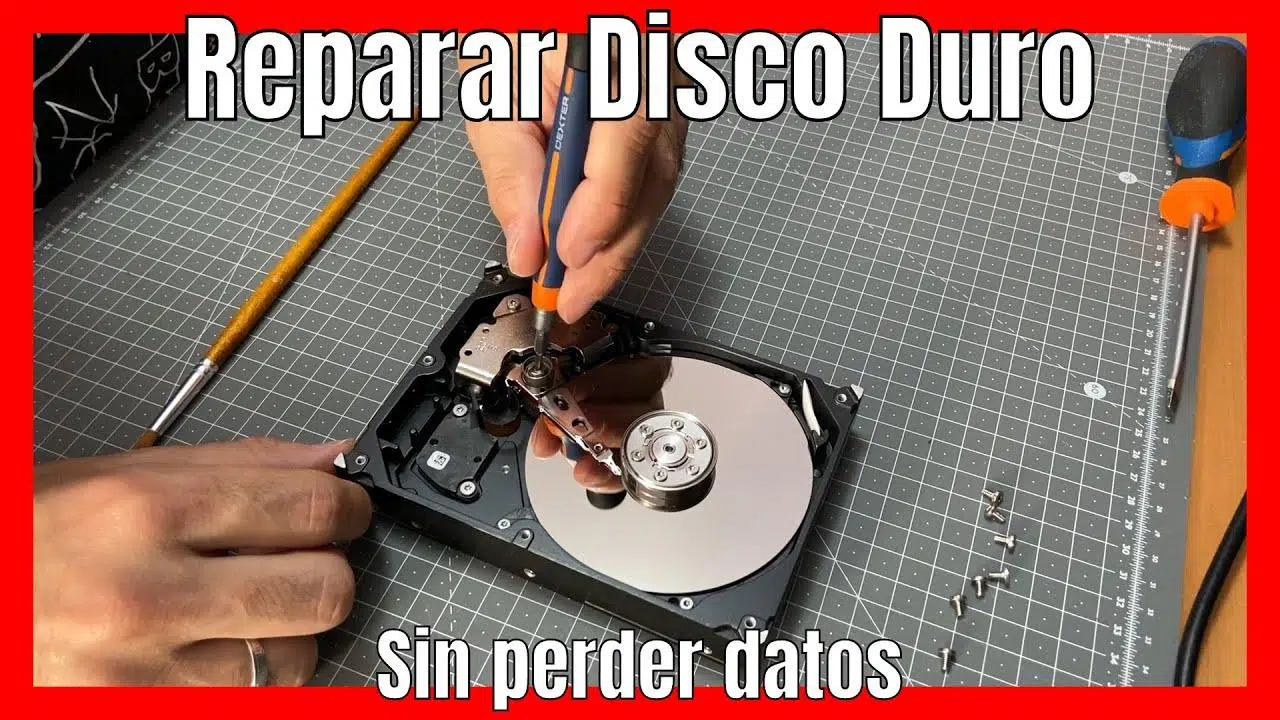
Finally, physical damage from bumps and drops is devastating . An impact can misalign the read/write arm, jam the platter spindle, or deform the heads, scratching the surface where the data is stored. In helium-sealed hard drives, common in high-capacity models, opening the drive without the proper equipment is tantamount to rendering it unusable.
How to differentiate a logical failure from serious physical damage
Before you start typing commands or downloading programs , it's a good idea to try to identify whether the problem is logical (software, file system) or physical (mechanical, electronic).
These are usually logical failures when the disk appears in Explorer or at least in "Disk Manager", you see the drive letter, but you cannot access it, it freezes, asks to format, or returns errors such as "the volume does not contain a recognized file system".
We are talking about possible physical damage when the disk makes strange noises (famous repetitive "clack-clack", strange buzzing, squeaking), does not spin, is not detected by any computer, or the read speed drops to ridiculous values (for example, less than 1 MB/s) even if you manage to mount the unit.
If the hard drive has been dropped or suffered a hard impact and the PC hasn't recognized it since, there's most likely a problem with the read/write heads, spindle, or platters. In these cases, continuing to power on the drive can damage the magnetic surface and make the data unrecoverable.
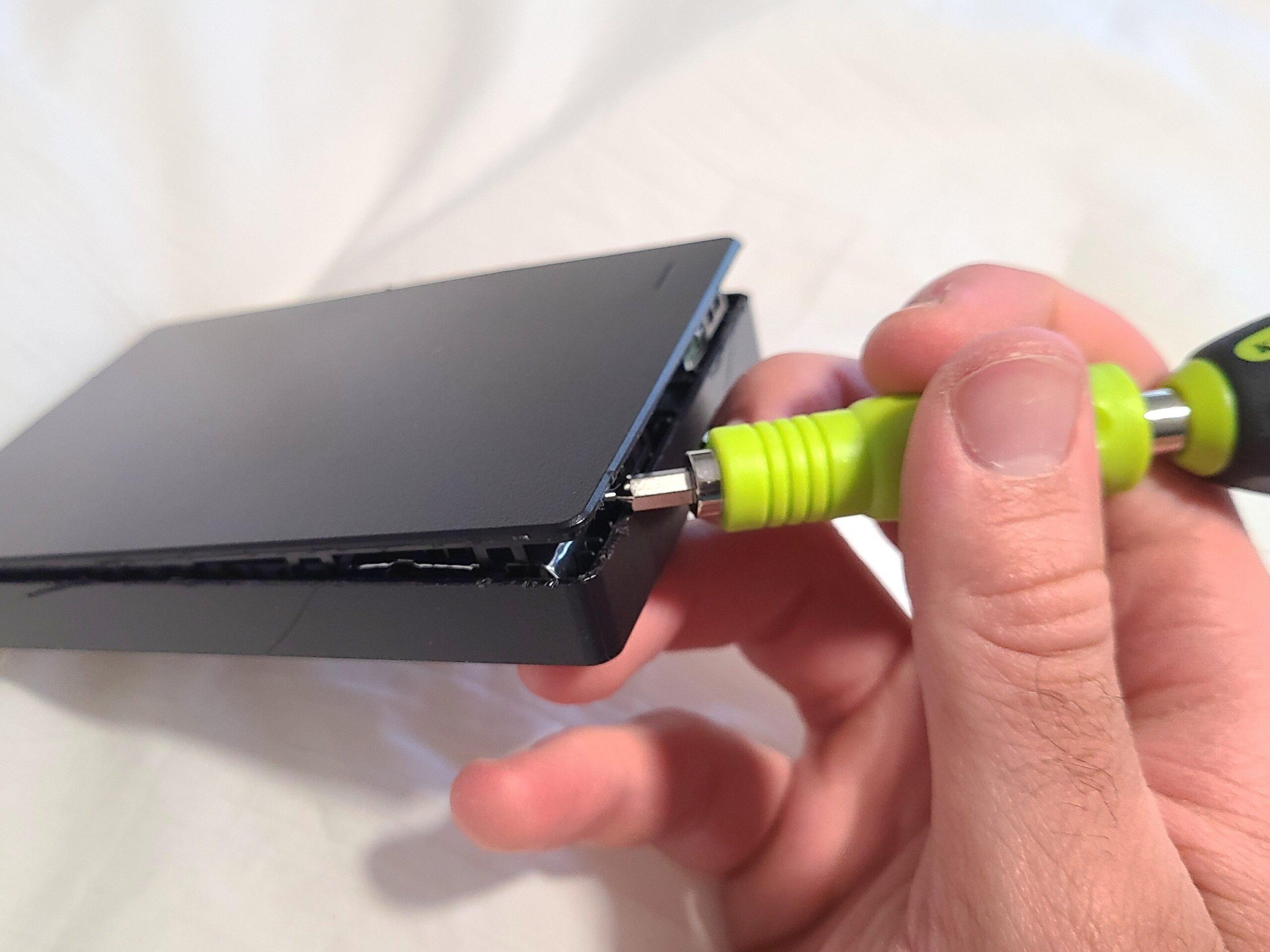
When the electronics in the enclosure or USB adapter fail , it may seem like the drive is dead, but sometimes only the SATA-to-USB converter or the power supply is faulty. If you open the enclosure (without touching the inside of the HDD) and see that there's a drive with a standard SATA connector inside, you could connect it directly to a desktop PC or a new SATA-to-USB adapter to rule out an interface problem, or look into how to reuse it as an external drive.
Basic checks before “blaming” the external hard drive
We often waste time and frustration with hard drives when the problem is as simple as a broken USB cable or a faulty port. Before anything else, it's worth running some basic tests.
Start by trying a different cable and a different USB port . Cables get bent, stepped on, cut internally, and lose contact. Replacing it with a different one (and if possible, a short, high-quality one) is one of the first things you should do.
Connect the drive to another computer or laptop . You can also boot it from a Linux Live distribution to test it. If it works normally on the other machine, the problem is most likely with your system (drivers, configuration, damaged ports) and not the external HDD.
Also check if the enclosure is receiving power : see if any LEDs light up, if you can hear the motor turning, or if the power supply (on 3,5" models) seems dead. Sometimes you just need a new power adapter or a different enclosure.
If after these checks the disk still does not appear in Disk Management or shows very erratic behavior, proceed with caution and decide whether you want to attempt home recovery or go directly to a specialized technical service.
Repairing logical errors on an external hard drive using CMD and CHKDSK
For many Windows corruption problems , the CHKDSK tool is the first resort. It's an official system utility that analyzes disk integrity, locates logical bad sectors, and, in many cases, repairs file system errors.
CHKDSK works from the Command Prompt (CMD) , the Windows command console. Although it might seem a little intimidating at first, basic use is simple and you don't need to install anything external, which is great if you don't want to clutter your PC with third-party programs.
Repairing logical errors with CHKDSK step by step
1. Open CMD as administrator : Click Start, type "cmd" in the search box, right-click on "Command Prompt" and choose "Run as administrator". Accept the account control prompt.
2. Launch an initial scan without repair by typing the command:
chkdsk e:
Remember to replace the letter "e" with the letter corresponding to your external hard drive. This initial scan only generates a report on the volume's status, detecting possible inconsistencies and bad sectors, but it doesn't modify anything yet.
3. If you see logical errors or bad sectors, repeat the command adding the repair parameter:
chkdsk e: /f
The "/f" switch tells CHKDSK to attempt to automatically correct errors found in the file system. The process can take a long time depending on the disk size and the extent of the damage.
Find bad sectors and recover readable information
If the /f analysis is not sufficient or you suspect there are physical and logical bad sectors, you can run a more thorough scan with data recovery:
chkdsk e: /f /r /x
The "/r" parameter locates defective sectors and attempts to recover readable data, relocating it to healthy areas. The "/x" parameter forces the drive to be disassembled before starting the check, preventing interference from other applications during the process.
Once CHKDSK finishes, switch to the drive letter of your external disk in the console itself (for example, by typing "e:" and pressing Enter) to work from there if you need to run additional commands.
To try to recover hidden files or files converted into shortcuts after an infection or corruption, many users use the command:
attrib -h -r -s /s /d *.*
This command removes hidden, read-only, and system attributes from all files and folders on the drive, potentially restoring content that appeared to be missing. Once finished, review the disk structure using File Explorer to see what has been recovered.
Use of third-party software to repair or recover data
Although CHKDSK is very useful, it doesn't always save the day . When corruption is severe or you've lost many files, it's usually a good idea to use specialized disk diagnostic or data recovery software.
To check the disk surface and detect bad sectors , tools like EaseUS Partition Master allow you to perform a "surface test" on the external drive. The program marks healthy sectors in green and unrecoverable ones in red, and in some cases, it can isolate the damaged areas so the system doesn't use them again.
If the main problem is the loss of files (deleted by mistake, overwritten during a failed repair, or inaccessible after formatting), data recovery programs such as EaseUS Data Recovery Wizard or Wondershare Recoverit become more interesting.
Recoverit, for example, boasts a very high success rate in restoring files from hard drives, USB drives, SD cards, and other storage media. Its use can be summarized in three steps: choose the device, let it scan, and after the scan, select which files you want to recover and save them to another drive.
One detail is crucial with any recovery tool : never recover data from the same damaged disk. Always save recovered files to a different drive to avoid overwriting information that could still be recovered.
Formatting an external hard drive: high risk, but useful in some cases
Once you've accepted that the data is lost or you've been able to recover it by other means, you can consider at least restoring the use of the external drive. This is where formatting comes in, which erases the contents but can return the drive to a functional state.
Quick format is the default option offered by Windows and simply recreates the file system without checking each sector individually. This may be sufficient for disks with minor logical errors, but it won't detect or isolate physically damaged sectors.
A full or "low-level" format is much more aggressive . Tools like HDD Low Level Format Tool write to all sectors of the drive, clearly marking the defective ones so the operating system won't use them. However, they permanently erase everything on the disk.
Microsoft doesn't allow you to perform a true low-level format from within Windows , so you have to use external utilities. These are especially useful when you want to sell a used hard drive and ensure that no one can recover your data, or when you're only interested in repurposing the device as "secondary" storage, even if it's no longer in perfect condition.
If you choose to format from File Explorer , simply right-click on the drive, select "Format," choose the file system (NTFS or exFAT are usually the most sensible options), and confirm. If you suspect bad sectors, avoid quick format and let Windows perform a full check.
Check disk health using SMART and CrystalDiskInfo
Beyond repairing it, it's important to know the actual condition of the hard drive . Modern drives incorporate SMART technology for this purpose, which records a series of internal parameters (read errors, reallocated sectors, temperature, hours of use, etc.).
CrystalDiskInfo is one of the most popular and user-friendly tools for reading this data. It's free, works with internal and external HDDs and SSDs, and provides a "Health" indicator (Good, Caution, Risk, etc.). If you prefer Linux, you can use GSmartControl, which performs a very similar function.
To use CrystalDiskInfo, simply install it , run it as administrator, and let it detect all your drives. In the upper left corner, you'll see a box displaying the status and estimated remaining lifespan percentage. If it's around 100%, you can rest easy; if it drops to around 90%, wear and tear is starting to show; below that, you should start thinking about backups and possible replacement.
In addition to the overall condition, you can check other parameters such as temperature, the number of reallocated sectors, and read errors. Abnormal values or those displayed in yellow/red are a clear sign that the drive is nearing the end of its lifespan.
When a drive's health is failing , the wisest course of action is to avoid entrusting important data to it, clone its contents to a more reliable drive, and prepare to retire it. No software can reverse advanced mechanical failure.
External hard drives damaged by impacts: what to do and what not to do
If the external hard drive has fallen to the ground or received a strong blow , the situation changes completely: we are no longer dealing with a purely logical problem, but with "physical trauma" on a very delicate mechanical part.
When an impact occurs, the read/write heads can become misaligned , bent, or broken. If they continue to rub against the surface of the platters while the disk spins, they literally scratch the area where the data is stored, destroying it irreversibly.
It's also possible that the platter spindles are jammed or that there's damage to the mechanism preventing the motor from starting. In helium-filled hard drives, opening the unit without the proper tools and conditions destroys the controlled environment and makes recovery much more difficult or even impossible.
The first recommendation from any reputable laboratory when impact damage is suspected is clear: don't keep turning the hard drive on "just in case." Each additional start-up can further damage the magnetic surface and reduce the chances of recovery to zero.
Forget about the magic solutions and esoteric tricks circulating on the internet: putting the disc in the freezer, hitting it "to make it start", turning it in another orientation as if it were a stuck fan... rather than helping, they usually finish off a disc that could have had a chance in professional hands.
When to use a professional data recovery service
There are situations where trying DIY solutions is a mistake . If the hard drive is making clicking noises, isn't spinning properly, or has been damaged by fire, water, or a hard impact, the sensible thing to do is disconnect it as soon as possible and contact a company specializing in data recovery.
These laboratories operate in cleanrooms , with specialized equipment and, often, support or documentation from the manufacturers themselves. They can replace printhead blocks, realign components, clone surfaces with dedicated equipment, and, in extreme cases, even resort to techniques such as chip-off.
The chip-off technique involves removing the memory chip from the device's circuit board (more common in flash memory and some SSDs than in mechanical HDDs) and directly reading its contents using advanced micro-soldering tools. It's a complex and delicate procedure, but it can allow data access when the rest of the hardware is unusable.
Data recovery specialists typically achieve very high success rates when the damage isn't catastrophic, often exceeding 90% successful recoveries. However, prices vary considerably depending on the severity of the damage, the drive's capacity, and the urgency of the job.
If the economic or sentimental value of your data is high (company databases, professional projects, years of personal photos), it is wisest to consider these types of services from the beginning, before making risky tests on your own.
Mistakes that aren't worth it: common "time-wasters"
Besides the myths about the freezer and the "life-saving" blows , there are other practices that, at the very least, don't help and, in the worst cases, worsen the problem. It's important to keep these in mind so you know what NOT to do.
Continuing to use a hard drive that makes strange noises or constantly mounts and unmounts is a bad idea. Even if you manage to copy files at some point, each attempt can cause further physical damage to the platters if the read/write heads are touching the wrong surfaces.
Formatting indiscriminately without first attempting data recovery is another common mistake. If the data is important to you, first try recovery tools or consult a professional service; formatting should be your last resort, when the priority is recycling the drive, not saving the data.
Finally, opening a mechanical hard drive "just for a look" outside of a clean room only introduces dust and particles inside. Even tiny pieces stuck to the surface can cause further scratches and damage when the platters spin at high speed.
HDD vs SSD: why they're not repaired the same way
The term "hard drive" is often used to refer to both HDD and SSD , but internally they are completely different worlds, and that affects how they can be repaired and what can be done to recover data.
A hard disk drive (HDD) uses rotating magnetic platters and an arm with read/write heads that moves over them to read and write data. This gives it a higher resistance to the total number of write cycles, but makes it very sensitive to shocks and vibrations.
An SSD (solid-state drive) has no moving parts ; it relies on flash memory chips and electronic controllers. They are much faster and quieter, but their lifespan is measured in write and erase cycles, and once that lifespan is reached, failure can occur suddenly, without any prior mechanical warnings.
In an HDD, physical damage is usually related to the mechanics (heads, motor, platters), while in an SSD many serious problems are linked to the controller or the flash memory itself. Some laboratory techniques, such as chip-off testing, are specifically designed for this type of memory.
That's why it's so important not to confuse terms : what works for a damaged HDD won't work for an SSD, and vice versa. This guide focuses primarily on external mechanical hard drives, which are the most common when we talk about impacts, strange noises, and physical bad sectors.
How to extend the lifespan of an external hard drive and reduce the risk of corruption
Beyond fixing what's already broken , it's worth adopting certain habits to make the disk last longer and suffer fewer corruption problems.
Try not to fill the disk to 100% . Leaving around 20% free space helps the file system work with more leeway, reduces fragmentation, and prevents write operations from being so critical in very dense areas.
On hard drives with file systems like NTFS or FAT32 , performing regular defragmentation can improve performance and prevent the read/write head from having to jump so frequently between different areas of the platter. However, this does not apply to SSDs, which should not be defragmented.
Always keep your antivirus software up to date and schedule regular scans not only on your system but also on external drives. Many "corrupted disk" problems actually stem from infections spread via USB drives and portable hard drives.
Control the temperature and ventilation . A hard drive that runs very hot for hours on end will have a shortened lifespan. Avoid placing it on surfaces that retain heat or in enclosed areas without ventilation.
Protect your equipment from power surges and outages by using surge-protected power strips, UPS (uninterruptible power supplies), or high-quality power supplies. Sudden voltage spikes and drops are detrimental to both HDDs and SSDs; also, take steps to eliminate static electricity to prevent serious damage.
Regularly update the drivers and firmware for your storage devices. Manufacturers fix bugs, improve compatibility, and, in some cases, resolve issues that could cause crashes or data corruption.
And of course, always use Safely Remove Hardware before disconnecting the drive. It might be a hassle, but it's the only way to ensure there are no pending write operations in the cache.
Backup and cloud usage: the best "fix" is not needing it
No storage device is infallible . Both HDDs and SSDs can fail due to wear and tear, manufacturing defects, impacts, power surges, or simply bad luck. That's why the only real protection against data loss is having backups.
The minimum sensible recommendation is to keep at least one additional copy of your important data on another physical medium: another external hard drive stored at home, a NAS, a secondary internal hard drive… and update them regularly.
If you don't want to worry about making manual backups , cloud services are a very convenient option. Online storage platforms allow you to synchronize folders in real time; if your hard drive fails, you'll have the latest version of your documents in the cloud.
Subscriptions like Microsoft 365 include cloud storage (for example, 1 TB on OneDrive) along with the Office suite. By sharing the cost among several users, the price per person is significantly reduced, and each user keeps their data separate from the others.
By combining a local copy and a cloud copy , you drastically reduce the chances of losing everything due to a single incident: if the physical disk fails, you'll always have the cloud; if there's a problem with the online account, you'll have the local copy.
Repairing a corrupted external hard drive involves knowing when commands like CHKDSK are sufficient, when third-party software is recommended, in which cases formatting can be considered to recover the drive, and when it's wisest to stop and consult specialists. Understanding the common causes of failures, differentiating between logical problems and physical damage, maintaining the drive's health, and, above all, keeping good backups, will make the difference between a simple scare and irreparable data loss.
