- Configure AHCI mode and enable TRIM technology to maintain write speed.
- Free space management and write cache control to avoid bottlenecks.
- Advanced operating system settings such as disabling indexing and managing virtual memory.
- Use of SMART monitoring tools to monitor the health and wear of the unit.
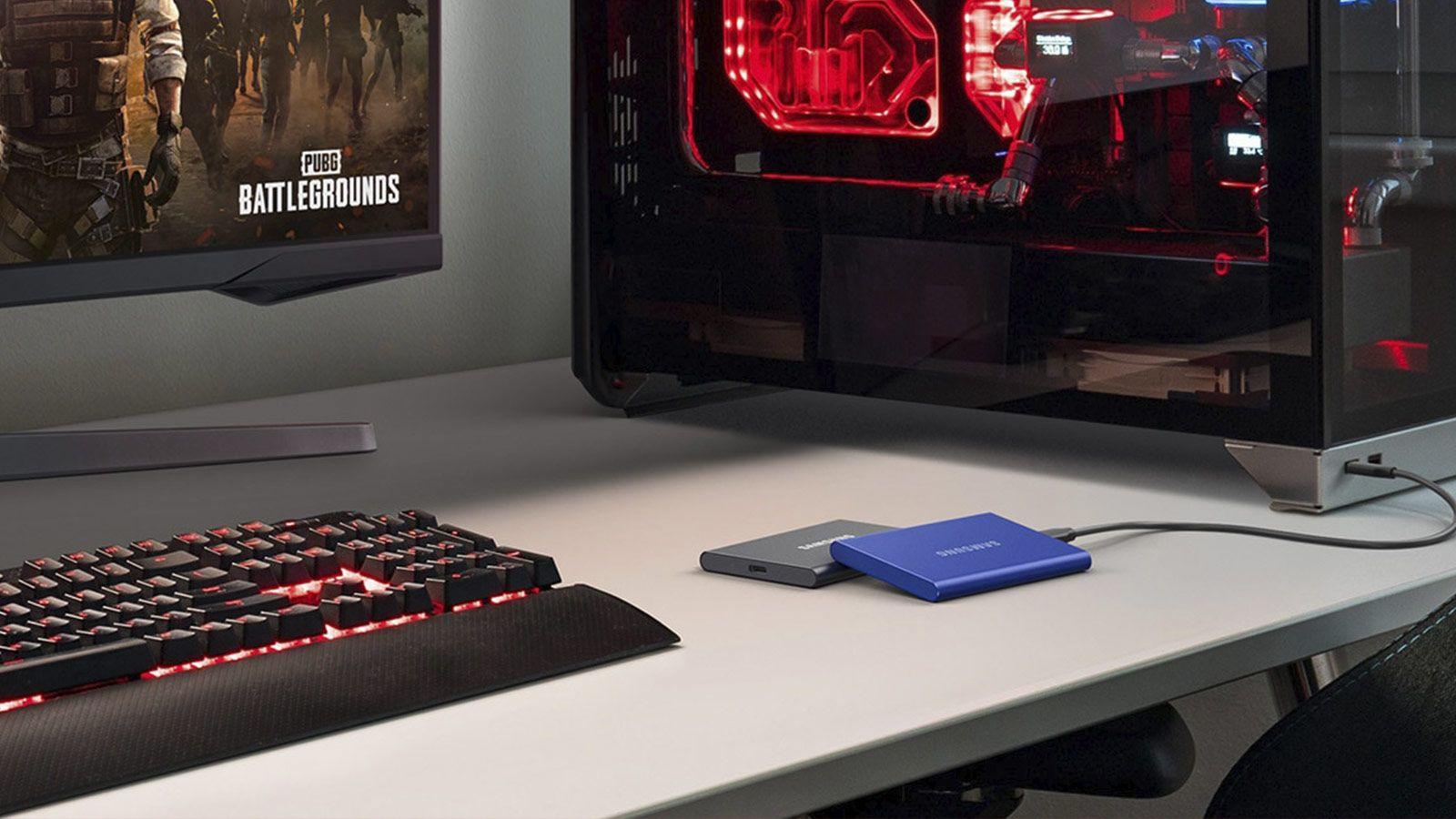
Today, most of us see solid-state drives as practically plug-and-play components. Just plug them into the motherboard, install the operating system, and you're good to go—no fuss. However, if you're looking to squeeze every last drop of performance out of your hardware, there are plenty of settings you can tweak to make everything fly, especially if you're using Windows, which, although much improved, still carries over concepts from the era of mechanical hard drives.
It's crucial to distinguish between two concepts: making your PC run faster and preventing the drive from failing prematurely. Optimizing read speed is not the same as extending the device's lifespan . In this regard, applying tools designed for traditional hard drives to an SSD is not only useless, but can also be counterproductive and unnecessarily wear out the flash memory.

Basic configurations and Firmware
Many people completely ignore firmware, but it's a crucial component. The SSD has its own processor and internal memory; therefore, updating the manufacturer's firmware can fix critical errors and improve data management efficiency. However, before you delve into this, back up your important files in case the process fails.
Another crucial point is the operating mode. For an SSD to function correctly, the system must be in AHCI (Advanced Host Controller Interface) mode . If you have a SATA drive and are using IDE or RAID mode (unless it's a very specific configuration), you could be limiting TRIM compatibility and losing speed. This can be checked in Device Manager, under IDE ATA/ATAPI controllers.
Smart Maintenance in Windows
Windows 10 and 11 can already distinguish between a mechanical hard drive and a solid-state drive. Therefore, when you access the optimization tool, you won't see the system defragment the SSD (which would be detrimental to the drive), but rather perform a garbage collection function . It's highly recommended to schedule this task as part of your monthly Windows maintenance to clean up cells occupied by temporary files.

Let's talk about the TRIM command. This technology tells the SSD which data blocks are no longer needed and can be erased. To check if it's active, you can open the command prompt and run fsutil behavior query DisableDeleteNotifyIf the result is zero, everything is fine; if it is one, you must activate TRIM manually to prevent the writing speed from plummeting over time.
Space and storage management
Filling an SSD to capacity is a terrible idea. These drives need some headroom to move data internally, a process known as over-provisioning. Ideally, you should maintain between 10% and 20% free space . If you struggle to control this, you can use the quota feature in Windows Disk Management or learn how to free up disk space to prevent your system from crashing.
To improve performance, you can enable write caching on the device . This allows Windows to use a portion of RAM as an intermediate zone before writing data to the SSD, reducing latency. It's enabled in the drive properties in Device Manager, under the Policies tab.

Advanced adjustments to prevent wear and tear
Since flash memory cells have a limited write cycle, it's advisable to eliminate redundant processes. Windows Search file indexing It's useful on HDDs, but on an SSD it's basically an unnecessary waste of write cycles. If you don't frequently use the search function, disable the service. wsearch or exclude the SSD from its properties.
The paging file (virtual memory) is another controversial topic. Windows uses it to manage errors and drivers, but if you have 16 GB of RAM or more , you might consider disabling it or limiting it to a small size (like 1 GB) to free up space and avoid constant writes to the main drive.
It's also a good idea to take a look at hibernation. When hibernating, the PC writes all the contents of RAM to the disk. If you don't use this feature, you can disable it by running [command missing]. powercfg -h off in the administrator console, thus removing gigabytes of unnecessary writes every time you turn off the equipment.
Disk temperature and health monitoring
Modern SSDs, especially NVMe PCIe 4.0 or 5.0 drives, tend to get unusually hot. When they exceed certain limits, thermal throttling kicks in , which is essentially when the drive reduces its speed to prevent overheating. Installing a heatsink is the best investment you can make to keep the drive below 60 degrees Celsius.
To find out how much life your unit has left, don't rely solely on intuition. There are very powerful programs available to monitor SMART technology:
- CrystalDiskInfo: Ideal for viewing the percentage of useful life and the temperature.
- CrystalDiskMark: Perfect for benchmarking and verifying that the speed is as promised by the manufacturer.
- Hard Disk Sentinel: A professional tool that can even help fix errors.
- SSD Life Pro: Very useful for estimating the "death" date of the disk based on TBW (Total Bytes Written).
If you notice that the system is still slow despite everything, remember that BleachBit or IObit Advanced SystemCare can help clean up junk and temporary files that hinder read speeds. However, avoid any program that promises to "defragment" an SSD, as that's a huge mistake.
Having the drive properly configured, ensuring that AHCI mode is active, that TRIM is working, and that the disk is not overloaded with data, guarantees that the operating system boots in seconds and that applications load instantly, while also protecting the hardware so that it will last for many years without any problems.
