- Comprehensive performance optimization through cleaning temporary files and managing startup processes.
- Advanced system protection through critical software updates and cybersecurity protocols.
- Preventive hardware care focused on thermal management and physical cleaning of internal components.
- Implementation of data backup strategies and storage optimization according to the type of drive.

I'm sure it's happened to you: at first your computer was lightning fast, but after a few months it seems to have gotten stuck in the mud. This is perfectly normal, since daily use generates an accumulation of digital waste and redundant processes that eventually slow down the response time of any machine, no matter how powerful it is.
To prevent your computer from becoming an expensive paperweight, it's ideal to establish a maintenance routine. You don't need to be a computer expert, but dedicating some time each month to rigorous preventative maintenance makes all the difference between a PC that lasts for years and one that starts experiencing critical failures very quickly.
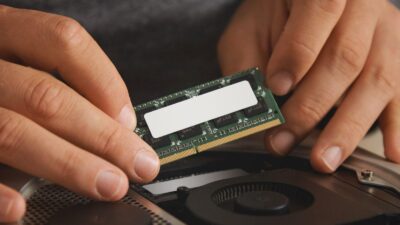
Software Sanitization and Storage Cleanup
The first step to freeing up your system is to remove all unnecessary files. Windows tends to fill your hard drive with temporary files, browsing caches, and remnants of old installations that serve no purpose. Using the built-in Disk Cleanup tool or Storage Sense is essential to recover valuable gigabytes of space.
Besides temporary programs, it's highly recommended to take a look at your list of installed programs. Often we have software we use once and forget about, which can be consuming resources in the background . Uninstalling what you don't use not only frees up space but also reduces the load on your processor.
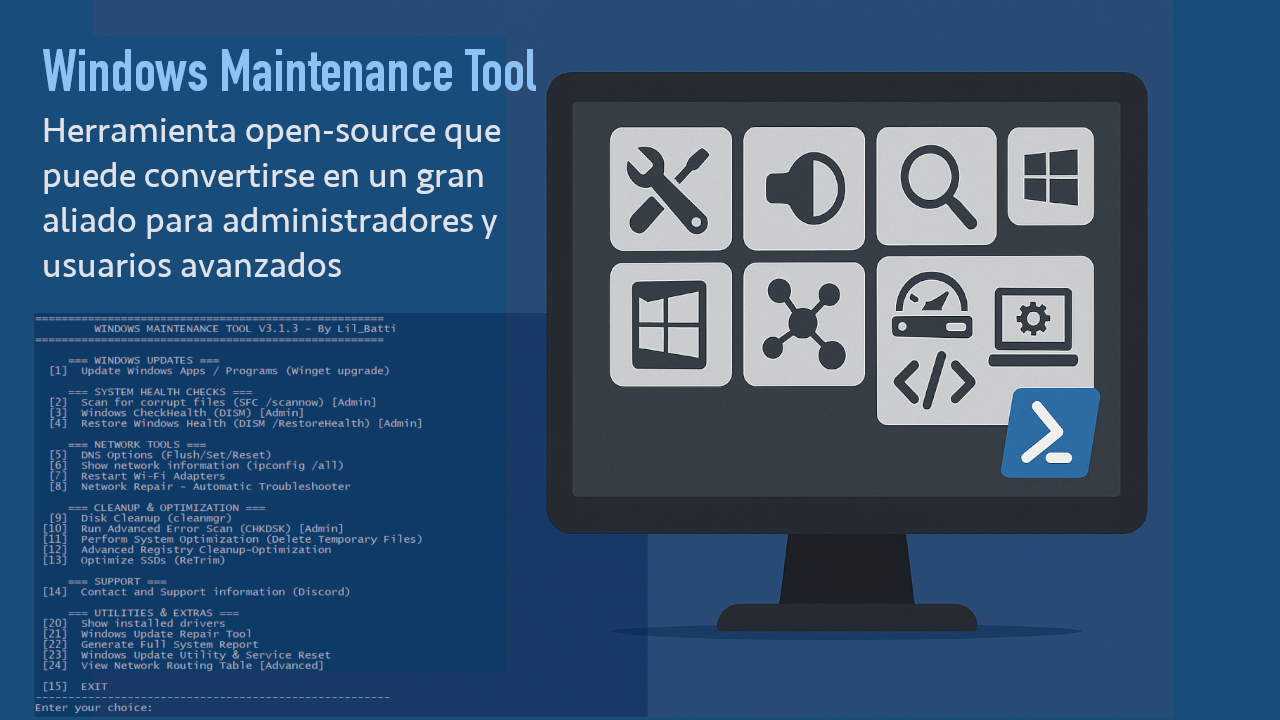
If you want to take this to the next level, there are advanced options like the Windows Maintenance Tool , an open-source PowerShell-based tool that automates bloatware removal and update optimization with a single click, making it ideal for those who manage multiple computers.

System Management and Startup Optimization
A computer that takes forever to turn on usually has a problem with its startup process. If you go into Task Manager, to the Startup tab, you'll see dozens of applications launching automatically. Disabling unnecessary programs at startup is the quickest way to gain immediate speed.
Regarding the operating system, don't skip updates. Windows Update not only brings new features but also patches critical vulnerabilities and fixes stability issues. Similarly, keep your drivers up to date, especially your graphics card drivers, by downloading them directly from the manufacturer's website to avoid blue screens of death.
For those seeking complete stability, it's helpful to run integrity commands like sfc /scannow and DISM . These tools repair corrupted system files that might be causing intermittent errors or slow application performance.

Hardware Care and Thermal Control
It's not all about software; dust is electronics' number one enemy. When fans become clogged with dirt, airflow is blocked, causing thermal throttling , where the processor reduces its power to prevent overheating. Cleaning with compressed air every few months is vital.
If you have an older laptop and notice the fan sounds like an airplane, it might be time to upgrade . Keeping temperatures low not only improves performance but also dramatically extends the lifespan of internal components like the GPU and CPU.
Disk Optimization: HDD vs SSD
It's crucial to know what type of hard drive you have before doing anything. If you're using a mechanical hard drive (HDD), monthly defragmentation is essential to reorganize the files and reduce the number of jumps the read/write head has to make, thus speeding up data access.
However, if you have a solid-state drive (SSD), don't even think about defragmenting it! This will only wear down the memory cells. With SSDs, what matters is the `save` command , which Windows automatically manages to clean up unused data blocks and maintain the drive's health.

Information Security and Data Backup
Security isn't something you set up once and that's it. It requires regular maintenance and vigilance against phishing. Don't trust suspicious emails asking you to update personal information or passwords, especially if they come from suspicious domains.
For peace of mind, apply the 3-2-1 rule to your backups: three copies, on two different storage media, and one of them off-site or in the cloud. Using services like [insert service name here] makes data migration much easier if you decide to change computers or upgrade your Windows version.
Finally, remember that using security measures is the best defense against identity theft. Changing your passwords regularly and not using the same one for all your accounts prevents a simple hack from turning into a complete disaster.
Maintaining a monthly routine that combines file cleaning, driver updates, physical hardware hygiene, and data security ensures that your computer always runs as smoothly and stably as possible.