- Safe mode starts Windows with only essential services and drivers to make troubleshooting easier.
- Safe mode can be accessed from WinRE, Configuration, the login screen, or with msconfig/bcdedit.
- There are variations such as safe mode with networking and with command prompt, in addition to other advanced startup options.
- Knowing how to activate and deactivate safe mode is key to resolving serious boot errors and driver or malware problems.
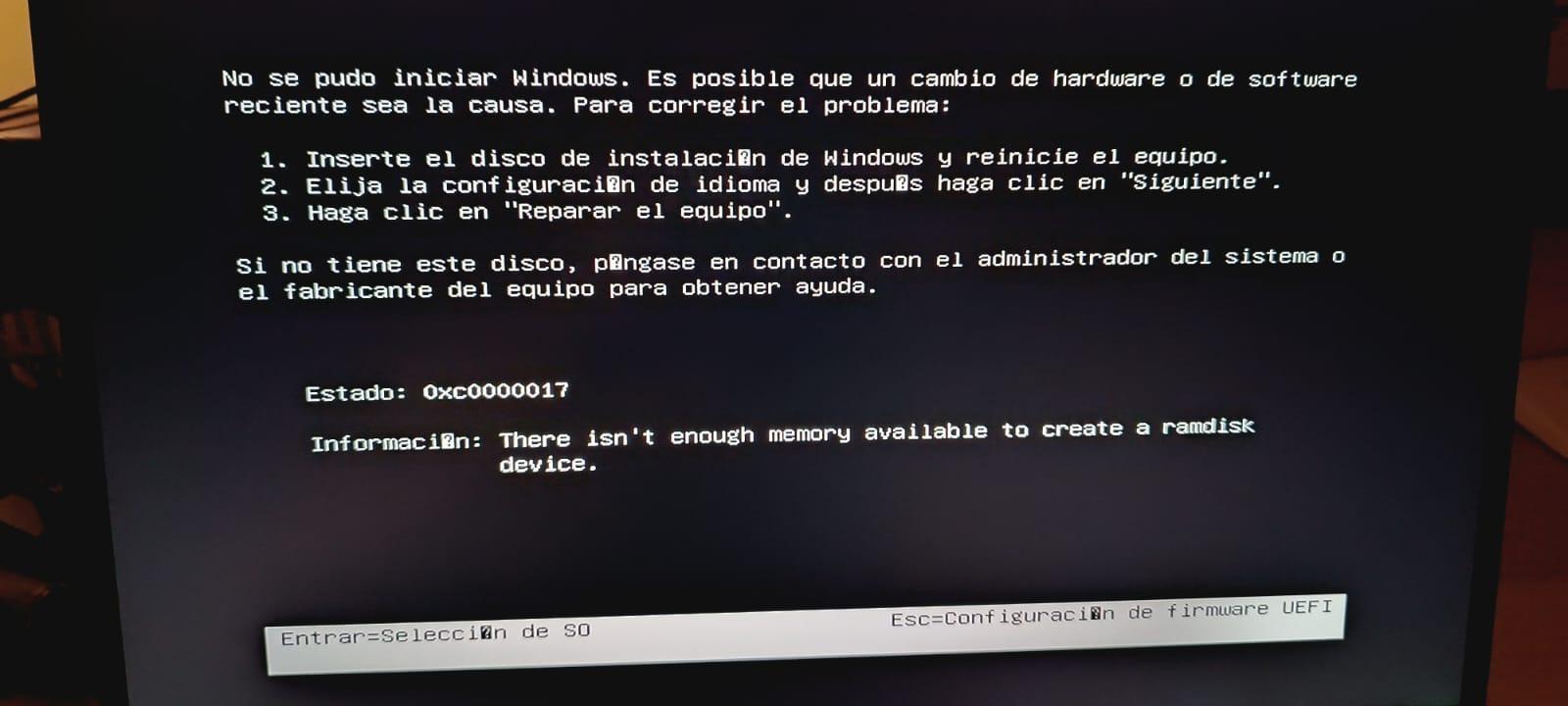
Booting Windows in Safe Mode is one of those resources that's always good to have on hand. When the system starts giving strange errors, freezes, you suspect a virus, or a newly installed driver has rendered your PC unusable, this minimalist boot mode allows you to enter Windows with just what's necessary to detect and fix the problem.
In this article, you'll see, step by step, all the practical ways to start Windows in Safe Mode in modern versions (Windows 11, Windows 10, Windows 8, and 8.1) and also in Windows 7. We'll also review the different Safe Boot options, how to change advanced startup settings, what to do if your computer always boots into Safe Mode, and some extra tips using tools like msconfig or bcdedit.
What exactly is Windows Safe Mode and what is it used for?
Safe Mode (or failsafe mode ) is a special type of Windows startup in which the system loads with a very limited number of components. Only the basic drivers and essential operating system services are started, disabling any non-essential elements such as startup programs, third-party drivers, or additional services.
Thanks to this limitation, many problems that appear during normal startup, such as driver conflicts, configuration errors, or malware infections , cease to manifest when entering safe mode. This gives you time to uninstall problematic software, update drivers, or run antivirus and disinfection tools without the virus being able to protect itself.
In Safe Mode, Windows displays a simple desktop, usually with low video resolution and no visual effects, where you'll see a "Safe Mode" indicator in the corners. This is perfectly normal: the goal is to boot with the bare minimum, not to make it look pretty.
Within Safe Mode, there are several variations, designed for different diagnostic scenarios. Understanding them will help you choose the appropriate option when the Startup Settings menu appears.
Safe mode types and other startup configuration options
When you access the Startup Settings menu in Windows, you can choose from several numbered options, usually using the keys 1 through 9 or F1 through F9. Each one activates a different startup behavior. The most important ones for the average user are those related to Safe Mode:
- Safe Mode (Enable Safe Mode)This starts Windows in a basic state, loading only device drivers and minimal services. You will not have an internet or local network connection. It is ideal for diagnosing general problems and uninstalling conflicting software.
- Safe mode with networkingIt's the same safe mode, but with the addition of the necessary network drivers and services to access the internet and other computers on the network. It's the recommended option if you need download tools, Update antivirus or access online resources while you solve the problem.
- Secure mode with system symbolInstead of loading the classic Windows desktop, it boots directly into a command line window. It is useful for administrators or advanced users accustomed to working with diagnostic commands and tools to repair the system.
In addition, the Startup Settings menu includes other advanced options that can be useful for debugging more complex problems, typically geared towards technicians and administrators:
- Enable debugging: starts Windows in a special diagnostic mode, intended for developers and IT professionals who need to debug at a low level.
- Enable boot logging: generates a text file (ntbtlog.txt) with a complete list of the drivers loaded during bootVery useful for analyzing which driver is causing the problem.
- Enable low resolution videoIt starts with the current video driver but with very low resolution and refresh rate. This can be a lifesaver when you've set a resolution that your monitor doesn't support.
- Disable driver signature enforcement: allows loading or installing drivers that They do not have a valid digital signature.It should only be used occasionally and with full awareness of what you are doing.
- Disable Early Launch Anti-Malware (ELAM) ProtectionELAM allows the antivirus to load before other third-party drivers. Temporarily disabling this protection may be necessary in some very specific diagnostic scenarios, but reduces security during startup.
- Disable automatic restart after errorThis prevents Windows from restarting automatically when a critical failure (blue screen) occurs. This allows you to read the error message and note down codes for further investigation.
At any time, if you do not want to apply any of those special settings, you can press Enter in that menu to start Windows with normal behavior.
How to boot into safe mode without any prior configuration (Windows 8.1, 10 and 11)
In modern versions of Windows, the classic trick of repeatedly pressing the F8 key during startup no longer works by default. The system boots so quickly that it barely allows any time. Therefore, the standard way to access Safe Mode is through the Windows Recovery Environment (WinRE) and the Advanced Startup Menu.
If Windows still boots normally or at least lets you get to the login screen, you can access safe mode like this:
- Open the Start menu and go to the power button. You can also press the key with the windows logo on the keyboard and click on the power icon.
- Click on Restartbut while holding down the key Shift (Shift) while clicking. It is important to keep it pressed until the computer restarts.
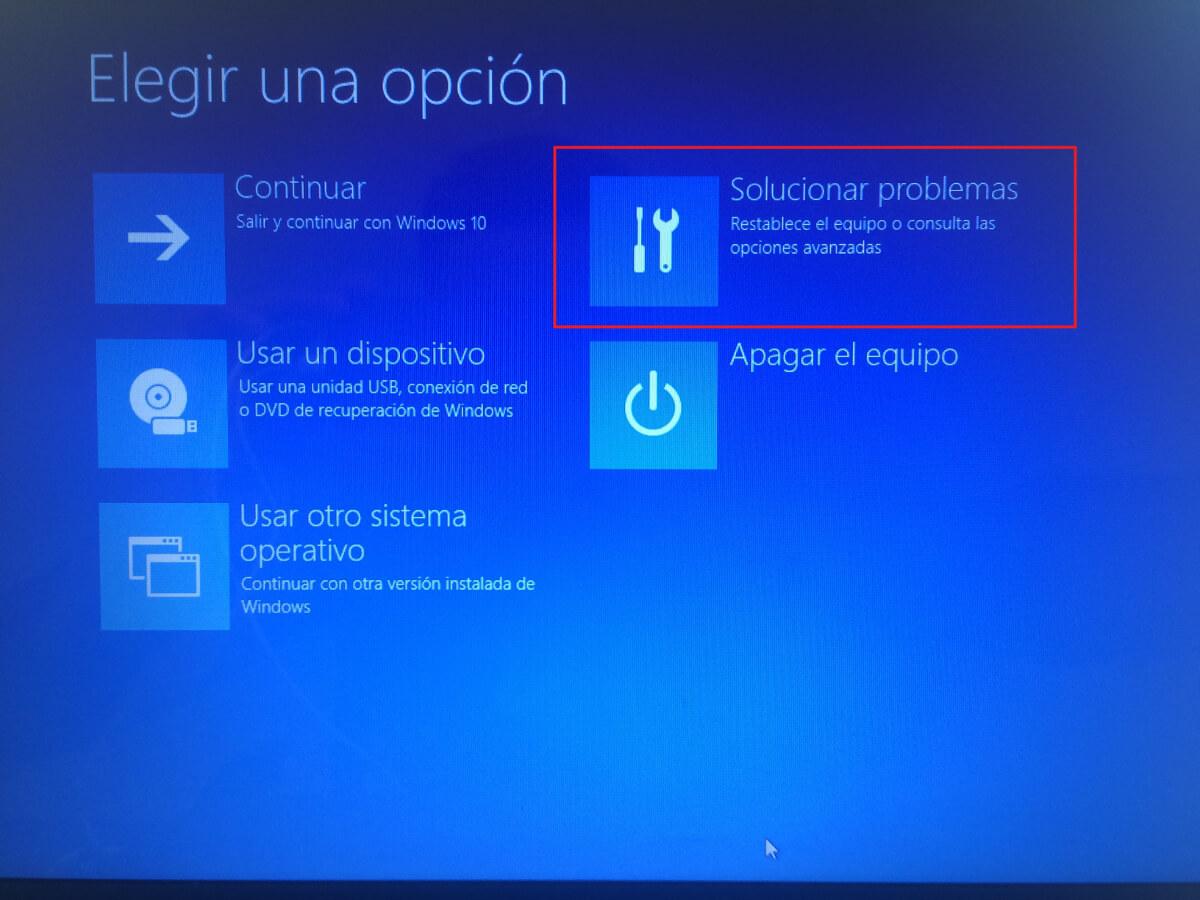
- After restarting, the screen will appearChoose an optionSelect here. Solve problems.
- On the next screen, choose Advanced.
- Within Advanced Options, click on Startup configurationOn some computers, a link like "More startup options" or similar may appear first; if this is the case for you, access it and then Startup Settings.
- Click on the Restart that appears on that screen. Windows will restart again, but this time it will display the Startup Settings menu.
- When you see the list of options, select 4 or F4 to boot into basic safe mode, or 5 or F5 if you want safe mode with networking.
If everything is correct, the system will boot to the desktop in safe mode, allowing you to perform tasks such as uninstalling a driver, removing malware , or restoring the system to a previous point. To return to normal mode, simply restart your computer as usual, without holding down the Shift key.
Boot into safe mode from Windows Settings (Windows 11, 10 and 8.1)
Another convenient way, if you can still access the desktop, is to use the Settings app . From there you can force a restart in WinRE and then follow the same path to Startup Settings and Safe Mode.
Windows 11
In Windows 11, the steps would be as follows:
- Open System Settings. You can do this with the shortcut Windows + I or by clicking on Start and then on Configuration.
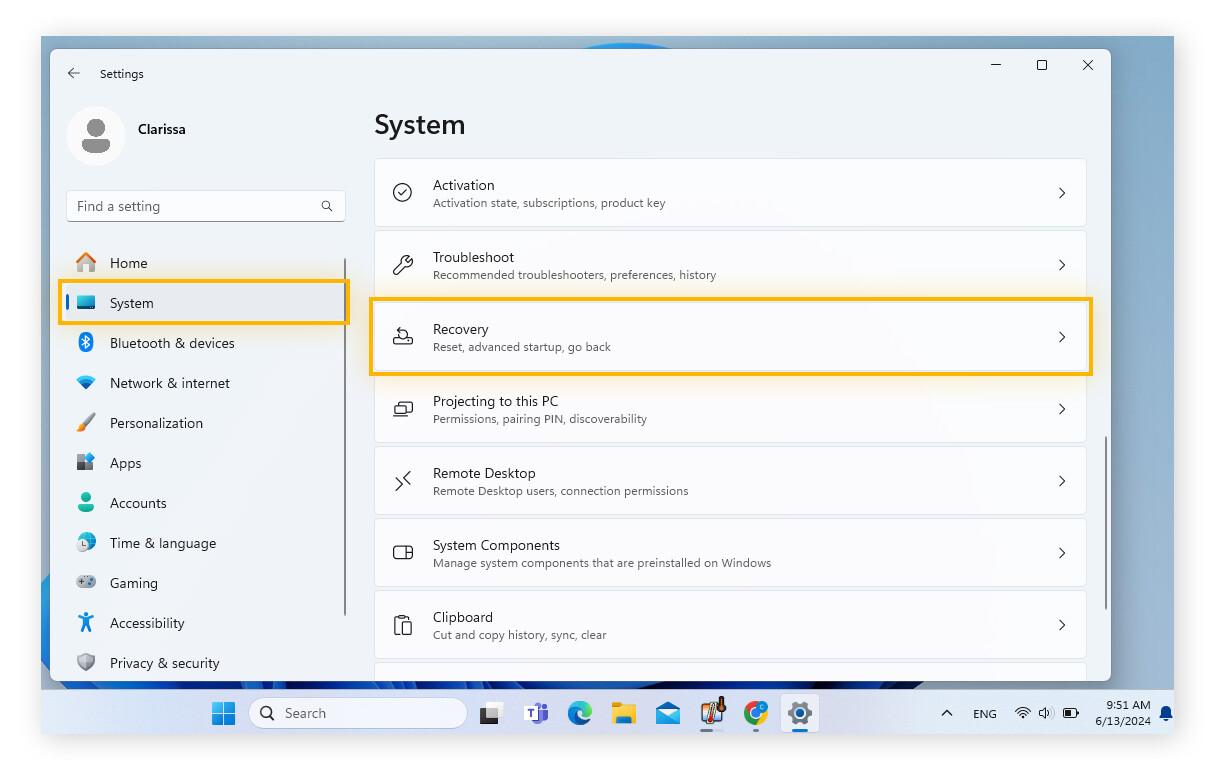
- In the left panel, choose the section System and, within it, enters Recovery.
- Scroll to the section Advanced start and click the button Restart now.
- The computer will restart and the "Choose an option" screen will appear. From there, follow the steps described above: Troubleshoot → Advanced options → Startup Settings → Restart, and finally, 4/F4 or 5/F5 depending on whether or not you need a network connection.
Windows 10
In Windows 10 the procedure is very similar, although the menus have slightly different names:
- Balance Windows + I To open Settings, go to the Start menu and click the gear icon.
- In the Settings window, select Update and security.
- In the side menu choose Recovery.
- Inside the block Advanced start, Click on Restart now.
- Upon restarting, you will see the advanced options screen. Again, select Troubleshoot → Advanced options → Startup Settings → Restart, and then option 4/F4 for safe mode or 5/F5 for safe mode with networking.
Windows 8.1
In Windows 8.1 the path within the PC settings is slightly different, but the idea is the same: go to the Advanced Startup section and request a special restart.
- From the Start screen or desktop, open the Start menu (Windows key) and use the search magnifying glass To type “PC Settings”. Click on that option.
- In your PC settings, you'll see several sections on the side. Go into Update and recover.
- Within that section there are several options such as Windows Update, backups, etc. The one you're interested in is Recovery.
- In Recovery you will find the block of Advanced start with a button Restart nowClick.
- After restarting, the recovery environment will appear. From here, you already know the path: Troubleshoot → Advanced options → Startup Settings → Restart → choose 4/F4 or 5/F5.
Entering safe mode from the login screen (Windows 10 and 11)
Your Windows might not reach the desktop but might display the login screen . In that case, you don't need to log in with your user account; you can force a boot into safe mode directly from there.
- On the login screen, click the icon of On located in the lower right corner (or lower left, depending on the version).
- hold down the key Shift and, without letting go, click on Restart.
- After restarting, the "Choose an option" screen will appear. From here, select Troubleshoot → Advanced options → Startup Settings → Restart, and then the safe mode option you need.
This method is especially useful when a bug or faulty driver prevents Windows from finishing loading the desktop, but the system is still able to display the login window.
Entering safe mode when Windows won't start (automatic WinRE)
If the system is severely damaged and cannot even reliably reach the login screen, Windows 10 and 11 have a self-defense mechanism: after several consecutive failed boot attempts (usually three consecutive failures ), the system itself forces entry into the Windows Recovery Environment (WinRE).
When this happens, you'll see the Troubleshooting screen directly, without needing to use any key combinations. From there, you can follow the same steps as in the previous methods:
- On the selection screen, choose Troubleshooting.
- Then tap on Advanced Options.
- Choose Startup Settings.
- Click on Restart.
- When the boot options list appears, press the key 4 to enable safe mode or 5 to enable safe mode with networking.
This method is very useful when the computer gets stuck in a reboot loop or throws errors such as BAD_SYSTEM_CONFIG_INFO, registry conflicts, or serious driver failures that prevent normal startup.
Use System Configuration (msconfig) to force safe mode
If you prefer that your computer always starts in Safe Mode every time you restart it, until you change it, you can do so from the System Configuration tool, known as msconfig . This method works in Windows 7, 8.1, 10, and 11, provided you can log into Windows at least once.
- Balance Windows + R to open the Run window.
- Write msconfig and press OK or Enter.
- In the System Settings window, go to the tab start.
- Inside the section Boot options, check the box Safe bootIf you want to have network access, also select the option for Red (instead of Minimum).
- Click OK. Windows will notify you that it needs to restart to apply the changes. Accept and let it restart.
- The computer will automatically start in safe mode (with or without networking, depending on your selection). on each restart while that box remains checked.
Very important: When you finish the maintenance tasks, reopen msconfig , go back to the Boot tab, and uncheck the "Safe boot" box . Apply the changes and restart. If you don't, the computer will continue to boot into safe mode indefinitely.
What to do if Windows keeps always starting in safe mode
In some cases, after using msconfig or certain boot commands, the system may get stuck in safe mode. That is, no matter how many times you restart, Windows doesn't return to normal mode . This is usually because the safe boot option is still enabled in the settings.
To fix this from a safe mode session in Windows 10 or 11, you can do the following:
- Balance Windows + R to open Run.
- Write msconfig and press Enter.
- Go to the tab start.
- In the area of Boot options, make sure the box is checked Safe start or “Fail-safe boot” is unchecked.
- Click OK and then on Restart.
After that restart, the system should reload Windows in its normal mode , with all the usual services and drivers.
Start Windows 11 in safe mode using Command Prompt (bcdedit)
For advanced users, Windows allows you to enable Safe Mode by directly modifying the boot manager settings with the bcdedit command-line tool . This technique is useful if you need to automate the process or if you cannot use the graphical interface.
The basic steps in Windows 11 would be:
- Click Start, type cmd In the search bar, right-click on “Command Prompt” and choose Run as administrator.
- To configure boot in basic safe mode, run:
bcdedit /set {current} safeboot minimal - If you prefer safe mode with networking, use this other command:
bcdedit /set {current} safeboot network - Restart your computer with the command:
shutdown /r - After restarting, log in. You'll see that Windows boots directly into safe mode, depending on the option you configured.
- When you no longer need it, reopen a Command Prompt as administrator and run:
bcdedit /deletevalue {current} safeboot - Restart again with
shutdown /rso that the system returns to normal startup.
This technique has the same effect as checking or unchecking the secure boot box in msconfig, but working directly on the BCD boot configuration.
Safe Mode in Windows 7: The classic F8 and msconfig
In Windows 7, accessing safe mode is much more direct than in modern versions, since the system still offers the advanced boot menu by default with the F8 key.
Start with F8
To boot Windows 7 in safe mode using F8:
- Restart the computer.
- Before the Windows logo appears, press the key several times. F8 from the keyboard. If you overdo it and it starts normally, restart and try again.
- Will appear advanced boot options menu.
- Use the arrow keys to select Safe Mode o Safe mode with networking if you need a connection.
- Press Enter and wait for Windows to load in safe mode.
- At the end of the process, a confirmation message may appear. Click OK to enter the desktop in safe mode.
- To return to normal mode, simply restart your PC without pressing F8.
Forcing safe mode with msconfig in Windows 7
As in newer versions, Windows 7 allows you to permanently enable safe boot using msconfig :
- Balance Windows + R, writes msconfig and click OK.
- Go to the tab start.
- Brand Safe boot And if you want to have a network connection, select the option to Red.
- Click OK and restart.
- The computer will always start in safe mode until you go back to msconfig and uncheck the box.
Remember that, in Windows 7 and later versions, this method is very convenient but requires you to remember to revert the configuration or the computer will remain in safe mode indefinitely.
Change startup settings from Windows RE
Beyond safe mode, the Windows Recovery Environment lets you modify various aspects of system startup behavior , which can be key when troubleshooting complex boot problems.
The general scheme for changing the startup configuration from WinRE is as follows:
- Accesses Recovery environment (by forcing a restart with Shift + Restart, from Settings → Recovery → Advanced startup, or due to failed boot attempts).
- Choose Solve problems.
- Sign in Advanced.
- Press on Startup configuration.
- Click on Restart so that the list of options appears.
- On the Startup Settings screen, choose the option you want to activate (safe mode, safe mode with networking, disable automatic restart on failure, etc.) using the numeric keys or function keys.
It is a very powerful way to control startup without needing to first enter the desktop, and it is usually the basis of almost all official technical support guides.
Real-world example: BAD_SYSTEM_CONFIGURATION error when updating drivers
A typical scenario where safe mode can rescue a system is when a faulty driver corrupts the boot configuration . For example, after updating the graphics card drivers on an AsRock 970 Extreme3 R2.0 motherboard, some users have encountered the error BAD_SYSTEM_CONFIGURATION (or BAD_SYSTEM_CONFIG_INFO) and a system unable to boot normally.
In situations like this, it's common that when you enter the motherboard's BIOS you won't find any explicit option to " boot in safe mode ", because this isn't configured at the BIOS level, but rather from Windows itself and its boot manager.
The recommended strategy would be:
- Force the failed boot several times to get Windows to enter Win automatically.
- From there, go to Troubleshoot → Advanced options → Startup settings → Restart and boot into safe mode with network.
- Once inside, uninstall the problematic graphics card driver from Device Manager and, if possible, restore the system to a previous restore point to the driver update.
- Restart and check if the system boots normally again.
If the error persists, more advanced tools such as startup repair, the sfc /scannow command , or even DISM can help, but the first step almost always involves somehow getting into safe mode.
Mastering the various ways to enter and exit Safe Mode in Windows gives you a huge advantage when diagnosing and repairing serious problems. Whether you're battling a particularly stubborn virus , a driver that's crippled your system, or simply want to experiment with startup settings without fear, understanding how to use the Recovery Environment, Startup Configuration, msconfig, and bcdedit allows you to maintain control when your PC seems to have decided to go rogue.
