- WMI and PowerShell's CIM cmdlets allow you to efficiently query and modify local and remote management information.
- CimSessions with WSMan or DCOM facilitate secure and compatible access to modern and legacy networked equipment.
- The use of advanced functions, modules, jobs, and DSC turns PowerShell into a complete infrastructure automation language.
- PowerShell integrates local, remote, Azure, and Microsoft 365 management into a single environment, reducing repetitive manual tasks.
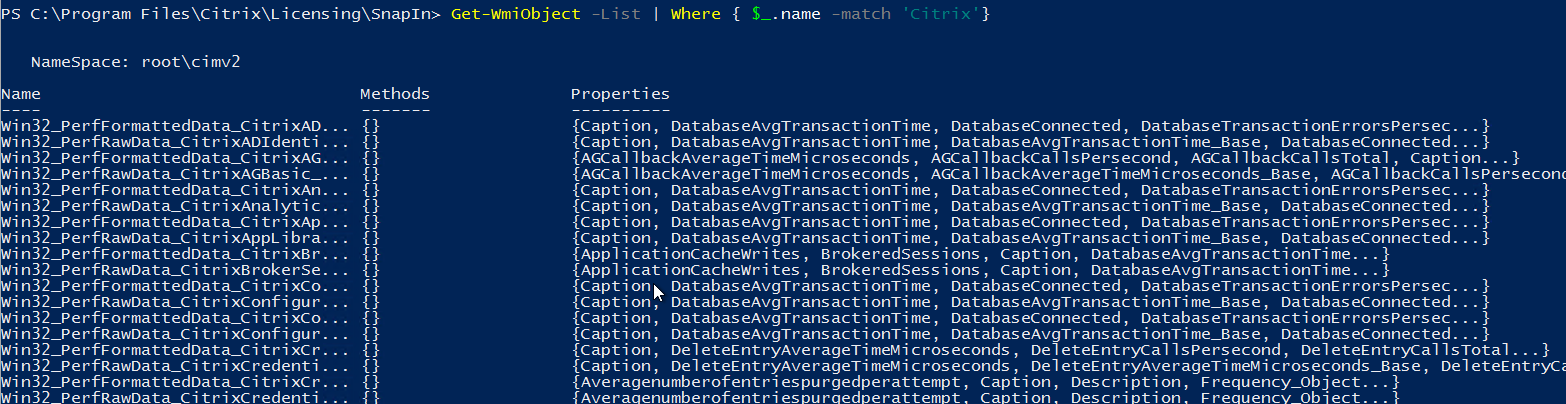
If you work administering Windows systems, sooner or later you'll run into PowerShell, WMI, and advanced automation . It's not just a matter of knowing how to run a few commands: when you're managing dozens or hundreds of servers, you need a serious, structured, and secure approach to gathering information, applying changes, and repeating tasks without going crazy… or breaking anything.
In the following lines, we'll explore, calmly but thoroughly, how to leverage WMI, CIM, and PowerShell remote communication to automate everything from simple queries to complex infrastructure scenarios. We'll also see how all of this fits together with modules, background tasks, Azure, Microsoft 365, and some advanced features that make a real difference in a system administrator's daily work.
PowerShell enhancements and an overview of advanced automation
Windows PowerShell has evolved a great deal since its early versions, and a large part of that evolution came with Windows Server 2012, where remote communication was improved, the available cmdlets were expanded, and things like debugging, background jobs, and restricted endpoints were made easier to improve security.
One of the key ideas behind this environment is that administrators can create cmdlet-like behaviors without extensive coding , leveraging advanced features, reusable modules , and a comprehensive help system. This means that instead of relying on disparate graphical tools, you can build a coherent set of scripts and modules that automate processes for managing servers, networks, Active Directory, Azure, or Microsoft 365.
In the field of advanced automation, features such as jobs to execute tasks asynchronously, workflows, configuration-based administration with PowerShell DSC, and security options such as JEA (Just Enough Administration) or PowerShell Web Access also stand out, allowing for detailed control of what each person can do and from where.
This entire ecosystem fits especially well with WMI and CIM, since the management information exposed by the operating system (hardware, services, processes , network configuration, installed software, etc.) becomes a set of objects that you can query, filter, and modify using PowerShell commands designed for mass automation.
WMI and CIM: Key Concepts and Practical Differences
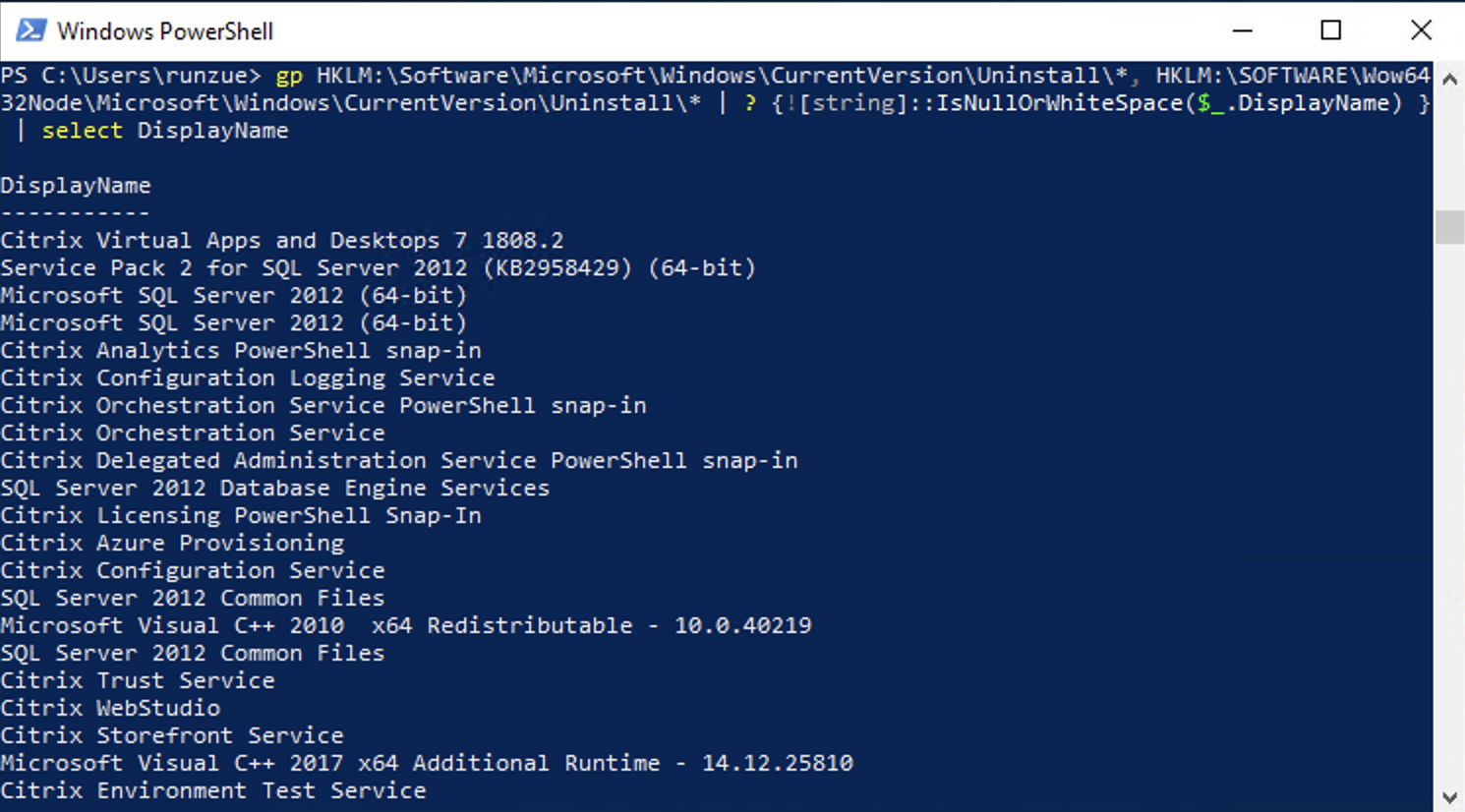
Windows Management Instrumentation, better known as WMI, is a PowerShell-independent technology that has been part of Windows for years. It exposes a repository of management information about the operating system, hardware, and many applications. While it doesn't depend on PowerShell, PowerShell leverages it extensively to automate tasks.
The natural successor to WMI in the PowerShell ecosystem is the CIM (Common Information Model) cmdlets , introduced with PowerShell 3.0. These cmdlets are grouped in the CimCmdlets module and include commands such as Get-CimInstance, Get-CimClass, New-CimInstance, Invoke-CimMethod, Register-CimIndicationEvent, Set-CimInstance, and Remove-CimInstance, among others.
In older versions of Windows PowerShell, such as Windows 10 PowerShell 5.1 or Windows 11 PowerShell, you can still find the classic WMI cmdlets (Get-WmiObject, Invoke-WmiMethod, Register-WmiEvent, Remove-WmiObject, Set-WmiInstance). These cmdlets, however, are deprecated and no longer included in PowerShell 6 and later versions, so they are only relevant for maintaining legacy scripts or reviewing old code.
When someone talks about "querying WMI with CIM cmdlets," it's not contradictory: CIM cmdlets still access WMI information , but they do so using more modern protocols like WSMan and a more consistent API. In practical terms, for new developments, you should focus on CIM and only consider WMI cmdlets when you need to migrate or understand legacy scripts.
Historically, many administrators used VBScript with the WQL query language to query WMI, for example, by connecting to the root\CIMV2 namespace and querying classes like Win32_BIOS. That same WQL query can be reused today with Get-CimInstance by passing the -Query parameter, which greatly simplifies the transition from VBScript to PowerShell without needing to rewrite the logic from scratch.
Practical use of Get-CimInstance and efficient queries
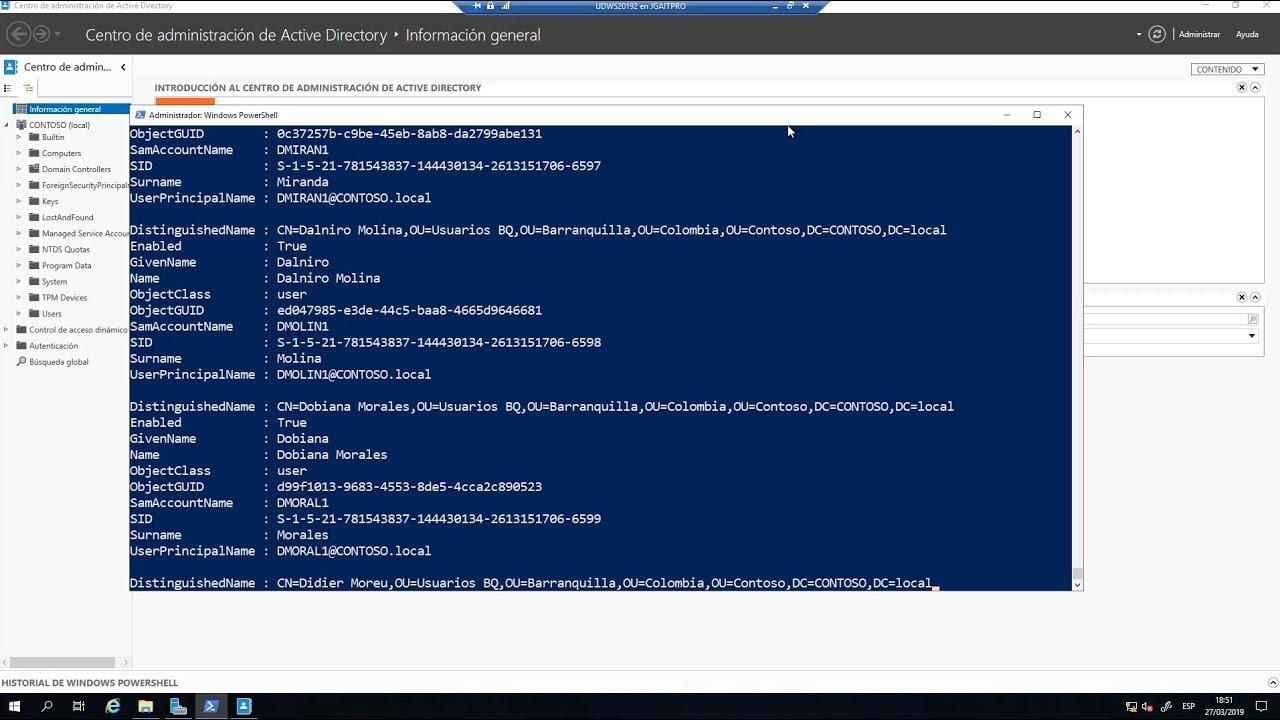
For everyday work, the most natural way to query WMI with PowerShell is to use Get-CimInstance with the -ClassName parameter , rather than writing full WQL queries. For example, to get BIOS information, you can use Get-CimInstance -ClassName Win32_BIOS and you'll receive an object with properties like Manufacturer, Name, SerialNumber, or SMBIOSBIOSVersion.
Since everything in PowerShell is an object, it's very easy to filter and select only what you need . If you're only interested in the serial number, you can pipe the result to `Select-Object -Property SerialNumber`, or use `Select-Object -ExpandProperty SerialNumber` to output a simple string instead of an object with a property. Another common option is to use dot syntax (`Get-CimInstance ...`).SerialNumber` to access the value directly.
It's worth noting that, by default, WMI queries return more properties than you'll actually use . On a local machine, this is usually fine, but when you start querying many remote machines, it translates into additional processing time and unnecessary network traffic. This is where the `-Property` parameter of `Get-CimInstance` comes in, allowing you to limit which properties are retrieved from the source.
By specifying -Property SerialNumber, for example, you reduce the amount of data transferred, making the query faster and more efficient, especially at scale . This "ask only for what you need" mentality is key when designing inventory or audit scripts that run on dozens or hundreds of machines.
In summary, Get-CimInstance offers a powerful balance between simplicity (one command line) and flexibility , whether you're working with concrete classes, legacy WQL queries, or specific properties you want to optimize for retrieval.
Remote consultations with CIM, sessions and WSMan/DCOM protocols
When you move away from your local machine and start accessing remote machines, several factors come into play: permissions, communication protocol, and performance . Although many people see PowerShell as "dangerous," the truth is that it doesn't grant you any extra privileges: you have exactly the same permissions as with the graphical interface or any other tool, no more and no less.
If you try to run `Get-CimInstance -ComputerName Server -ClassName Win32_BIOS` without sufficient privileges on that machine, you'll receive an "Access is denied" error . This isn't because PowerShell is failing; it's simply that the user you're running the session as doesn't have the right to access that information in WMI. You can open a console as a domain administrator, of course, but that means any command will be executed with those privileges, which is an unnecessary risk in many environments.
The recommendation is to apply the principle of least privilege and elevate privileges only when necessary . In cmdlets that support the -Credential parameter, you can specify alternative credentials only for the command in question. Get-CimInstance, however, does not directly accept -Credential, and this is where CimSessions come in as an elegant solution.
A CimSession is a persistent connection to a remote computer that you can create with New-CimSession, passing the computer name and credentials (for example, New-CimSession -ComputerName dc01 -Credential (Get-Credential)). This session is stored in a variable, such as $CimSession, and then reused with Get-CimInstance by using the -CimSession parameter instead of -ComputerName, allowing you to consolidate multiple queries into a single connection.
In addition to the credentials requirement, Get-CimInstance uses the WSMan protocol (based on WinRM) by default . This means the remote machine must have the WSMan stack version 3.0 or higher, typically found in PowerShell 3.0 and later. You can check the WSMan stack version on a machine with `Test-WSMan -ComputerName RemoteComputer` and verify that the "Stack" value is 3.0 or higher to use this connection method.
CIM sessions with DCOM and backward compatibility
The older WMI cmdlets based on Get-WmiObject rely on the DCOM protocol, which is still supported by older versions of Windows . The problem is that, on more modern systems, firewalls often block DCOM by default, requiring you to open specific ports to use it as is, which can violate your organization's security policies.
The CIM cmdlets offer a powerful middle ground: you can create session options with `New-CimSessionOption -Protocol Dcom` , save them in a variable (for example, `$DCOM`), and then combine them with `New-CimSession` to generate a CimSession that uses DCOM instead of WSMan. This allows you to connect to very old servers, even those predating Windows Server 2000, where PowerShell isn't even installed.
It's usually convenient to store domain administrator credentials or credentials for an elevated account in a variable (for example, $Cred = Get-Credential ) to avoid having to type them every time. Then, with something like New-CimSession -ComputerName sql03 -SessionOption $DCOM -Credential $Cred, you can start a CimSession over DCOM to an older server that doesn't support WSMan but does have WMI.
From the script writer's perspective, the major advantage is that the output of `Get-CimInstance` doesn't change depending on the protocol : you get the same objects and properties whether you use WSMan or DCOM. This greatly simplifies the logic because you can encapsulate the detection of the appropriate protocol in a function and let the rest of the code always work transparently with CimSessions.
In fact, it's quite common to create custom functions that test WSMan with Test-WSMan and, if it's unavailable, automatically fall into DCOM using New-CimSessionOption. This allows you to standardize CimSession creation across mixed environments with both modern and legacy servers, without replicating connection logic in all your scripts.
Management, listing and cleaning of CimSessions
When you start using CimSessions extensively, it's important to keep track of them to avoid accumulating unnecessary connections. With Get-CimSession, you can list all open sessions , see which machine they're pointing to, and check which protocol they're using (WSMAN or DCOM), which is very useful for diagnosing connectivity or authentication problems.
You can also retrieve those existing sessions in a variable, for example $CimSession = Get-CimSession , and use them in a single command Get-CimInstance -CimSession $CimSession -ClassName Win32_BIOS to query several computers at once, combining WSMan and DCOM sessions in the same operation.
Once you've finished analyzing that information, it's a good idea to close the sessions to avoid leaving resources open unnecessarily. The Get-CimSession | Remove-CimSession cmdlet removes all active CimSessions from the current profile at once. Alternatively, you can pass specific sessions to the Remove-CimSession cmdlet to close only some of them.
Working this way allows you to have controlled connection and disconnection cycles , which is highly recommended when using scripts within scheduled tasks, automation runbooks, or continuous integration pipelines that can leave sessions hanging if you don't explicitly plan for that cleanup.
PowerShell as a comprehensive automation language
Beyond WMI and CIM, PowerShell has become a general-purpose automation language that goes far beyond the typical Windows management script. There are books and entire courses dedicated to its advanced capabilities, covering everything from installation on Linux and Windows to developing distributable modules via NuGet, and even modern development environments like Visual Studio Code.
A common starting point is to thoroughly understand PowerShell's advanced features , which allow you to define parameters, perform validation, generate structured output, and access integrated help almost at the level of a native cmdlet. From there, organizing code into modules facilitates collaborative work within operations teams, as you can version and publish these modules to internal or public NuGet-based repositories.
Working with custom objects and classes is also key , opening the door to much richer data models than typical linear scripts. This allows you to encapsulate business logic, reuse structures, and design internal APIs for your own management team, all powered by the PowerShell engine.
In the realm of advanced automation, background jobs and workflows play a crucial role , enabling the management of asynchronous tasks, the execution of lengthy operations without blocking the console, and the orchestration of complex sequences across multiple machines. These capabilities are a perfect fit for bulk queries to WMI/CIM and remote administration scenarios, where it's often necessary to wait for systems to implement changes or return data.
Another key component is PowerShell DSC (Desired State Configuration), which lets you define the desired configuration of an infrastructure (roles, features, services, files, security settings, etc.) and apply those states repeatedly. Combined with the information you obtain via WMI/CIM, you can detect deviations, proactively correct them, and maintain consistent environments with less manual effort.
Local, remote, and cloud management with PowerShell
At the local level, PowerShell provides cmdlets for managing Active Directory Domain Services , configuring networks, and administering servers. In Windows 10 and later versions, the integration is even deeper, allowing you to automate everything from creating websites to managing Active Directory objects and configuring network adapters.
A lesser-known but very useful component is PSProviders and PSDrives , which allow you to treat different storage locations (file system, registry, Active Directory, etc.) as if they were navigable drives. Thanks to this, you can, for example, create Active Directory groups, registry keys, or folder structures on remote computers using the same syntax you would use to navigate the hard drive.
Regarding remote administration, PowerShell integrates a powerful set of features for connecting to one or more computers and executing commands on your behalf . You can use persistent PSSession sessions, advanced remoting techniques, one-to-many scenarios (to manage multiple servers simultaneously), or one-to-one scenarios for debugging specific cases. All of this, of course, while respecting the architecture and security model of the remote access.
The cloud also plays a fundamental role today. With Azure PowerShell and Azure Cloud Shell, you can manage virtual machines, storage, and subscriptions directly from the command line. Installing Azure PowerShell modules and becoming familiar with them is almost mandatory if you manage hybrid or fully Azure-hosted environments.
On the other hand, PowerShell has also established itself as a go-to tool for managing Microsoft 365 (Exchange Online, SharePoint Online, Teams, users, and licenses). From creating and managing accounts to administering Exchange Online resources, including groups, SharePoint sites, and Microsoft Teams, everything can be orchestrated with scripts that drastically reduce manual work on the web portal.
Scripting, pipelines, and best work practices
To get the most out of advanced automation with WMI and CIM, it's essential to master PowerShell's pipeline model . Unlike other shells, you don't pass plain text here, but rather complete objects, allowing you to select, sort, measure, filter, enumerate, and transform information with great precision.
Learning to work with pipelines involves using selection and filtering cmdlets correctly , understanding how to enumerate complex objects, and learning how to pass data between commands and scripts without losing information. This is reinforced by the organized use of variables, arrays, and hash tables, which act as temporary data structures upon which to build more advanced logic.
The next step is scripting itself: packaging commands into reusable scripts with flow control (if, for, foreach), importing data from CSV files or other formats, handling user input, error handling, and event logging. All of this allows you to move from isolated commands to more robust, built-in tools.
Troubleshooting and error handling are especially important in large-scale automation environments with WMI/CIM, as a network outage, a misconfigured permission, or a missing class can break a process if not properly managed. With try/catch blocks, configurable error actions, and detailed logging, you can anticipate and react more effectively to these situations.
Finally, everything related to functions and modules completes the circle : you sign scripts to ensure their integrity, package functions into modules, distribute those modules in internal or public repositories, and create an ecosystem of shared tools within your organization. This way, any new development on WMI, CIM, or remoting is integrated into a coherent and easily maintainable suite.
When you combine all of the above—WMI/CIM, remote sessions, scripting, asynchronous jobs, DSC, Azure, and Microsoft 365—you get an environment where advanced automation with PowerShell becomes the core of administration. With a solid foundation of best practices, intelligent use of CimSessions (with both WSMan and DCOM), and a modular script design, you can manage heterogeneous infrastructures consistently, securely, and far more efficiently than by relying solely on graphical wizards or isolated tools.
