If you've been feeling like your computer is cluttered with unwanted programs, annoying ads, and a complete lack of control over your own machine, you're probably at the point where switching to Linux Mint seems like the best option. For many of us, Windows has been the standard for a long time, but the feeling of lightness and transparency that free software offers is something that, once experienced, is hard to forget.
The best part is that you don't need to be a computer expert or a hacker to achieve this. Linux Mint was designed precisely so that anyone, even if they've never touched a line of code in their life, can install a stable and productive operating system in a matter of minutes, maintaining that familiar feeling that prevents you from feeling lost on the first day.
Why choose Linux Mint over other options?
When we talk about Ubuntu-based distributions, Mint stands out because it embraces a very simple concept: everything works from the very first second. While other systems force you to wrestle with the terminal to install a simple video codec, Mint includes multimedia support and proprietary fonts right out of the box, eliminating those frustrating initial hassles.
Its interface is essentially a mirror of what we're used to in Windows: a clear Start menu, a taskbar at the bottom, and an organized system tray. This makes the learning curve minimal , allowing the user to focus on working or playing instead of learning where the system folders are located.
Available editions and requirements

There isn't just one version of Mint, but three main flavors tailored to your hardware and personal preferences. They all share the same kernel and repositories, but differ in their visible "face":
- Cinnamon: The complete and most modern experience, ideal for powerful teams seeking the ultimate visual finish.
- MATE: A perfect balance between functionality and resource consumption.
- XFCE: The lightweight option, designed for revive old computers or for those who prioritize raw performance over visual effects.
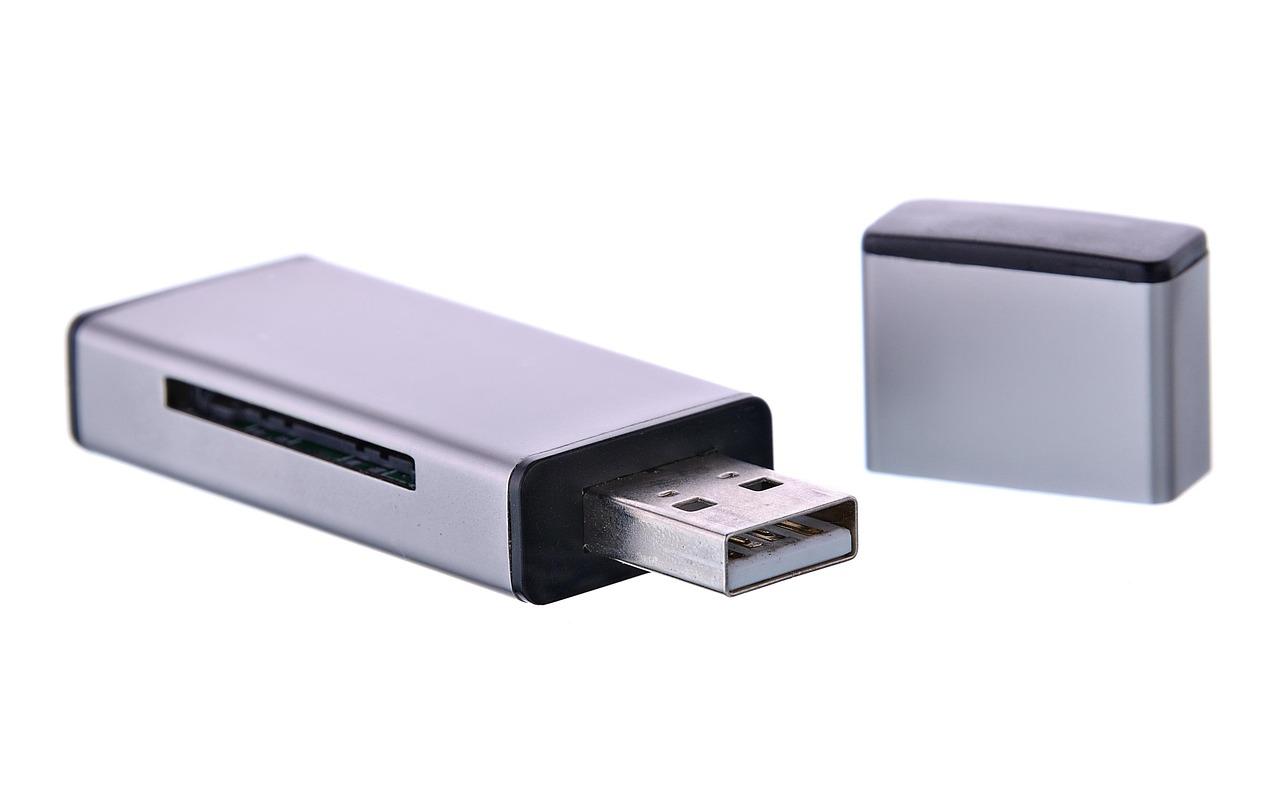
To get started, the best approach is to download the ISO image from the official website and use tools like balenaEtcher or Rufus to create a bootable USB drive. If you use Rufus, remember to configure the partition scheme to GPT and the target system to UEFI to ensure compatibility with modern computers.

The step-by-step installation process

Once you boot from the USB drive, you'll enter "Live" mode, which is essentially a demo where you can experiment with the system without installing anything on your hard drive. When you're ready, open the installer and follow these steps:
First, select your language and keyboard layout, always testing the letter ñ and symbols to avoid future errors. It's essential to check the multimedia codecs box to prevent problems playing MP3s or DVDs. Regarding the hard drive, you have three options: erase everything to leave Mint as the sole partition, install it alongside Windows in a dual boot configuration , or manage the partitions manually if you're a more advanced user.
Finally, create your username and password. A great tip for laptop users is to encrypt your home folder , as this will protect your data in case your device is stolen. The process usually takes between 10 and 25 minutes, depending on your hard drive speed.

Initial setup and customization tips
Upon logging in for the first time, don't rush into installing programs willy-nilly. The first thing to do is update the system and configure Timeshift. This tool is the crown jewel of Mint, as it creates system snapshots; if you ever break something while tweaking settings, you can revert to the previous state in seconds.
If you have specific hardware, such as an NVIDIA card or Broadcom Wi-Fi, go to the Driver Manager to install the proprietary drivers and get the most out of your hardware. For design and CSS enthusiasts, Mint is a playground: you can change themes, icons, colors, and even the panel's position from the system settings.
Even if you're not happy with the current menu, there are ways to emulate a traditional menu using applets and panel editing. Simply activate edit mode, move items around, and adjust the bar's height to customize your desktop exactly as you want it.

Common questions and special situations
It's quite common that, after using Linux for a while, the need arises to return to Windows for a specific application . If you already have Mint installed and want to restore Windows without formatting everything, it's possible to do so, although most guides focus on the reverse process. The important thing is to manage the partitions properly to avoid deleting existing data.
Another common question is switching between distributions. If you're coming from Linux Mint and want to switch to Ubuntu for a more recent version of GNOME, remember that, although they share a common base, it's safest to back up your files to an external drive and install the new distribution from scratch to avoid configuration conflicts.
For those worried about their games, the reality is that most current titles work perfectly on Linux thanks to compatibility layers. Furthermore, once the system is installed, the USB drive you used for installation can be formatted and reused normally to store any type of file.
The transition to this ecosystem allows you to break free from the restrictions of closed licenses and unnecessary software, offering an experience where the user has total control over the aesthetics and performance of their computer, whether through a secure dual boot or a complete migration to free software.