- Linux can be tested without deleting Windows using Live USB, virtual machines, and online services.
- Live mode from USB offers the most faithful experience and allows you to check hardware compatibility.
- Virtual machines isolate Linux from the main system and allow you to work with both systems at the same time.
- Platforms like DistroSea or OnWorks facilitate a quick first contact with multiple distributions from the browser.
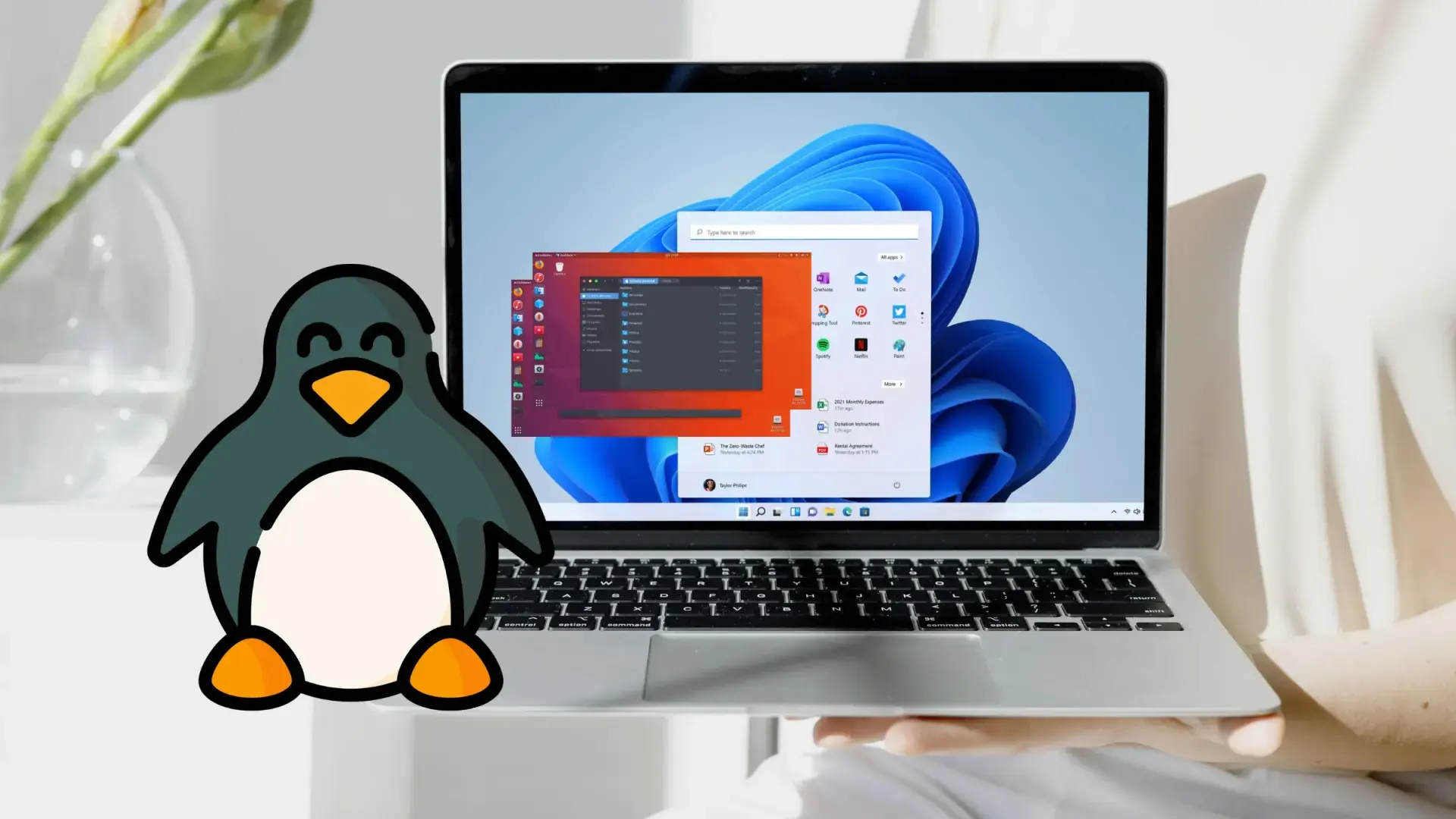
If you're increasingly concerned about privacy on your computer and have been told to switch to Linux, it's normal to have doubts. Perhaps you're comfortable with Windows, play games frequently, or use programs like After Effects or Photoshop; if you're involved in multimedia creation, you might want to try a distribution geared towards creatives like Ubuntu Studio , and you don't want to mess things up by deleting your current system just out of curiosity. The good news is that nowadays it's very easy to try Linux without installing it on your hard drive, almost like taking a car for a test drive.
There are several ways to experiment with Linux without touching anything critical: from booting into a Live mode from a USB drive , to using virtual machines within Windows, to trying out entire distributions directly in your browser with services like DistroSea or OnWorks. Each method has its advantages, disadvantages, and level of difficulty, and choosing the right one depends on what you want to achieve and the hardware you have.
Why do so many people recommend Linux, and why is it so daunting to try?
In recent years, Linux has been widely discussed as an alternative to Windows , especially if you're concerned about your data falling into the wrong hands, your computer being filled with telemetry data, or your PC's lifespan depending on Microsoft's whims regarding updates. Linux excels in security , privacy, and flexibility for developers and advanced users.
Despite all these advantages, many users are put off by the fact that Linux isn't as "plug and play" as Windows or macOS in certain aspects. Furthermore, the fear of installing something new and potentially "messing up" the main system remains very real. The typical question is: "What if I don't like it after installing it? What happens to my games, my Adobe programs, or my documents?"
The truth is, you don't have to commit to Linux from day one. Today, you can experiment with various distributions , see if the graphical environment suits you, test how well it performs for your usual needs, and only make the final switch when you're sure it's worth it. That's what Live versions, virtual machines, and online browser trials are for.
It's also worth noting that Linux runs particularly well on older or less powerful computers where Windows struggles. Therefore, if you have an old laptop gathering dust, it could be the perfect candidate for experimenting with this operating system without putting your main computer at risk.
What exactly is Linux and what is a “distro”?
When we talk about Linux, we're really referring to the kernel, which is the heart of the system —the component that communicates with the processor, memory, graphics card, and the rest of the hardware. That kernel alone isn't enough for you to work with windows, icons, or programs; it needs to be "dressed up" with other components.
A distribution, or "distro," is the result of combining that Linux kernel with a set of tools and programs: a graphical desktop (such as GNOME, KDE Plasma, XFCE, Cinnamon, etc.), a terminal, system utilities, a package manager, a browser, an office suite, a media player, and so on. Each project (Ubuntu, Debian , Fedora, Linux Mint, Manjaro, etc.) decides which components to use and how to configure them.
The fact that Linux is open source and free means that anyone can take the kernel, add their favorite components, and publish their own distribution. Hence, there are hundreds (literally) of distributions, some very general and easy to get started with, and others highly specialized: for security (Kali Linux), for older PCs, for education, for scientists, or for servers.
This variety is a huge advantage because you can choose the system that best suits you, but it can also be overwhelming for newcomers. Before installing anything blindly, the wisest thing to do is try several distributions without touching your Windows installation and see which one you feel most comfortable with.
Trying Linux in Live mode from USB: the most realistic way
One of the most popular ways to get started with Linux is through a Live boot from a USB drive or DVD . Most modern distributions allow you to boot the system directly from that media, without installing anything on your hard drive. It's as if the USB drive acts as a "temporary hard drive."
The usual process is simple: you download the ISO image of the distribution (Ubuntu, Linux Mint , Fedora, Debian, etc.), create a bootable USB drive using tools like Rufus, balenaEtcher, or similar, and then configure your PC to boot from that USB drive. When it starts up, you'll see a menu that usually offers two clear options: "Try" the system without installing it or "Install" directly.
If you choose to try it, the system loads into your computer's RAM and you can use Linux almost as if it were installed: full desktop, browser, office suite, file manager, terminal, etc. However, in normal Live mode, all changes, files, and settings made during that session will be lost when you shut down the computer.
There's also the Live USB variant with data persistence . In this case, when you prepare the USB drive, space (usually up to 4 GB) is reserved to save your settings, installed programs, and files. This way, every time you boot from that USB drive, you'll have your "portable" Linux environment with all your data. It's very useful for using Linux on different computers without affecting their hard drives.
The trickiest part of this method is having to access the computer's BIOS or UEFI to change the boot order and tell it to use the USB drive first. Each manufacturer has its own key (Delete, F2, F12, Esc, etc.), and it's best not to touch anything that isn't absolutely necessary. If you only modify the boot sequence and save the changes, you shouldn't have any problems.
Quick guide to booting a Live USB on your PC
To give you a clear idea, the typical workflow for trying Linux from a Live USB would be something like this, regardless of whether you use Ubuntu, Linux Mint, or another similar distro:
- Download the ISO from the distribution through their official website.
- Use a program on Windows or Linux to create the Bootable USB with that ISO.
- Connect the USB to the computer before turning it on or restarting it.
- Access the BIOS / UEFI by pressing the corresponding key at startup.
- Change the boot order so that the USB drive is ahead of the hard drive, save, and restart.
Once the installer menu loads, you'll usually see options like these: run the distribution in Live mode , install to disk, run memory tests, or boot from the hard drive. If you just want to try it out, choose the option to run or try without installing.
Once you reach the desktop, you have a complete system at your disposal: a start menu, an icon to permanently install Linux if you wish, a file explorer, a web browser (Firefox in most distributions), a software center for installing applications, system settings, and so on. It's very similar to what you would see after a normal installation.
What you can do on a Live USB: applications and real-world use
A Live USB isn't just a limited demo: it comes with ready-to-use applications that require no installation. They typically include a good selection to cover almost any basic task you'd perform on a daily basis with your PC.
In the accessories section, you'll typically find a calculator , a simple text editor, a font viewer, a character map, a note manager, and other small utilities that help you with quick tasks. They're lightweight but very practical tools for testing your workflow.
In the graphics category, most distributions include an image viewer and, in many cases, GIMP pre-installed, which is a powerful alternative to Photoshop for photo editing. They also usually include an application for scanning documents or managing images.
On the internet, you'll almost always have Firefox as your primary browser , an email client like Thunderbird, P2P (torrent) programs, messaging clients, and other tools depending on your distribution. With these, you can browse the web, check your email, download files, and test your connection and network hardware support.
In the office suite, you almost always have the full LibreOffice suite (Writer, Calc, Impress, etc.), allowing you to open documents, spreadsheets, and presentations, even in Microsoft Office formats. Finally, the audio and video section usually includes music and video players, and sometimes tools for burning CDs or DVDs on computers that still have an optical drive.
Install Linux on a disk, in dual boot or on another computer
If after several tests you find that Linux suits you, you can consider installing it on your hard drive . There are two main options: perform a clean installation by deleting all previous data, or configure a dual boot to run it alongside Windows or another operating system.
The most drastic option is to let the Linux installer use the entire disk , which erases the previous system and its data. This only makes sense if you already have backups of everything and are certain you're going to live on Linux from now on, because there's no going back without reinstalling.
The alternative for many people is dual booting : the installer creates or utilizes a typical Windows partition and adds a boot manager that allows you to choose between Windows or Linux each time you turn on your PC. It's more involved than using only one system, but it gives you peace of mind by not having to give up anything at once.
If you don't want to experiment with your main computer, you can always use another machine as a test bench : an old PC, a computer from the school where you work (with permission, of course), or a spare machine you have lying around at home. Install Linux on it, play around as much as you want, and if something goes wrong, your everyday computer won't even notice.
Try Linux with virtual machines on Windows
Another powerful alternative for trying Linux without touching the disk is to use virtualization software. A virtual machine (VM) is basically a fake computer that runs inside your real computer. This "virtual PC" has a virtual CPU, memory, and disk, and lives inside a window on your desktop.
The beauty of virtualization is that everything that happens inside the virtual machine doesn't affect the host system . If you install something incorrectly, break the system, get malware, or mess with dangerous settings, the damage stays within the VM. As soon as you shut it down or delete its file, the problem disappears.
For home users, the most common tools are VirtualBox (free and open source) and VMware Workstation Player (with a free version for personal use). With either of these, you can create a virtual machine, allocate a portion of your RAM and disk space, and then install any Linux distribution you want, just like on a physical PC.
There's also QEMU, a powerful open-source project that emulates complete hardware and offers advanced virtualization capabilities . QEMU can run on both Linux and Windows and is useful for testing systems like Ubuntu without affecting the actual disk partitions. It's especially useful when you need to emulate different architectures or more complex scenarios.
The basic process involves creating a new VM, attaching the distribution's ISO image as if it were a DVD, booting the VM, and following the installation wizard. You can even use Live mode within the virtual machine to experiment before installing to the virtual disk.
How to optimize a Linux virtual machine for smooth performance
To make the VM experience as close as possible to using real Linux, it is advisable to adjust some parameters and install the integration drivers offered by the virtualization programs themselves.
In VirtualBox, this package is called Guest Additions ; in VMware, it's known as VMware Tools. It's distributed as an ISO image that's mounted to the virtual machine's drive. Once installed on Linux, the installer is run from within the system, improving performance, screen resolution, mouse integration, and features like shared clipboards.
In the case of VMware, the process usually involves extracting a .tar.gz file from the virtual drive and running an installation script from the terminal (for example, with a command similar to ` sudo ./vmware-install.pl -f` ). In VirtualBox, however, the ISO is executed almost automatically, and the Guest Additions wizard does most of the work for you.
It's also crucial to allocate a reasonable amount of CPU and RAM to the virtual machine. If your processor has 4 physical cores, giving 2 cores to the VM usually works well. With 6-core processors, you can give it 2 or 4 without issue, and if you have 8, 12, or more cores, you can afford to allocate 4 or more to the machine without overloading the host system.
The same applies to memory: the more free RAM the VM has, the better Linux will run, just like on a real PC. It's also advisable to increase the virtual video memory in the settings, as the default values are very low. With more graphics memory, the distro can enable hardware acceleration, making the desktop feel much smoother.
If all of the above sounds too complicated, or you simply want to explore for a while without installing anything on your PC, you have another very convenient option: try Linux online in your browser . Platforms like DistroSea or OnWorks give you access to complete Linux desktops streamed from a remote server.
OnWorks, for example, offers a huge list of virtualized operating systems : distributions based on Ubuntu, Debian, CentOS, Fedora, Linux Mint, ReactOS, Parrot OS, Elementary OS, Kali Linux, MX Linux, openSUSE, and even a web-based Windows 10 emulator. You don't need to configure anything other than your browser.
To use OnWorks, go to their website, select the Linux distribution you want to try (for example, Ubuntu), and click the button to run it online . A virtual machine is prepared on their servers, a countdown appears, and when it finishes, a Linux desktop opens in a browser tab, ready to use.
However, caution is advised: while you can install programs and experiment with the system, it's not a good idea to store personal files or log in with your important accounts. These instances are created and destroyed on demand, and some of your actions may not persist. Furthermore, you don't have complete control over the server environment.
Regarding performance, let's be realistic: running a full desktop via streaming, in virtualized containers, and for free, inevitably involves limitations in power and latency . It might be sufficient for viewing the environment, opening applications, and performing light testing, but don't expect the smoothness of a locally installed system.
DistroSea: Over 70 systems to try Linux in seconds
DistroSea is another platform focused on allowing anyone to try Linux from their browser without needing to download ISOs or create Live USBs. Its goal is clear: to let you experiment with multiple distributions without touching your personal computer, quickly and for free.
According to their own data, DistroSea offers more than 70 operating systems and over 500 different versions. You'll find classics like Ubuntu, Linux Mint, Debian, Fedora, and Manjaro, but also lesser-known distributions and BSD-family systems like FreeBSD.
The internal workings combine QEMU virtual machines on their servers with a VNC server that renders the desktop and captures your actions. To allow you to view it in your browser without installing anything, they use noVNC, an HTML5 and JavaScript-based VNC client that runs directly on the webpage.
In practice, you only see a window in your browser, but underneath it all there's a virtual machine running your chosen Linux distribution, a VNC server displaying the screen, and noVNC converting everything into an interactive session via WebSockets. When you close the tab, what actually happens is that the virtual machine associated with your session shuts down or is deleted , freeing up resources for other users.
DistroSea's model is free, which means it has to cover server and bandwidth costs somehow. This usually translates into advertising or certain usage limits. Even so, for a first experience with Linux, it's a very practical solution with no upfront costs.
Advantages and limitations of testing Linux online compared to other methods
The biggest draw of online platforms is the complete absence of risk to your PC . You don't modify partitions, install additional software, touch the BIOS, or risk breaking your Windows. You simply open a website, choose a distro, and experiment.
Furthermore, all you need is a modern browser and an internet connection , meaning you can try Linux on almost any device: your desktop, your laptop, and even a tablet or mobile phone (although the experience on small screens isn't ideal). It's perfect if you're away from home or using a computer on which you can't install anything.
Another strong point is that it lets you switch distributions in just a couple of clicks. You can go from Ubuntu to Fedora, from Debian to Manjaro, or try Linux Mint, compare desktop environments and menus in minutes, and see which one you find most user-friendly without having to create new USB drives or reinstall virtual machines.
However, it's important to acknowledge its limitations: performance will largely depend on your connection speed and server load , there will always be some response delay, and above all, it's not useful for checking if Linux is compatible with your specific physical hardware (WiFi card, graphics card, printer, etc.).
It's also not the ideal environment for working with sensitive data. Although the traffic should be protected, you're ultimately using a system on a third-party server, and most of these sessions don't guarantee the same level of persistence or privacy as your own PC . It's best to use them for general experimentation, not for managing sensitive personal information.
Comparing the main ways to try Linux without installing
If we consider the options we've seen, it could be said that Live USB is the most faithful experience to what you'll get if you install Linux on your computer: you use your real hardware, you can measure performance, see if the graphics card and sound work well, and check compatibility with your peripherals.
Virtual machines are ideal if you prefer to have Linux and Windows running simultaneously on the same desktop, without restarting. They're fantastic for learning, development, and having a persistent Linux environment without modifying partitions. However, they do require a PC with sufficient CPU and RAM power to run both systems at the same time.
Online platforms like DistroSea or OnWorks are the quickest and easiest way to get started . They're perfect if you just want to see what the desktop looks like, browse the menu, open the software manager, and see how everything looks, without any hassle.
If you're considering whether it's "worth it" to switch to Linux for gaming and running demanding applications like Adobe, the ideal approach is to combine several methods: use a Live USB or a VM to test your hardware and real-world performance , and use online platforms to compare distributions and desktop environments without wasting time on installations.
With all these alternatives, there's no need to take a leap of faith. You can spend a few days experimenting, without rushing, without formatting anything, and without giving up your current tools, until you're convinced the change fits with how you use your computer.
This wide range of options makes trying Linux more accessible than ever: you can boot it from a USB drive, enclose it in a virtual machine, or open it in a browser tab, combining the option that best suits your knowledge, the power of your PC, and what you want to discover about this operating system before deciding if it will be your daily battle companion.