- ValiuxOS, based on Debian and with KDE Plasma, offers an environment very similar to Windows 11, which greatly facilitates the visual and usability transition.
- Successful migration requires preparing Windows applications beforehand, replacing Microsoft-exclusive software with cross-platform alternatives.
- Operase is emerging as a key tool for transferring files, profiles, and programs from Windows to Linux without starting from scratch.
- The main obstacle remains hardware support, so it is essential to test compatibility before replacing Windows.
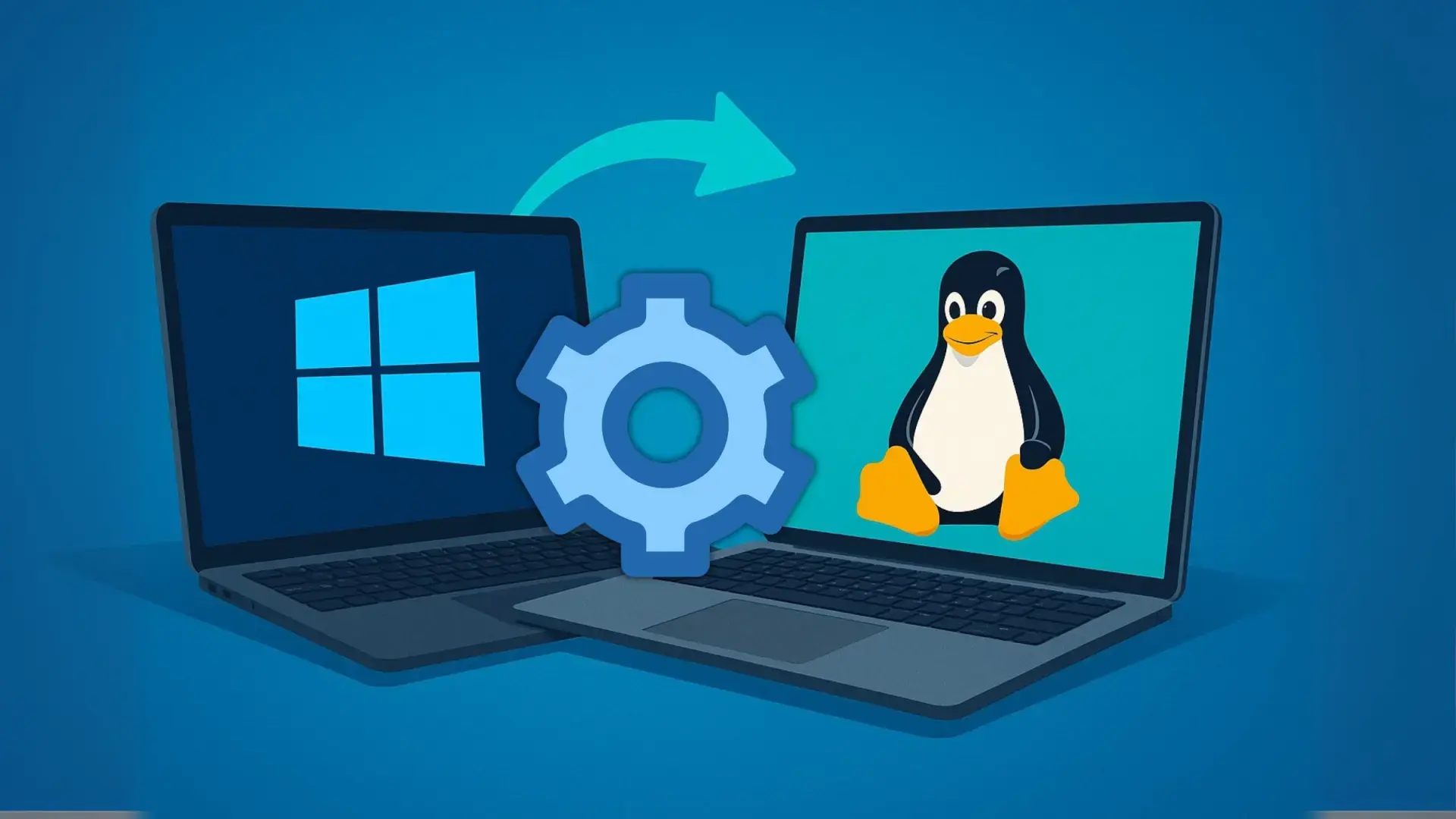
Making the switch from Windows to Linux is no longer just for computer geeks. The end of free support for Windows 10, the requirements of Windows 11, and the fear of leaving your PC unprotected are pushing many people to look for real alternatives to continue using their computers without spending a fortune. In this scenario, ValiuxOS (you'll also see it written as VailuxOS or ValiusOS) emerges, a Linux-based distribution designed precisely to facilitate this transition.
If you're looking to switch operating systems but don't want to deal with complicated configurations, ValiuxOS, KDE Plasma, Operase, and some good migration practices can make the transition much smoother than you might think. Let's explore how it all fits together, what advantages ValiuxOS offers over other distributions, and what steps you should take to avoid losing data or productivity in the process.
Why are more and more users considering migrating from Windows to Linux?
Time is working against Windows 10: as of October 14, 2025, it will no longer receive free security patches . The system will continue to function, yes, but with each unpatched vulnerability, it becomes an easier target for malware and attacks. Microsoft will offer paid extended support, but it's not exactly an attractive option for home users.
The supposed natural successor would be Windows 11, but hardware requirements such as TPM 2.0, Secure Boot, and other security requirements exclude millions of perfectly functioning computers. There are methods to bypass these restrictions using tools like Rufus, although this involves installing an unsupported system, with the risk of update failures and no long-term guarantees.
Given this situation, more and more people are asking themselves: do I really have to replace my entire computer just to stay on Windows? The short answer is no. Linux has been maturing for years into a solid alternative, with very user-friendly distributions, a huge software ecosystem, and more than decent compatibility with older hardware.
Furthermore, modern distributions have greatly reduced the learning curve: you install, choose your language, connect to WiFi and in a few minutes you have a browser, office suite, media players and file manager , all without paying for licenses or dealing with complicated activations.
What is ValiuxOS and why does it make migration so easy?
Within the Linux universe, ValiuxOS has carved out a niche as one of the most interesting options for users migrating from Windows. It's a Debian-based distribution with the KDE Plasma desktop and an aesthetic very similar to Windows 11 , designed to make you feel "at home" from the very first boot.
Visually, the developers have greatly refined the experience. The bottom panel, the centered main menu, and the overall style are very reminiscent of the Windows 11 desktop . For someone accustomed to the Microsoft environment, this familiarity reduces the psychological impact of the change: you don't have to relearn how to navigate the desktop, just how to use a different system underneath.
Another key point is that ValiuxOS comes as an open-source system, so you don't have to manually install a ton of software . It includes essential applications by default and, at the same time, avoids overloading the system with unnecessary software. You go straight to what matters, without bloatware and without anything collecting information about what you're doing.
Advantages of using ValiuxOS to migrate from Windows
Beyond its visual appeal, ValiuxOS incorporates a number of thoughtful design choices for users taking their first steps with Linux. The combination of Debian, KDE Plasma, and tools like Flatpak makes this distro a particularly convenient option for leaving Windows without any major issues.
To begin with, the installation is relatively simple and straightforward . The wizard guides the process so you can install it as a standalone system or alongside others, although if your goal is a true migration, ideally you should end up using only Linux except in very specific cases.
In terms of software, ValiuxOS comes with modern applications pre-configured and ready to use . You won't find an empty desktop. However, the developers have opted to include only what's necessary, so you can add what you actually use without burdening the system with programs you'll never open.
Security and privacy are crucial these days. ValiuxOS doesn't collect user data or send telemetry , something many Windows users are starting to scrutinize. Add to that an up-to-date system, reliable repositories, and a proven base like Debian, and you have a robust environment for everyday use.
Also noteworthy is the support for containerized application distribution formats. Flatpak is enabled by default, and Snap is available, though not enabled by default . This allows you to install programs in isolated "bubbles" separate from the rest of the system, adding an extra layer of security and simplifying the maintenance of up-to-date versions without the hassle of dependencies.
A desktop almost identical to Windows 11 (without its drawbacks)
One of the strongest visual impacts when booting ValiuxOS for the first time is its desktop. KDE Plasma has been customized to offer a layout and experience very similar to Windows 11 , especially in elements such as the taskbar, main menu, and certain key icons.
For example, the desktop menu appears centered at the bottom , immediately reminiscent of Windows 11. When you open it, you won't see a menu cluttered with useless items, but rather a more restrained selection of applications. This avoids that overwhelming feeling typical of some overloaded desktops.
For users who have been using "My Computer" or "This PC" for years, ValiuxOS hasn't forgotten them: the PC icon is present on the desktop and opens the file manager . From there, you can navigate your folders very naturally, just like you did in Windows, with a very intuitive navigation system.
If you access the properties of a folder in your home directory and go to the sharing tab, you'll see another example of how this distro caters to Windows users: the integration with network sharing options, powered by Samba, is very user-friendly . In other words, sharing content with other Windows computers at home or in the office is quite simple.
In terms of performance, ValiuxOS isn't advertised as an ultralight distro, but it offers a very smooth experience on most current desktop and laptop computers . It's not a minimalist system for very old machines, but it also doesn't demand the same resources as Windows 11. If your PC runs Windows 10 well, it's very likely that you'll be comfortable with this distro.
Samba, shared folders and getting started in ValiuxOS
One of the first things that people migrating from Windows often miss is the ease of sharing folders on a local network . Many Linux systems leave Samba configuration up to the user, which often leads to frustration when users can't access their resources from other computers.
In ValiuxOS, the developers have focused precisely on this point. Samba configuration is integrated into the KDE Plasma graphical interface in a very user-friendly way , without requiring you to tinker with text files or unfamiliar commands. From the system menus, you can adjust the service password and fine-tune usage parameters without needing extensive technical knowledge.
This guided approach avoids a very common situation: you install Linux, try to access your shared folders from another PC, and it doesn't work because no one has explained that you need to configure Samba . Here, the system guides you step-by-step so that this critical part is up and running from the start.
Another detail worth paying attention to right after installation is the keyboard. ValiuxOS may initially appear with a German layout or one other than Spanish , which can result in accents not appearing where they should, symbols being changed, and some frustration while typing. Configuring the keyboard to your language is one of the first recommended tasks.
Once that's set up, it's usually a good idea to spend a few minutes customizing the environment: system language, time zone, network, online accounts, and visual aspects like the theme and icons . KDE Plasma is very flexible, so you can easily customize it to your liking.
How to prepare for migration: first, change the applications in Windows
Regardless of the distribution you choose, there's a very common mistake people make when switching to Linux: starting by installing the system without first changing their Windows usage habits . The result is usually an explosive mix of new things to learn all at once, which ends up overwhelming many users.
If you think about it, what you really use on a daily basis are applications: browser, office suite, image editor, media player, email client, specific professional programs . The operating system is the foundation, but most of your tasks go through that software.
Therefore, a very sensible strategy is to start replacing all the applications on your Windows system that don't have a Linux version with versions that do . That way, when you switch systems, you'll already be familiar with most of the programs you'll be using and will only need to adapt to the new environment.
For example, you can stop relying on Microsoft Office and switch to LibreOffice or ONLYOFFICE , which are available for both Windows and Linux. For video editing, you have Kdenlive, Shotcut, or DaVinci Resolve; for images, GIMP or Krita can cover many common needs compared to Photoshop.
The idea is to migrate applications radically: progressively uninstall what only works on Windows and replace it with cross-platform alternatives whenever possible. If you only do it halfway, you're more likely to end up continuing to do everything on Windows, leaving Linux gathering dust on a forgotten partition.
Dual-boot or complete overhaul? Which approach is best?
When it comes to migrating, dual-booting is very tempting: installing Linux alongside Windows and choosing which system to use each time you start your computer . On paper, it sounds very reasonable: "that way I can try it out without losing anything." In practice, what usually happens is that inertia leads you to always boot the system you know best.
If you split your usage 50/50 between both, you'll most likely end up resorting to Windows whenever you're in a hurry or encounter a problem in Linux that you can't immediately solve . This way, you'll never truly solidify the switch, because your mind gravitates towards the comfortable and familiar option.
That's why many users who have successfully migrated recommend completely replacing Windows with Linux on their main computer , at least once they're clear on which applications they'll be using. It's a tougher change at first, but also more effective for integrating Linux into your daily routine.
That doesn't mean there aren't cases where it's advisable to keep Windows on a partition. If you work professionally with tools like Photoshop, AutoCAD, or others without equivalent alternatives in Linux , it makes sense to maintain that environment for those very specific tasks.
The same applies to certain online video games that rely on anti-cheat systems incompatible with Linux or Wine . Titles like Fortnite, Valorant, or League of Legends can be a nightmare to run outside of Windows. In these cases, using Windows only to play those games and then switching back to Linux can be a practical solution.
Operase's role: to automate the switch from Windows to Linux
Although ValiuxOS alone makes the switch quite easy, a very promising tool is emerging specifically designed for this scenario: Operase . Its goal is to eliminate the need to manually drag and drop everything, minimizing the feeling of "starting from scratch" when you first boot up Linux.
Operase is designed to analyze your Windows user profile and copy your documents, personal folders, desktop files, Wi-Fi networks, and certain browser settings to Linux . All of this is then adapted to the new system, specifically Kubuntu, which uses the same KDE Plasma desktop environment and offers a very similar experience to ValiuxOS.
In addition to moving files, the tool attempts to identify which programs you use and, when migration isn't possible, searches for equivalent Linux alternatives . In some cases, it can even leverage Wine to allow you to continue running Windows applications within the Linux environment, with all the nuances that entails.
One of Operase's strengths is its guided process, with clear messages about what can and cannot be transferred, and what risks are involved . No terminal knowledge or commands are required; the idea is that any user with basic Windows experience can follow the steps without fear.
For now, Operase remains in the development and testing phase . It is not yet available for stable public download, so it is advisable to keep an eye on its progress and, when a mature version is available, test it first in test environments: a virtual machine, a secondary PC, or an installation that does not contain critical data.
Installing Linux as the sole operating system: example with Ubuntu
If you want to get an idea of what a clean Linux installation to replace Windows would look like, we can look at the typical procedure with Ubuntu, which is very similar to what you'll find in many other distributions. The general outline can serve as a reference if you later choose ValiuxOS or another distribution.
The first step is choosing a distribution. Ubuntu is often recommended for its simplicity and versatility, while ValiuxOS or Kubuntu are excellent options if you're looking for a desktop environment similar to Windows. Whichever you choose, you'll need to download the ISO image from the distribution's official website.
Next, you'll need a tool to create a bootable USB drive. A popular one is balenaEtcher. Install it on your current Windows system, select the ISO file using the "Flash from file" option, choose your USB drive in "Select target," and run the process . This will erase the contents of the USB drive, so make sure it doesn't contain anything important. If you're planning a migration, it's recommended to clone your hard drive beforehand.
The next step is to access your computer's BIOS or boot menu. Usually, when you turn on your PC, you'll be prompted to press a key like F11, F12, Esc, or something similar to open the Boot Menu . From there, you can tell the computer to boot from the USB drive instead of the hard drive.
Once the installation media is loaded, most distributions offer a menu with options like "Try" or "Install ." In the case of Ubuntu, you'll see "Try or Install Ubuntu"; ValiuxOS will have something similar. If you're ready to install, simply choose "Install," select your language, keyboard layout, and Wi-Fi network if applicable.
In the most delicate part, partitioning , if you want to completely erase Windows and leave only Linux, you must choose the option equivalent to "Erase disk and install ." From there, the wizard will ask you for your time zone, username, and password, and after a few minutes of copying files, your new system will be ready to boot.
Hardware support: the big "but" to keep in mind
Although migrating from Windows to Linux is becoming easier, there's one reality you should accept from the start: hardware support isn't on par with Windows in every aspect . In many cases, you won't have any problems, but there are situations where the switch goes awry due to a poorly supported component.
While Microsoft has virtually all hardware manufacturers working to ensure their products function on Windows from day one, in Linux some drivers have been developed through reverse engineering . This is the case, for example, with certain console controllers or very specific peripherals.
Some manufacturers continue to completely ignore open-source systems. Brands like Corsair, especially with Elgato-type video capture cards and certain advanced peripherals , can be a real headache for anyone wanting to use them with all their features under Linux.
Therefore, it's essential that before installing ValiuxOS or any other distribution on your main machine, you first test the system in "live" mode (live session) or within a virtual machine . This will allow you to check if your graphics card, Wi-Fi, sound, and other essential components are functioning correctly ( component health ).
Even so, keep in mind that the experience in a live session or virtual machine doesn't always perfectly match the actual disk installation . But it will at least help you identify the most obvious problems and decide if the change is feasible with your current hardware.
Migrating from Windows to Linux requires a certain amount of patience, a willingness to learn, and perseverance. If any of these three things are lacking, the journey becomes much more difficult . With a user-friendly distribution like ValiuxOS, proper preparation of your Windows applications, migration tools like Operase when they're ready, and prior compatibility testing, the chances of a successful transition increase significantly, and you can continue to power your computer without being tied to licenses or the limitations of Windows 11.
