- Fundamental difference between a persistent USB Live and a full system installation on an external drive.
- Technical hardware requirements, such as read speed and the USB 3.0 standard, to ensure system smoothness.
- Importance of choosing lightweight and stable distributions according to the intended use, prioritizing safety and low resource consumption.
You've probably been there: you want to try the world of GNU/Linux, but you're terrified of messing up your Windows boot or creating a disaster with your hard drive partitions. It's a very common scenario: you try to dual-boot by installing Linux alongside Windows , you accidentally delete something you shouldn't have, and suddenly your PC won't boot, leaving you with a monumental scare. That's why the option of carrying the operating system in your pocket is simply a lifesaver for anyone looking for flexibility without the risks.
Having a Linux distribution installed on an external drive isn't just a technical curiosity; it can be a brilliant security strategy . Imagine having a completely isolated and malware-free environment for your banking or handling sensitive data, without it interfering at all with your everyday computer. Let's see how to set this up, from the simplest option to the most robust installation.

Different ways to carry Linux on a USB
Before we delve into the details, let's clarify something: a bootable USB drive is not the same as an installed system. On one hand, we have the Live USB with persistence . This option is great for those who want to try Linux without installing it on their PC ; you use a tool like Rufus to burn the ISO and enable the persistence space. This allows your files and settings to be saved even if you restart your computer, but it's still a limited environment that doesn't amount to a complete operating system.
On the other hand, we have the option of a complete installation on an external drive . This is where the magic happens, as we treat the external USB drive or SSD as if it were the PC's internal hard drive. The difference is enormous, since you have complete freedom to manage the system , install complex software, and configure the kernel to your liking, with it behaving exactly as if it were installed on the computer.
The right hardware: not just any flash drive will do
If you want your system to be lightning fast and not constantly freezing, you can't just use that old USB drive you have lying around in a drawer. For a smooth experience, you need a drive with high read and write speeds , ideally above 150 MB/s. It's best to opt for the USB 3.0 standard or even USB Type-C , since the bottleneck is usually the data transfer speed.
Regarding storage capacity, while some distributions can run with less, ideally you should have a minimum of 16 GB or 32 GB to get around smoothly. If your budget allows, an external SSD is the winning option, as it offers significantly greater stability and speed than any conventional USB drive, allowing you to use the system intensively without frustration.

Choosing the layout according to use
Not all Linux distributions are created equal. If your goal is maximum security (such as for online banking), it's best to choose a lightweight and stable distribution that doesn't consume too many resources. Desktop environments like Xfce or MATE are ideal because they are simple and straightforward. Some very solid options would be Xubuntu, Ubuntu MATE, or Linux Mint in their lightweight versions, or even Debian if you're looking for something more purist.
Step-by-step guide for complete installation
To perform a true USB installation, you'll need two drives: one to serve as the installer (the bootable media) and another where the system will be installed. First, download the ISO of your preferred Linux distribution and burn it to the first USB drive using Rufus or a similar tool . Then, connect both drives to your PC and boot from the installer, pressing the boot key (usually F9, F10, or F12) before Windows starts.
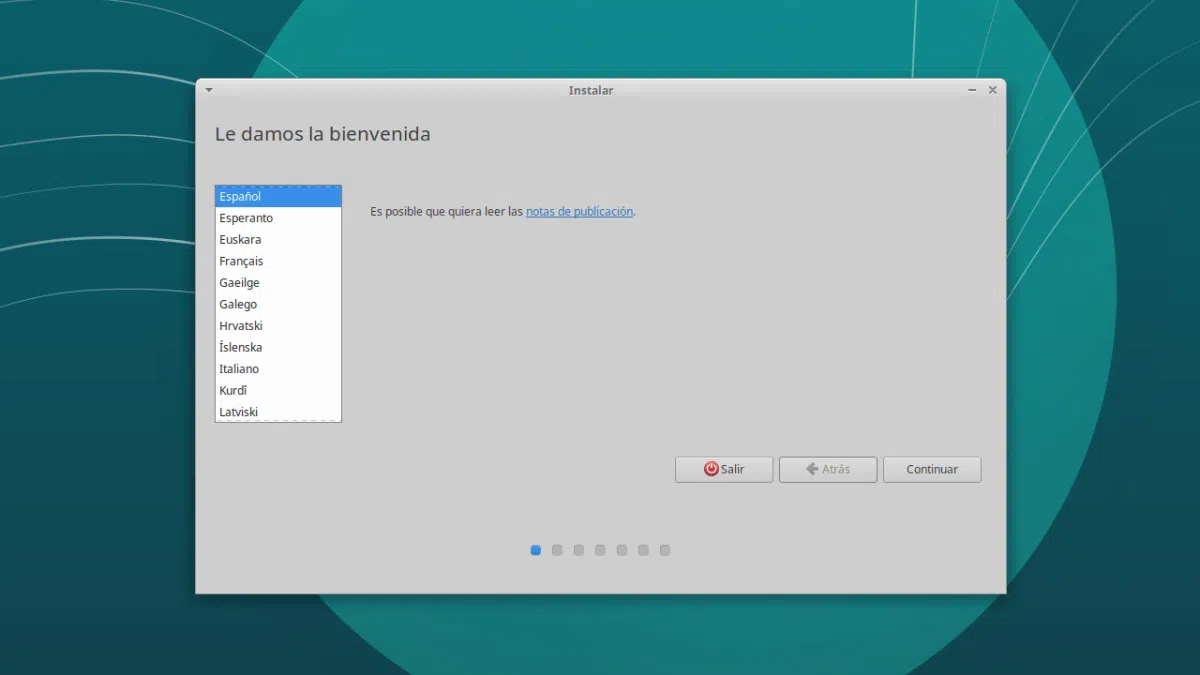
Once you're in the Live environment, launch the installer and follow the language and keyboard prompts. The critical moment comes when choosing the installation type: you must select "More options" to manage the partitions manually . Here, it's vital not to make a mistake and not to touch the internal hard drive (usually /dev/sda). Identify your external USB drive (which will appear as /dev/sdb or /dev/sdc) and create a primary partition with the mount point at the root (/).
A crucial detail that many people overlook is the boot loader, or GRUB. You must ensure that the boot loader is installed on the USB drive and not on the computer's internal hard drive. If you install it on the hard drive, the PC won't boot without the USB drive inserted, and if an error occurs, you might need to restore the Linux GRUB bootloader . Once you've confirmed this, finish the installation and restart your computer.

Final configuration and environment optimization
Once your external operating system is up and running, it's time to fine-tune it. To maintain security, the first step is to run all pending security updates via the terminal or the software manager. It's highly recommended to activate the system firewall, using tools like UFW (Uncomplicated Firewall) to secure the connection.
If you use this environment for critical tasks, configure the Firefox browser to not save cookies or passwords and disable browsing history. To securely manage your passwords, you can use password managers like Seahorse . The golden rule here is simplicity: install only what is strictly necessary to avoid vulnerabilities and keep the system running smoothly.
Setting up a portable Linux system requires careful attention to hardware quality and meticulous attention to partitioning and the boot loader. By separating the working environment from the main system, you not only gain versatility by being able to carry your computer in your pocket, but you also create an impenetrable security barrier for your most sensitive operations, preventing any risk of damage to the computer's internal hard drive.
