- Heroic Games Launcher unifies Epic, GOG, and Amazon libraries into a single free and open-source client.
- It allows you to install, update, repair, move and import existing games, as well as add external titles.
- It offers integration with Wine, Proton, Crossover, and UMU to run Windows games on Linux, macOS, and Steam Deck.
- It includes advanced features such as themes, categories, automatic fixes, and cloud game synchronization.
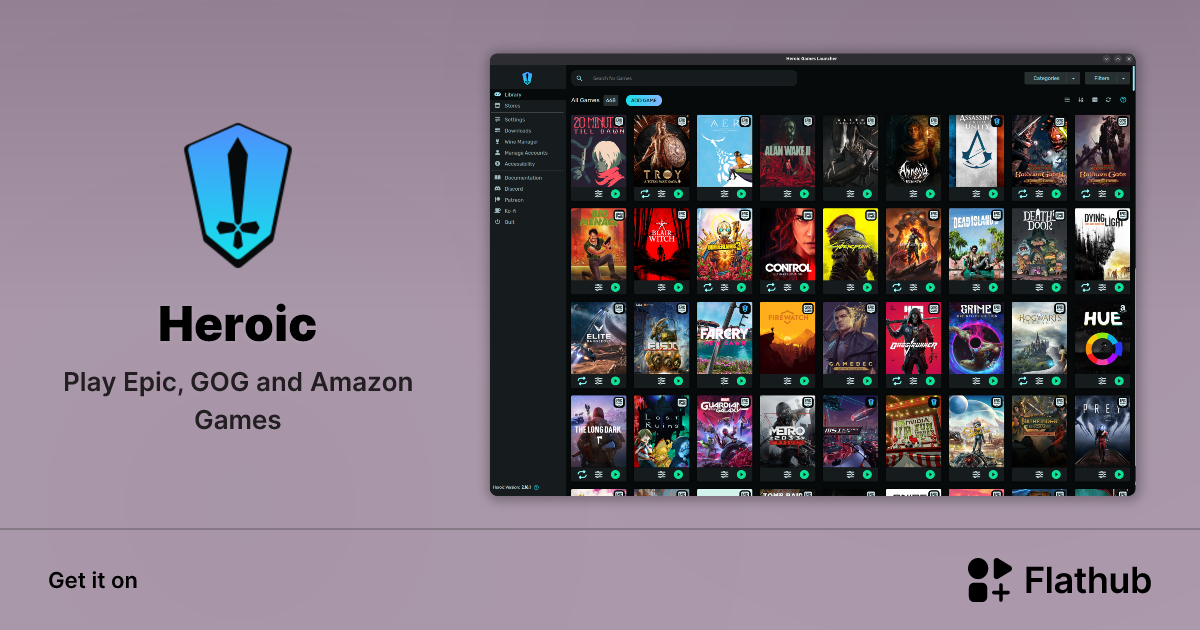
If you have games spread across Epic Games, GOG, Amazon Games, and other platforms , you've probably found yourself switching between clients more than once to play. It's a real pain having to open multiple launchers, remember passwords, and struggle with completely different interfaces every time you want to play a game.
To avoid all that chaos, there's Heroic Games Launcher , an open-source game launcher that unifies virtually everything in one place. With it, you can manage, install, and play your Epic, GOG, and Amazon titles (and also add external games) from a single application, whether you're on Linux, Windows, or macOS, and even use it on devices like the Steam Deck.
What is Heroic Games Launcher and why is it worth it?
Heroic Games Launcher is a free and open-source game client designed to centralize your digital game libraries. Instead of relying on official clients like Epic Games Launcher, GOG Galaxy, or the Amazon Games app, Heroic acts as a "bridge," allowing you to access all your titles from a single, clean, and fairly intuitive interface.
This project relies on several technologies to function: Legendary for Epic Games Store games, a proprietary implementation called gogdl for GOG, and Nile for Amazon Games. All of this is wrapped in a modern interface built with web technologies, making the program cross-platform and allowing for continuous improvements.
One of its greatest strengths is that it not only lists your games , but also allows you to install, update, repair, move them between drives, import existing installations, and even add titles that aren't available in any of the supported stores. In short, it becomes the command center for your PC game library.
Furthermore, it has become a very serious alternative to official clients , especially on Linux and Steam Deck, where using Epic or Amazon's native software is often a headache. Many users already consider it essential on their systems.
Compatible platforms and basic requirements
Heroic Games Launcher is cross-platform and covers virtually every current gaming environment. It works natively on:
- Linux: Ubuntu 20.04 LTS or higher, Fedora 33 or higher and Arch Linux (and derivatives such as Manjaro, Garuda, EndeavourOS), as well as other distros where it can also work with some manual adjustment.
- SteamOS: available on Steam Deck, with easy download from Discover.
- Windows 10 and Windows 11.
- MacOS 14 or more recent versions.
Although the team focuses on those versions, Heroic usually works on many other Linux distributions . The requirement is that you meet certain minimum requirements (for example, having tools like curl available in dependency-free formats such as AppImage or tar.xz). If you need to switch to Linux, you can follow our guide to converting your PC to Linux from a USB drive . If you get stuck, it's quite common for someone on their Discord server to lend a hand.
On Linux, Heroic is available on Flathub , which greatly simplifies installation on desktops with software centers (Discover, Pop!_Shop, etc.). There are also packages for DEB -based distributions , RPM packages in the AUR such as heroic-games-launcher-bin, nixpkg versions (heroic and heroic-unwrapped), and the classic AppImage and tar.xz formats.
On Windows, you can install it via WinGet (using the command "winget install Heroic") or the classic .exe installer , either the setup version with shortcuts or the portable version. On macOS, the easiest way is through Homebrew with a cask, although there's also a .dmg image that you can drag directly to the Applications folder.
Supported stores and libraries you can unify
The heart of the project lies in its ability to unify libraries from various digital stores . Currently, Heroic is compatible with:
- Epic Games Store, through Legendary.
- GOG (Good Old Games), thanks to the gogdl implementation.
- Amazon Games and Amazon Prime Gaming, via Nile.
By simply logging into each service within the app, you can view and manage all your games from the Stores section . Heroic downloads your library information and keeps it updated in real time, so when you acquire a new title or remove one, the change is reflected automatically.
In addition to the officially integrated stores, Heroic allows you to add external games : you can register any executable, including browser applications or launchers from other stores (IndieGala, etc.), so that they appear within your collection as if they were another game.
All of this makes Heroic function as a unified front end not only for Epic, GOG, and Amazon, but also for all those individual titles you have installed on your PC, which is very useful if you've spent years accumulating games in different folders.
Installing Heroic Games Launcher on each system
Installing Heroic is quite straightforward, and the best part is that you don't need the official clients for each store to use it. Simply install Heroic and then enter your Epic, GOG, and Amazon credentials within the program.
On Linux , the most recommended method is to use Flatpak from Flathub , as it simplifies dependency management and ensures fast updates. If you prefer native packages, you can download the .deb file for distributions like Ubuntu/Debian and run it with a double-click or via the terminal with “sudo dpkg -i Heroic*amd64.deb”. On Fedora and similar distributions, there's an .rpm file that installs with “sudo dnf install ./heroic-*.x86_64.rpm”.
For Arch Linux and derivatives , the Heroic team only officially supports the heroic-games-launcher-bin package from the AUR. This is important to keep in mind, because if you use other unofficial packages and something goes wrong, support will direct you to the maintainer of that specific package.
In more "manual" environments, you have an AppImage (download it, give it execute permissions with "chmod +x", and run it) and a tar.xz file that you simply extract and launch the "heroic" binary from the resulting folder. In both cases, you need to ensure that basic tools like curl are installed, or you might encounter unusual behavior.
On Windows , if you already use WinGet, the command `winget install Heroic` will get it up and running. Otherwise, you can download the graphical installer (Setup) or the portable version from the releases page. The setup creates shortcuts on your Desktop and in the Start menu so you can open Heroic like any other program.
On macOS , if you're a Homebrew user, you can install it with a cask using a command like "brew install --cask --no-quarantine heroic". Alternatively, you can download the .dmg image , mount it with a double-click, and drag the "Heroic" app to your Applications folder.
Main features and advantages of Heroic
Beyond serving as a simple game list, Heroic stands out for a series of very complete features to manage your libraries and improve the experience on Linux, Windows and macOS.
First, it offers unified library management : you can install, update, uninstall, repair, and move titles from Epic, GOG, and Amazon all from the same dashboard. If you already have games installed with other clients, Heroic lets you import those installations to avoid duplicate downloads. This is especially useful if you have full hard drives and don't want to download 100 GB of a game that's already on your system.
It also includes a download queue that lets you leave several games pending and have them download one after the other or in parallel, depending on your settings. This makes preparing a large library after formatting your computer, for example, much easier.
As for the interface, Heroic offers filters, search, favorites, options to hide games , and support for custom themes. You can customize the colors and visual style, as well as organize your collection into categories you define yourself —very useful if you have a mix of indie games, AAA titles, and various apps.
Another key feature is cloud save synchronization , provided the original store allows it. Many titles on GOG and Epic offer cloud saves, and Heroic can connect to these services to automatically or manually upload and download your saves. You'll find a dedicated "Cloud Saves" tab in the settings of each compatible game.
Using Wine, Proton, Crossover, and UMU for Windows Gaming
One of the reasons Heroic has become so popular on Linux and macOS is its ability to run Windows games using Wine, Proton, and Crossover . This allows you to play titles designed for Microsoft's operating system in other environments, with increasingly higher levels of compatibility.
On Linux , Heroic integrates its own Wine and Proton version manager , including custom variants like Wine-GE and Proton-GE . These versions, maintained by the developer gloriouseggroll, incorporate patches and additional codecs that resolve common issues: cinematics not displaying, sensitive DRM, minor bugs, etc. From the client itself, you can download the "Wine-GE-Latest" and "Proton-GE-Latest" versions to always have the latest and most compatible option.
Furthermore, Heroic can be integrated with the UMU Launcher , a unified Linux layer on top of Proton that is being promoted by projects like Lutris, Heroic, and Bottles. Enabling the "Use UMU as Proton runtime" option in the experimental features allows many games to run more consistently in the future, centralizing community efforts.
On macOS , the program offers support for Crossover , a commercial Wine-based solution optimized for Apple's operating system. This allows you to combine Heroic as a unified launcher with Crossover as a compatibility layer to run multiple Windows games.
By default, you can change the global Wine/Proton version from the "Game Defaults" section of Heroic, selecting, for example, Proton-GE-latest for all games. However, it's also possible to adjust the Wine or Proton version individually for each game, which is useful when a particular title only works correctly with a specific version.
For cases where you need to install mods or additional utilities, Heroic allows you to run .exe files within each game's wineprefix . Simply specify the executable file, and the wizard will launch it as if you were in Windows, within the game's isolated environment.
Recommended initial setup (especially on Steam Deck and Linux)
Once you have Heroic installed, it's worth spending a few minutes adjusting the general settings , especially if you use a Steam Deck or have multiple discs in your PC. It's a small effort that will save you headaches later on.
In the Settings → General menu , it's recommended to change the "Default Installation Path" to a location that suits you. For example, with Steam Deck, many users create a "Heroic" folder in the root directory of their microSD card so that games are installed there by default. This prevents overloading the console's internal storage.
In the same section, you can define the folder for new Wine prefixes . Heroic creates one Wine prefix per game, which isolates configurations and prevents one title from breaking another. Specifying a particular path (also on the microSD card if you're using Steam Deck) helps keep everything organized and prevents it from getting mixed up with other Wine environments you might have on your system.
It's a good idea to double-check that the path to your Steam folder is correctly detected, especially if you want Heroic to add shortcuts to your games in your Steam library. The Epic Games field is only critical on Windows or if you're using previous installations from other launchers, so you can leave it blank if it doesn't apply to you.
At the bottom of the general settings, you'll see several checkboxes for shortcuts: create shortcuts on the Desktop, in the Start menu, and automatically add games to Steam . On a traditional PC, it's usually convenient to disable desktop and Start menu shortcuts and let everything go through Heroic, while in Steam Deck, it's worth checking the option to add games to Steam, as this allows you to take advantage of Steam's built-in controller management and play very comfortably in Game Mode.
The next helpful step is to go to Settings → Game Defaults and select Proton-GE-latest (or your preferred version) as the default , as it usually offers better results in modern games. If you're playing on a laptop with a dedicated graphics card, you can enable the "Use Dedicated Graphics Card" option in the "Other" tab to force the use of the powerful GPU.
Advanced features: achievements, automatic fixes, and per-game settings
Heroic doesn't just stick to the basics; it also includes advanced features that enhance the experience , especially if you like to have everything well-defined.
In Settings → Advanced , you'll find an experimental features section where you can enable options like "Comet Support," which is necessary for GOG to correctly record your achievements and other statistics in your account. Enabling this option is practically mandatory if you want to keep your achievements.
Another highly recommended feature is "Apply known fixes automatically," which allows Heroic to automatically apply known fixes to certain games, similar to those you'd find in ProtonDB but integrated directly into the launcher. This saves you from having to manually struggle with startup parameters or special settings for each problematic title.
We've already mentioned "Use UMU as Proton runtime," but it's worth reiterating: enabling this option aligns Heroic with the future of gaming on Linux, as UMU unifies how Proton is launched across different projects. If you encounter problems with a game, you can always revert to an older version of Wine or Proton, but the overall trend is moving towards UMU.
Within each game's details page, you can access individual settings via the options icon : change the Wine/Proton version for that specific title, modify launch parameters, adjust the resolution, or force the use of the dedicated graphics card, among other things. If a game isn't running smoothly with the global settings, this is usually where you'll find the right combination.
In that same area is the "Cloud Saves" tab for games that have cloud saves. You can see the local path to your save files, change it if Heroic doesn't correctly detect the folder (something that sometimes happens with Epic games), choose the synchronization mode (Download/Upload, one direction only, etc.), and, if things get out of sync, use "Force Upload" or "Force Download." Be very careful: using Force Download incorrectly can delete your local save files , so think twice before clicking it.
How to add games, play, and manage DLCs
With Heroic tier set up, the process to start playing is fairly straightforward . First, you need to log in to the stores where you have your games: Epic, GOG, and Amazon. On Epic, if one login method fails, there's usually an alternative method you can try.
Once logged in, you'll see your libraries integrated into Heroic. Each game displays its status (installed or not), and if you click on its details, you can see information such as the installation size and compatibility with ProtonDB and Steam Deck on Linux. Heroic also includes direct links to ProtonDB so you can read other users' feedback on which version of Proton works best.
To install a game, simply click the download button. It will be added to the queue and will begin downloading using the default path you configured. Installed titles appear at the top of the list, and their images will no longer be grayed out, so you can quickly identify what's ready to play.
From the game's page or the main view, you can click "Play" to launch the game directly. Steam Deck has one exception: Epic games must be run at least once in Desktop mode before they will function correctly in Steam's Game Mode. This allows the wineprefixes and internal dependencies to be properly configured.
If you want to hide games from your main view, you can use the filters and categories system , so you only see, for example, games from a specific store or the ones you have installed. This is useful when your library starts to get huge and you don't want to see everything at once.
Regarding DLCs , Heroic offers a "Modify Installation" menu within each game's options, where you can choose languages, beta versions, and additional content. This usually works very well with GOG titles: you select the DLCs and they download without further complications. With Epic, things are more complicated; in many cases it works, but there are games (as reported with Alan Wake 2) where the DLC doesn't seem to install correctly, or Heroic gets stuck waiting for a response from Epic. A fairly common solution is to uninstall and reinstall the game so that it includes the DLC.
Game updates are managed automatically, so you don't have to check them daily. If a new version is available, Heroic detects it and updates the game accordingly, always respecting disk space and other factors.
If at any point you need to repair a corrupted installation, from the game options you can use the "Verify" or "Repair" functions , as well as move the game to another folder or storage drive without having to download it again from scratch.
Heroic also allows you to sync games already installed by the official Epic or GOG Galaxy client, so if you change launchers you won't lose your installations. The program scans the specified paths and, if it finds compatible games, adds them to its own database.
Heroic Deck on Steam and its relationship with other launchers
On the Steam Deck, Heroic has earned a reputation as one of the best ways to play titles from Epic, GOG, and Amazon . While alternatives like Lutris or non-Steam launchers exist, many users agree that Heroic offers a more polished interface and a simpler workflow, especially for those who prefer a less complicated experience.
Installing it on Steam Deck is as easy as switching to Desktop mode and opening the Discover store , where Heroic appears ready to install. Once inside, selecting the option to automatically add games to Steam is practically mandatory: this allows you to launch games directly from your Steam library in Game Mode, taking advantage of controller settings and the typical console overlay.
As an added bonus, Heroic supports achievements on GOG and cloud saves on both GOG and Epic, making it easy to keep your saved games safe. For cases where cloud saves aren't available or you run out of space (GOG typically has a limit of around 400 MB), external tools like Ludusavi are still a good option.
Although the guides and recommendations that are usually circulated may seem somewhat technical at first, the truth is that once the initial settings are configured (installation paths, Proton-GE version, UMU enabled, etc.), daily use of Heroic is reduced to little more than opening the launcher, choosing a game, and pressing "Play." If you don't like tinkering, you'll hardly have to touch the rest.
Overall, Heroic Games Launcher has established itself as a powerful solution for anyone whose game collection is spread across multiple stores and who wants to play on Linux, Windows, or macOS without being tied to official clients . It centralizes libraries, simplifies installation management, adds extra features like cloud saves, achievements, and automatic fixes, and is especially well-suited to devices like the Steam Deck, making it a key component of the modern PC gaming ecosystem.
