- Technical difference between commercial capacity (decimal) and capacity recognized by the operating system (binary).
- Risks of devices with unrealistic capabilities and suspiciously low prices.
- Specialized tools to verify the integrity and actual physical space of the memories.

I'm sure it's happened to you: you buy a USB drive that claims to have 64 GB, you plug it into your PC, and suddenly Windows tells you that you only have about 58 GB available. The first thing to do is not to panic or think you've been scammed, because in most cases this is completely normal and not due to a device malfunction, but rather a matter of basic math.
However, there are uglier situations. With the rise of Chinese online stores, those 2TB or larger USB drives that cost next to nothing have become all the rage. This is where the danger lies, as capacity scams exist where the device tricks the operating system. To avoid being ripped off, let's take a closer look at how to know what you really have.
The difference between advertised capacity and actual capacity
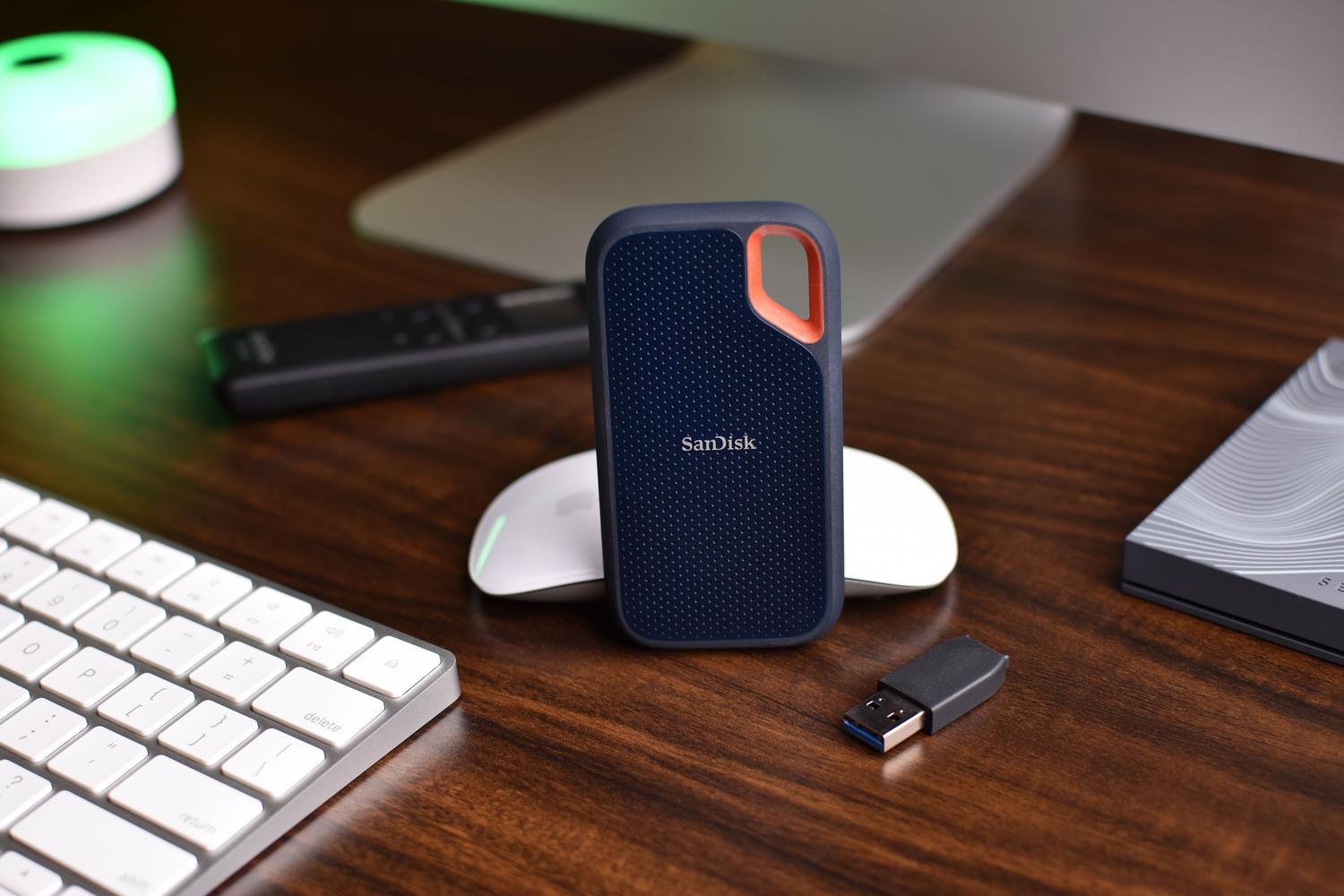
To understand why those gigabytes are missing, it's important to know that manufacturers and computers don't speak the same language. Brands use the decimal system , where 1 GB is exactly 1 billion bytes. But Windows, for example, uses the binary system , where 1.000 GB is equivalent to 1.073.741.824 bytes.
This means that even though the bytes are physically present, the system counts them differently. For example, a 1 TB drive is usually displayed as approximately 931 GB , and a 2 TB drive as 1,81 TB. This is a technical discrepancy that doesn't affect the performance or lifespan of your storage, so don't worry if you see this slight difference.
How to detect a fake USB drive or SSD
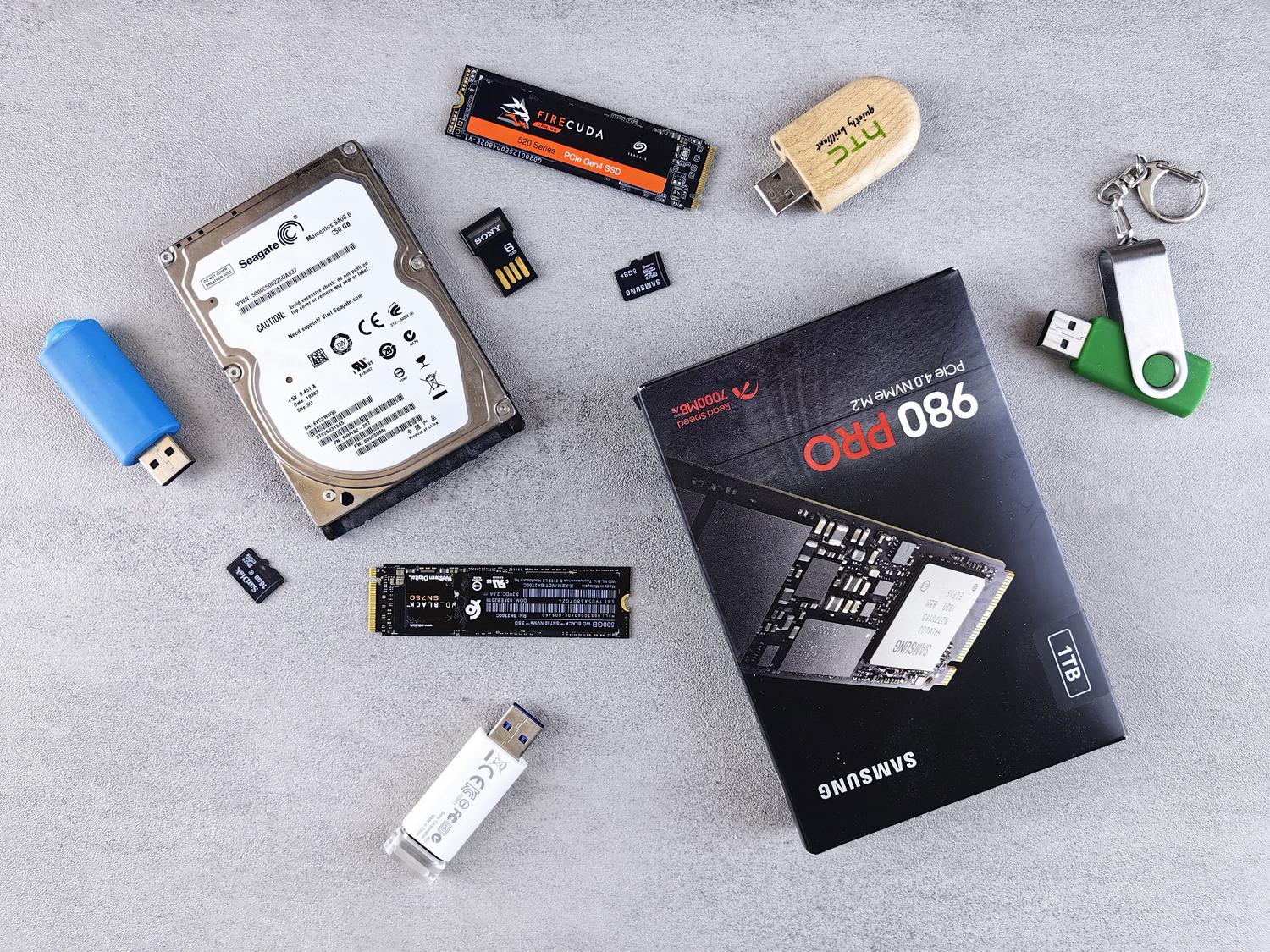
It's not all a miscalculation. There's a very common type of scam where the device controller's firmware is modified . The controller is the chip that tells the PC how much memory is available; scammers program it to lie and say it has 8 TB when in reality it only has 32 GB.
The danger is that, at first, you can copy files and everything seems fine. But when you exceed the actual physical capacity, the device starts overwriting old data or simply writes it to nothing. You're left with the list of files intact (name and date), but the content is corrupted and unrecoverable. Common sense is your best weapon: if you see a USB drive with massive capacity at a ridiculously low price , it's almost certainly a fake.
Tools to verify actual storage
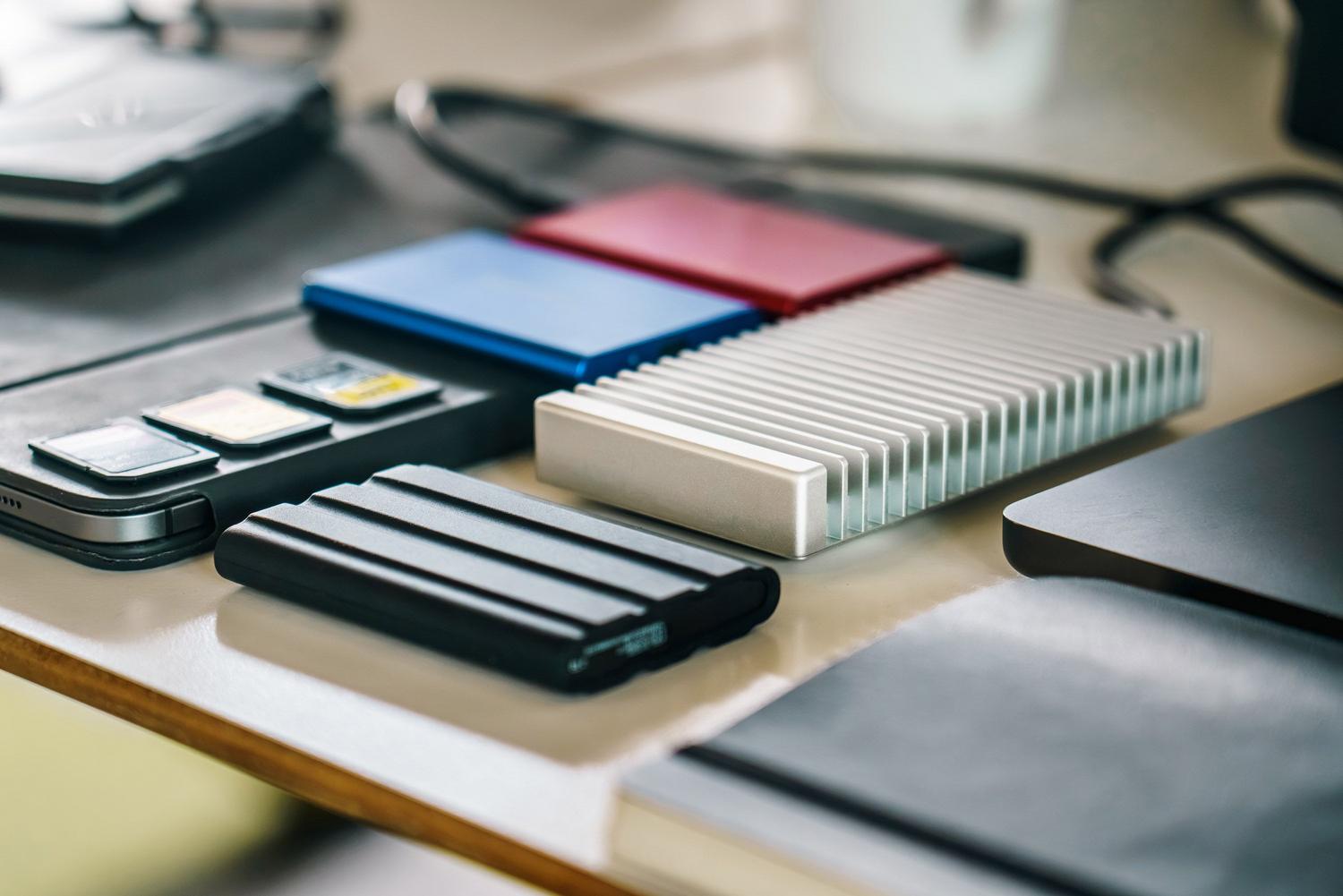
To resolve this scientifically, simply looking at the disk properties or formatting it isn't enough, as the controller will continue to misrepresent the data. You need software that writes data to each sector and then attempts to read it.
H2testw: The standard in Windows
It's probably the most reliable and classic tool. What it does is fill all the free space with test files and then check them. If the program indicates "lost data," that number is the difference between the false and actual capacity. Keep in mind that this process is slow, as it depends on the device's write speed; a 2 TB drive might take several hours to complete.
F3 (Fight Flash Fraud) for Mac and Linux
If you don't use Windows, F3 is the ideal open-source alternative. It works using two commands: f3write to fill the disc and f3read to verify that the data is still there. In Linux, there is also f3probewhich is much faster but can be destructive to data, so it is recommended to use the write and read pair.
Other useful utilities
- ValiDrive: An excellent option for a quick preliminary check in Windows, as it checks sectors distributed throughout the disk without needing to fill the entire disk.
- FakeFlashTest: Similar to H2testw but with a quick mode to quickly rule out suspicious devices.
- ChipGenius: Very useful for knowing the actual chip model and interface (whether it is USB 2.0 or 3.0), helping to detect brand counterfeits.
Measuring disk performance and health
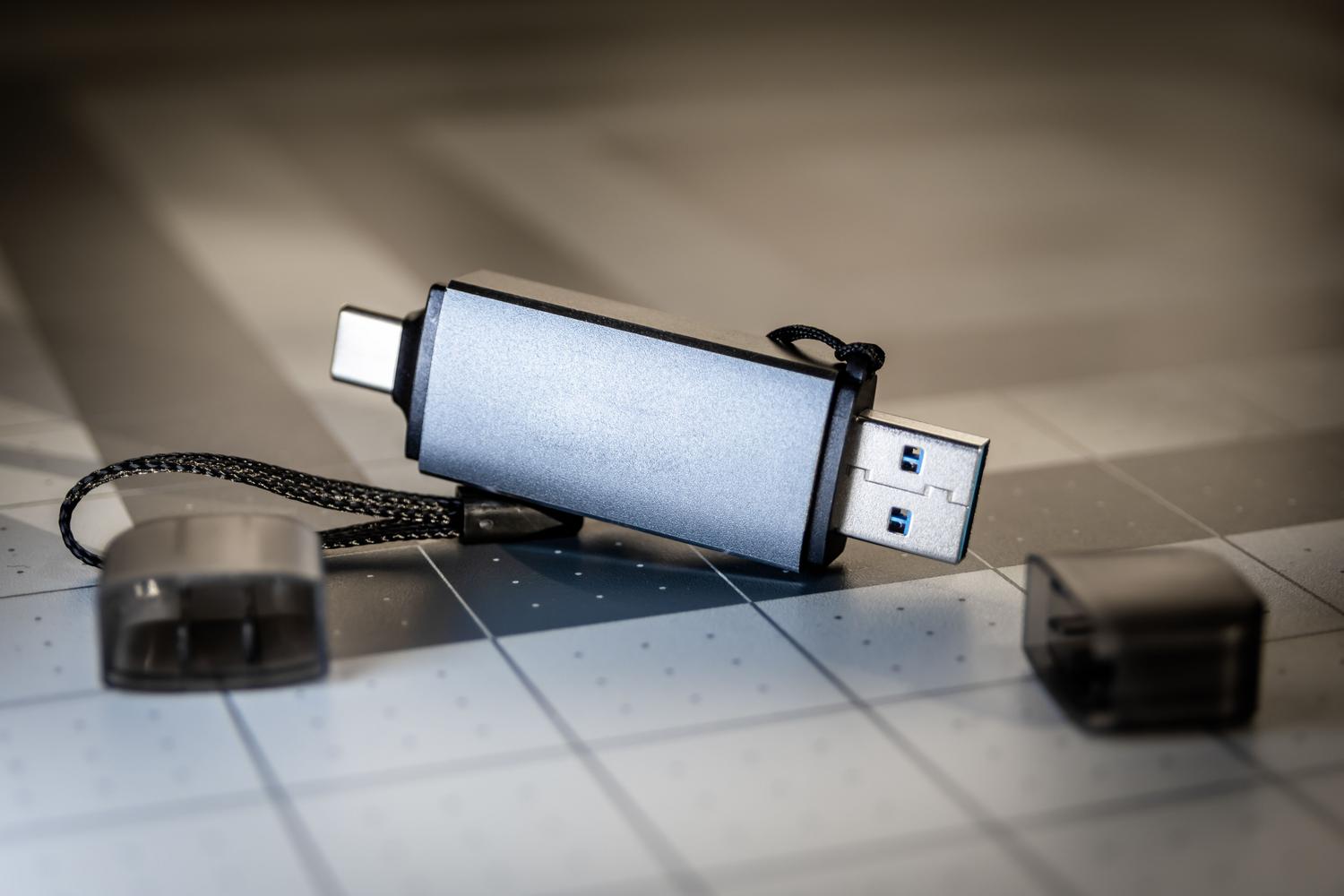
In addition to capacity, it's vital to verify that the speed matches the advertised figures. For this, CrystalDiskMark is the go-to tool in Windows. It allows you to measure sequential speed (for large files like movies) and random speed (crucial for smooth operating system performance). If you notice a speed drop of more than 20% compared to the advertised figures, there could be a hardware problem or a bottleneck in the USB port.
For Mac users, Blackmagic Disk Speed Test is the most visual and straightforward option, especially useful for those who edit 4K video. On the other hand, if you want to know if your disk is failing, you should check the SMART data . Pay particular attention to the "Reallocated Sectors"; if the value is greater than zero, the disk is physically degrading and you should back it up immediately.
Final tips for safe shopping
To avoid unpleasant surprises, it's best to always buy from reputable brands like Samsung, SanDisk, Kingston, or WD . Avoid refurbished products of dubious origin and steer clear of deals that seem too good to be true on platforms like AliExpress. If you've already bought something and suspect it's counterfeit, save screenshots of H2testw or F3 tests to process the return and claim your money back.
Maintaining strict control over storage prevents the loss of valuable files due to a corrupted driver or faulty hardware. The key is to not trust what File Explorer says, use full read and write tools, and always prioritize quality and brand over excessively low prices.