- The USB-C connector is a physical standard, but its actual capabilities depend on internal protocols such as USB PD, Thunderbolt, or Alt Mode.
- To transmit video, it is essential that both the device port and the cable support DisplayPort or HDMI alternate mode.
- Fast charging requires negotiation between charger and device based on watts and standards such as PPS to avoid damage and optimize battery life.
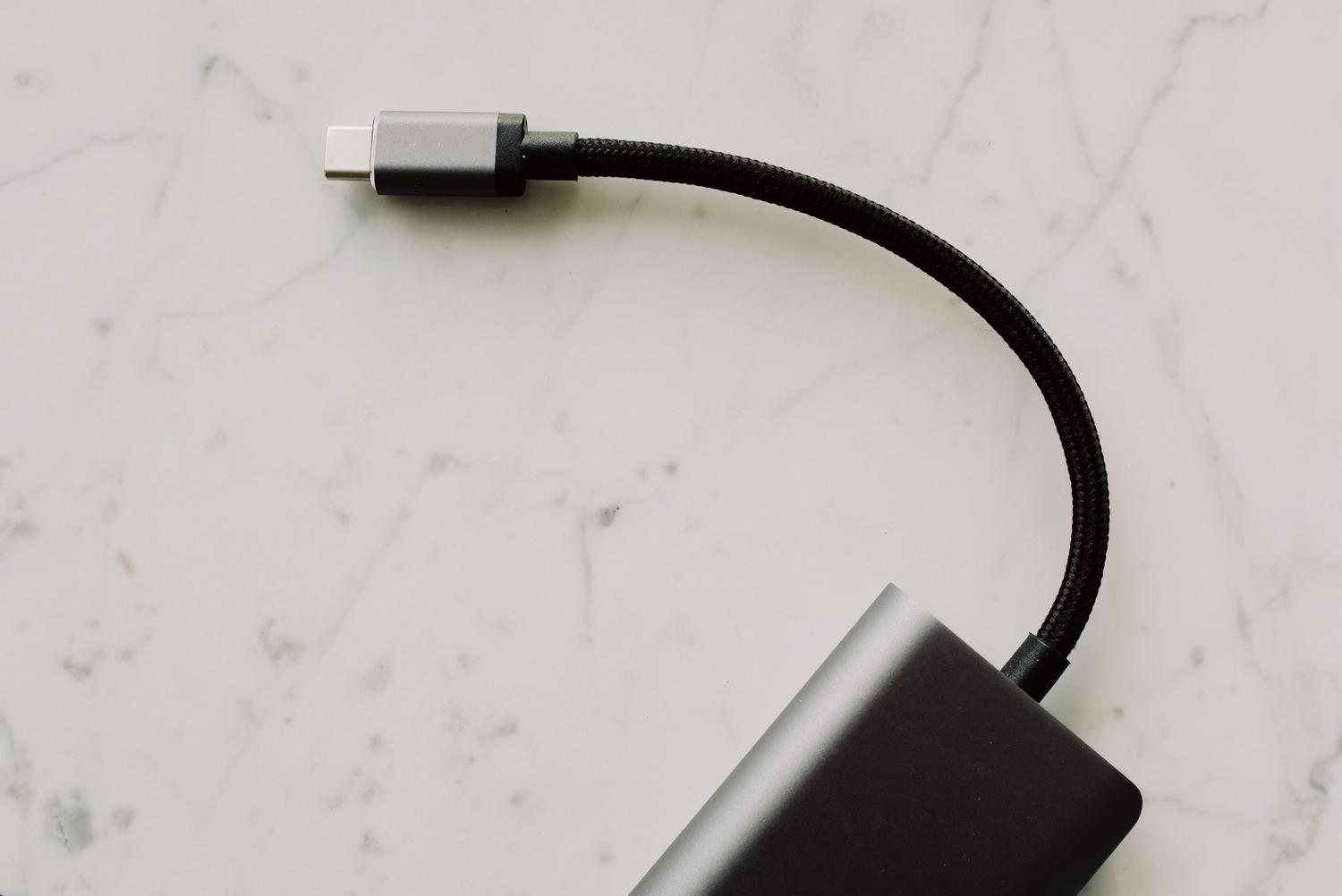
I'm sure it's happened to you: you have a drawer overflowing with cables that look identical, but when you plug one in, your phone charges fully, while with another, it seems like no power is getting through. Or worse, you buy an HDMI adapter for your laptop, plug it in full of excitement, and the screen stays black. The truth is that USB-C is just the shape of the connector , a kind of gateway, but what happens inside is a complex world of protocols and standards that don't always play well together. To understand it better, it's helpful to know the differences between USB 3.0 and USB-C.
To avoid wasting money on accessories that don't work, it's essential to understand that not everything that glitters is gold (and not everything oval transmits video). In this article, we'll thoroughly explain how USB-C compatibility works , from fast charging and file transfer to tips and tricks to get your external monitor working perfectly the first time, without complications or surprises.

Electrical load: it's not all about watts
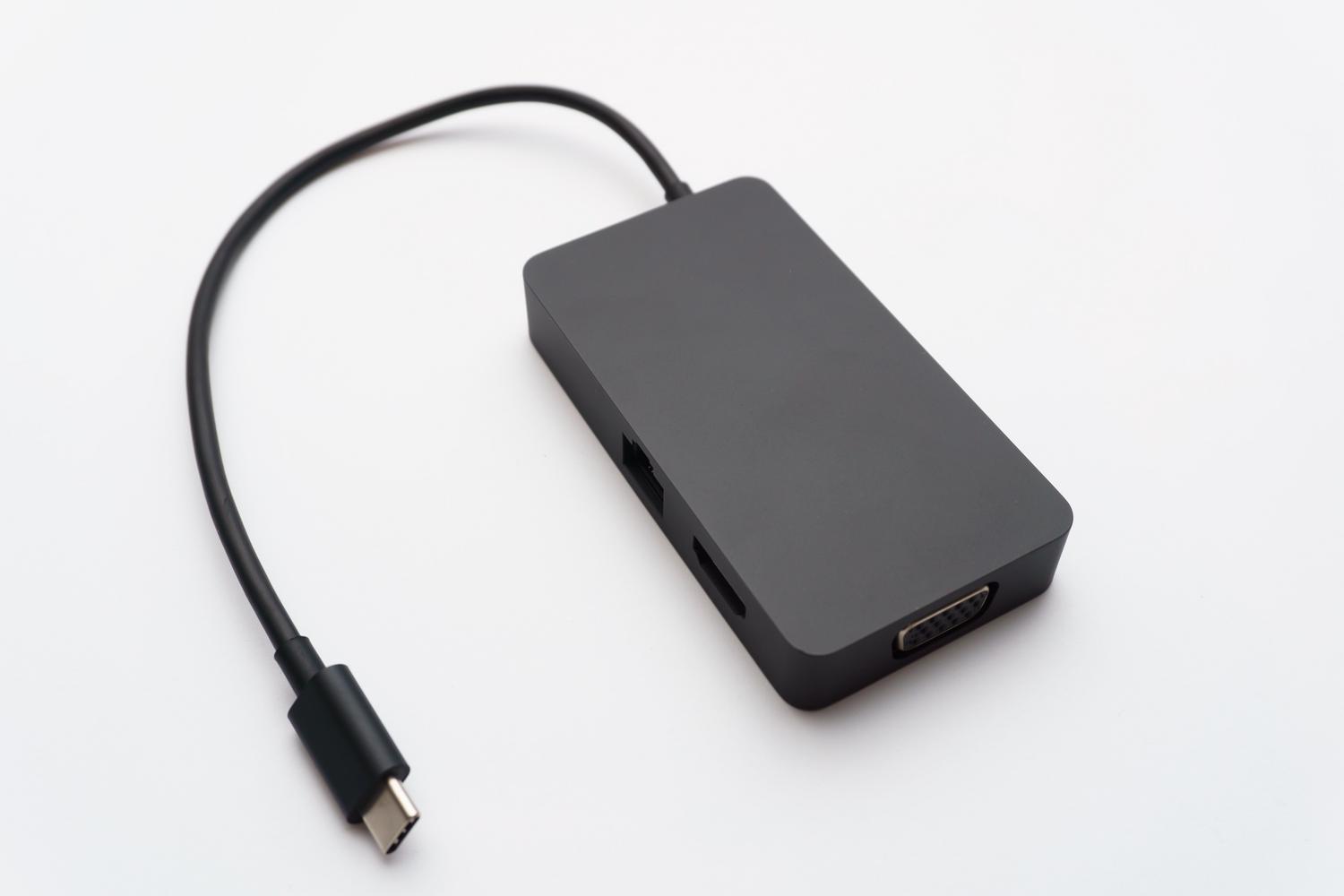
Many people think that if a charger has a high wattage, it can charge anything safely. Fortunately, modern devices use smart charging . If you connect a phone that only supports 18W to a 100W laptop charger, the phone will tell the charger exactly how much power it needs, and the charger will only supply that amount, preventing the device from exploding.
However, the problem arises with the language they use, that is, the protocols. The most universal is USB Power Delivery (USB PD ), which allows for power negotiation. Within this protocol, there are different versions: PD 2.0 uses fixed voltages, while PD 3.0 introduces PPS (Programmable Power Supply) , which precisely adjusts the voltage to prevent the device from overheating and extend battery life. PD 3.1 already exists, capable of reaching 240W for powerful workstations.
There are also proprietary standards from each brand, such as Qualcomm Quick Charge or Samsung's Adaptive Charging. If the charger and the phone don't share the same fast charging protocol, the system will go into safe mode and charge at a basic, extremely slow speed , which is frustrating but safe. For these situations, it's helpful to know how to choose the best compatible power bank.

Data transfer: the hidden speed
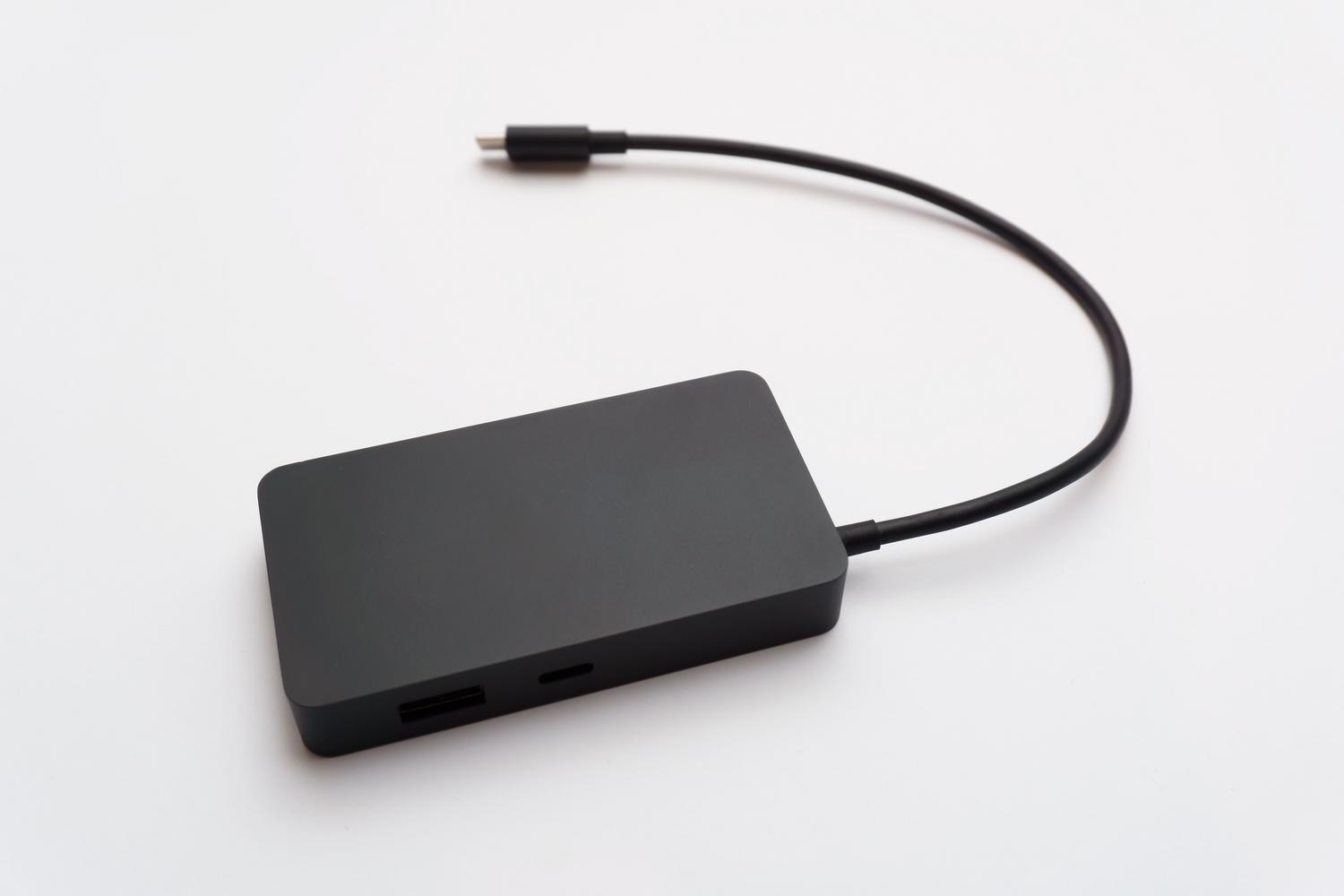
This is where the visual deception begins. You can have two physically identical USB-C cables, but one might be USB 2.0 (very slow) and the other USB 3.2 or USB 4. If you try to connect a high-speed external hard drive with a cable designed only for charging , it's very likely that the computer won't even detect the device, or that the file transfer will take forever.
For those working with large files or capture cards, it's vital to check the cable's actual specifications . Lower-end cables often cut costs by eliminating internal wires, limiting themselves to transmitting power and basic data. To take full advantage of bandwidth, look for USB 3.x Thunderbolt certifications, which guarantee smooth data flow.
The big headache: the video output
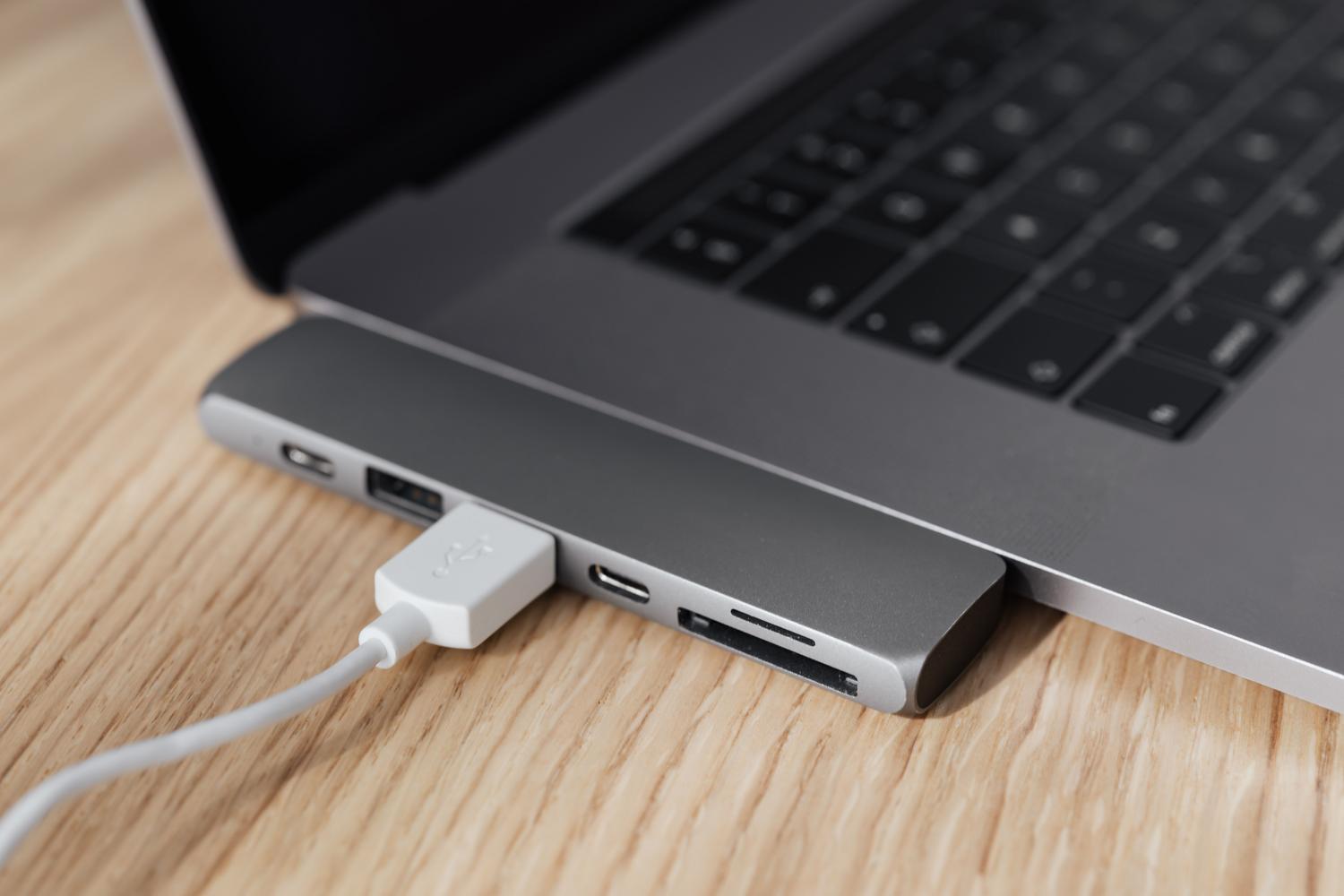
This is the most frequently asked question: why isn't my USB-C to HDMI adapter working? The answer is simple: for a USB-C port to output an image, it must support Alternate Mode (Alt Mode) . If your laptop or tablet hardware doesn't support DisplayPort or HDMI Alternate Mode, no adapter will solve the problem, because the port physically cannot send video signals. You can learn more about the differences between USB-C and HDMI to connect your monitor.
In terms of standards, DisplayPort Alternate Mode reigns supreme , offering significantly higher bandwidth and enabling ultra-high resolutions like 8K or refresh rates up to 240Hz, ideal for gaming. HDMI mode is more limited, generally reaching 4K at 60Hz. If you're looking for maximum performance, Thunderbolt 3 or 4 is the way to go , combining video, PCIe data, and power into a single massive stream of up to 40 Gbps.
If you're experiencing image problems, the first step is to check if your computer supports DisplayPort Alt Mode . If it does, make sure the cable isn't a "charging-only" cable. Video-compatible cables have much more robust internal shielding to prevent interference and image distortion. In critical cases, it's possible to use a laptop with a broken screen with an external monitor.

Hubs, Docks and Port Management
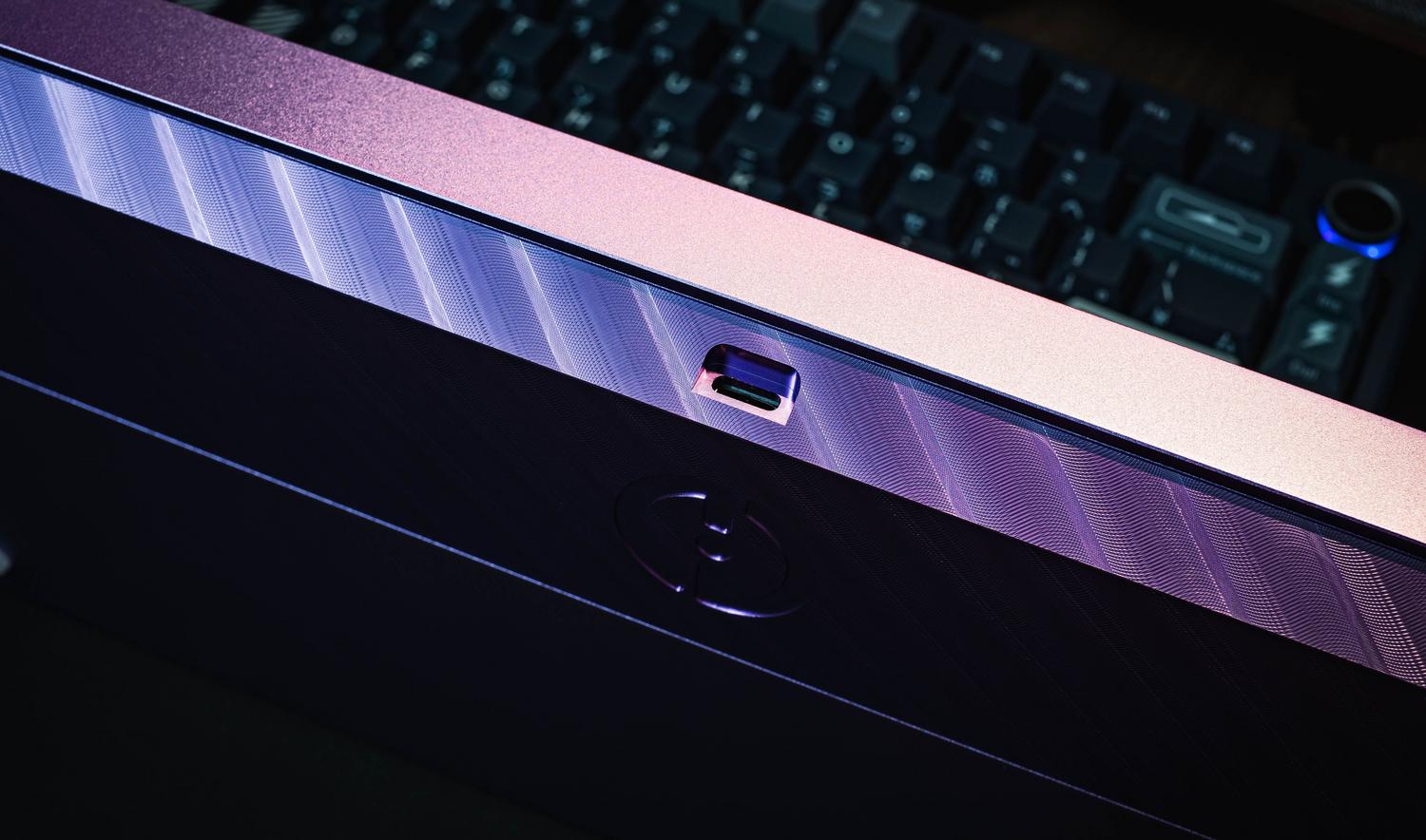
For those looking to simplify their desktop setup, a USB-C hub is a lifesaver, but choosing the right one is crucial. Some are simply port multipliers, while professional docks allow you to charge your laptop (Power Delivery), connect multiple displays, and provide a stable Ethernet connection. Before buying one, you should confirm whether the dock requires an external power supply to power the connected peripherals.
In business environments, it's common to mix equipment from different generations. An adapter that works perfectly with a modern laptop might not work with one that's three years old, even if they both have the same connector. Therefore, the recommendation is to standardize accessories based on the oldest model in the fleet to ensure everything always works.
How to choose the right equipment and avoid mistakes
To avoid mistakes, the first thing to do is read the device's technical specifications . Don't rely on the connector itself; look for terms like "Thunderbolt," "USB4," "Power Delivery," or "video output." If the manufacturer doesn't explicitly mention video, assume that port is only for charging and data transfer.
When it comes to cables, check the labels. Lightning bolt icons indicate Thunderbolt, and DisplayPort logos confirm compatibility with monitors. Also, if you're charging a powerful laptop, make sure the cable has an e-marker chip and is certified for 100W or 240W, as a standard 60W cable will limit the power even if the charger is more powerful.
To quickly troubleshoot issues, always try connecting the device directly, without any hubs or extension cables . Updating your graphics card drivers in Windows often resolves many external monitor detection problems. If the image flickers, check that the cable isn't crossed with power cables, as electromagnetic interference is the primary cause of image corruption.
Having an efficient USB-C ecosystem involves combining charger power, cable capacity, and device port compatibility. While charging is generally safe thanks to intelligent power negotiation, fast video and data transfers require specific hardware such as Alternate Mode or Thunderbolt. Investing in certified cables and checking technical specifications before buying is the only way to ensure that a single cable truly works for everything.
