- There are software and hardware solutions for sharing a single keyboard and mouse between multiple computers, with both free and paid options.
- Programs like Mouse Without Borders, Barrier, Synergy, or ShareMouse allow you to control multiple PCs on a network, share clipboards, and transfer files.
- KVM switches offer a very reliable physical method, useful even before booting the operating system, in exchange for limiting the number of computers.
- Remote desktop, tools like TeamViewer or AnyDesk, and virtual machines cover scenarios of remote access and use of multiple systems on the same PC.
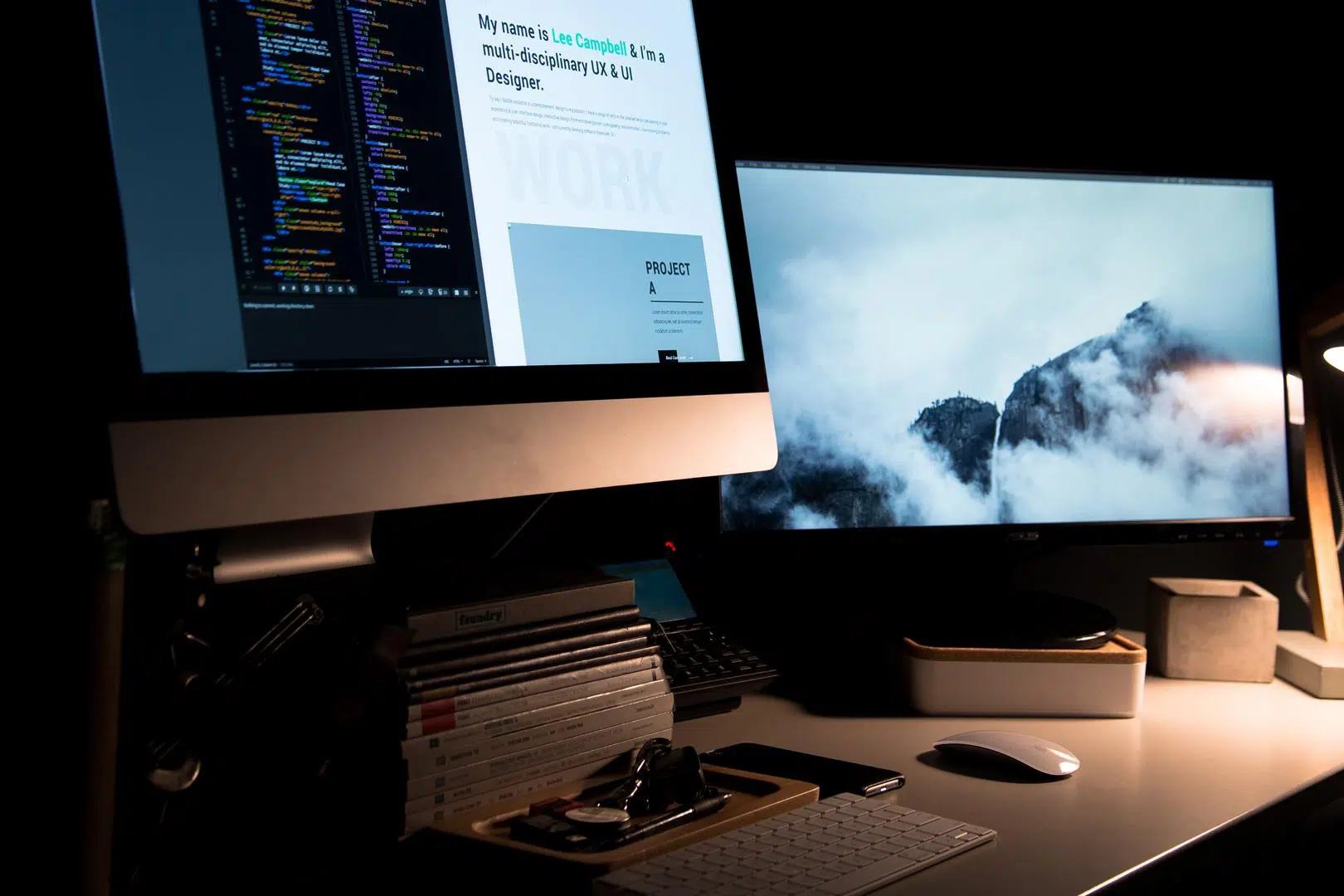
If you work daily with more than one PC on your desk, you know how tedious it can be to constantly switch keyboards and mice . Two desktops, a laptop next to it, maybe a mini PC or a server… and in the end, your desk looks like the peripherals section of a computer store.
The good news is that today there are very mature solutions for controlling multiple computers with a single keyboard and mouse , both through software and specific hardware devices. From free tools like Mouse Without Borders or Barrier, to more advanced paid options like Synergy or ShareMouse, to alternatives like KVM switches, remote desktop, or even virtual machines, the range is enormous and it's worth getting to know it well.
Main options for using one keyboard and mouse on multiple computers
Broadly speaking, we can divide the solutions into two main groups: programs that share keyboard and mouse over the network , and physical KVM (Keyboard, Video, Mouse) devices that switch peripherals between multiple computers. In addition, there are variations such as remote desktop , internet control with apps like TeamViewer or AnyDesk, access via VNC, or even virtualizing another operating system on the same PC.
Each approach has its pros and cons: some are completely free , others require a paid license, some work only on Windows and others are cross-platform, some are perfect for gaming and others have higher latency. The key is choosing the solution that best suits your actual needs (office work, streaming, remote support, development, etc.) and the number and type of computers you want to control.
Programs to share keyboard and mouse between several PCs on a network
Tools of this type allow one PC to act as a keyboard and mouse server , while the others connect as clients over the local network. You continue using your peripherals on the main computer and simply move the mouse to the edge of the screen to "jump" to the monitor of another computer, as if you had an extended desktop across different machines.
In addition to tracking mouse movements and keystrokes, almost all of these applications allow you to share the clipboard (copying text on one PC and pasting it on another) and even transfer files by dragging and dropping. However, for them to work, all computers need to be on the same network (Wi-Fi or wired) and the firewall must not be blocking communication.
Microsoft Garage Mouse Without Borders (PowerToys)
Mouse Without Borders is one of the most interesting solutions if you work in a Windows environment. It's a project from the Microsoft Garage lab that's now integrated into Microsoft's official PowerToys , allowing you to control up to four computers with a single keyboard and mouse at no extra cost.
The tool works by defining a main PC as the server , which is where your keyboard and mouse are physically connected, and then linking the other computers as clients. To do this, you generate a security key (using the "New Key" button) in the PowerToys settings, which you then enter on the other machines along with the main hostname.
Once connected, you can move the cursor beyond the edge of your screen to automatically switch to another PC's monitor, keep your clipboard synchronized, or copy files between machines (up to a 100MB limit). You can even rearrange the computers on a layout panel to match their physical desktop arrangement.
PowerToys also allows you to run Mouse Without Borders as a system service , giving you the option to control applications with elevated privileges or even the lock screen from another PC. To do this, you need to open PowerToys as an administrator and enable the "Use service" option in the tool's settings.
In the fine-tuning section, Mouse Without Borders includes a fairly extensive list of advanced parameters : encapsulating the mouse in a loop between the first and last machine, blocking its passage through corners to prevent accidental PC switching, requiring the press of Shift or Control to cross to another computer, forcing relative movement to compensate for resolution differences, blocking remote screen savers, or displaying connection status and clipboard messages.
Connection status and troubleshooting in Mouse Without Borders
To keep you informed about the connection status, the interface uses color codes to indicate the status of each device: dark gray when there is no data, yellow while resolving, orange when connecting, blue in the link phase, green when connected, red if there is an error, brown if the key is invalid, pink if there is a timeout, purple when a forced shutdown occurs, or dark red for sending errors.
If you're having trouble completing the initial setup, first verify that all machines are on the same subnet , check that the password and hostname have been entered correctly, and ensure that the Windows Firewall isn't blocking the program. You can add a specific firewall rule to allow it directly from the application. If the connection drops intermittently, simply confirming that the computers are still active and clicking "Refresh Connections" or using the corresponding keyboard shortcut is usually sufficient.
Mouse Without Borders also has its known limitations : it only supports copying/pasting or dragging/dropping a single file at a time (not folders or multiple files simultaneously) and has a 100 MB limit; it doesn't work with files hosted on a network; and sometimes the keyboard doesn't "follow" the mouse if you have a Remote Desktop session or a near-full-screen virtual machine on the host. In that case, enabling the "Hide mouse at the edge of the screen" option or switching focus to another window before moving to another PC usually works.
Another peculiarity is that if a machine doesn't have a physical mouse connected , the pointer may become invisible. The easiest way to avoid this is to plug in a mouse you won't be using or enable "Mouse Keys" from the Control Panel. Some options also don't automatically sync between computers, so you may have to manually repeat the configuration on each one.
In any case, Mouse Without Borders is a very solid option for environments with up to four Windows computers connected on a local network, offering fairly deep integration thanks to PowerToys and without the need to pay for licenses.
Barrier: a free, cross-platform alternative based on Synergy
Barrier is an open-source option designed for those who want something similar to Synergy, but without paying . In fact, Barrier was born directly from Synergy's code, so they share much of its philosophy and functionality, with the advantage that Barrier is distributed free of charge and maintains a more community-oriented spirit.
Its operation is also based on defining one computer as the server and the rest as clients. From the server, you can move the cursor to the monitor of any of the other computers and manage their desktops with the same keyboard and mouse. Communication is established through the local network, allowing you to use an automatic configuration mode with discovery via the Bonjour service, or directly specify the server's IP address on the clients.
The interface lets you graphically arrange the relative position of your monitors , assigning each computer to a box and placing them according to your actual setup: left, right, top, or bottom. This way, when the mouse moves from the edge of one monitor, it enters the screen of the next one on the correct side, making the experience very natural.
One of Barrier's biggest advantages is that it allows you to share the clipboard between machines , which greatly improves workflow when you're constantly switching between PCs. You can copy text on one computer and paste it on another seamlessly, just as you would on the same machine. You can also define keyboard shortcuts to switch between computers, instead of relying solely on physical mouse movements.
The downside is that, being an open-source and constantly evolving project, connections aren't always perfect : sometimes they can fail on the first try or require tweaking some network or firewall settings. It's also important to note that Barrier isn't for sharing a monitor; each PC still uses its own screen, so if you're looking to reduce the number of monitors, you might be better off with a hardware KVM switch or a remote desktop approach.
If you need additional features, professional support, or a polished experience in mixed environments, both Synergy and ShareMouse have established themselves as benchmarks in the KVM software world . Both are paid options, though they differ in focus, supported platforms, and licensing model.
Synergy
Synergy is probably one of the best-known names in this field. It's paid software with a lifetime license, priced at approximately $29 for the basic version and around $39 for the Pro version. The main difference with the Pro edition is that it adds encryption for communication between devices and enhanced technical support, which can be crucial in professional environments.
Synergy's strength lies in its true cross-platform nature : it works on Windows, macOS, and various Linux distributions, allowing you to combine computers with different operating systems on the same workstation. This way, you can effortlessly switch from your macOS laptop to your Windows desktop or a Linux workstation, using a single keyboard and mouse.
The installation process is simple: after purchasing the license, you receive a download link , install the software on the main PC, and designate it as the "server." Then, install it on all additional computers as "clients" and enter the same license key provided by the vendor. From the interface, you can arrange the screen positions and adjust parameters such as pointer speed and clipboard sharing.
In its latest versions, Synergy incorporates an automatic computer discovery system on the network, eliminating the need to manually copy IP addresses. Once everything is linked, it allows you to work as if you had a large desktop distributed across multiple machines, with the stability of a commercial product and constant updates.
ShareMouse is another very popular, paid solution designed to offer a cross-platform experience and is very easy to set up . Its Pro license costs around $30 and, unlike Synergy, the application focuses heavily on automating the connection process between devices as much as possible.
In practice, all you need to do is install ShareMouse on all the computers you want to control, making sure they're connected to the same Wi-Fi network or via Ethernet cable. The program usually detects the computers automatically and establishes the connection between them. If you don't see the main window, in Windows you can go to the system tray icon (a pointer) and open "Monitor Manager" from the context menu.
From this manager, you choose the monitor layout : each screen is assigned a letter, and you can drag them to place them wherever you want (to the side, above, below, etc.). It's important to maintain, as much as possible, the actual position of the monitors and the relative size of each screen, because the mouse can only move to another screen where there is contact between them. If, for example, you place a monitor too high and misaligned, you'll only be able to move it through that area.
The free version of ShareMouse allows you to copy text between computers , while drag-and-drop functionality for files and folders is reserved for paid licenses. The transfer is encrypted using AES, and the tool also includes password protection for the connection between computers to ensure security.
Although all devices must be on the same network, this doesn't pose an additional risk if the network is well-secured. ShareMouse encrypts traffic, uses authentication, and requires no extra hardware , making it a very convenient alternative when you have multiple PCs close together in the same room or office.
Other software solutions: Input Director, Multiplicity, Logitech Flow, and USB Network Gate
Beyond the big names, there are a number of applications that cover very specific scenarios : from being limited to Windows environments to getting the most out of special USB devices or taking advantage of peripherals from a particular brand.
Input Director is a free program designed exclusively for Windows. It allows you to control multiple computers with a single keyboard and mouse, following the same server/client principle. You install it on the main PC, designate it as the master, and install it on the others as slaves. From the settings, you can scan the network for candidate systems or add them by manually entering their hostname. Once the connection is established on the client, it is very stable and offers numerous customization options.
Multiplicity , also geared towards Windows environments, is a commercial solution from Stardock. It stands out for allowing control of up to 50 computers with a single paid license and for integrating features such as moving files, folders, text, or images between computers, locking or unlocking all PCs from a single keyboard, and even listening to audio from multiple computers through just one. The free trial version only allows control of two computers for a limited time.
Another interesting alternative is Logitech Flow , integrated into the brand's software for its mice and keyboards. It works very well if you already use compatible Logitech peripherals, as the ecosystem is very well maintained: you can share a mouse and keyboard between multiple PCs , synchronize clipboards, and even drag and drop files between machines. However, its major limitation is that it depends on Logitech devices, although in return it offers compatibility with Windows and macOS and virtually automatic setup.
In more advanced scenarios, USB Network Gate comes into play , software designed to redirect USB devices over the network . Instead of directly sharing the mouse and keyboard as global input, it creates a virtual copy of a remote USB device on your local PC. This allows for things like using a specialized 3D mouse (such as SpaceNavigator) within a Remote Desktop session with all its features, or forwarding a physical keyboard to an RDP session without losing functionality on the local machine.
USB Network Gate truly shines when working with thin clients (diskless devices that rely on a server) or when you need to combine Windows, macOS, Linux, and even Android environments, as it's a solution heavily focused on cross-compatibility. Thanks to its remote device management, you can centralize keyboards, mice, and other USB peripherals and expose them to multiple systems with ease.
KVM switches: the classic hardware solution
If you don't want to rely on programs, mess with network settings, or complicate your machines' software too much, KVM switches remain a very practical solution. Their name comes from "Keyboard, Video, Mouse," and they are basically boxes to which you connect a monitor, a keyboard, and a mouse, which in turn are linked to several computers via cables.
For home use, a KVM switch for two PCs is usually small and USB-powered , so it doesn't need an external power outlet. Models for more computers or with special connections (multiple monitors, audio, extra USB ports, etc.) may require external power. The main drawback is that you obviously have to buy the device, and you're limited to the maximum number of computers the hardware supports: a four-port KVM switch will never control more than four computers.
The main advantage of a physical KVM switch is that the keyboard and mouse behave as if they were directly connected to each PC. This means you can use them even before the operating system boots , for example, to enter the BIOS, select a boot device, or navigate recovery menus. Furthermore, you don't depend on the system being fully loaded or a program running in the background.
Switching between devices is usually done with a physical button on the KVM itself, key combinations, or, in more advanced models, even automatically based on the priority you configure. This way, you decide which PC receives the monitor, keyboard, and mouse signal at any given time, and the switching is usually instantaneous.
In the world of streaming and content creation, KVM switches are very common: many creators use one PC for gaming and another for streaming , and the KVM switch allows them to control them with the same set of peripherals, switching from one to the other as needed without overloading the gaming PC with video encoding tasks.
Remote desktop and Internet control
Another way to control multiple PCs with the same keyboard and mouse is to use remote desktop , either with built-in Windows tools or third-party applications. Unlike the previous solutions, here you don't have to physically move the mouse to another screen: instead, you open a window that displays the other PC's desktop and control it as if you were sitting in front of it.
In Windows, the built-in tool is called Remote Desktop Connection . You can find it in the Start menu, and before connecting, it's a good idea to note down the remote computer's information: its name on the local network or its private IP address if it's on the same LAN, or its public IP address if you're connecting over the internet. To find the public IP address, you can access a website like "what-is-my-ip" from the remote PC.
Once you've entered that information into the Remote Desktop client, click "Connect," and if everything is configured correctly (port open, firewall enabled, credentials correct), you'll be able to control the other PC with your keyboard and mouse as if you were sitting in front of it. This is useful both for working from home with your office PC and for controlling servers or providing support to others.
However, this method has a significant drawback compared to solutions like Synergy or Mouse Without Borders: latency is usually higher . Remote desktop video travels compressed across the network and is decoded in real time, so on slow or congested connections the experience can become choppy, with mouse lag or session interruptions.
Furthermore, remote desktop functionality is highly dependent on hardware performance , correct IP configuration, available bandwidth, and factors such as firewalls, expired passwords, or restrictions on public networks. Resolution conflicts can also occur when the remote computer has a different screen configuration, resulting in black bars or inaccurate scaling.
TeamViewer, AnyDesk and VNC Connect
Beyond Microsoft's Remote Desktop, there are third-party tools that have been standard for remote support and access for years . Some of the best known are TeamViewer, AnyDesk, and VNC Connect, each with its own licensing, security, and supported platform requirements.
TeamViewer offers a free plan for personal use and paid plans for professional use. It's cross-platform (Windows, macOS, Linux, Android, iOS, etc.) and allows you to control multiple computers, transfer files, organize meetings, and provide technical support. To use it, simply install the program, indicate whether you're using it for business or personal purposes, and register a username and password for your team.
On the main interface, you'll see your TeamViewer ID and a temporary password . With this information, someone else can connect to your PC, or you can connect to theirs by entering their ID in the "Remote Control" section and choosing the desired mode (control, file transfer, or VPN). It's easy to set up, and thanks to its cloud infrastructure, the connection typically bypasses routers and NAT without you having to manually open ports.
AnyDesk is another very popular tool, also free for personal use, with paid versions designed for businesses. Its philosophy centers on offering a lightweight and easy-to-install client , creating a private network when the software is in use to enhance security. It is also cross-platform and very intuitive for users without extensive technical knowledge.
Finally, VNC Connect uses the classic VNC protocol, but updated with a clear focus on compatibility and ease of use . It's compatible with Windows, macOS, GNU/Linux, and Android and iOS mobile devices, allowing you to manage computers both on your local network and over the internet. Its interface is simple, suitable for users with no experience in remote control, yet it offers powerful features for managing multiple systems at home or in small offices.
VNC Connect isn't free per se, but it offers various plans (Professional, Enterprise, etc.) with affordable monthly prices and extended trial periods. In return, you get a versatile, well-organized, and clear tool with good connection management that allows you to control numerous devices remotely without much hassle.
Virtual machines: two systems on the same PC
Another way to "have multiple computers" without adding physical hardware is to use virtualization with virtual machines . Instead of controlling other computers over the network, you install a second operating system on your main PC, which runs as if it were a separate computer, but sharing the same keyboard, mouse, and monitor.
With this approach, you could have, for example, Windows as your main operating system and Linux as a guest in a virtual machine, or vice versa. The virtual machine behaves like a standalone PC: you can install applications, access the network, mount virtual disks, and so on. But in reality, everything happens within a window (or full screen) on your own desktop.
Among the best-known virtualization tools are VirtualBox and VMware , both of which offer comprehensive free versions for general use. You can also use Hyper-V in the Professional, Enterprise, or Education editions of Windows, which integrates virtualization directly into the system without requiring third-party software.
The main advantage of this option is that you don't need to worry about cables, KVM switches, or external programs for sharing your keyboard and mouse: the guest operating system itself receives input as if it were another PC. The disadvantage is that it requires relatively powerful hardware (especially RAM and CPU) and that, if you need complete isolation or to use very specific physical devices, it may not be the ideal choice.
How to choose the best option for your case
After considering all these alternatives, the choice comes down to identifying exactly what you need . It's not the same to want to move the mouse between two desktop computers you have side-by-side in your office, as it is to manage several servers in another room, or to access your office PC from home via the internet.
If you're looking for something simple, without complex installations, and you don't mind investing a little, a physical KVM switch is usually the most straightforward option: you connect the keyboard, mouse, and monitor to the device, the device to the computers, and switch between them with a button. Plus, you can even use it before the operating systems boot up.
When your computers are on the same network and you want to minimize costs, free software solutions like Mouse Without Borders, Barrier, ShareMouse (free version) or Input Director are a marvel: they allow you to move the mouse between screens, share clipboards and, in many cases, send files without spending a penny.
If you need encryption, professional support, full macOS and Linux compatibility, or simply a highly polished experience, it might be worth paying for Synergy, ShareMouse Pro, Multiplicity, or Logitech Flow (if you already use Logitech hardware). Generally, these paid options offer advanced features, better customer support, and ongoing updates.
For scenarios where you want to connect from outside your home or office , or provide support to other users, the best option is usually to use remote desktop, TeamViewer, AnyDesk, or VNC Connect. If you're connecting over the internet, consider using a VPN . And if you're looking to experiment with other operating systems without setting up an additional PC, virtual machines with VirtualBox, VMware, or Hyper-V are the solution.
Why use multiple computers at the same time with only one keyboard and mouse?
While it might sound extreme, working with two or more PCs simultaneously is much more common than it seems. Many professionals use multiple computers to increase productivity and efficiency , avoiding overloading a single machine and separating critical or resource-intensive tasks.
For example, a content creator might dedicate one PC exclusively to video editing and another to recording or streaming, ensuring that one task doesn't consume the resources of the other. A developer might have one Windows machine and one Linux machine to test their applications in different environments, all controlled from the same chair. There are also those who use a server or NAS as a secondary machine for backups, downloads, or automations.
Without a system for sharing a keyboard and mouse, this translates into desks cluttered with peripherals , cables, and duplicate devices that only add visual clutter and inconvenience. Making it easy for the same keyboard and mouse to control all your devices clears your desk, reduces errors, and makes work much more comfortable.
Some people, out of habit, prefer to have a keyboard and mouse for each PC, but over time it usually becomes clear that it's more practical to centralize input on a single machine and let the software or KVM handle the rest. When a certain application can't run on one computer, or you need a different operating system, or you simply want to separate different work environments, being able to use multiple computers as if they were one makes a huge difference in daily use.
Ultimately, all these solutions aim for exactly that: to allow you to get the most out of your equipment , without going crazy with peripherals, and to make the transition between one computer and another so natural that you almost forget they are different machines.
With all the options available today, from highly capable free software to dedicated KVMs and mature remote desktop tools, it's quite affordable to find a combination that allows you to control multiple computers with a single keyboard and mouse and adapt the workstation to your way of working, rather than the other way around.
