- Pre-check connectivity on other devices to isolate the fault.
- Application of electrical resets and cleaning of networks saved in the configuration.
- Signal optimization by changing frequency bands or using Ethernet cable.
- Review of system updates and validation of the manufacturer's legal warranty.
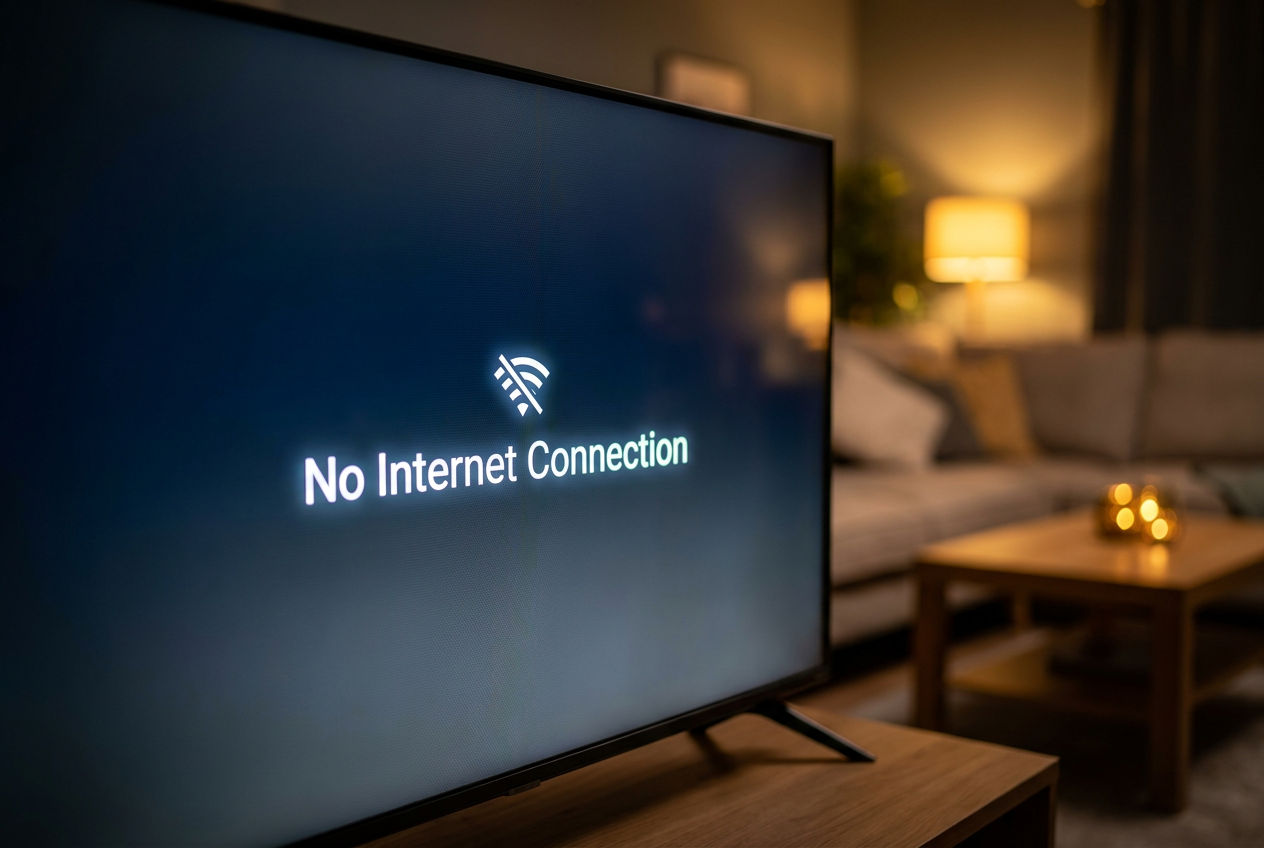
There's nothing more frustrating than sitting down on the sofa after a long day, turning on the TV to watch your favorite show, and finding there's no internet connection . It's a super common problem that can happen to anyone, whether it's because the TV has decided to take a fancy to itself and stop connecting, or because the router is acting up.
Sometimes it seems like your device has gone haywire, but most of the time it's just configuration errors , signal interference, or a minor temporary glitch that can be fixed with a couple of tricks. In this guide, we'll break down step-by-step how to solve these problems so you can get your content back on screen without further hassle.

Identify where the problem is.
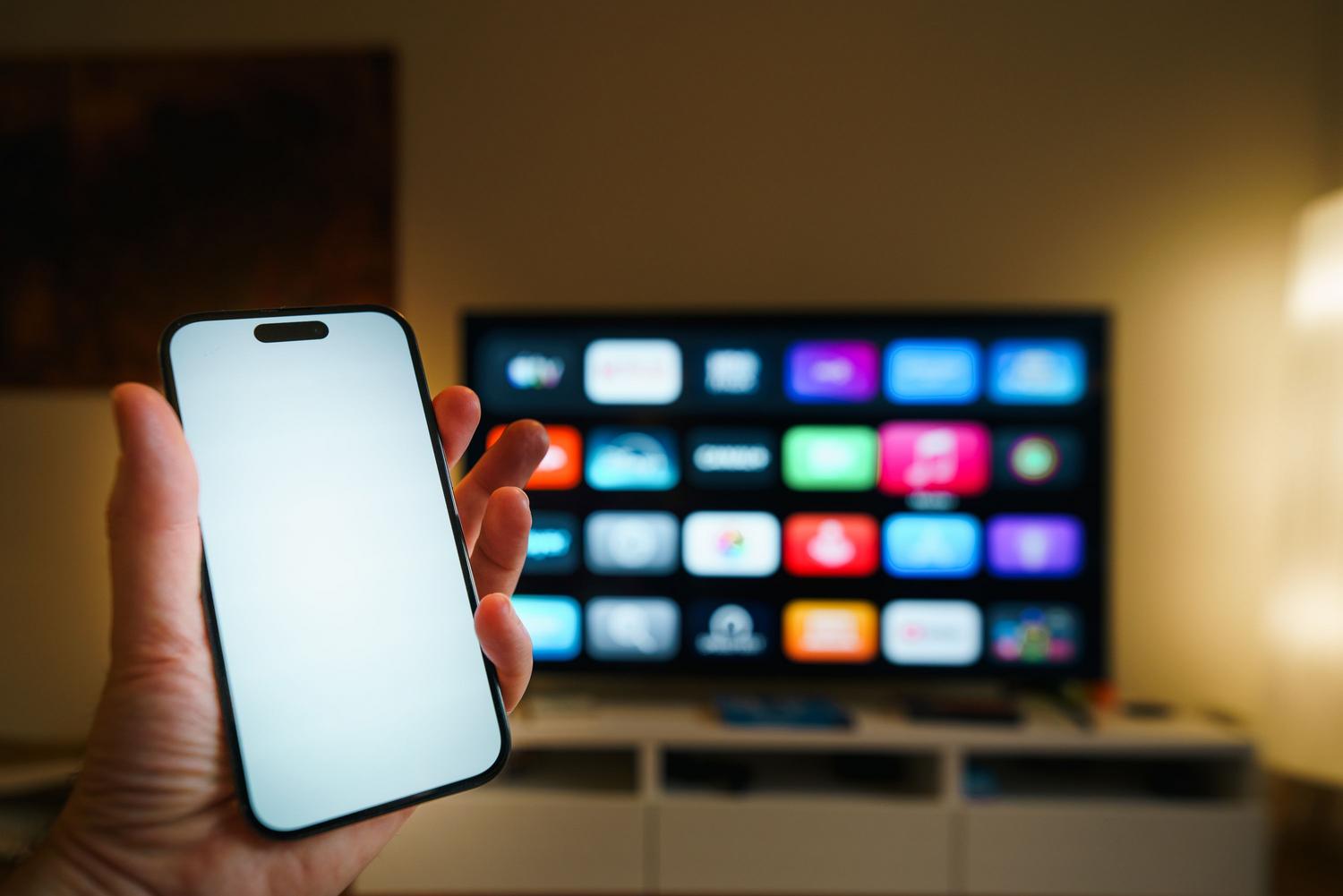
Before you drive yourself crazy messing with settings you don't know, the first thing to do is figure out if the problem is with your TV or your home internet. A simple trick is to check other devices like your phone or tablet; if they browse the internet without problems, then you know the issue is with the TV. But if nothing in your house has internet access, the problem is with the router.
Basic steps to restore connection
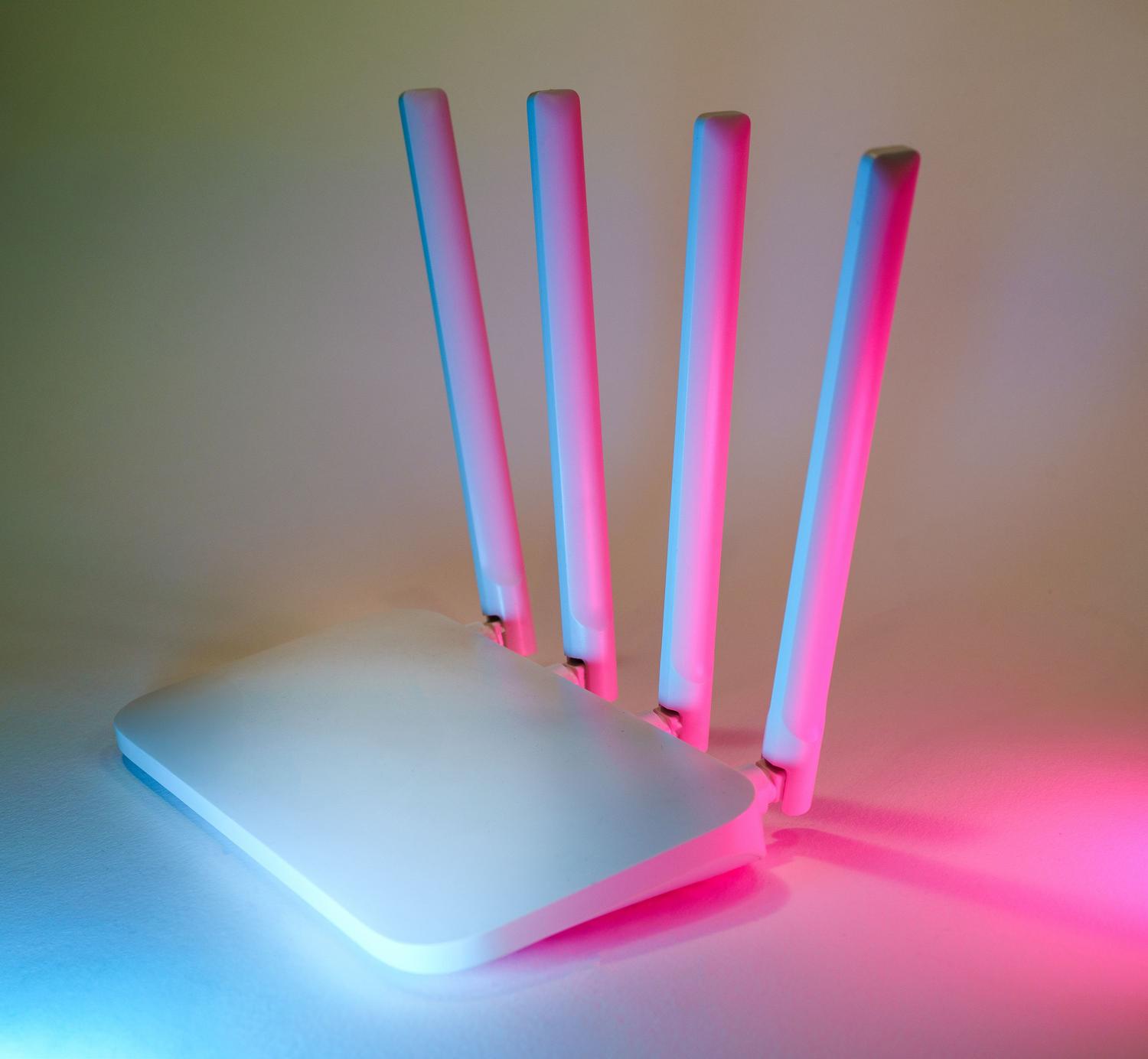
If this is your first time connecting the device, make sure there are no heavy furniture or obstacles blocking the signal between the router and the screen. Also, be patient: some Smart TVs take about 30 seconds to recognize the network after being turned on.

- The energy cycle: Turn off the television completely and unplug the router for half a minute. When you turn it back on, wait until all the lights stabilize before trying to connect the TV.
- Review of the selected network: Delete the saved networks in the network settings menu and search for yours again. Be very careful with the passwordthat an extra space or a misplaced capital letter can block access.
- 2.4 GHz band vs. 5 GHz band: Note that some TVs only support the 2.4 GHz band. If your router is dual-band, try switching between both bands to see which one works best.
Advanced solutions and technical adjustments
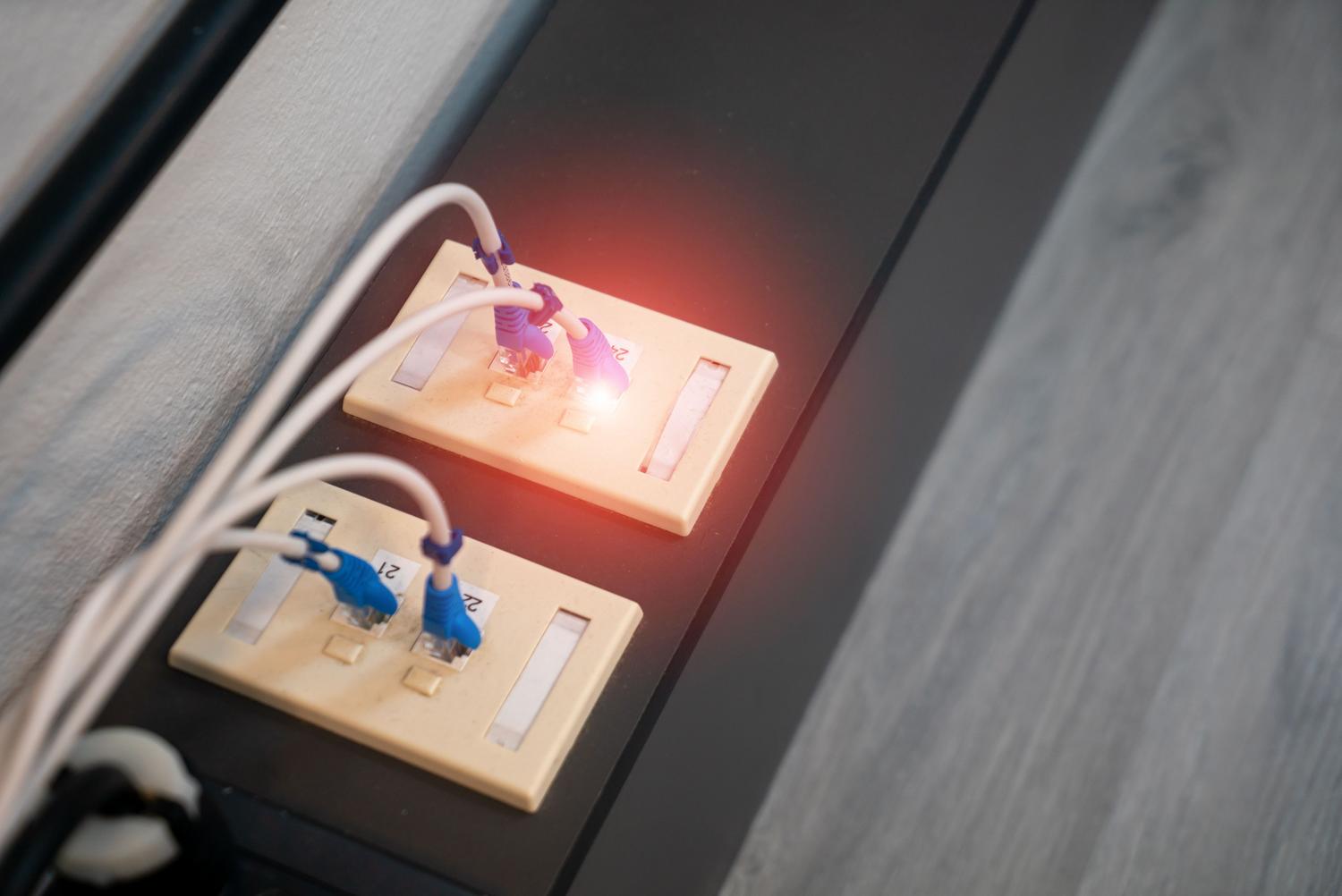
If the above hasn't worked, the problem might be more serious. Sometimes the Wi-Fi option appears grayed out or disabled , which usually indicates a software or even internal hardware issue.

In these cases, you can try changing the DNS settings or checking for IP conflicts in your network configuration. If you have an Ethernet cable handy, try connecting it directly to the router. If it works, then the problem is specifically with the TV's Wi-Fi card and not the operating system.
Maintenance and technical support
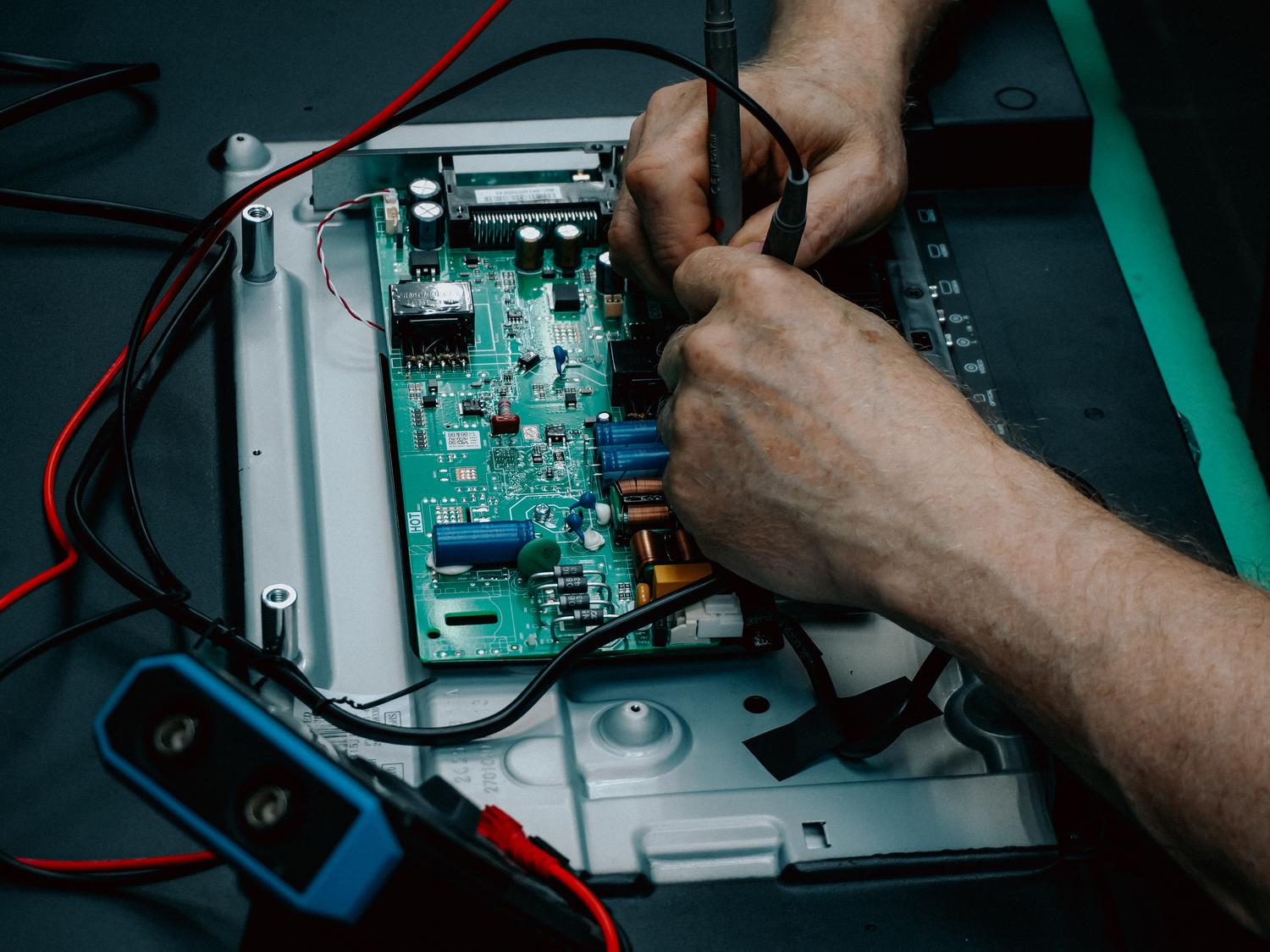
Don't neglect updates. Outdated software can cause unexplained connectivity issues . Check the support menu for any newer versions; if you don't have internet access, some manufacturers allow updates via USB flash drive.
If all else fails, you can perform a factory reset of the network settings or a full system reset. If, after all this, the screen still doesn't detect any networks (not even your neighbor's), it's very likely that the internal Wi-Fi module has failed.
The issue of warranties and repairs
Before paying a penny for repair service, check if your device is still under warranty. Remember that for products purchased from January 1, 2022, onwards, the legal warranty period is three years (previously it was two). If your product is within this period, the seller must handle the repair or replacement at no cost to you.
If the warranty has expired or the damage is not covered, it is best to go to a specialized technical service , since handling the internal electronics of a Samsung, LG or Sony without knowledge can worsen the situation.
To troubleshoot network issues, it's best to start with the simplest things like power resets and signal checks, then move on to DNS settings and software updates, and finally a factory reset or professional repair if the hardware has failed, always keeping in mind the device's legal warranty status.
