- The TV's USB ports allow you to play and record content, expand storage, and connect all kinds of peripherals.
- They are also used to power low-consumption devices, improve connectivity with adapters, and update the TV's firmware.
- Knowing the type of USB (color, pins and labeling) is key to using the right port according to the speed and power that each device needs.
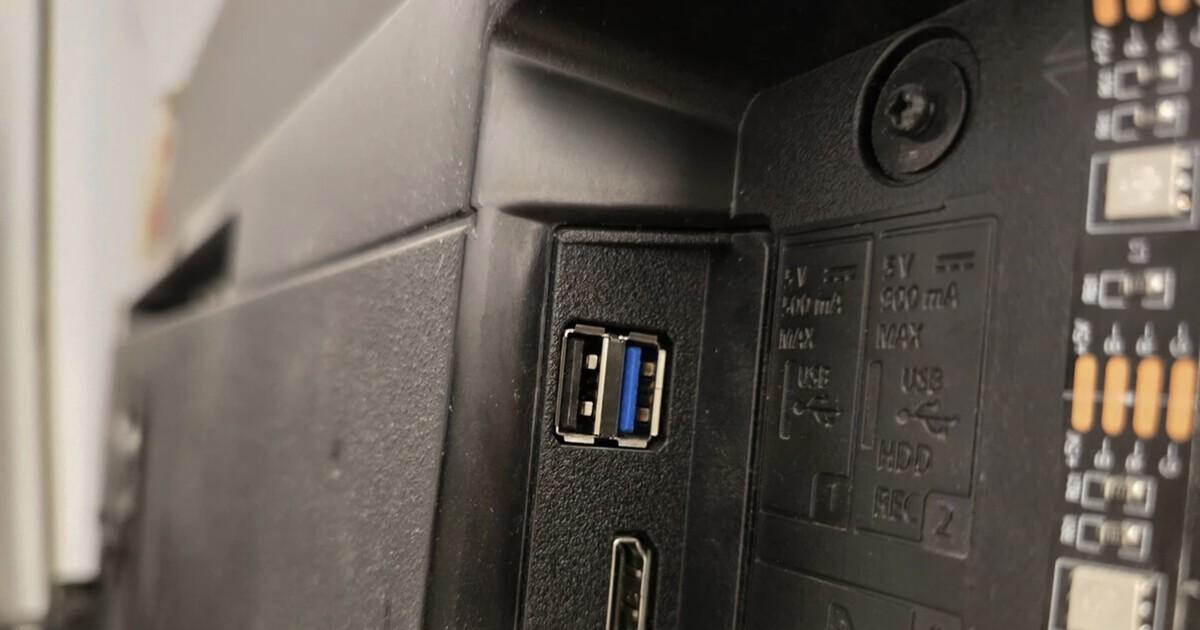
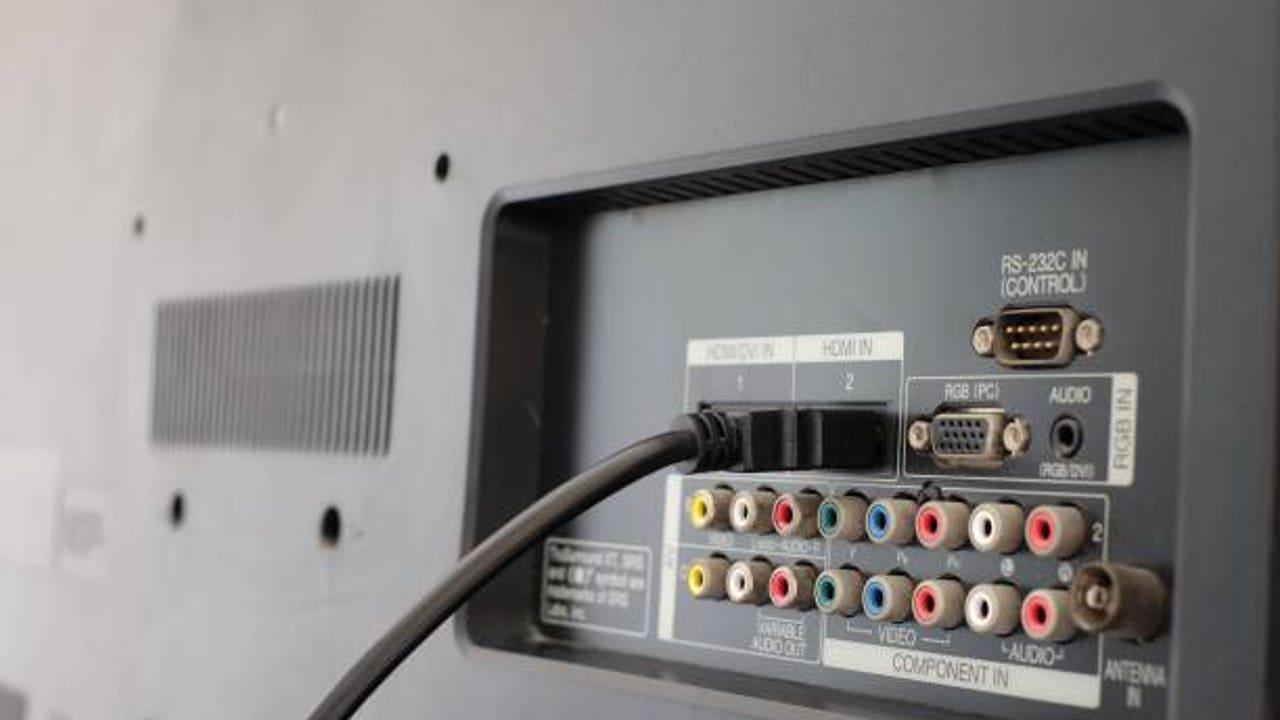
If you look at the back of your TV, you'll see a good number of connections: HDMI, optical, Ethernet… and almost always a USB port or two that we barely pay attention to. However, TV USB ports offer much more than just plugging in a flash drive now and then. Read more about connections if you want to learn about other types of related ports.
In recent years, especially with the arrival of Smart TVs and systems like Android TV and Google TV, the USB port has gone from being an "extra" to a key tool for expanding functionality, improving connectivity, recording programs, installing apps, and even powering other devices. Let's take a step-by-step look, in detail, at what your TV's USB port is really for and how to get the most out of it. If you're thinking of upgrading or buying a new TV, check out what to look for when buying a Smart TV to make the most of its features.
What is the TV's USB port and how is it different from HDMI?
Before diving into the uses, it's important to understand the role of USB in all of this and what differentiates it from other connections. A modern television usually has several HDMI ports and at least one or two USB ports. HDMI ports carry high-definition digital audio and video (from consoles, players, set-top boxes, etc.), while USB is primarily intended for data and power.
HDMI, whose full name is High-Definition Multimedia Interface , was created to replace analog connectors like SCART or RCA. Thanks to it, you can connect a digital TV tuner, a Blu-ray player, or even a device like Chromecast to make an older TV "ready." It's the primary way to display high-quality image and sound from other devices; if you're unsure what a decoder is, you can read about it.
USB, which stands for Universal Serial Bus , has become the standard for connecting all kinds of peripherals: keyboards, mice, hard drives, cameras, smartphones, USB flash drives, and much more. In a television, it acts as a bridge between the TV itself and these devices, allowing both data transfer and the provision of power to low-consumption devices.
On the back or side of your Smart TV, you'll usually find at least one USB port, which many users ignore or only use for watching movies. However, this small connector can be used to play content, record digital terrestrial television (DTT), connect accessories, expand storage space, or update your TV , among other things we'll see below. If you're interested in connecting external and alternative storage devices, take a look at what the eSATA port is.
Play multimedia content from external memory devices and hard drives
One of the most common uses of USB on a TV is connecting a flash drive or external hard drive to view its contents. Your Smart TV can function as a true multimedia center without always needing to rely on streaming or an internet connection. Connect a compatible flash drive or external hard drive and check its format and capacity before playing.
When you plug in a compatible USB drive, the TV usually detects it and opens a file explorer with folders and files. From there, you can play movies, TV shows, home videos, music, or view photos in full screen. This is especially useful if you have a local movie collection or if you want to take downloaded content to a second home or a relative's house without relying on streaming services.
Many people also use this port to turn the TV into a large digital photo frame : you connect a memory stick with your photo albums, activate loop playback and have your memories playing on the living room screen, ideal for family gatherings or to always have photos in the background.
Keep in mind that each brand supports specific video, audio, and subtitle formats; therefore, it's advisable to check the manual or the manufacturer's website to see which file types your model supports to avoid surprises with movies that don't play correctly.
Record television programs and use DTT as a “personal recorder”
In addition to playback, many TVs can use USB for recording. If your model is compatible, you'll see something like PVR (Personal Video Recorder) or USB Recording in the specifications. This feature allows you to record digital terrestrial television (DTT) programs, series, and movies to a USB flash drive or external hard drive.
The process is usually simple: you connect the storage device, format it if the TV prompts you, and from then on, you can schedule recordings or start live recording from the remote control. This way, you can watch your favorite content whenever you want, pause, rewind, or fast-forward without relying on online platforms. If you're concerned about preserving these recordings, consider backup options like using an external hard drive instead of the cloud ( external hard drive ).
For everything to run smoothly, especially if you're recording in high definition, it's recommended to use a USB 3.0 or higher cable and a device with sufficient storage capacity . Additionally, the disk format (FAT32, NTFS, etc.) must be compatible with the TV's operating system; if it isn't, the TV itself usually offers to format it correctly.
Some Android TV/Google TV models also allow you to directly record what's on your screen using capture apps, saving the file to a connected USB drive or hard drive. Not all manufacturers include this feature as standard, but it's another example of what's possible with a USB port if the system supports it.
Expand the internal memory of the Smart TV
One of the biggest problems with many Smart TVs is their limited internal storage. As soon as you install a few apps and games, you start getting "storage almost full" warnings . This is where USB drives become your friend again, especially on TVs with Android TV or Google TV.
These systems usually offer the option to configure a USB drive or hard drive as expanded internal storage . The process typically involves formatting the drive and "linking" it to the TV, so that once this is done, it can be used to install applications and save data as if it were part of the device itself.
The advantage is clear: you leave the USB drive permanently connected and gain a good amount of extra gigabytes for apps, games, and offline content. However, by configuring it as internal storage, that drive will be "linked" to the TV and you usually won't be able to use it on other devices without reformatting it.
This trick is ideal if you're someone who tinkers with lots of apps, installs less common services, or tries out games on your TV. This way, you avoid constantly uninstalling things to free up space.
Charge and power other devices from the TV's USB port.
Another very practical, though sometimes overlooked, use is to use the TV's USB port as a power source for low-power devices . It's not the fastest charging in the world, but in many situations it can be a lifesaver.
With the right cable, you can charge your phone, wireless headphones, a game controller, or a power bank directly from your TV. This is especially useful in rooms with few outlets, hotels, or homes where all the sockets are already occupied. However, the current is usually low, so don't expect fast charging.
Beyond mobile devices, the TV's USB port is often used to power streaming dongles like Chromecast, Fire Stick, or Android TV Boxes , provided the port supplies enough power. This way, you avoid having another charger plugged in and also keep the cables more organized behind the TV.
You can also connect LED light strips, small USB fans, or other gadgets that run solely on electricity . The popular LED strips that stick behind the TV to create ambient lighting are usually powered by the USB port, which means they turn on and off at the same time as the screen.
Connect peripherals: keyboards, mice, controllers, and webcams
One of the great advantages of USB is its compatibility with a huge variety of peripherals. On a Smart TV, this means you can connect a keyboard, mouse, game controller, or even a webcam to expand what you can do with your television.
If you frequently use your TV's web browser, write emails, search on YouTube, or enter passwords, a USB keyboard completely transforms the experience . No more typing letter by letter with the remote's arrow keys; simply plug in the keyboard and navigate almost as if you were using a computer.
A USB mouse can also be very useful. In many models, the cursor is controlled with the mouse in a similar way to a PC , making navigating the interface, pressing small buttons, or moving through complex websites much more convenient than with a traditional remote control.
When it comes to gaming, you don't need a console to play a game. Many Smart TVs, platforms like Netflix, and devices like Chromecast include games compatible with controllers. Connecting a USB gamepad to your TV allows you to play more precisely and comfortably than with the TV remote or your phone.
Finally, on TVs with Android TV/Google TV or video calling apps, you can connect a compatible webcam via USB and use the TV for meetings with Skype, Google Meet, or other services. Seeing your contacts on a large screen makes video conferences more comfortable, especially if there are several people in front of the TV.
Adapters and dongles: improve your TV's connectivity
The USB port can also be used to expand the TV's connectivity when the internal hardware is insufficient or malfunctions. This is where USB adapters or dongles come in. If you need external options, consult guides on USB adapters and compatibility.
If your TV doesn't have Wi-Fi or the internal card is malfunctioning, you can use a compatible USB Wi-Fi adapter to reconnect it to the network without running a long network cable throughout your house. Many manufacturers sell their own official dongles, and other generic adapters also work, although it's advisable to check compatibility.
The same applies to Bluetooth. Some TVs don't come with Bluetooth built-in, or the module fails over time. With a USB Bluetooth adapter, you can connect wireless headphones, speakers, or even remote controls , gaining access to features that weren't available from the factory.
In some cases, TVs or streaming devices support USB-Ethernet adapters for wired internet connections . This can provide a more stable and faster connection for streaming, ideal if you watch a lot of 4K content or play cloud-based games and the Wi-Fi signal isn't very reliable where the TV is located.
Connect audio adapters and improve the sound
A lesser-known but very powerful use is to use the USB port to enhance the TV's audio using a DAC or sound adapter . Not all models support this, but when compatible, the improvement in quality can be remarkable.
A USB DAC (digital-to-analog converter) connects to the TV's USB port and provides higher-quality audio output for connecting external speakers, soundbars, or high-end headphones. This sometimes allows you to bypass the TV's internal audio processing, which isn't always the best.
To get the most out of these adapters, you'll need suitable speakers or headphones . If you have a good audio system or want to set up a small home theater, this alternative can offer more options than traditional outputs, provided your TV recognizes the USB audio device.
Installing applications from a USB drive
On Smart TVs with open systems like Android TV or Google TV, the USB port allows you to go beyond the official app store. You can manually install applications from downloaded files (for example, APK files) saved on a USB drive.
The idea is simple: download the installer file for the app compatible with your system from your computer, copy it to a USB drive, and then connect it to your TV to locate it using a file explorer . Once found, you can begin the installation by following the on-screen instructions.
This method is useful when an app isn't available in the official store, is no longer accessible, or you want a specific version . However, be very careful: if the developer or source isn't trustworthy, you could install unsafe or malfunctioning software.
Therefore, it's always advisable to download installers from trusted websites and avoid dubious sources at all costs . Furthermore, it's worth remembering that not all models allow "apps from unknown sources," and in many cases, you'll need to enable this option in your system settings.
Manually update the TV's firmware
Modern TVs usually update automatically via the internet, but this isn't always the case: some models don't connect to the internet, others no longer receive automatic updates, and there are instances where an update fails and must be installed manually . Again, the USB port is the entry point.
The procedure, in general terms, involves going to the manufacturer's official website, locating your model, and downloading the latest firmware version . This update usually comes in a compressed file or a specific file that you will have to copy to a USB drive following the manufacturer's instructions.
Once you have the USB drive ready, connect it to the TV and, from the settings menu, look for the option to "update from USB" or something similar . The device will recognize the file and, after a few minutes, the new system version will be installed, correcting errors and improving stability or adding features.
Updating this way is especially useful when the TV isn't connected to the internet or the automatic download is having problems . However, it's important not to turn off the TV or remove the USB drive during the process to avoid serious system errors.
Differences between types of USB ports on TVs
Not all USB ports on your TV are created equal. They vary in speed, power capacity, and even function. Knowing how to identify them helps you use each one for its intended purpose and avoid mistakes like trying to power a demanding device from a weak port.
One of the clearest clues is the color of the connector's internal plastic. In many devices, including televisions, the color indicates the USB standard version and, therefore, the speed and power it offers.
Ports with a white interior usually correspond to older versions (USB 1.0/1.1), which are rarely seen today. They are very slow and were used for basic peripherals such as keyboards or mice . Black ports generally indicate USB 2.0, the most widespread standard for years, with speeds sufficient for most multimedia uses and a current of up to 500 mA.
When the internal connector is blue, it's usually USB 3.0 or 3.1 Gen 1. These ports allow for much higher transfer speeds and can supply up to 900 mA of current, making them ideal for external hard drives and certain streaming dongles.
There are other, less common colors: light blue usually corresponds to USB 3.1 Gen 2 , which is even faster; red indicates USB 3.2, capable of very high speeds; and yellow or orange usually marks "Always On" fast charging ports, which continue to power devices even when the computer is turned off . Televisions don't always use all of these colors, but it's good to be aware of them.
Another important technical detail is the number of pins or internal contacts. USB 2.0 has 4 pins , sufficient for data and basic power, while USB 3.0 and later versions have 9 pins , allowing for higher speeds and more power for demanding devices such as multimedia hard drives.
Additionally, some ports may be labeled with markings such as “USB,” “SS” (for SuperSpeed), or charging symbols. Those marked “SS” are usually 3.0 or higher , ideal for copying large files and powering devices that require more current. For something as sensitive as powering a Chromecast with Google TV, for example, it's not a good idea to use a 2.0 port limited to 0,5 amps; it's better to use a 3.0 port or a more powerful dedicated charging connector.
Practical examples: how to take advantage of USB in everyday life
With all of the above in mind, you might be wondering what specific uses you can give it, at home or when you're out and about. The truth is, the USB port turns your TV into a kind of Swiss Army knife for solving many everyday problems.
If you're traveling and staying in a hotel, and you only have your phone's cable but not its charger, plugging it into the TV's USB port is a quick solution to avoid running out of battery. If you have a USB drive with TV shows or movies, you can watch them on virtually any TV with a USB port, as long as the model supports playback from that port.
At home, the USB allows you to personalize your TV with LED light strips powered directly from the television, set up a small "multimedia" station with a keyboard and mouse to browse the internet on a large scale, or record your favorite digital terrestrial television programs to watch them whenever you want.
If you're more advanced, you can use it to install apps that aren't available in the store , try out new services, or update your TV when the manufacturer releases firmware that fixes annoying bugs. And if any wireless connection falls short, you can always use USB adapters for Wi-Fi, Bluetooth, or even an Ethernet cable.
The TV's USB port is much more than just a hole for flash drives. It's a gateway to content, extra features, better connections, and even a more convenient and personalized Smart TV experience. Understanding what it can do and what type of USB port you have will help you get the most out of it and stop wasting a connector that, when used properly, offers a lot of possibilities.
