- Most image failures result from conflicts with video drivers or errors after system updates.
- There are keyboard shortcuts and native recovery tools to restore desktop visibility.
- Hardware review and background process cleanup eliminate interference that blocks video output.

There's nothing more unnerving than turning on your computer and being met with a completely blank screen. That dreaded black screen is a fairly common problem in Windows 11 that can appear at the most inconvenient times: right at startup, after entering your user password, or after installing an update that promised improvements but ended up leaving you stranded.
The good news is that, even if it seems like your PC has died, most of the time it's just a software or driver issue that can be fixed without spending a penny on a technician. From simple keyboard shortcuts to deep registry tweaks, we'll explore all the possible ways to get your wallpaper back as soon as possible.

Quick tricks to recover the image

Before getting into more complex troubleshooting, there are a couple of tricks that can save the day. If the system is still running but the screen isn't responding, try pressing Windows + Ctrl + Shift + B. This forces the system to restart the graphics driver , and if it works, you'll hear a short beep and the image will reappear.
If the problem is that Windows has lost track of where to project the image, you can use the Windows key + P. Press the letter P several times and press Enter to cycle through the different display modes (PC screen only, mirrored, or extended), as sometimes the system thinks you have an external monitor connected and sends the signal there.
Common causes and basic diagnoses
To solve the problem, you first need to understand why it's happening. Sometimes it's simply that File Explorer (explorer.exe) has frozen, leaving a black screen with a cursor in Windows 11. Other times, the culprit is a Windows update that has caused hardware incompatibilities, especially with NVIDIA or AMD graphics cards.
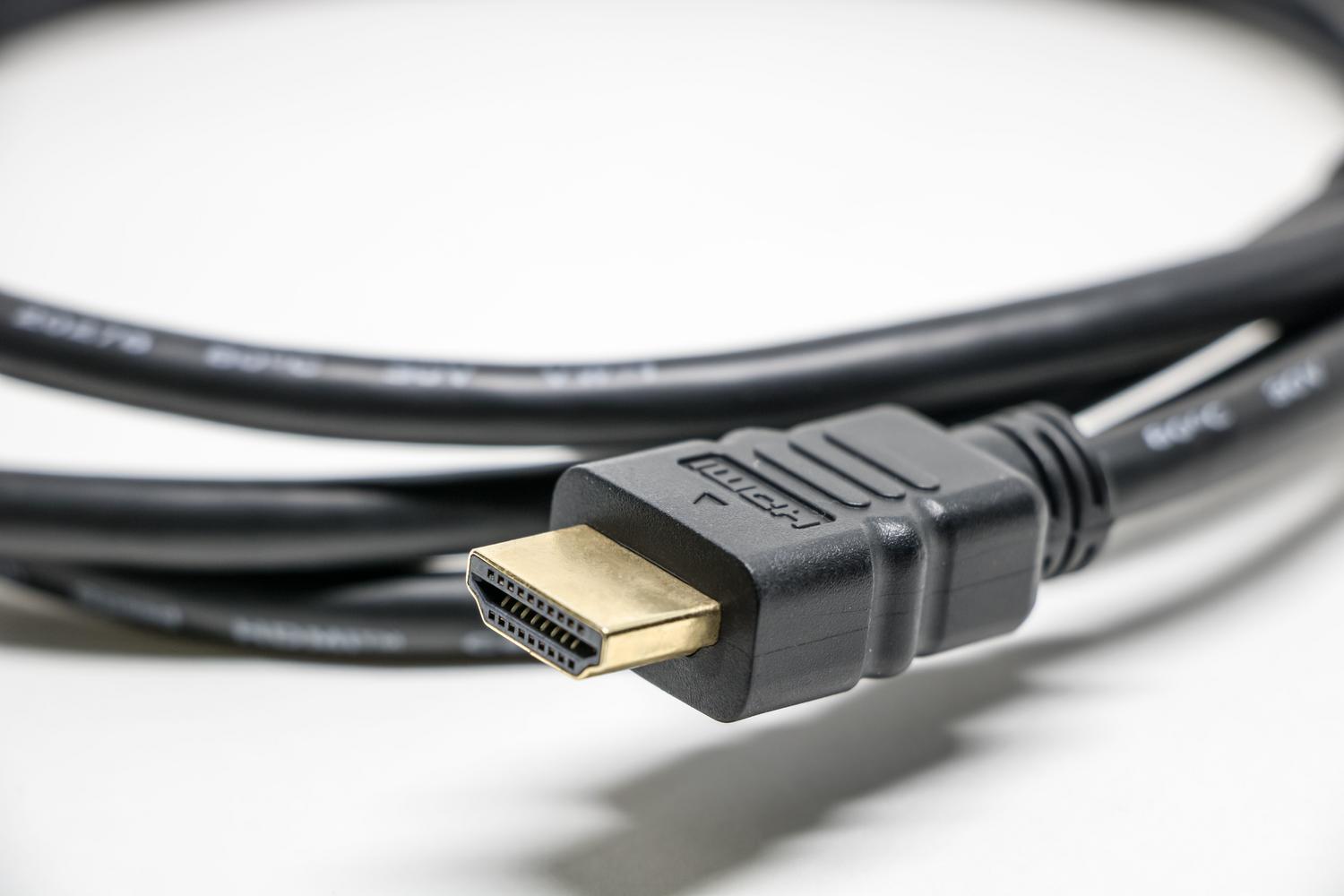
There are also physical factors that shouldn't be ignored. A loose HDMI or DisplayPort cable , or a monitor that has started malfunctioning, can simulate a system error. It's essential to check that all connections are secure and, if possible, test with another monitor to rule out a physical panel failure .

Advanced step-by-step solutions
If the basics haven't worked, it's time to go mechanical. If you can access Task Manager using Ctrl+Alt+Delete , look for the explorer.exe process. If it's not there, go to File, select Run new task , and type explorer.exe to force the desktop to load.
Controller and energy management
Outdated drivers are the culprit in 90% of cases. Go to Device Manager and, under Display adapters, try updating your GPU driver . If the problem started right after an update, the best course of action is to choose the option to roll back to the previous driver.
Another silent culprit is Windows Fast Startup. To disable it, go to Control Panel, enter Power Options, and uncheck the box for Turn on fast startup . This prevents the system from loading corrupted hibernation states that can cause the screen to freeze when you turn on your computer.

Interventions in the Registry and Services
In more stubborn cases, the shell configuration might be incorrect. Open the registry editor (regedit), navigate to the Winlogon path , and verify that the shell value is exactly explorer.exe . Additionally, some users have resolved the issue by disabling the Application Preparation service from the services.msc menu, changing it to disabled.
If you suspect that the graphics card is taking too long to respond, you can create a DWORD value called TdrDelay in the GraphicsDrivers path of the registry, assigning it a value of 8 to give the GPU more response time before Windows restarts the driver.
System Recovery and Safe Mode

When you can't access anything, the Recovery Environment (WinRE) is your best bet. To enter it, force your PC to shut down and restart three times in a row. From there, you can access Startup Settings and choose Windows Safe Mode with Networking. This loads Windows with the bare essentials, allowing you to uninstall suspicious applications or recent updates.
Among the advanced options, you have the System Restore tool , which allows you to return your PC to a point in time when everything was working perfectly. If none of this works, you can repair Windows 11 using the SFC and DISM tools by running the command sfc /scannow from the command prompt to repair corrupted system files that may be preventing the system from booting.

Drastic solutions and maintenance
If the problem persists even in safe mode, it could be an external hardware conflict. Try disconnecting all peripherals (USB drives, headphones, external hard drives) and restarting. If the PC boots, reconnect them one by one until you find the device causing the hardware incompatibility.
As a last resort, you can try resetting the BIOS or UEFI to its factory settings by loading the "Optimized Defaults." This resolves video memory allocation errors or incorrect boot configurations. If all else fails, the final option is to perform a clean installation of Windows , making sure you have backed up your data beforehand using a Linux boot disk or Safe Mode.
Troubleshooting this issue involves eliminating possibilities one by one, starting with simple things like a keyboard shortcut or a loose cable, and progressing to more complex issues such as registry editing or reinstalling the operating system. Keeping drivers updated and avoiding unofficial customization applications is usually the best strategy to prevent the desktop from disappearing and leaving you completely unresponsive.