- OpenWrt firmware allows you to transform a conventional router into an advanced network device with professional management capabilities.
- Compatibility varies depending on the hardware, with x86 systems being especially powerful due to their processing capacity and memory.
- The choice between ext4 and squashfs file systems determines the write flexibility and stability of the operating system.
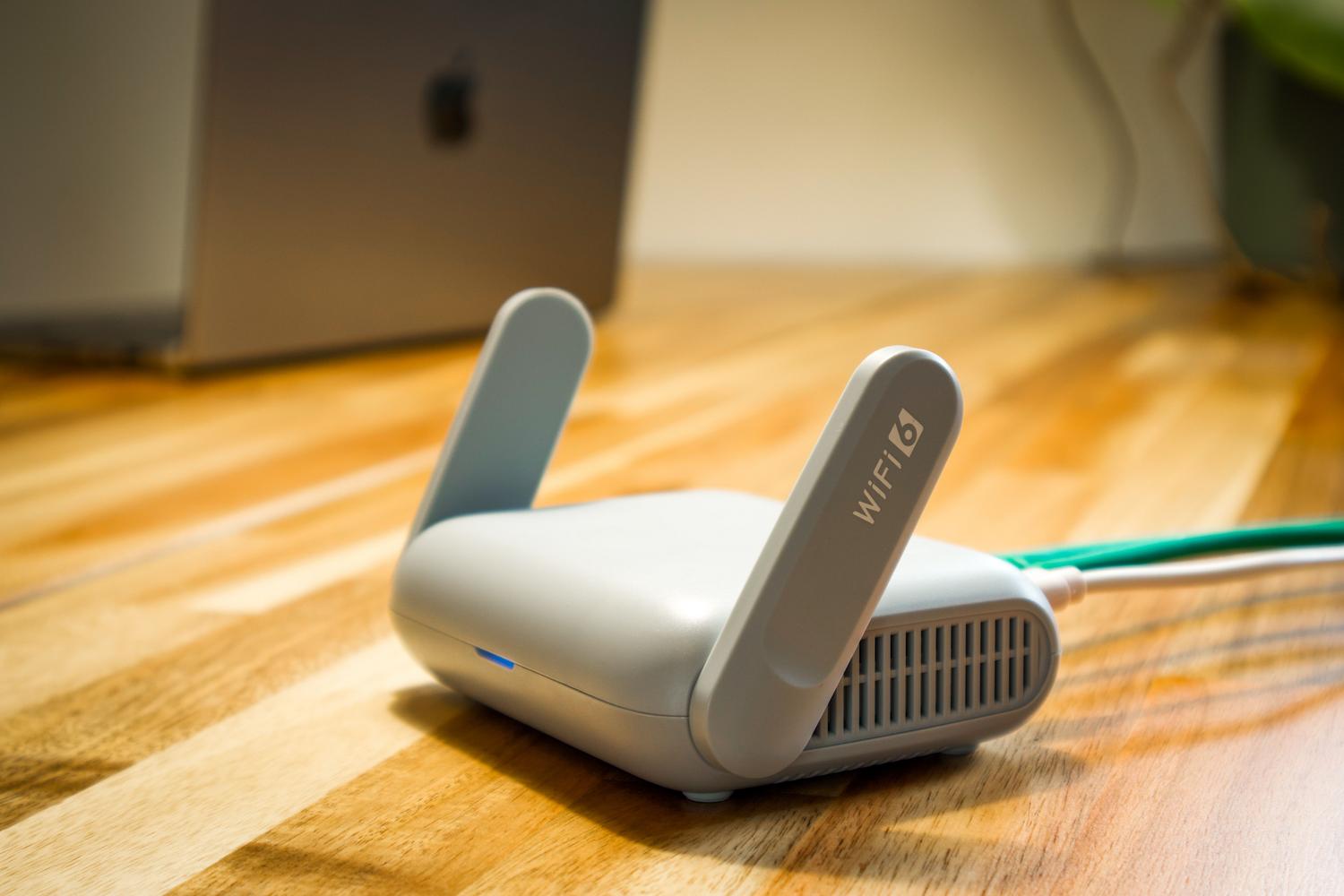
If you feel the pre-installed software on your router falls short, or you simply want to tinker with your home network, installing OpenWrt is the next logical step. It's not just about swapping one interface for another; it's about transforming a basic device into a powerful tool capable of managing network traffic like a pro. However, you must proceed with caution to avoid rendering your equipment unusable.
Before diving in, it's worth noting that the difficulty varies depending on your experience level: if you're already familiar with Linux and know what an IP address is, this will be a piece of cake, but if you're a beginner, be prepared to learn basic networking concepts . Remember that flashing a computer carries risks, so do it at your own risk, but rest assured that the result is worth it.

Preparations and fundamental concepts
To ensure everything runs smoothly, we must first choose the correct image. In the case of specific routers like the WR842N, we'll look for a Factory image to replace the original firmware . A key point is the file system: the squashfs format is much more versatile than jffs2, although on x86 systems we'll also see the ext4 option, which is ideal if we intend to install a large number of packages since it allows direct writing.
If you want to avoid complications, steer clear of "trunk" or development versions, as they often lack the LuCI graphical interface. It's best to opt for stable or near-stable versions to ensure the router doesn't give you any unexpected problems during the process.
Installation on conventional routers

The general process is usually quite straightforward. First, connect your computer to the router using an Ethernet cable in any of the LAN ports. The router will typically assign an IP address via DHCP; for example, on TP-Link devices, the subnet is usually 192.168.0.0/24, and you can access the web interface at 192.168.0.1 with the credentials admin/admin.

Once inside, navigate to the system tools section and look for the Firmware Upgrade option . Upload the OpenWrt file you downloaded earlier and click the upgrade button. The process may take about 5 minutes. If you don't see a web interface afterward, you can log in via SSH and run commands to install LuCI and enable the uhttpd server , first updating the package list with `opkg update`.
The leap to x86-based routers

Installing OpenWrt on x86 hardware (like an old PC or an industrial server) is a whole different ballgame. Here, you gain incredible raw performance, allowing you to set up high-speed VPN servers or complex traffic managers. The minimum requirements are simple: a 64-bit processor, at least 512 MB of RAM (though 1 GB is ideal), and around 2 GB of storage, preferably on an SSD for lightning-fast performance—an excellent option if you want to get the most out of your older PCs.
Steps for flashing in x86
- Creating the boot medium: We downloaded the x86-64 image and used tools like Rufus on Windows or Etcher on macOS/Linux to burn the image to a USB drive. This is vital. verify file integrity with sha256sum to avoid errors during installation.
- BIOS setup: We restart the computer and enter the BIOS/UEFI (using F2, F10 or DEL) to prioritize booting from USBDon't forget to disable Secure Boot if the system fails to boot.
- Writing process: Once the installer loads, select the destination drive (hard drive or SSD) and proceed with the flashing process. When finished, remove the USB drive and restart to boot into the operating system.

Initial configuration and optimization
After the initial boot, access the LuCI interface by entering 192.168.1.1 in your web browser. The first step is to set a strong root password in the System > Administration menu to prevent unauthorized access to the router. Next, configure the WAN interface according to your internet service provider's protocol (DHCP or PPPoE) and adjust the LAN settings to your liking.
To get the most out of the hardware, we can install essential packages. From the software manager, we can add support for WireGuard or OpenVPN , statistics tools like luci-app-statistics, or even Samba4 if we want to set up a small file server. On x86 systems, it's highly recommended to enable Smart Queue Management (SQM) to eliminate lag and take advantage of multi-core processors.
Advanced Features and Tricks
One of OpenWrt's strengths is its ability to create VLANs. This allows us to segment our home network , isolating, for example, IoT devices (light bulbs, smart plugs) from our main network so that if one is hacked, the compromised device won't have access to our personal computer—similar to hardening a homelab with VLANs.
Additionally, if you have two internet connections, you can configure Dual-WAN for load balancing or to have a backup line. For the more adventurous, there are automation scripts that use the APK package manager (in recent versions) and the owut tool to keep the firmware updated via SSH, performing automatic backups before each version upgrade.

Common troubleshooting
If the router won't boot, the first thing to check is the BIOS and the USB port. If you're having network problems, make sure your PC is in DHCP mode or assign a manual IP address like 192.168.1.2. If you make a critical configuration error, you can always use the physical reset button by holding it for 15 seconds or, via SSH, by running the command `firstboot` followed by a reboot.
If you need to revert to the original software, you must download the firmware from the manufacturer and upload it through the OpenWrt interface, although this process varies depending on the model. For those who don't want to dedicate physical hardware, OpenWrt can be run perfectly well as a virtual machine in VirtualBox or VMware , which is ideal for testing before moving to the actual machine.
Mastering OpenWrt allows you to go from a limited router to a total control center where security, speed and customization reign supreme, whether it's optimizing your home network with VLANs, setting up a private VPN or rescuing an old PC to give it a second life as the brain of your connectivity.