- Official methods to force system updates using the Windows Update Assistant and the Media Creation Tool.
- Using the Microsoft Update Catalog to install specific security and quality patches offline.
- External software alternatives and procedures for troubleshooting common storage or hardware errors during installation.
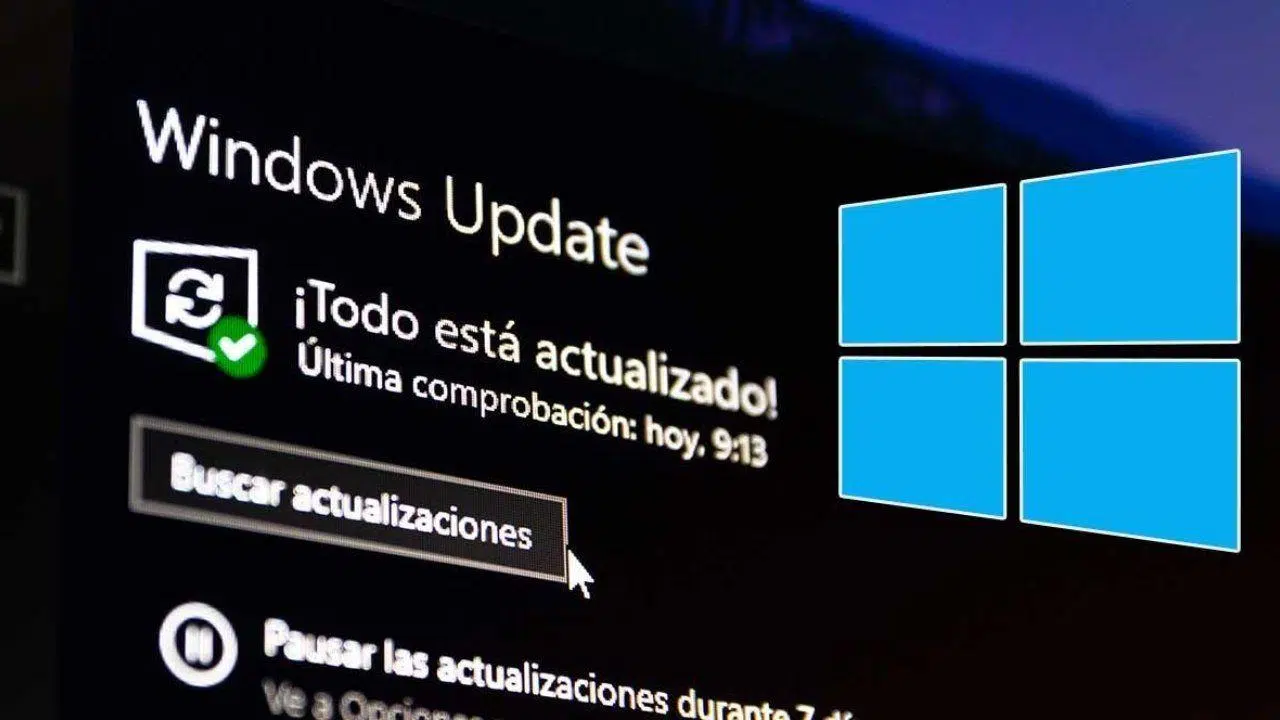
Sometimes, Microsoft's automatic system freezes or simply decides that your computer isn't a priority for receiving the latest updates. It's frustrating to try clicking the "Check for updates" button and have nothing happen, or worse, encounter a cryptic error code that prevents you from proceeding. When Windows Update fails , there's no need to give up or reformat your computer, as there are alternative ways to update your system.
Keeping your software up to date isn't just about showing off the latest visual features; it's a critical security measure. Zero-day vulnerabilities and modern malware don't forgive those who leave their PCs running outdated versions. Therefore, knowing how to navigate the update catalog or use manual deployment tools is essential for any user who wants to keep their machine safe and running smoothly.

Official tools to force the update
If you're tired of waiting for updates to arrive automatically, the Windows Update Assistant is your best friend. This utility is specifically designed for compatible computers that, for whatever reason, haven't received the latest version automatically. Essentially, it skips the queue and downloads the most recent version available for your device's architecture, ensuring your device is protected and has the latest system capabilities.
To find out exactly where you stand, you can run the command `winver` in the search bar on the taskbar. This will open a small window showing your exact Windows build number. If you see that your version is very old, the Windows Update Assistant is the quickest way to resolve this. However, if you're an IT professional, remember that there are service options available to postpone these processes if you need absolute stability in a work environment.
When the problem is more serious and Windows Update is completely broken, the Media Creation Tool is the ultimate solution. Although many people think it's only for installing Windows from a USB drive, it has an option called "Upgrade this PC now ." This process is essentially an "over-installation" of the current system; the system reinstalls the operating system kernel while keeping your personal files and applications intact, which often cleans up deep registry errors that prevent normal updates.

To use this tool, administrator privileges are essential , and it's recommended to disconnect unnecessary peripherals (leaving only the keyboard, mouse, and router connected) to avoid driver conflicts in Windows . Keep in mind that this method is slower than a conventional patch and requires restarting your computer, so it's best not to do it while you have important work open. Simply accept the terms, choose the option to update, and keep your files and applications to avoid losing any documents.
Types of updates and how they work
Not everything Windows downloads is the same. There are feature updates , which are usually released twice a year (in spring and fall). These are the ones that change the interface or add powerful features. They used to be known by names like Redstone, but now they use a simpler naming convention based on the year and semester, such as 22H2 . These are the ones that require the most space and are the most likely to cause incompatibilities with certain drivers.
On the other hand, we have quality updates . These don't bring new features, but rather focus on reliability and security. They are cumulative, meaning that if you skip three months of patches, installing the latest one includes all previous updates . This also includes the famous "Patch Tuesdays ," where Microsoft releases critical fixes to close security vulnerabilities that could be exploited by hackers.
It's important to note that there are optional updates, such as third-party drivers or Windows Defender databases. These aren't installed automatically to prevent an unstable driver from rendering your PC unusable. If you notice any hardware malfunctioning, you must manually go to the optional updates section in your security settings to install them yourself.

How to download specific patches from the Microsoft Catalog
When you need a specific patch (identified by a KB code followed by numbers ) or you don't have an internet connection on the computer you want to update, the Microsoft Update Catalog is the ideal tool. It's a web repository where you can search for any update by entering the patch code or the operating system version name. Once you find it, simply download the file and transfer it to your PC using a USB drive.
If you don't know which patch you're missing, you can go to Windows Update settings on the affected computer and note the KB codes of the updates that appear as available but haven't been installed. Then, from a computer with internet access, search for those codes in the catalog and download the corresponding executable file. However, pay close attention to your system architecture ; don't try to install a 32-bit patch on a 64-bit Windows system because the process will fail spectacularly.
For those managing multiple computers without a network connection, programs like WSUS Offline Update or WHDownloader are available . These software programs allow you to download bulk update packages and create an automatic installation script. This is the perfect solution for rescuing computers that have been turned off for years and that, if connected directly to the network, would attempt to download gigabytes of data haphazardly, potentially crashing the system.
Troubleshooting common update errors
It's not all smooth sailing. Sometimes you stumble upon mistakes. 0x800F0922This is usually due to residual files from previous failed attempts. In these cases, the solution is to access the folder C:\Windows\SoftwareDistribution\Download y delete all its content to clear the path. If the problem is storage-related, you can go to the temporary files section and run the Windows update cleanup to free up space on the SSD.
If you encounter errors like 0xC1900200, it's likely your hardware no longer meets the minimum requirements for the new version. In that case, the only solution is to upgrade your RAM and virtual memory . It's also very common for the process to freeze if you have too many hard drives or peripherals connected; disconnecting everything except the essentials usually resolves the "files not found" errors during installation.

If you notice that some files have disappeared after updating, don't panic. First, check the Windows.old folder on your C drive; this is where the system stores a copy of the previous version. If you used File History or OneDrive, you can also recover your data from the cloud or your configured backup. And if your PC is behaving strangely, always restart instead of shutting down , as restarting forces the full reloading of new drivers and services.
Management and control of automatic updates
While keeping your system up-to-date is vital, there are times when you just want your PC to stop bothering you. If you have a limited data connection , you can mark your Wi-Fi network as a "metered connection," which will stop most automatic downloads. For more aggressive control, you can open the Services console (services.msc), search for Windows Update, and change the startup type to "Disabled," although this requires you to then enable manual checks to avoid becoming obsolete.
Microsoft also allows you to pause updates from the Settings menu. You can usually pause them for 7 days, but if you go into the advanced options , you can extend this period to 35 days. This is very useful if you know a buggy version has just been released and you prefer to wait for a patch before installing it on your work machine.
If a specific update is causing problems (blue screens or extreme slowness), you can uninstall the patch . Go to Control Panel, then Programs and Features, and select "View installed updates." Find the last installed KB item, right-click it, and select Uninstall . After restarting, your system will revert to its previous state, and you can use the Microsoft tool to hide that specific update and prevent it from automatically reinstalling.
Keeping your operating system up to date sometimes requires a little patience and the use of external tools like the Microsoft Catalog or the Media Creation Tool when the automatic method fails. Whether it's cleaning download folders to eliminate errors, managing 64-bit or 32-bit architecture, or performing clean installations on top of your current system, there are multiple ways to ensure that your PC's security and performance aren't compromised by outdated versions.