- Virtual memory in Windows uses disk space to support RAM, but it is much slower and does not replace it.
- Increasing the page file size can prevent out-of-memory errors, although it does not speed up the computer.
- ReadyBoost and USB flash drives do not turn the USB into physical RAM; they only help slightly on very old computers.
- The real performance improvement is achieved by upgrading the RAM and using an SSD where possible.
If your Windows computer is slow, freezes when you open multiple browser tabs, or games stutter, the problem is most likely a lack of RAM and how virtual memory is managed . These are two different but closely related concepts, and understanding them well is key to deciding whether it's worth tweaking Windows settings or if you need to invest in a physical RAM upgrade.
Throughout this article, we'll take a detailed look at exactly what RAM is, what virtual memory (page file) is, how you can increase virtual memory in Windows 10 and Windows 11 , when it's worthwhile to do so, and when upgrading RAM or even installing an SSD is the only option. We'll also review options like using a USB drive with ReadyBoost and debunk several common myths.
RAM, storage, and virtual memory: what each one is
To understand why your PC slows down when you run out of memory, you first need to separate some concepts: RAM, hard drive/SSD and virtual memory are not the same, even though they work together all the time.
RAM (Random Access Memory) is what the system uses to load Windows, programs, and files that you have open at that moment; it is very fast but volatile memory , which means that its contents are erased as soon as you turn off or restart the computer.
The hard drive or SSD acts as permanent storage : that's where Windows, your games, photos, videos, and any other files you save go. They aren't erased when you turn off the computer; only files you delete or that are lost when you format the drive are lost.
Windows virtual memory, also known as the paging file or swap file , is an area of the hard drive or SSD that the system uses as an extension of RAM when it runs out. It's not "real RAM," but it serves as a buffer to prevent the system from crashing.
Since RAM is much faster than any disk, even an SSD, relying too heavily on virtual memory causes the computer to lose a lot of agility and become sluggish , especially if you have a traditional mechanical hard drive (HDD).
What happens when you run out of RAM in Windows
When you open many programs or browser tabs, or run heavy tasks such as video editing or demanding games, all available RAM may become full; from there, Windows starts to move some of the data to the page file located on the disk.
At that point, the information that was previously in RAM is now read from and written to the hard drive, which is much slower. As a result, your computer may start to stutter, windows may be slow to respond, and everything may feel like you're walking through thick mud instead of moving smoothly.
If the situation becomes critical and the page file also fills up, Windows may display a warning such as: “Your system is low on virtual memory. Windows is increasing the size of your page file…” . During this process, some applications may become unresponsive or display out-of-memory errors.
When the system is forced to continuously read and write to the disk because there is not enough RAM (especially with HDD), it falls into a state known as thrashing : the computer is almost exclusively dedicated to moving data in and out of the disk, and actual performance plummets.
Therefore, although virtual memory is an important help in preventing crashes, it should not be confused with a real RAM expansion; it saves the situation, but at the cost of speed.
How Windows virtual memory works
Windows creates a special file on the disk that acts as a memory reserve when physical RAM runs out . This file is the well-known paging file or swap file, and it is managed automatically unless you decide to change the settings.
By default, Windows dynamically adjusts the size of this file according to system needs. It typically sets an initial value equivalent to the amount of installed RAM and can grow to a maximum of approximately three times that amount, although the exact details may vary.
A general guideline for a computer with 8 GB of RAM would be to consider a theoretical minimum of 1,5 times the RAM (around 12 GB) and a maximum of 3 times (around 24 GB). However, Microsoft usually recommends something more moderate, on the order of three times the RAM or 4 GB, whichever is greater , provided there is enough disk space.
All this space is reserved on the storage drive, so keep in mind that allocating an excessively large page file can consume many gigabytes of disk space that you might need for other things. Therefore, except in specific cases, it's usually a good idea to let Windows manage it automatically.
Even on computers with a lot of RAM (for example, 32 GB), Windows can maintain a relatively small page file, of a few gigabytes, as a "life insurance" against spikes in memory consumption or applications that explicitly depend on this function.
How to increase virtual memory in Windows 10 and Windows 11
If you frequently receive low virtual memory warnings or notice your system is running very close to capacity, you can access Windows' advanced settings to manually adjust the paging file size . The process is very similar in Windows 10 and Windows 11.
The most direct way is by using the Run dialog box. Press and hold the Windows key and the R key simultaneously, type sysdm.cpl , and press Enter to open the system properties directly, without having to navigate through the menus.
You can also access it from the Settings app: open with Windows + I, go to System > About and from there click on “Advanced system settings” to open the same properties window.
In the “Advanced Options” tab, you will see the Performance section; there, you should click on the “Settings…” button . A new window will open with several tabs of options related to visual effects and overall performance.
Within that window, go back to the "Advanced Options" tab. At the bottom, you'll see the Virtual Memory section , showing the current size of the paging file. Click the "Change..." button to modify it.
On the new screen, you'll see a box checked by default: "Automatically manage paging file size for all drives ." While this box is checked, Windows will manage the size automatically, and the other options will be locked.
If you want to set a custom configuration, you must uncheck that box. From then on, you can choose which drive to place the paging file on and define an initial and maximum size in megabytes by checking the "Custom size" option.
It's advisable not to overdo it: greatly increasing the maximum size won't give you performance miracles and can end up causing instability and excessive disk usage , especially if the storage is slow or almost full.
Setting up the paging file: practical recommendations
When manually adjusting virtual memory, it's important to keep some clear criteria in mind to avoid the opposite effect. The goal is to have a large enough page file to prevent errors , but without creating a permanent bottleneck on the disk.
On systems with limited RAM (4 GB or 8 GB), a page file slightly larger than the amount of RAM can help manage peak loads, but it will never replace a real memory upgrade . Think of virtual memory as an "emergency patch" rather than a hardware upgrade.
On machines with ample RAM (for example, 16 or 32 GB for normal office and web browsing use), it's possible to significantly reduce reliance on virtual memory. Some users even choose to configure "No paging file" on systems with plenty of RAM and SSDs, but this isn't advisable for everyone because certain applications expect this file to exist.
A very sensible middle ground is to let Windows manage the paging file automatically unless you have a very clear reason to change it (for example, recurring memory problems or very specific use of the computer with professional software that recommends it).
Also keep in mind that the more your system relies on the page file, the more noticeable the difference will be between having an HDD and an SSD. On a mechanical hard drive, each extra access generated by virtual memory adds latency and noise ; with an SSD, the penalty is less, but it's still much slower than RAM.
Is it a good idea to disable the paging file?
Some tutorials recommend completely disabling virtual memory to "improve performance." In practice, deleting the page file only makes sense on very specific systems with a lot of RAM and very controlled usage, and even then it can cause problems with certain programs.
Windows uses the page file not only when RAM is low; some applications, by design, use it even when there is still free memory. If you disable it completely, you risk professional software, games, or editing tools behaving erratically or crashing unexpectedly.
Furthermore, disabling the page file does not magically "force" Windows to make better use of RAM; the system already uses physical memory first and resorts to the page file only when it deems it necessary or when applications request it.
Therefore, unless you know exactly what you're doing and have a compelling reason, the wisest course of action is to maintain at least a small but active paging file to avoid unpleasant surprises and completely unnecessary memory errors.
If you have a PC with very little RAM and a slow HDD, tweaking the virtual memory settings won't solve the bottleneck: the system will still be using the disk, just with a different file size. In these situations, the real improvement comes from adding more RAM and, if possible, replacing the HDD with an SSD.
Using a USB drive as RAM: what is and isn't possible
One of the most common myths is the idea that you can use a USB flash drive to "increase the RAM" of your computer. It's important to clarify what's true about this and what the related Windows functions actually do.
RAM is extremely fast and volatile random access memory, while a USB flash drive or external hard drive are much slower storage devices designed to store data permanently. By definition, a USB drive cannot become physical RAM.
What Windows has allowed for years is the use of part of the storage to support RAM through virtual memory. This is what the paging file does on the internal disk, and also what a Microsoft technology called ReadyBoost , introduced during the Windows Vista era, did.
ReadyBoost involved using a flash drive (a fast USB drive or memory card) as an additional cache to speed up certain disk accesses and alleviate some of the load on computers with less than 8 GB of RAM and mechanical hard drives . It didn't turn the USB drive into RAM, but rather acted as a kind of virtual memory extension.
Nowadays, with the widespread use of SSDs and the increased amount of RAM in modern computers, ReadyBoost has practically fallen into disuse; its usefulness is limited to very old and very resource-poor computers , where RAM cannot be expanded and installing an SSD is not feasible.
No reputable program can "trick" a game or application into thinking you have more physical RAM than you actually do. Minimum RAM requirements cannot be circumvented simply by configuring virtual memory or connecting a USB drive, no matter how many miracle tricks you find online claim to do so.
Physically expanding RAM: the real solution
Adjusting virtual memory is useful as a temporary fix, but if your computer is short on memory, the real and sustained performance improvement comes from expanding the physical RAM as much as your budget and motherboard allow.
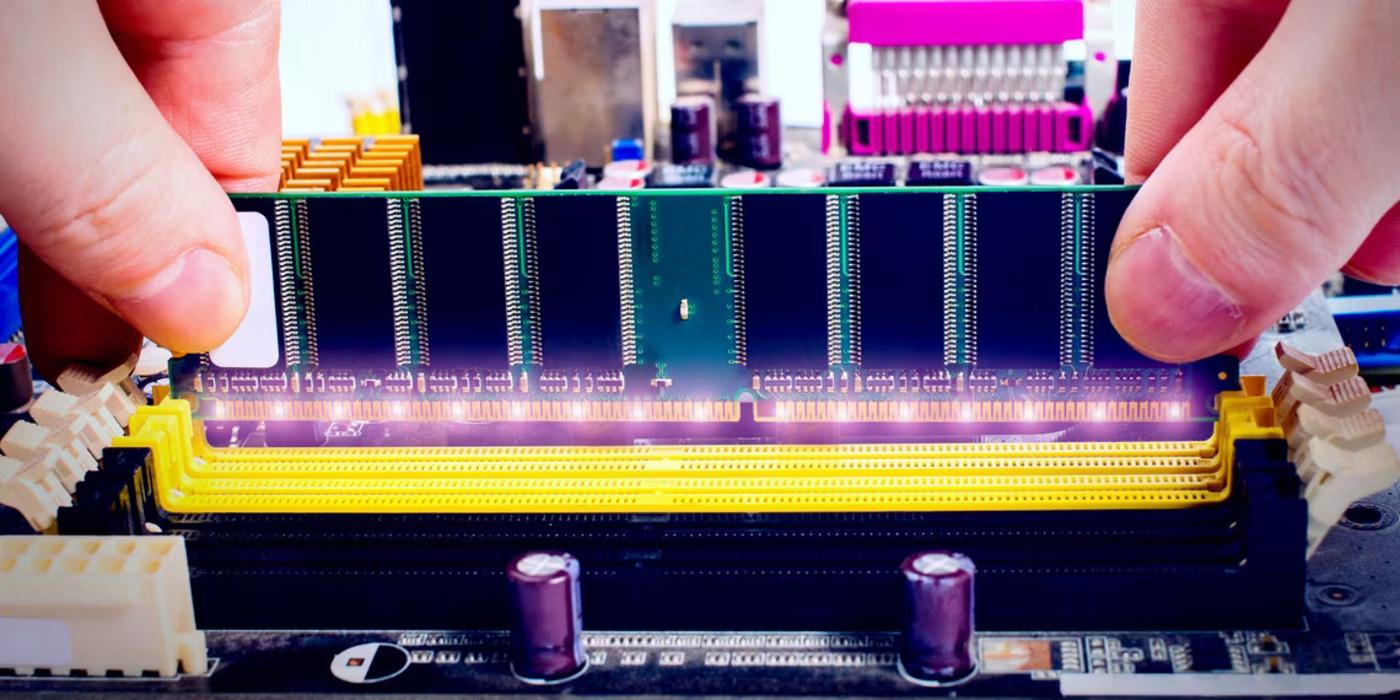
In a desktop computer, you can usually add or replace memory modules without too much trouble: open the case, locate the RAM slots, remove the old modules if necessary and place the new ones, respecting frequencies, voltages and the type of compatible memory (DDR3, DDR4, DDR5, etc.).
In laptops, things can get a bit more complicated. Many models allow you to upgrade the RAM by removing a bottom cover and accessing one or two modules, but there are cases where the manufacturer has soldered part or all of the memory to the motherboard , leaving at most one free slot… or none at all.
If your laptop has one soldered memory module and another slotted one, you might be able to add more memory to that free slot or replace the existing module with one of higher capacity, provided the system supports the total amount. In this case, it's advisable to consult the manufacturer's manual or official specifications to avoid disappointment.
When all the RAM is soldered in and you're already pushing the limits, there's not much you can do at the hardware level. On these types of machines, playing with virtual memory or using tricks like ReadyBoost can extend its lifespan somewhat, but if your usual tasks far exceed what the machine can handle, you'll probably have to consider replacing your laptop.
Besides increasing RAM, another very noticeable performance jump is switching from a traditional HDD to a much faster SSD, which reduces the penalty when Windows has to resort to virtual memory.
When does it make sense to increase virtual memory and when does it not?
Modifying the paging file size makes sense in very specific situations. For example, if you use memory-intensive applications (video editing, virtual machines , heavy image processing) and you notice that the system is giving you insufficient memory error messages despite having plenty of disk space.
In these cases, slightly increasing the virtual memory size can help you complete tasks that would otherwise result in the application or Windows itself crashing. However, keep in mind that this won't make the program run faster ; it will only give it more headroom to avoid freezing.
Increasing the page file size on a computer that's already underpowered and has a slow hard drive doesn't make much sense. The main symptom will be that everything runs in slow motion , because the system will be constantly reading and writing to the disk to compensate for the lack of RAM.
You also shouldn't rely on virtual memory as an excuse not to upgrade your physical RAM if you use your computer for demanding tasks (modern games, high-resolution video editing, complex design software). In those scenarios, what you need is more real RAM and fast storage, not a massive page file.
As a general rule, think of Windows virtual memory as a safety mechanism and a supplement that prevents the system from crashing at the first sign of trouble when you have too many applications open. For a smooth day-to-day experience, the determining factors will still be how much RAM you have and how fast your hard drive or SSD is.
In short, if your computer frequently runs out of memory, if Windows warns you about low virtual memory, and if you notice that your PC is very sluggish when opening several programs, moderately increasing the page file size can provide some small relief. However, the real improvement will come from adding more RAM and, if possible, installing an SSD . Virtual memory is fine for temporary fixes, but performance and the perceived speed depend primarily on the hardware you have installed.