- TestDisk allows you to restore corrupted partition tables and repair boot sectors on various file systems.
- PhotoRec is the ideal tool for rescuing individual files ignoring the file system, being effective even on formatted drives.
- Using disk images through prior cloning is the safest practice to avoid permanent data loss on damaged physical media.

Imagine you've spent the whole afternoon taking photos with your camera or saving important files to a microSD card, and suddenly your computer tells you the drive isn't formatted or that there's a read error. It's a nerve-wracking moment, especially if you made the typical beginner's mistake of disconnecting the card without using the Windows eject option, leaving the file system half-written.
Fortunately, there are open-source tools that are true technological miracles in these situations. We're talking about an inseparable duo: TestDisk and PhotoRec . While one handles the disk structure, the other goes straight for the files, allowing us to save the day even when the card seems to have completely failed or is showing up as unallocated space.

What exactly is TestDisk and what is it used for?
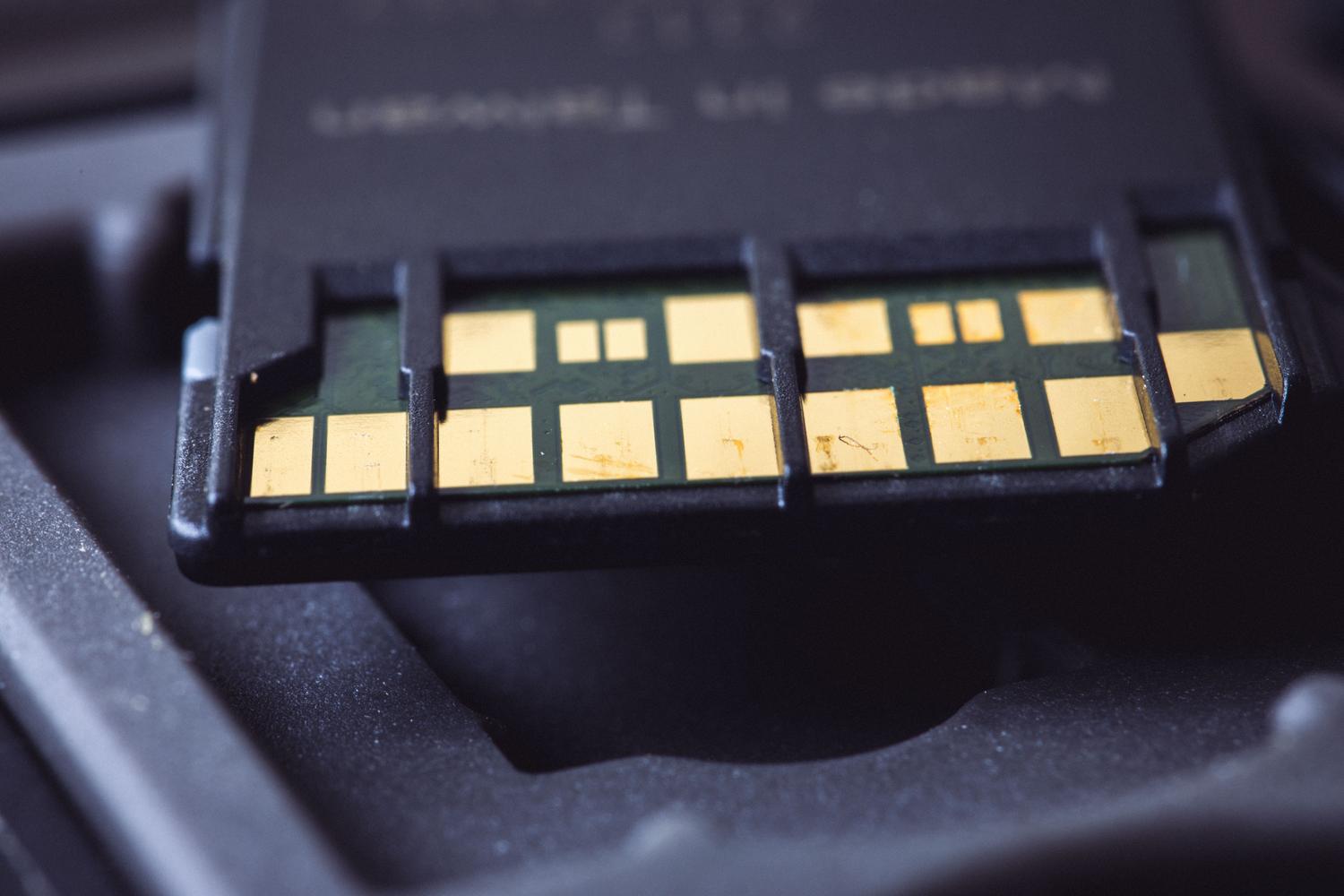
TestDisk is a cross-platform utility designed primarily for recovering deleted partitions and troubleshooting boot problems. It's especially useful when software has crashed, hardware has a minor defect, or the partition table has been accidentally deleted. Its most powerful feature is its ability to work with hard drive images , meaning you don't need to directly access the damaged drive if you have a cloned copy.
Among its most notable capabilities are the ability to repair the partition table , rebuild boot sectors in both FAT32 and NTFS, and locate the backup superblock in Linux systems such as ext2, ext3, or ext4. It can also recover files from deleted partitions, although for more complex cases involving individually deleted files, its companion program, PhotoRec, is usually recommended.

Step-by-step guide to using TestDisk

First, you should know that TestDisk doesn't have a pretty graphical interface; it works through a command-line interface , which might seem a bit daunting at first, but it's very intuitive once you get the hang of it. It's essential to always run it with administrator privileges so that it has full access to the hardware.
- Home and registration: When you open the program, the first thing to do is choose whether you want to create a log file. Select Create If you want to save a history of the steps taken.
- Device selection: You'll see a list of all connected units. Use the arrows to select yours. SD or USB memory and hit Enter.
- Partition type: The program usually detects the motherboard type automatically (such as Intel or EFI GPT). In the vast majority of cases, the option Intel will be the correct one.
- Analysis and search: Enter the menu Analysis and then choose Quick SearchTestDisk will now search for missing partitions. If the files reappear when you press the 'p' key, you're almost there.
- Deep search: If the quick search doesn't yield results, don't give up. Use DeeperSearch, which analyzes each cylinder of the disk and looks for backups of the boot sector.
- Change writing: Once you have located the correct partition, use the option Write to save the new structure to the disk. After restarting, your data should be accessible again.
Boot sector and MFT repair
Sometimes, the partition is there, but the system can't read it because the NTFS boot sector is corrupted. In these cases, TestDisk can compare the main sector with the backup. If the backup is valid, you can choose Backup BS to overwrite the damaged sector and restore the drive to working order.
If the problem is more serious and the MFT (Master File Table) , which is essentially the database where Windows file systems store the location of each file, is corrupted, you can use the Advanced menu and select Repair MFT . The program will attempt to rebuild the master table using its backup mirror.

PhotoRec: The lifeline for deleted files
When the file system is so corrupted that TestDisk can't repair it, PhotoRec comes in. Unlike its counterpart, PhotoRec ignores the file system and directly searches for data signatures on the disk. This means it can recover photos and videos even if the card has been reformatted.
On Windows, we have QPhotoRec , which is the version with a graphical interface and is much more user-friendly. You simply choose the drive, select the partition (even if it appears damaged), and define a destination folder on your computer. It's vital that you never save the recovered files to the same SD card, as this could overwrite the data you're trying to save.
You can configure PhotoRec to search only the free space (useful for accidentally deleted files) or to scan the entire disk . It can recognize hundreds of formats, from JPG and TIFF to RAW files from professional cameras like Canon's CR2.
Advanced tips and alternatives
For those working with Linux, a very safe technique is to use ddrescue before anything else. This tool creates a mirror image of the SD card, handling bad sectors without stressing the hardware. Once you have the .img file, you can run TestDisk on that disk image instead of working on the physical drive, preventing the memory from being permanently damaged during the process.
If you find the command line too complicated, there are commercial alternatives like PartitionAssistant Recovery. These tools offer a visual interface and deep automatic scans, though they aren't always free. However, for most users, the free combination of TestDisk and PhotoRec is more than enough to recover your data.
This set of tools allows you to fix everything from a simple read error to rebuilding entire partitions or extracting files from raw sectors, as long as the data hasn't been overwritten. The key is to act quickly, avoid writing anything new to the damaged memory, and ideally, work from a backup or cloned image to ensure maximum data security.
