- Identify sources of WiFi interference: physical obstacles, electronic devices, and neighboring networks saturating the same channels.
- Optimize the router's placement and, if necessary, use repeaters, mesh or PLC to improve coverage throughout the home.
- Adjust the settings: change channels, use the 5 GHz band when possible, and keep firmware and devices updated.
- Rely on WiFi analysis apps and features like QoS to minimize the impact of interference on critical uses.
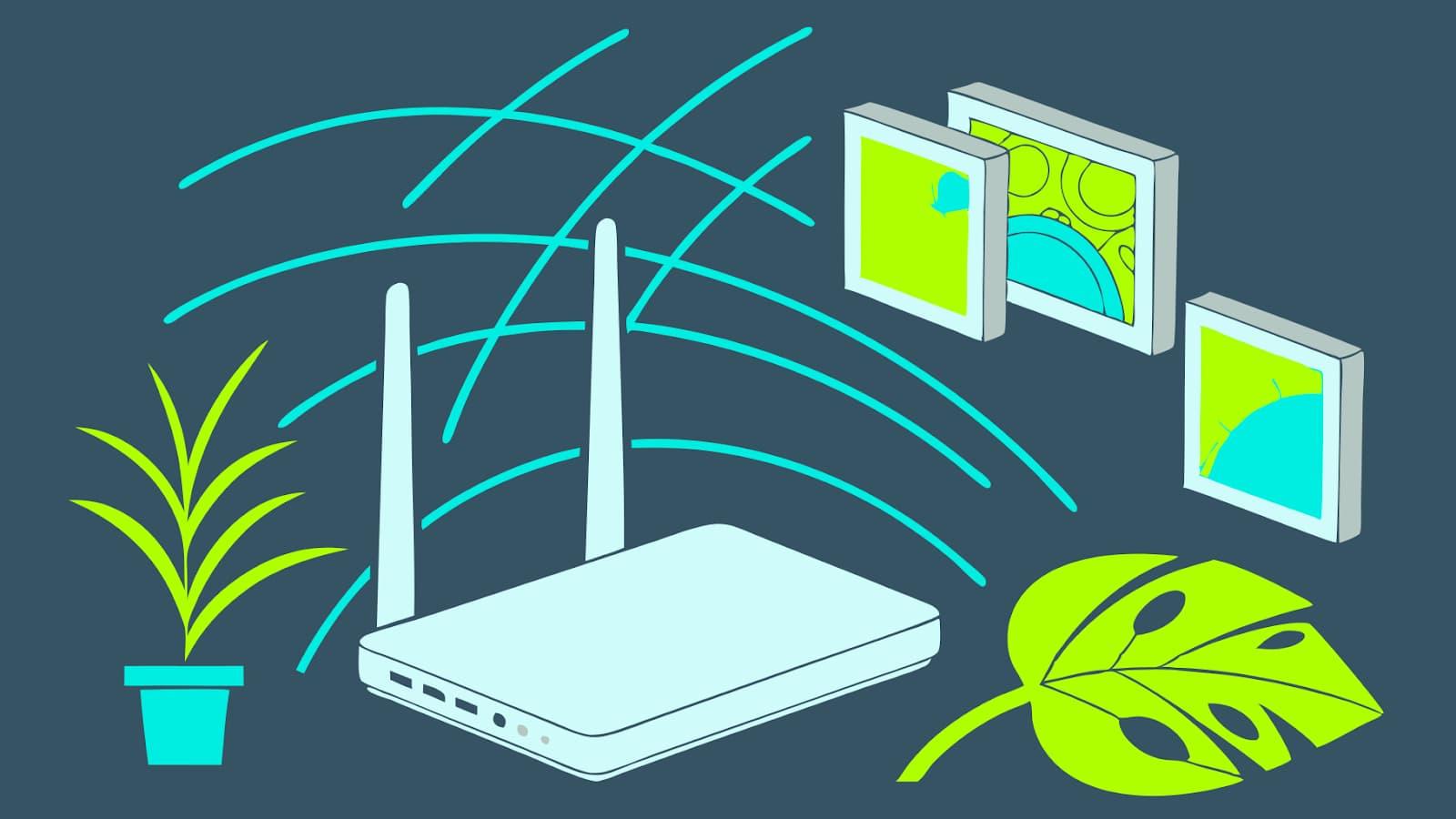
A connection that drops right when you're on an important video call or when you're finally settling down to watch your favorite show can drive anyone crazy. We often think it's the provider's fault or the router's configuration , but in reality, in many cases the problem lies in interference affecting the Wi-Fi network within the home.
Your wireless network shares space with walls, furniture, appliances, neighbors' networks, and all sorts of electronic devices. If all of that is interfering with your signal, it weakens, speed drops, and you experience disconnections. With a few clear guidelines and a good understanding of what causes these problems, it's relatively easy to reduce Wi-Fi interference and achieve a much more stable and faster connection.
What is WiFi interference and why does it disrupt the connection so much?
When we talk about WiFi interference, we're referring to anything that alters, blocks, or distorts the wireless signal traveling from your router to your devices. This signal travels as radio waves, and along the way, it encounters physical obstacles, other electronic equipment, and nearby networks that compete for the same frequencies.
At home, it's very common to have several networks and dozens of connected devices. Each one generates its own "noise" in the air. If too many are on the same channels or the same frequency band, saturation occurs, and the consequence is clear: higher latency, occasional outages, and speeds far below what your fiber optic plan offers.
Something most users overlook is that the 2,4 GHz band , widely used because it has greater range and penetrates walls better, is also the most affected. It's used not only by Wi-Fi networks, but also by many cordless phones, microwaves, baby monitors, Bluetooth speakers, and other gadgets that constantly add interference.
Besides electronic "noise," the layout of the home itself has a huge impact. Concrete, metal, large mirrors, or ceilings with metal insulation can turn some areas into veritable Faraday cages where the signal barely reaches , no matter how fast your internet connection is.
Physical obstacles: walls, ceilings, and objects that block WiFi
The structure of your home significantly impacts the performance of your wireless network. Thick concrete walls, columns, and the floors of older or very sturdy buildings absorb a large portion of the signal . The more layers the Wi-Fi signal has to pass through, the weaker it will be when it reaches your devices.
Metallic surfaces are even more treacherous. Aluminum window frames, metal cabinets, radiators, elevators on the same landing, or even some hidden structures in the walls act as barriers that reflect, deflect, or block radio waves . The result is those "shadow zones" where your mobile phone barely receives Wi-Fi coverage.
Large mirrors, metallic-coated glass, and other reflective elements not only block some of the signal; they can also bounce it in unusual directions. This can cause you to have a good connection in some corners, while just a meter away, the network drops out for no apparent reason unless you look closely at your surroundings.
In modern homes, the use of metal-insulated ceilings and walls to improve energy efficiency has become very fashionable. While this is fantastic in terms of thermal performance, from a connectivity standpoint, it can turn your house into a space where the router is constantly buzzing but the signal is trapped and barely reaches the room it's in.
For all these reasons, the router's placement is key. It's not enough to just plug it in where the technician left it and forget about it. A strategic location can make the difference between a useless network and a smooth network in every room.
Household devices that generate WiFi interference
Besides walls and ceilings, many devices in the home operate on frequencies similar to WiFi, especially 2,4 GHz. When these devices are switched on or run continuously, they can generate noise spikes that consume bandwidth and destabilize the connection.
The classic example is the microwave. This appliance operates very close to 2,4 GHz and, although its interference is usually localized and limited to the time it's running, if the router or mobile phone is nearby, you'll notice brief interruptions, loss of speed, or micro-cuts in video calls right when you're heating food.
DECT cordless phones, wireless security cameras, and baby monitors can be even more problematic. Many models also operate around 2,4 GHz, and by continuously transmitting audio or video, they fill the spectrum with signals that directly compete with your Wi-Fi.
Bluetooth speakers, smart TVs, and other connected devices aren't immune either. Although Bluetooth uses its own technology, it shares the same frequency band and can cause interference, especially if you have speakers or soundbars close to your router or a Wi-Fi access point.
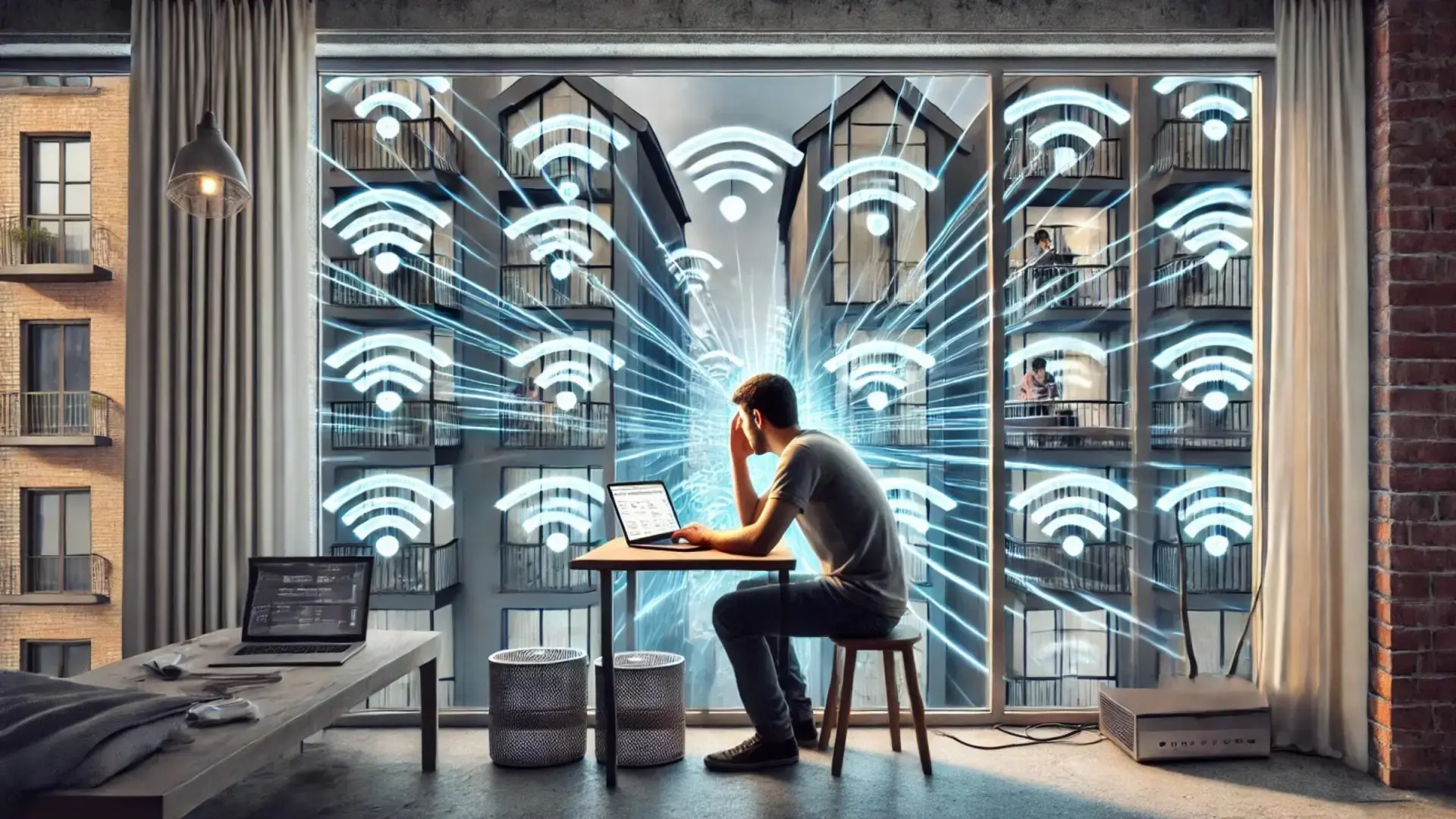
To all this, you have to add your neighbors' networks. In an apartment building, it's very common for your mobile phone to see an endless list of networks. Each one broadcasts on one or more channels within the same band. When many nearby routers use the same or overlapping channels, saturation occurs, and your network quality drops even if you're right next to the router.
Factors that increase interference and worsen WiFi
One of the most common mistakes is leaving the router hidden behind the TV, inside a cabinet, or lying on the floor next to an outlet. This poor placement increases obstacles and results in a weak signal throughout the house. Corners, closed cabinets, very low areas, or places right up against exterior walls are all locations to avoid ; in extreme cases, a WiFi signal booster can help cover the most problematic areas.
Another factor is the natural saturation of the 2,4 GHz band. Because it's the most compatible and offers the greatest range, most routers activate it by default, and many users don't even consider using the 5 GHz band. This results in dozens of networks competing for a limited number of channels , especially in multi-story buildings.
The number of devices connected simultaneously also plays a role. While not all of them cause interference in the strictest sense, they do contribute to network congestion. When you have computers, mobile phones, tablets, smart TVs, game consoles, smart home devices, and other devices connected at the same time, the router has to distribute the bandwidth, and any additional interference is much more noticeable.
Finally, there's a point that's often overlooked: many home routers come with basic firmware that isn't very optimized. Some ISPs and manufacturers offer more advanced firmware that can better manage collisions, select less congested channels, and prioritize certain types of traffic , thus reducing the impact of interference. Check the manufacturer's or ISP's website, as well as their manuals and technical specifications , to see if any updates are available.
How to detect if you have interference on your WiFi network
Before you start changing channels and moving furniture, it's worth finding out if you're really dealing with interference. A very common symptom is noticing clear speed variations throughout the day without you changing anything about your usage . For example, everything might be fine in the morning, but the connection might be sluggish in the afternoon or evening; these fluctuations are usually due to bandwidth variations caused by congestion or interference.
Another typical sign is sporadic disconnections, especially when making video calls, playing online games, or streaming content. If you experience micro-cuts, image freezes, or "unstable connection" messages in these situations, it's likely that the network is experiencing interference or overlapping channels.
High latency (the infamous "high ping") in online games or work conferences also fits this problem. Even if you have good download speeds in tests, latency that fluctuates wildly usually indicates that the router's signals are encountering obstacles, noise, or congestion along their path.
To clear up any doubts, you can use Wi-Fi analysis apps. Tools like WiFi Analyzer on Android, NetSpot, or inSSIDer on Windows and macOS let you see what networks are around you, what channels they're broadcasting on, and how strong each signal is. Thanks to this, it's much easier to discover if your router is broadcasting on a congested channel or one that overlaps with half the neighborhood.
Optimal router placement to reduce interference
One of the simplest and most effective changes is to relocate your router. Ideally, find a spot as close as possible to the center of the area where you want good Wi-Fi coverage . If you leave it in a corner or a secluded room, half your home will be without signal.
It also helps to place it up high: on a shelf, a tall piece of furniture, or a wall mount. From these positions, the signal propagates better upwards and outwards. If you leave it on the floor, much of the signal is wasted and absorbed by nearby furniture and structures, so you lose range without realizing it.
Whenever possible, avoid surrounding the router with obstacles: televisions, stereos, large furniture, concrete columns, mirrors, or metal surfaces. The clearer the space, the better. The idea is to minimize the number of "walls" the signal encounters just before it spreads throughout the house.
Another important recommendation is not to enclose the router inside furniture, drawers, or cabinets. Many people do this for aesthetic reasons, but connectivity suffers as a result. Wood, glass, and especially metal reduce signal strength, leading to very poor coverage in distant rooms.
If your network relies on repeaters, mesh systems, or powerline adapters with Wi-Fi, the logic is the same: they need to be placed at intermediate points where a good signal from the main router still reaches. If you place them too far away or surrounded by obstacles, they will only amplify an already weak signal, and the interference problems will persist . If you use powerline adapters , look into what they are and how they can be integrated into your network.
WiFi channel change and band selection
In addition to improving your location, it's crucial to check which channels your network is broadcasting on. WiFi networks work like a multi-lane highway: each channel is a lane. If many nearby routers are using the same lane, it creates a traffic jam. By changing channels, you can move to a less congested lane and restore a smoother connection.
The 2,4 GHz band has 14 theoretical channels, although 13 are used in Europe. Each channel is separated by 5 MHz from the next, but the actual signal bandwidth is greater, so the channels overlap. Therefore, it is recommended to use channels 1, 6, and 11, which are the only ones that do not overlap and minimize signal congestion.
To find the best channel for you, it's helpful to scan nearby networks using one of the apps mentioned earlier. You'll see a graph with network peaks and names. The idea is to choose, within your router's settings panel, a channel with the fewest nearby networks and the weakest neighboring signal strength.
The 5 GHz band offers many more channels and is generally less congested. This band provides higher speeds and is less susceptible to certain types of interference, although its range is shorter and it penetrates walls less effectively. It's a good option for devices close to the router that require high and stable performance, such as game consoles, Smart TVs, or desktop PCs.
Most modern routers allow you to configure the 2,4 GHz and 5 GHz channels independently, and some even scan automatically and choose the most suitable one. Even so, if you live in a densely populated area, it's usually worthwhile to occasionally access your router's control panel and manually adjust the channel if you detect new, noisy neighbors.
Tools and apps to analyze interference on your WiFi
To make informed decisions, it's very helpful to use WiFi analysis tools. These applications show in real time which networks are nearby, which channel each one is on, and how signal strength varies. With this snapshot of the environment, locating overlapping networks and congested channels is a matter of a glance.
On Windows and macOS, programs like WiFi Analyzer, NetSpot, and inSSIDer are among the most well-known. For more information on how to analyze them and what to look for, consult the guide to analyzing routers and access points . These programs allow you to view bar graphs or curves showing the networks in your area, their channel, signal strength, and, in some cases, heat maps if you move around your home with a laptop. This helps you identify rooms with poor coverage and better plan the placement of access points or repeaters.
On Android, WiFiman, WiFi Analyzer, and NetSpot are also among the most useful options. They visually show which channels are most congested and which are clearest. For most users, this is more than enough to decide whether it's worth changing the router's channel or activating the 5 GHz band if you're not already using it.
On iPhone, apps like AirPort Utility (by enabling Wi-Fi scanning in its advanced settings) or NetSpot offer a similar view. While the iOS ecosystem does somewhat limit their capabilities, they are still useful for identifying dominant neighboring networks and assessing what adjustments to make to your own network.
If your router includes "WiFi Radar" or environmental analysis features in its interface, take advantage of them. Many modern models directly display a list of nearby networks and their channels, and from the same panel, you can change channels with a couple of clicks without needing external apps.
Other settings and tricks to minimize WiFi interference
Beyond moving the router and adjusting the channels, there are a number of settings that can help significantly. One of them is disconnecting devices that you don't need to be online all the time. The fewer devices connected, the less overall congestion there will be, and the more headroom the router will have to handle interference spikes.
You can also try not to use certain devices at the same time when you need maximum stability. For example, avoid using the microwave while you're on a critical work video call or while playing online. It's not mandatory, but these kinds of coincidences can make the difference between a smooth session and one full of lag.
If it's been years since you last updated your router's firmware, it's worth checking the manufacturer's or ISP's website. Many release new versions that improve interference management, overall performance, or security. With a simple update process, you can get the most out of your existing hardware without spending a penny . Also, check the resources and guides for your specific router model.
In some cases, especially if you're using desktop computers or older equipment, changing the network adapter can also help. Modern USB adapters with external antennas often offer better reception than older internal or integrated cards, allowing your computer to communicate with the router more effectively and reliably . Consider a PC Wi-Fi antenna if you need even more range.
Finally, it's advisable that your entire network ecosystem be relatively homogeneous. Although standards allow for mixing brands without problems, sometimes routers and adapters from the same manufacturer can benefit from their own optimizations that slightly improve performance and compatibility.
Advanced solutions: WiFi mesh, PLC and traffic prioritization
When a house is large, has several floors, or the layout is complex, a single router, even if perfectly positioned, may not be enough. In these cases, mesh WiFi systems are a very interesting option: they create a unified network with multiple nodes that coordinate to offer homogeneous coverage and better manage interference.
Powerline adapters with integrated Wi-Fi can also be useful, especially if you have a modern electrical system. They carry the network signal through your electrical wiring to other areas of your home, creating a new access point. However, if your electrical system is older or you share a line with neighbors, performance may not be as good and you might notice some interference . If you're interested, find out what they are and how they work.
Traditional WiFi repeaters remain an affordable option, but their placement needs to be strategic. They must receive a strong signal from the main router; otherwise, they'll only amplify an already weak signal. By placing them midway with minimal obstructions, they can help extend coverage to rooms where the network previously had little to no reach.
Another very useful advanced tool is Quality of Service, or QoS. Many routers allow you to prioritize certain types of traffic (video calls, online games, streaming) or even specific devices. This way, even with occasional interference or usage spikes, critical applications maintain acceptable performance and are less affected by slowdowns.
At some point, if your router is very old or very basic, it might be worth considering an upgrade or even a new internet plan. Modern routers with Wi-Fi 6 handle many more simultaneous connections, improve efficiency in congested environments, and come standard with features designed to work seamlessly with neighboring networks, IoT devices, and all the other features of a modern connected home.
When you understand what causes chaos in your wireless network and apply these adjustments, the user experience changes radically: a good router location, the correct channel, intelligent use of the 2,4 and 5 GHz bands, some help from repeaters or mesh Wi-Fi, and a little order in your devices are enough to make Wi-Fi interference go from being a constant headache to an almost anecdotal detail in your digital daily life.

Table of Contents
- 1 What is WiFi interference and why does it disrupt the connection so much?
- 2 Physical obstacles: walls, ceilings, and objects that block WiFi
- 3 Household devices that generate WiFi interference
- 4 Factors that increase interference and worsen WiFi
- 5 How to detect if you have interference on your WiFi network
- 6 Optimal router placement to reduce interference
- 7 WiFi channel change and band selection
- 8 Tools and apps to analyze interference on your WiFi
- 9 Other settings and tricks to minimize WiFi interference
- 10 Advanced solutions: WiFi mesh, PLC and traffic prioritization