- Choosing the right WiFi antenna for your PC involves checking the wireless standard, frequency band, and type of USB port available.
- Network security depends on the encryption of the router and the adapter, with WPA2 or WPA3 with AES being recommended.
- There are compact formats, models with high-gain antennas, and outdoor solutions for links between homes.
- By combining USB antennas, routers with OpenWrt and PoE CPEs, stable WiFi links can be created between two houses or premises.
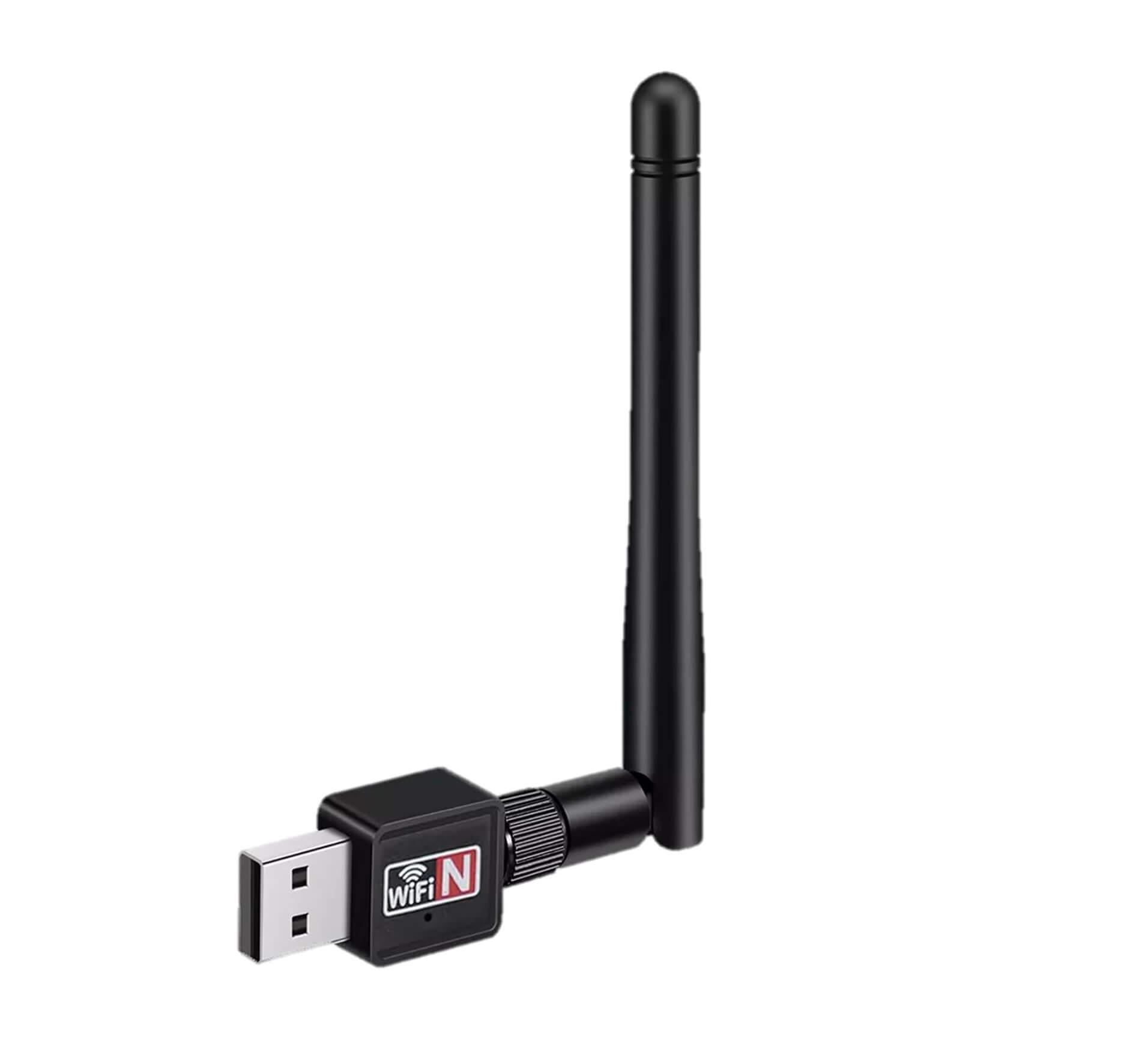
If your computer is still tethered to a network cable or your wireless signal is weak and unreliable, a WiFi antenna for your PC can completely transform your connection experience . You don't need to be a tech whiz or spend a fortune: with the right adapter, you can go from constant disconnections to a stable network for working, playing online games, or streaming high-definition shows.
In the following lines, you'll find a comprehensive guide to WiFi antennas, USB adapters, and solutions for extending your signal between homes or businesses . Everything is explained clearly, with real-world examples, and includes key concepts such as WiFi standards, frequency bands, antenna types, security, and different ways to share internet remotely.
What exactly is a PC WiFi antenna and why do you need one?
A PC WiFi antenna or adapter is a device that allows your computer to connect to the internet wirelessly using your router's signal . It acts as a bridge between the WiFi network and your computer's port (usually USB) so you can browse the internet without using an Ethernet cable.
Many desktop computers and older laptops have a built-in Wi-Fi card that is either nonexistent or very basic, so a good external adapter offers greater range, stability, and speed . Even on modern computers, a well-chosen USB dongle can significantly improve reception compared to the built-in Wi-Fi.
The most common models are stick or dongle-type adapters, which connect like a USB flash drive and take up very little space . There are also versions with external high-gain antennas or even outdoor-ready housings designed for long-distance links.
Besides connecting to your home router, a good WiFi antenna can be used to take advantage of municipal WiFi networks , public access points, or to share a connection between two nearby homes . In these scenarios, the quality of the antenna and its orientation make all the difference.
WiFi standards, bands and USB ports: the technical details that really matter
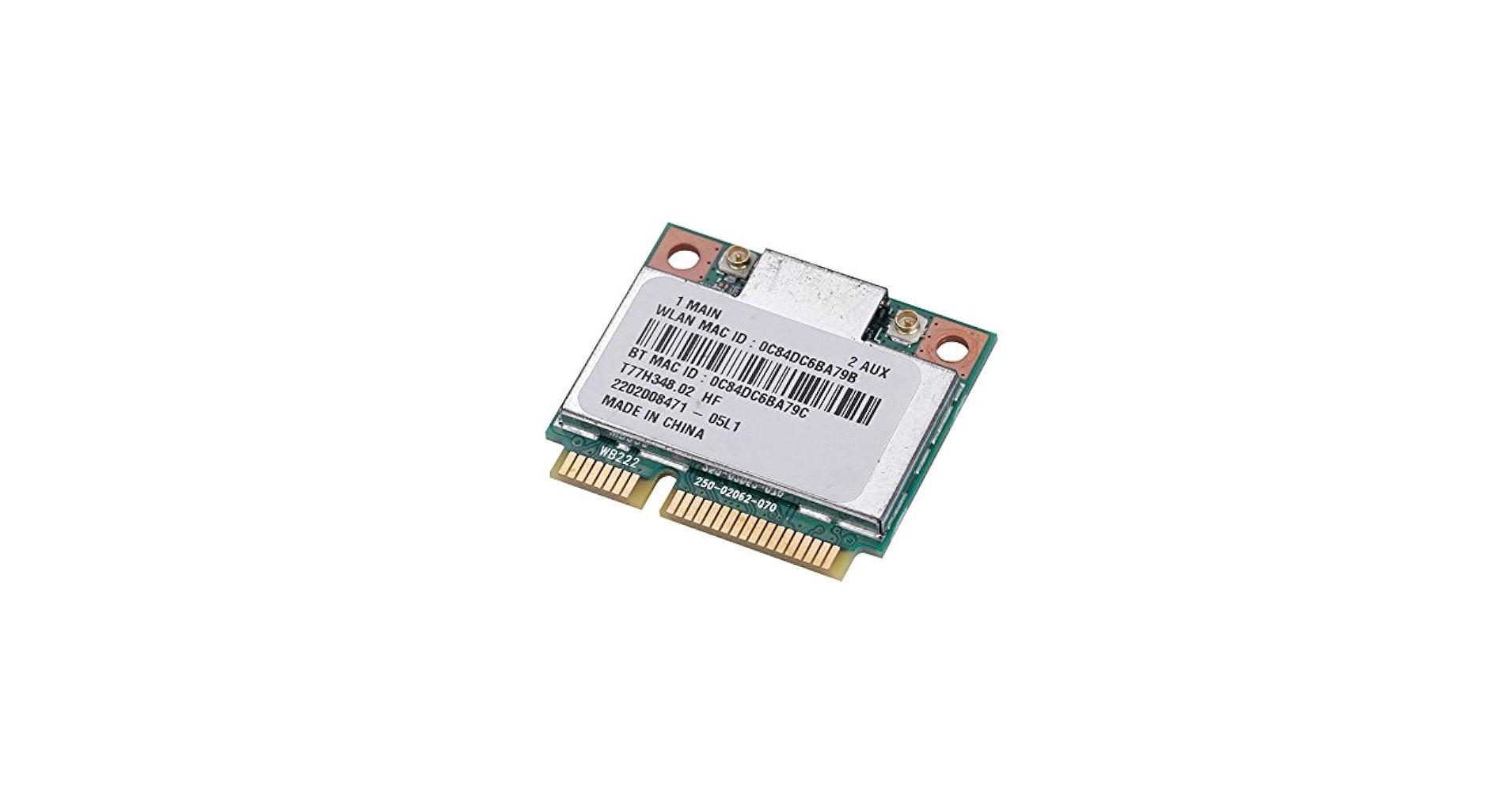
When choosing a WiFi antenna for your PC, one of the critical points is the wireless standard it supports . Although the names might sound like jargon, it's important to be familiar with them to avoid ending up with a less compatible antenna.
Today you'll find several generations of WiFi: WiFi 4 (802.11n), WiFi 5 (802.11ac), WiFi 6 (802.11ax) , WiFi 6E, and the recent WiFi 7. WiFi 5 is still the most widespread, but devices with WiFi 6 and 6E are becoming more common because they offer better transfer speeds, greater capacity for multiple devices simultaneously, and much more robust performance when the network is congested.
To truly take advantage of these modern standards, your router and adapter must be compatible with the same WiFi generation . However, a WiFi 6 dongle is backward compatible with previous versions, making it a good investment for the future even if your router is still WiFi 4 or WiFi 5.
It's also crucial to consider the frequency band. For years, almost everything operated on 2,4 GHz, but the 5 GHz band has become very popular due to its higher speed and reduced interference . However, its range is somewhat shorter than that of 2,4 GHz, so in large houses or those with many walls, it's sometimes more advantageous to continue using 2,4 GHz.
Ideally, whenever possible, you should opt for a dual-band adapter that works simultaneously with 2,4 GHz and 5 GHz . This allows you to choose the band based on the distance to the router, obstacles, and the number of connected devices.
The other major technical factor is the connection port. Most current adapters use USB, and to avoid bottlenecks, it's best to use USB 3.0 or higher, provided your computer supports it . A USB 2.0 port is theoretically limited to around 60 MB/s, while USB 3.0 can reach up to 640 MB/s, so the difference is noticeable with WiFi 5 or WiFi 6.
WiFi network security: what encryption should you use with your antenna
Having a powerful antenna is of little use if your network is open to anyone. That's why it's important to check that both your router and adapter support modern encryption systems to prevent unauthorized access.
The most widespread and recommended standard today is WPA2-PSK with AES encryption . However, WPA3 is becoming increasingly common, further strengthening protection against brute-force attacks and improving security on public or guest networks.
If you do a quick review, security methods can be ordered from best to worst like this: WPA3 + AES, WPA2 + AES, WPA + AES, WPA + TKIP/AES, WPA + TKIP, WEP, and finally, passwordless networks . The lower it is on the list, the easier it is to crack.
Almost any reasonably modern USB WiFi adapter supports at least WPA/WPA2 . If your router doesn't even support WPA, it's best to start thinking about replacing it, because it's completely outdated in terms of both security and performance.
Antenna sizes, formats and types: how to choose design and range
The market offers everything from tiny WiFi adapters to outdoor units the size of a small loaf of bread. The main difference isn't just aesthetic: the design affects antenna power, portability, and effective coverage.
Compact USB-style dongles are perfect if you want something discreet that you can leave plugged into your laptop without it being a nuisance . They're ideal for everyday use, travel, or devices where you don't want an antenna sticking out.
If you prioritize performance over aesthetics, there are larger models that incorporate technologies like MIMO (Multiple-Input Multiple-Output) or Beamforming . MIMO utilizes multiple internal antennas to improve speed and stability, while Beamforming directs the signal towards the device, helping to maintain a connection in environments with interference.
Some adapters include one or more external antennas, sometimes adjustable. Don't be fooled: a larger antenna doesn't always guarantee a better signal , but the dBi (decibel gain) value is important. The higher this value, the more concentrated the signal is in a specific direction, and therefore, the better the reception along that axis.
Regarding the transmission pattern, we primarily distinguish between omnidirectional and directional antennas. Omnidirectional antennas transmit and receive in 360 degrees , making them useful when you don't know the direction of the signal or want to cover an entire room. Directional antennas, such as panel antennas, concentrate the signal towards a specific point, achieving greater range in that direction at the expense of covering a smaller angle.
Representative models of USB WiFi adapters and their recommended uses
Among the numerous USB adapters on the market, some models illustrate very well what each type of device is for and what you can expect in terms of performance and uses.
A classic example of a compact adapter is the TP-Link TL-WN823N . Shaped like a small USB flash drive, it's easy to set up and perfectly adequate for tasks like video streaming, voice calls, and light online gaming. It also includes a WPS button for one-touch encrypted connection setup and can function as a small hotspot, making it a very attractive option in terms of value for money.
For older equipment or situations where signal range is more important than discretion , a model with a high-gain adjustable antenna like the D-Link DWA-127 is a great fit. It offers easy installation, a button for quick WPS encryption, and significantly better coverage than a tiny USB adapter.
If you need more speed and flexibility, a dual-band dongle like the TP-Link Archer T2U combines a compact and robust design with support for both 2,4 and 5 GHz. Designed for high-definition video streaming and online gaming, it features advanced WPA/WPA2 encryption and is compatible with systems such as Windows, macOS, and various Linux distributions.
Another example of an adapter that takes advantage of USB 3.0 is the Trendnet AC1200 , which offers dual-band connectivity and a good balance between size and performance. It allows you to connect to the router via WPS with a single touch, simplifying setup for users who don't want to deal with complex menus.
Within the mid-to-high-end range, a model like the Linksys WUSB6300-EJ offers a slightly larger design, with USB 3.0 and dual-band connectivity geared towards intensive downloads, HD streaming, and multiplayer gaming. It uses WPA/WPA2 encryption to protect the network, which is compatible with most modern home routers.
When the goal is to go a step further in coverage and stability, devices like the Netgear A7000-100PES come into play . It integrates a high-gain antenna with four internal antennas and technologies like beamforming. Designed for connecting via Wi-Fi to powerful routers, it allows you to enjoy online gaming and high-resolution streaming, and it's easily controlled with a physical button or its own app on Windows and macOS.
Related basic concepts: adapters, access points, and WiFi modes
When you move from a simple USB antenna to more comprehensive internet sharing solutions, a series of terms emerge that you should be familiar with. They all revolve around how the wireless network is organized and what role each device plays.
To begin, terms like WiFi adapter, WiFi antenna, WiFi receiver, or WiFi dongle usually refer to devices that allow a PC to receive internet access via WiFi . Most nowadays connect via USB and have their own integrated or external antenna, with sensitivities ranging from a few dBi to very high values designed for long distances.
A wireless access point (PA or AP) is the device that broadcasts the Wi-Fi network to which mobile phones, laptops, tablets, and other devices connect. It can be a router with integrated Wi-Fi or a dedicated device. Its main function is to link the wireless network (WLAN) with the wired network (LAN), acting as a gateway to the internet.
Many routers and CPEs (client premises equipment) support what's called WiFi client mode . In this mode, the router doesn't broadcast the main network, but instead connects via WiFi to another access point as if it were just another computer, and from there, it distributes internet access via cable or another secondary WiFi network.
There's also repeater mode, or Wi-Fi range extender/repeater , which extends the coverage of the main router. These devices connect to the existing Wi-Fi network and broadcast another network with the same or a different name, extending the range by about 30 to 50 meters indoors, provided they are placed in an area where the original signal is still strong.
When a router functions as an access point (AP) and establishes the main wireless network, we call it infrastructure mode . This is the most common mode: the router creates the network, you choose the name (SSID), configure the security (WPA, WPA2, etc.), and connect your devices.
Wireless Distribution System (WDS) mode creates a bridge between two separate Wi-Fi networks, seamlessly connecting them. It's a type of wireless link between routers, although it's not a completely uniform standard and can sometimes cause problems when different brands are used.
There's also a hybrid approach: WiFi/WDS bridge mode with an access point . In this mode, one access point simultaneously bridges another access point and broadcasts a new WiFi network to clients. This is practical, but it can reduce overall performance if the hardware is under-resourced.
Finally, the term PoE (Power over Ethernet) frequently appears , referring to the system that allows a device to be powered through the RJ45 network cable itself—a key concept in telecommunications in buildings and ICT networks . This is crucial for installing access points or CPEs outdoors (on facades, masts, rooftops) without relying on a nearby power outlet, as power and data travel over the same cable for up to 100-120 meters.
How to bring internet from one house to another using WiFi
Beyond improving coverage within a home, many people are looking to share the connection between two nearby houses , an annex, an adjacent business, or several workstations. This is where specific long-range solutions come into play.
Many municipalities, associations, and businesses have free Wi-Fi hotspots with limited range, but these can be easily connected using suitable equipment and maintaining the clearest possible line of sight . Under favorable conditions, it's relatively easy to establish links between 100 and 500 meters, and even several kilometers with the right hardware.
The 2,4 GHz frequency generally performs very well in open fields and rural areas, where there is little interference and few networks competing for the same channels. However, in urban centers saturated with Wi-Fi networks and other devices that generate electromagnetic fields , it is common to experience dropouts and reduced speeds.
In this context, the 5 GHz band (WiFi AC and later) becomes especially important, as it operates in a much less congested spectrum and allows for more stable and faster connections , provided the distance and obstacles are not extreme. For home-to-home links, 2,4 GHz is often combined for longer spans and 5 GHz for shorter, cleaner spans.
First tips to improve the WiFi coverage of your main router
Before getting into complex solutions, it's worth taking some basic steps to get more out of the router you already have at home . Changing a couple of things often makes a big difference.
The first thing to consider is location: try to place the router as high as possible and near a window , facing the area or house where you want to extend the signal. Thick walls, appliances, and metal structures can interfere with coverage.
If your router has detachable rod antennas, you can replace them with directional or higher-gain antennas . This extends the wireless range to the area where you need a stronger signal, concentrating some of the power in that direction.
In cases where you want to share a connection with another nearby home, it also helps to check the WiFi channel settings and avoid the most congested channels in your area , something you can check with WiFi analysis apps on your mobile phone.
Three practical solutions for linking two houses via WiFi
If your router's basic settings aren't enough, you can try several more advanced, but perfectly manageable, configurations. We'll look at three commonly used approaches that allow you to access the internet from a distance and distribute it across your own network.
1. Powerful USB WiFi antenna connected to the PC
The simplest option is to use a high-gain USB WiFi antenna connected directly to a computer . A typical example would be a powerful, weatherproof outdoor panel antenna with a long USB cable for mounting in a window facing the access point.
These types of antennas are pointed towards the remote router or access point (which could be in another house or a municipal Wi-Fi hotspot) and typically offer very stable connections in open spaces, residential areas, or rural environments . They usually use well-known chips (such as the RT3070 or RTL8187) that work very well on Windows, macOS, and various Linux distributions.
The main advantage is that installation is extremely simple: connect via USB, install drivers if necessary, and scan for networks . Furthermore, placing the antenna as close as possible to the window improves the line of sight and, consequently, the effective range.
The main drawback is that this solution only provides internet access to a single computer . If you want to connect mobile phones, tablets, game consoles, or more PCs, you'll need to find a system that distributes the signal throughout the house.
2. USB WiFi antenna plus router with OpenWrt firmware
The second approach involves combining a long-range USB WiFi antenna with a router that supports working with that USB adapter and can repeat the connection . Many models with OpenWrt or similar firmware allow this type of configuration.
In practice, the USB antenna is first connected to the remote network (your neighbor's, another house's, a public access point) and, once a stable connection is verified, the antenna is connected via USB to the OpenWrt router . This router then rebroadcasts the internet signal, both via Wi-Fi and Ethernet, throughout your home.
This setup has the advantage that all the devices in your home can connect to the new internal WiFi network as if it were a conventional router, without depending on whether a specific PC is turned on or sharing a connection.
The main limitation is that everything depends on the quality and stability of the Wi-Fi connection established between the USB antenna and the remote access point . If the signal is weak or suffers from a lot of interference, the experience will be negatively impacted, even if the indoor router is very good.
3. Outdoor WiFi station with PoE: CPE as client or repeater
The third solution, and the most reliable when connecting two houses, involves using a PoE-powered outdoor CPE or router . These devices are designed for outdoor use, mounted on a wall, mast, or roof, and connect via Ethernet cable to an indoor router.
The CPE is typically configured in WiFi client mode , connecting over a long distance to the main router and carrying the connection to your home via Ethernet cable. From there, an internal router acts as an access point and distributes internet to all your devices.
Some CPEs also support repeater mode, splitting into two wireless interfaces: one that functions as a long-range client and another that creates its own new Wi-Fi network . In any case, many installers recommend using only one mode on the CPE and, if desired, adding another indoor access point to avoid performance degradation.
This type of installation is very stable once configured: the devices remember the settings even after power outages or restarts . Furthermore, the connection can be further enhanced by installing a CPE in each home: one in AP mode broadcasting over long distances and the other in client mode, thus creating a robust wireless bridge for sharing the network between two homes or businesses.
Compatibility is broad, as they usually work seamlessly with Windows, macOS, and other systems via the indoor router , and PoE allows you to install the CPE in high locations without worrying about having a socket nearby.
By combining a good PC WiFi adapter with a basic understanding of standards, bands, security, and antenna types, you can go from an unstable and slow connection to a much faster, more secure network with greater range . Whether you simply want to improve the signal on your desktop or extend internet access to a nearby house, there's a solution tailored to every scenario, from a simple USB dongle to long-distance links using CPE and PoE.
